How to Check Open Ports in Mac Terminal: A Step-by-Step Guide
Discover how to check open ports in Mac Terminal with step-by-step commands to manage network activity and security on your macOS device.
You notice your Mac behaving oddly when trying to connect to a network service, or you're concerned about potential unauthorized access. Understanding which ports are open and what processes are using them is essential for troubleshooting and security management.
This article explains how to check open ports in Mac Terminal using built-in commands, with clear context on what these ports mean and how to interpret the results. You'll learn practical steps to identify open ports, find the associated processes, and manage ports effectively on your macOS device.
Key takeaways
- Use the lsof -i command to list open network ports and related processes.
- netstat -an provides a comprehensive view of all network connections and listening ports.
- Knowing your IP address in Terminal helps confirm which network interfaces are active.
- Identifying processes by port number aids in pinpointing service or application usage.
- Opening or closing ports requires careful consideration of security implications.
Before you start: What you need to check open ports on Mac Terminal
To check open ports on your Mac using Terminal, you need some basic preparations. First, you should have at least a basic familiarity with the macOS Terminal or be willing to learn simple command line operations. Terminal is a powerful tool that allows you to interact directly with your system’s networking features.
You must use an administrator or user account with appropriate permissions to run commands that list open ports and associated processes. Some commands require elevated privileges, so having access to an account that can use sudo is important.
Understanding fundamental networking concepts like IP addresses and port numbers will help you interpret the results accurately. Ports are numerical identifiers used by network services to manage communication, and knowing which ports are commonly open or closed on your machine is helpful.
The Terminal app is included by default in macOS and located in the /Applications/Utilities folder. You can launch it from Finder or by searching with Spotlight. Optional third-party tools exist but are not necessary for basic port checks.
- Open Finder and navigate to Applications > Utilities. You should see the Terminal app icon there.
- Double-click Terminal to open it. A new window with a command prompt appears, typically showing your username and Mac name.
- Type lsof -i or netstat -an and press Enter. You should see a list of network connections or open ports displayed.
How to open Terminal in macOS
Accessing the Terminal app on your Mac can be done in several ways depending on your preference and speed requirements.
- Using Spotlight Search: Press Command (⌘) + Spacebar to open Spotlight. Type "Terminal" into the search bar. You should see the Terminal app appear as the top hit. Press Return to launch it. The Terminal window will open, ready for commands.
- Via Finder: Click on the Finder icon in your Dock to open a Finder window. From the menu bar, select Go > Utilities. In the Utilities folder, locate and double-click the Terminal app. This opens a new Terminal window.
- Using Launchpad: Click the Launchpad icon in your Dock or pinch with four fingers on your trackpad to open Launchpad. In the search box at the top, type "Terminal." Click the Terminal icon to open it.
- Setting Up a Dock Shortcut: Once Terminal is open, right-click (or Control-click) its icon in the Dock and select Options > Keep in Dock. This creates a permanent shortcut for easy future access.
Each method provides quick access, but Spotlight is often the fastest for experienced users, while Finder and Launchpad offer more visual navigation. Keeping Terminal in the Dock saves time if you use it frequently.
How to check open ports using the lsof command
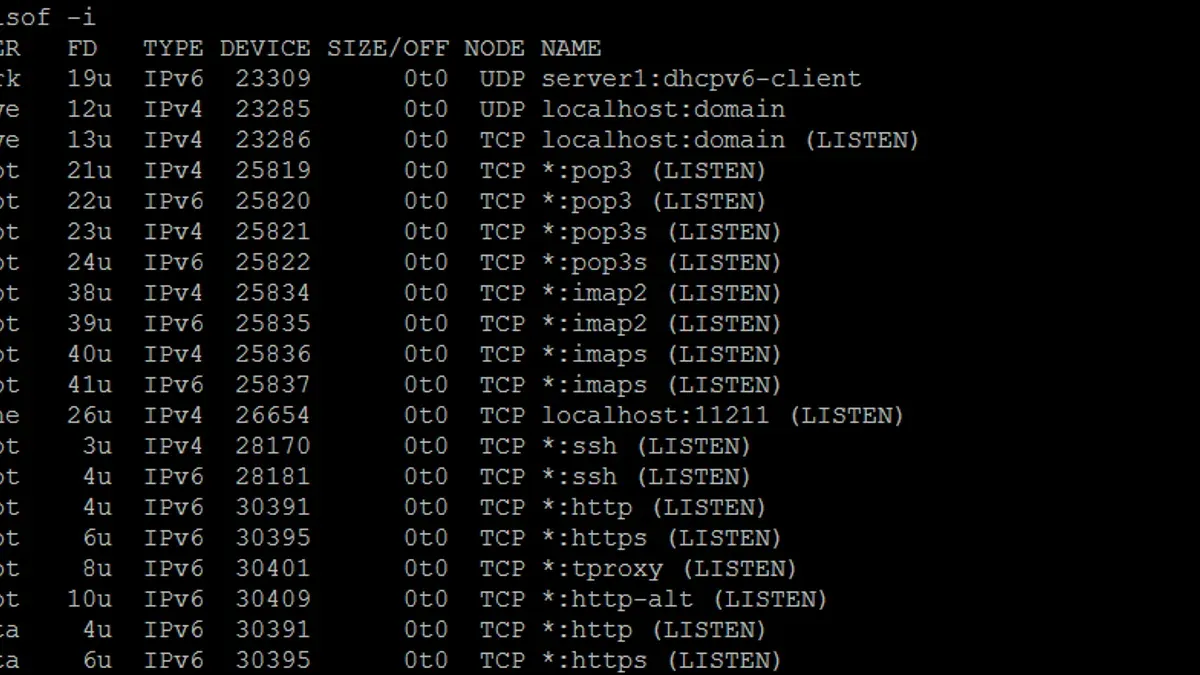
The lsof command lists open files and the processes using them, including network ports on your Mac. It helps identify which ports are open and which applications are using them.
- Open Terminal.
- Type lsof -i and press Enter. This lists all open network connections across TCP and UDP.You should see output with columns like COMMAND, PID, USER, FD, TYPE, DEVICE, SIZE/OFF, NODE, and NAME.
- To filter for TCP ports only, type lsof -i tcp and press Enter.This narrows the list to TCP connections, showing which processes are listening or connected on TCP ports.
- For UDP ports, use lsof -i udp.
- Review the COMMAND column to identify the application name, PID for its process ID, and USER for the account running it.The NAME column shows the protocol, IP address, and port number, such as TCP *:80 (LISTEN), indicating port 80 is open and listening for connections.
- To check a specific port, use lsof -i:portnumber (replace portnumber with the number you want to inspect).This shows the process using that specific port, if any.
Sample output for lsof -i tcp might look like this:
| COMMAND | PID | USER | FD | TYPE | DEVICE | SIZE/OFF | NODE | NAME |
|---|---|---|---|---|---|---|---|---|
| httpd | 1234 | root | 4u | IPv6 | 0x123abc | 0t0 | TCP *:80 (LISTEN) | |
| 5678 | user | 15u | IPv4 | 0x456def | 0t0 | TCP 192.168.1.5:51423->172.217.14.238:443 (ESTABLISHED) |
This output tells you which ports are open (LISTEN) and which have active connections (ESTABLISHED), along with the responsible processes. Using lsof gives you a detailed view of network port usage on your Mac.
How to check open ports using the netstat command
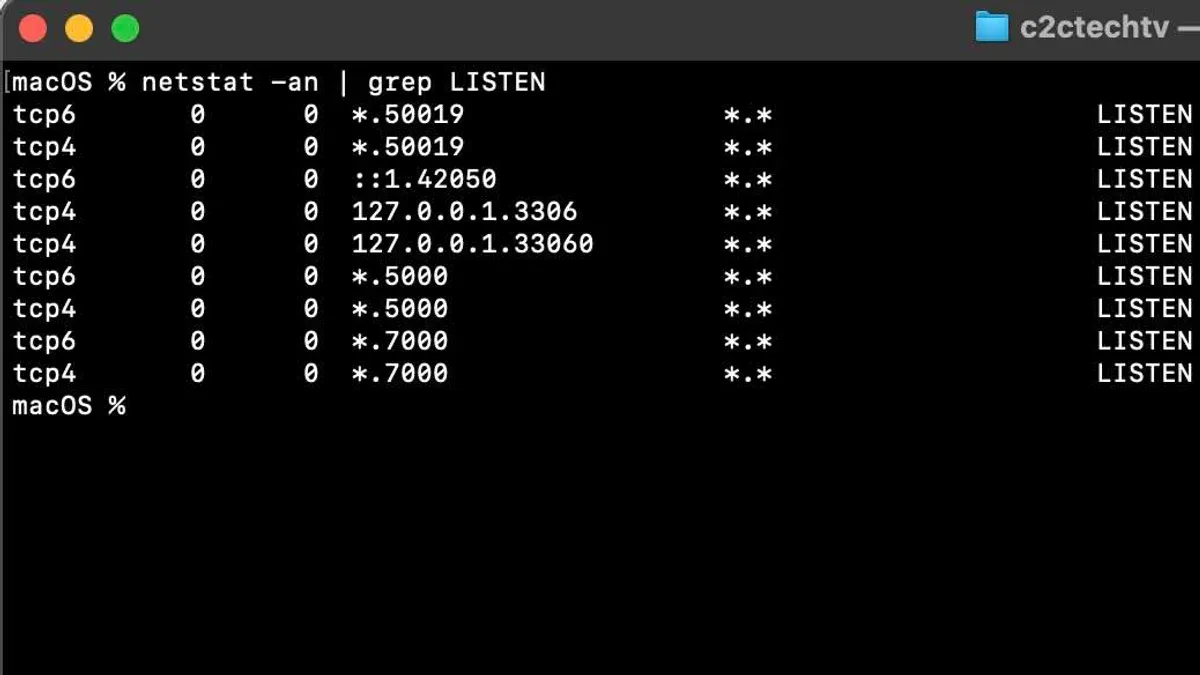
An alternative to lsof for viewing open ports on your Mac is the netstat command. It provides detailed information about network connections, including the state of each port.
- Open Terminal and type
netstat -anv | grep LISTEN, then press Enter. This lists all ports currently in a LISTEN state, indicating they are actively waiting for incoming connections. - Review the output lines, which show the protocol (TCP or UDP), local address, and port number. Ports in the LISTEN state are open and ready to accept connections.
- Observe other states like ESTABLISHED (active connections) and CLOSE_WAIT (connections waiting to close) by running
netstat -anvwithout filtering. These states help you understand ongoing network activity beyond just open ports. - Compare the ports listed as LISTEN by
netstatwith those shown bylsof -i. Typically, the same open ports appear in both outputs, but netstat focuses on connection states while lsof identifies the owning processes.
Using netstat complements lsof by providing a broader view of port states and connection statuses, helping you better assess which ports are open and how they are being used.
How to check your IP address in Mac Terminal
Knowing your Mac’s IP address is key to understanding which network interfaces are active and how open ports relate to your network services. The Terminal’s ifconfig command provides detailed information about all network interfaces and their IP addresses.
- Open Terminal on your Mac.
- Type ifconfig and press Enter. You will see output listing all network interfaces such as en0, en1, lo0, and more.
- Note that lo0 is the loopback interface with IP 127.0.0.1, which is local to your Mac and not used for external network traffic.
- Compare the IP address you find with the ports listed in previous sections to understand which IP and interface the open ports are bound to, helping you troubleshoot or secure your network services.
Look for the interface connected to your network, often en0 for Ethernet or Wi-Fi. Under this interface, find the line starting with inet, which shows the IPv4 address. For example:
en0: flags=8863<UP,BROADCAST,SMART,RUNNING,SIMPLEX,MULTICAST> mtu 1500
inet 192.168.1.100 netmask 0xffffff00 broadcast 192.168.1.255
Here, 192.168.1.100 is the IP address assigned to that interface.
How to identify which process is using a specific port
To find out which application or service is using a specific port on your Mac, you can use the lsof command with the port number to get detailed process information. This helps you understand which process occupies a port you want to investigate or free up.
- Open Terminal on your Mac.
- Type
lsof -i:8080and press Enter. Replace8080with the port number you want to check. You should see a list of processes using that port. - Look for the COMMAND column to identify the application name, and the PID column for the process ID.
- To match the PID with running applications, open Activity Monitor from Applications > Utilities, then use the search bar to enter the PID. This shows the process details like name and resource usage.
- If you need to stop the process, you can select it in Activity Monitor and click the Quit (X) button, or use Terminal with
kill [PID]to terminate it.
For example, running lsof -i:8080 might return a process named httpd with PID 1234, indicating the Apache web server is using port 8080. You can then decide whether to stop or configure that process accordingly.
How to open a port on Mac if needed
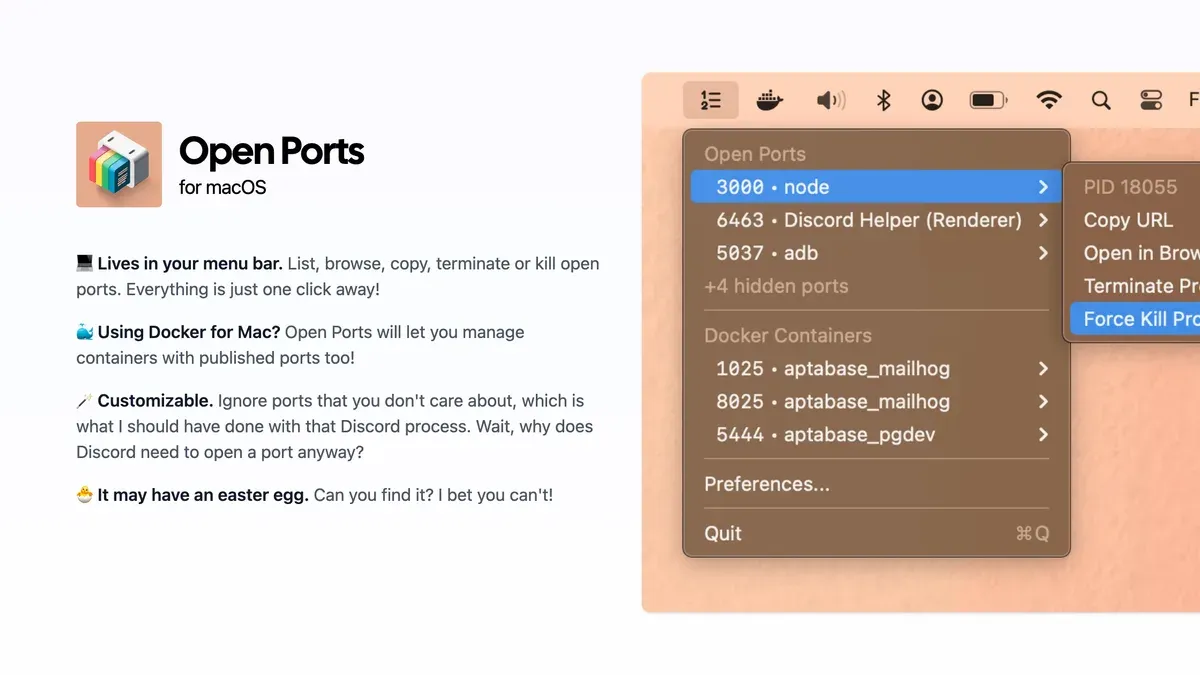
Opening a port on your Mac allows incoming network traffic through the macOS firewall or Packet Filter (pf), enabling specific services to communicate externally. Before proceeding, check your firewall status in System Preferences under Security & Privacy > Firewall. If the firewall is on, you can manage allowed applications but not individual ports directly from this interface.
To check firewall status via Terminal, run sudo /usr/libexec/ApplicationFirewall/socketfilterfw --getglobalstate. If enabled, you’ll need to configure rules to permit traffic.
Allowing ports via pf (Packet Filter)
For advanced control, macOS uses pf for packet filtering and port forwarding. You can add rules to open specific ports by editing the /etc/pf.conf file.
- Open Terminal and back up the pf configuration:
sudo cp /etc/pf.conf /etc/pf.conf.backup. This ensures you can restore settings if needed. - Edit the pf configuration using a text editor:
sudo nano /etc/pf.conf. - Add a rule like
pass in proto tcp from any to any port 8080to allow incoming TCP traffic on port 8080. Place this above the block rules to ensure it takes effect. - Save and exit the editor (for nano, press Control+O, Enter, then Control+X).
- Reload pf with the new rules:
sudo pfctl -f /etc/pf.conffollowed bysudo pfctl -eto enable pf if not already active. - Verify rules with
sudo pfctl -srto see the loaded rules and confirm your port is allowed.
Opening ports carries risks, such as exposing your Mac to unauthorized access if services listening on those ports have vulnerabilities. Only open ports you trust, and ensure the services using them are secure and regularly updated.
Troubleshooting common issues when checking open ports
When commands like lsof or netstat return no output, ensure there is actual network activity or open ports; otherwise, the result is legitimately empty. If you see a Permission denied error, prepend sudo to your command to gain necessary privileges, for example, sudo lsof -i. This requires administrator credentials.
Distinguishing between open, filtered, or closed ports can be tricky. Commands like lsof show open ports with active processes, but a port may be filtered by firewall rules, making it unreachable despite appearing open. Use network scanning tools cautiously to verify port status externally.
Conflicts arise when multiple applications attempt to use the same port, causing errors such as Address already in use. To resolve this, identify the occupying process with lsof -i:[port_number], then decide to quit or reconfigure one of the apps to use a different port.
- Run
lsof -iornetstat -anand check for output; empty results may mean no open ports. - If you get Permission denied, rerun the command with
sudo; successful output shows port and process info. - To check a specific port usage, run
lsof -i:[port_number]; if it lists a process, a conflict may exist. - Use Activity Monitor or
kill [PID]to stop conflicting processes and free the port. - Verify port status externally with tools like
nmapif local checks are inconclusive.
- How to Flush DNS Cache in Mac Terminal: Step-by-Step Guide
- How to Set Custom DNS on Mac: Step-by-Step Guide
- How to Use a VPN Profile on Mac: A Clear Step-by-Step Guide
Frequently asked questions
How to open the terminal in mac?
To open Terminal on a Mac, go to Finder, select Applications, then open the Utilities folder. Inside, you will find the Terminal app. Alternatively, use Spotlight Search by pressing Command + Space, typing "Terminal," and hitting Enter.
How to check ip on mac terminal?
In Terminal, type ifconfig and press Enter to display network interface information, including your IP address. Look for the section labeled en0 or en1 depending on your connection; the IP address typically appears next to inet.
How to find port with mac address?
Directly finding a port from a MAC address is not straightforward because MAC addresses operate at the data link layer, while ports operate at the transport layer. Instead, you can find the IP address associated with a MAC address using network tools, then identify active ports on that IP using commands like lsof or netstat.
How to open macos terminal?
Open macOS Terminal by navigating to Applications > Utilities > Terminal. You can also press Command + Space to launch Spotlight, type "Terminal," and select the app from the results.
How to check what ports are open?
You can check open ports using commands such as lsof -i or netstat -an | grep LISTEN in Terminal. These commands list active network connections and listening ports, helping you identify open ports on your Mac.
What this guide does not cover
This guide covers checking open ports on the local Mac only and does not address scanning ports on remote machines or advanced network security configurations. It also does not delve into configuring firewalls beyond basic port opening or managing complex network services that require specialized tools.
If you need to perform comprehensive network security assessments, scan remote hosts, or manage enterprise-level firewall rules, consider using dedicated network security software or consulting with a network security professional.
For ongoing port management, macOS’s built-in firewall and application-level controls offer basic protection, but advanced users may require third-party solutions to monitor and control network traffic more granularly.
To proceed effectively, your single most useful next step is to regularly verify which ports are open on your Mac using the commands covered here. This helps you maintain awareness of active network connections and detect unexpected open ports that could indicate security issues or misconfigured services.