
How to Restart Your Mac from the Command Line in Terminal
Discover easy commands and tips to restart your Mac from the command line using Mac Terminal for quick and efficient system reboots.
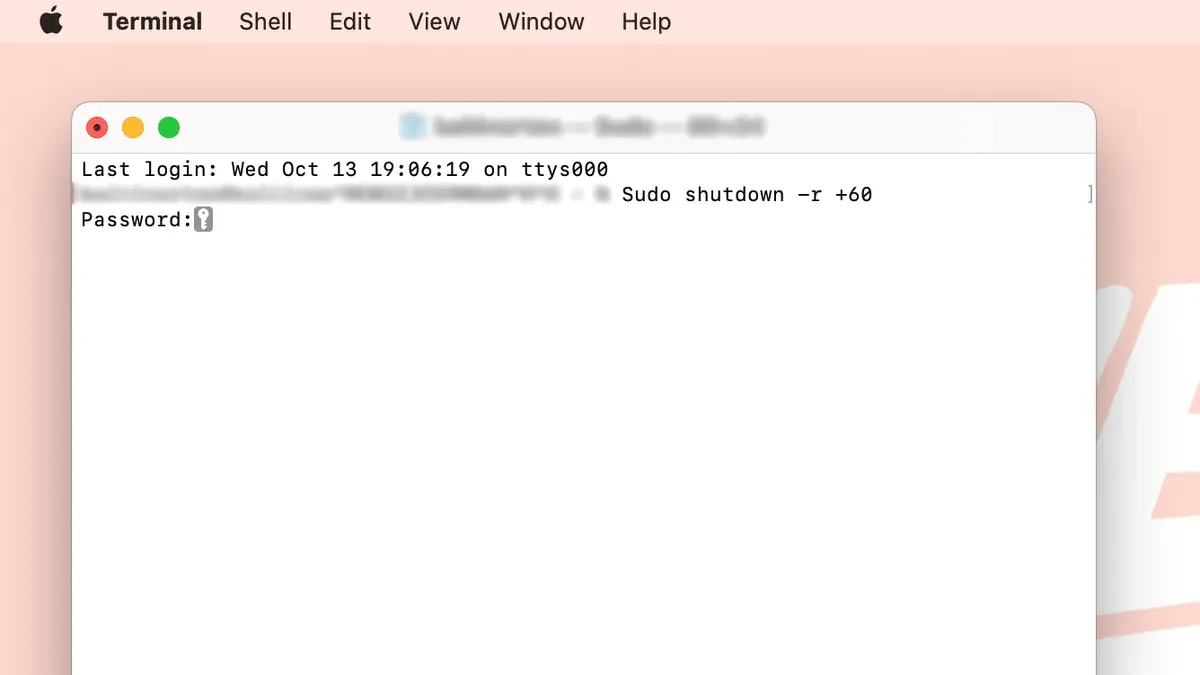
You’re troubleshooting an issue or need to apply a system update, but the usual restart method via the Apple menu isn’t convenient. Maybe you’re connected remotely or prefer the efficiency of keyboard commands. Learning how to restart Mac from command line in Mac Terminal allows you to reboot your machine quickly without the graphical interface.
This guide walks you through multiple restart commands, explains when to use each one, and covers permission requirements and common errors. Whether you want an immediate reboot, a scheduled restart, or a graceful shutdown that safely closes apps, you’ll find the right Terminal method here.
Key takeaways
- Use sudo shutdown -r now for an immediate restart requiring administrator privileges.
- Schedule restarts with sudo shutdown -r +minutes to delay reboot.
- osascript triggers a graceful restart that prompts apps to save work.
- pmset can initiate restarts but is suited for specific power-related scenarios.
- Permission errors often mean you need to prefix commands with sudo or check your user’s admin rights.
Before you start: what you need to restart your Mac from Terminal
To restart your Mac via Terminal, you must first open the Terminal app, located in /Applications/Utilities/. Accessing the Terminal requires a user account on your Mac.
Restart commands often require administrator privileges because restarting affects all system users and processes. Commands like shutdown typically prompt you to enter your password when prefixed with sudo. If you run a command without necessary permissions, it will fail or ask for credentials.
Before proceeding, save all your work and close important applications. Restart commands will forcibly close running apps, which can lead to data loss if files aren’t saved.
Basic familiarity with entering commands in Terminal is essential. You should know how to type a command, press Return, and enter your password when prompted (note that Terminal will not display characters as you type your password). Understanding these fundamentals helps ensure a smooth restart process.
- Open Terminal from /Applications/Utilities/. You should see a prompt displaying your username and Mac name.
- Type
sudo -vand press Return. Terminal will ask for your password if you have administrator rights. - Enter your password carefully (characters won’t appear). Press Return. If accepted, the prompt returns without error, confirming administrator access.
- Verify you have saved all open documents and closed apps to prevent data loss.
Using the 'sudo shutdown -r now' command to restart immediately
The shutdown command is a direct way to restart your Mac from Terminal. Using the -r flag instructs the system to restart, and the now argument triggers the action immediately without delay.
- Open Terminal and type
sudo shutdown -r now, then press Enter.
You will see a prompt asking for your administrator password. - Enter your password and press Enter.
The command will execute, and Terminal will not return to the prompt since the system is restarting. - Within a few seconds, your Mac will begin the restart process.
You may notice all applications closing abruptly, and any unsaved work will be lost.
After this command runs, the system immediately terminates all running processes to reboot. This method is the fastest way to restart, but it carries risks if you have unsaved data or open applications, as it does not provide warnings or time to save work.
Compared to delayed restarts, this command triggers the reboot within seconds, making it suitable when you need a quick restart and have already saved your work.
Scheduling a restart with 'sudo shutdown -r +minutes'
You can schedule your Mac to restart after a specific delay using the '+minutes' option with the sudo shutdown -r command. This allows you or other users to save work before the system restarts.
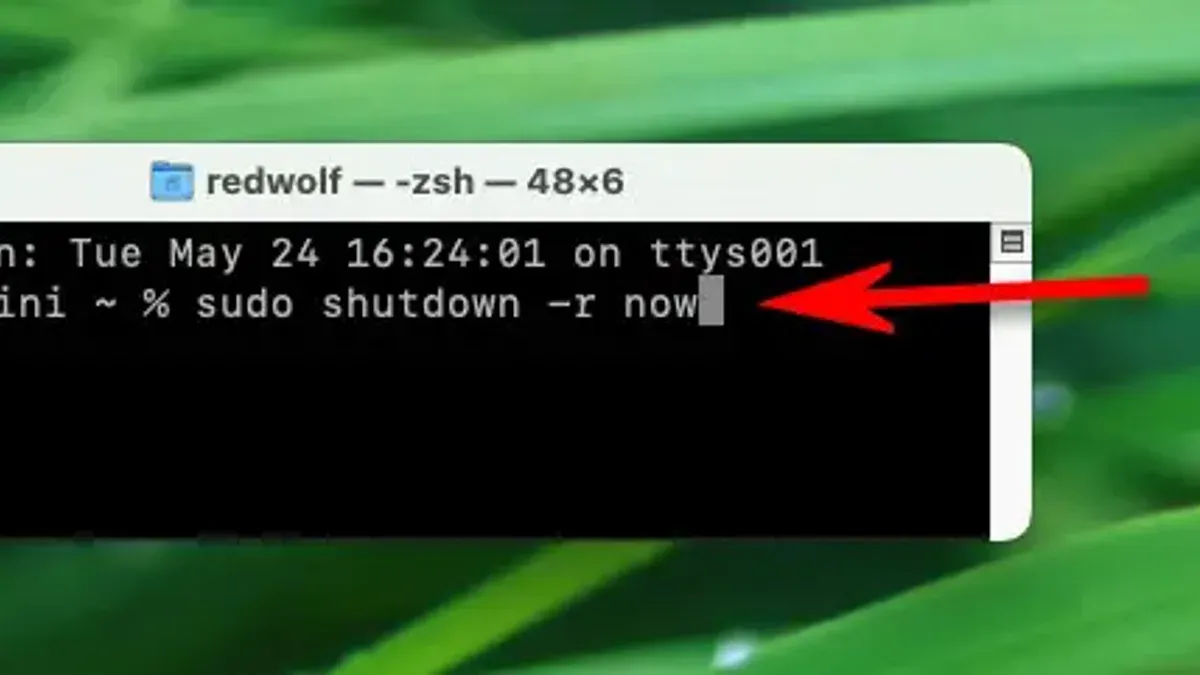
- Open Terminal and type
sudo shutdown -r +5 "System will restart in 5 minutes. Please save your work.", then press Enter.
This schedules a restart in 5 minutes and broadcasts the message to all logged-in users. - After entering your administrator password, you should see a confirmation that the shutdown is scheduled.
The Terminal will not return an error if the command is accepted. - If you decide to cancel the scheduled restart, type
sudo shutdown -cand press Enter.
This cancels any pending shutdown or restart and notifies users that the scheduled restart was aborted.
Scheduling a restart is preferable when you want to minimize disruption, especially on shared Macs or when running long tasks that can be paused. The notification ensures users are aware and can save their work timely.
Restarting using 'osascript' for a graceful restart
You can use osascript to send AppleScript commands directly from Terminal, enabling a restart that prompts apps to quit gracefully. This method asks the user for confirmation and allows unsaved work to be saved before the Mac restarts.
- Open Terminal.
- Enter the command:
osascript -e 'tell application "System Events" to restart' - Press Enter. Your Mac will display a dialog asking if you want to restart, giving apps a chance to prompt for unsaved changes.
- Confirm the restart in the dialog to proceed. If you cancel, the Mac will not restart.
This approach improves user experience by avoiding forced closures typical of shutdown commands, which immediately terminate apps without warnings. However, it relies on user interaction and does not support scheduling or silent restarts. Additionally, if an app blocks AppleScript dialogs or the system is unresponsive, this method may fail to initiate a restart.
Using 'pmset' to trigger a restart and when it’s appropriate
The pmset command manages power settings on your Mac, including scheduled restarts. Unlike shutdown, which immediately or scheduledly powers down or restarts the system, pmset primarily schedules power events and can trigger a restart at a specified time.
To schedule a restart using pmset, you use the schedule option with the restart event type. For example:
- Open Terminal.
- Enter
sudo pmset schedule restart "MM/dd/yyyy HH:mm:ss", replacing the date and time with your desired restart moment. - Press Enter and input your administrator password if prompted.
- If successful, there is no output, but the restart will occur at the scheduled time.
This command is useful in automated scripts or maintenance tasks when you want the Mac to restart at a precise time without user interaction.
Permissions required are administrative since sudo is needed. Note that pmset schedules only one event at a time for a given type, so new schedules overwrite previous ones.
The key difference from shutdown is that pmset schedules a restart at a future time without immediate system termination or user warnings, making it less disruptive and better suited for planned maintenance.
Troubleshooting restart command failures
When a restart command fails, common errors include permission denied or command not found. For example, if you see sudo: command not found or shutdown: Permission denied, verify you are using an administrator account and typing the command correctly.
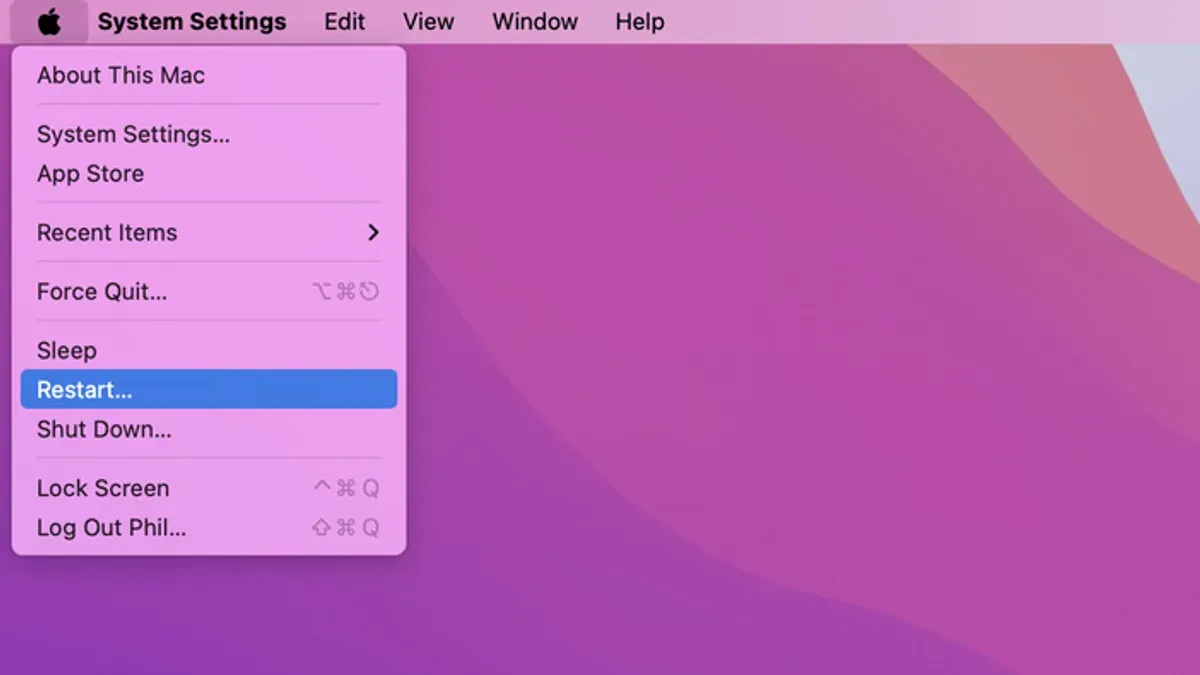
If the command appears to hang or does not execute, running processes or unresponsive applications may be blocking the restart. You can check active processes with ps aux or see if specific apps are preventing shutdown using sudo lsof +D /.
To diagnose further, review system logs by opening Console.app or running log show --predicate 'eventMessage contains "shutdown"' --last 1h in Terminal. This can reveal errors related to system permissions or hardware issues.
- Run
sudo shutdown -r now. If you get a permission error, confirm your user has admin rights. Successful execution will immediately restart your Mac. - If the command hangs, open Activity Monitor and quit any unresponsive apps, then try again. You should see the Mac restarting shortly after.
- Use
ps aux | grep -i shutdownto see if shutdown processes are stuck. No output or normal process termination indicates the command ran properly. - Check logs with
log show --predicate 'eventMessage contains "shutdown"' --last 1h. Look for errors such as "authorization failed" or hardware faults. Fixing these may require adjusting permissions or hardware diagnostics.
Understanding these symptoms and commands helps you pinpoint why a restart command fails and guides you toward an effective solution.
- How to Check Uptime Using Mac Terminal: A Clear Step-by-Step Guide
- How to Kill a Process by Name in Mac Terminal: Step-by-Step Guide
- How to Find Large Files in Mac Terminal: Step-by-Step Guide
- How to Disable Gatekeeper in Mac Terminal: Step-by-Step Guide
Frequently asked questions
Can I restart my Mac from Terminal without administrator privileges?
No, restarting your Mac from Terminal typically requires administrator privileges because it involves system-level commands that affect all users. Without sudo access or admin rights, the system will deny the restart command for security reasons.
What is the difference between 'shutdown -r now' and 'pmset restartnow'?
The shutdown -r now command requests an immediate, standard restart, closing all applications and logging out users, while pmset restartnow triggers a lower-level system restart often used for power management purposes. The pmset command may behave differently depending on hardware state and is less commonly used for typical restarts.
Will restarting from Terminal close unsaved documents?
Yes, restarting via Terminal will close all open applications, which usually results in unsaved documents being lost unless those apps have autosave or recovery features enabled. It's best to save your work manually before issuing a restart command to avoid data loss.
How can I cancel a scheduled restart command?
You can cancel a scheduled restart initiated with shutdown -r +minutes by running sudo shutdown -c in Terminal. This command aborts the pending shutdown or restart and notifies logged-in users of the cancellation.
What this advice does not cover and who should look elsewhere
This article does not cover restarting Macs remotely via SSH or network commands. Users unfamiliar with Terminal or those with critical unsaved work should consider using the graphical interface to avoid potential data loss. Additionally, some restart commands require administrator privileges and may not function under standard user accounts without appropriate permissions.
For most users comfortable with Terminal, the single most useful next step is to try the sudo shutdown -r now command in a test environment. This command provides an immediate restart and helps you understand permission requirements and command behavior before scheduling restarts or using more advanced methods.



