Mac Keyboard Shortcut to Hide an App: How to Use It Efficiently
Discover how to use the Mac keyboard shortcut to hide an app and streamline your workflow by clearing your screen without closing apps.
You’re juggling multiple applications on your Mac, switching between work documents, email, and a browser. Instead of minimizing or closing apps, you want a quicker way to clear your screen without losing your place.
The Mac keyboard shortcut to hide an app offers a fast method to temporarily remove an app’s windows from view while keeping it running in the background. This article explains what this shortcut does, when to use it instead of minimizing or quitting, and how to incorporate it effectively into your workflow.
Key takeaways
- Press Command + H to hide the active app and all its windows instantly.
- Hiding differs from minimizing by removing windows from the screen without cluttering the Dock.
- Use hiding to quickly declutter your workspace without quitting apps or losing progress.
- Remember to use Command + Tab to switch back to hidden apps swiftly.
- Avoid confusing hiding with closing to prevent unintended app termination.
What the Mac hide app shortcut does and why it matters
Hiding an app on a Mac makes all its windows disappear from the screen without quitting the app or minimizing its windows to the Dock. Unlike minimizing, which places the app's window in the Dock for easy retrieval, hiding removes the windows entirely from view while keeping the app actively running in the background.
This distinction matters because hidden apps continue their background processes without cluttering your desktop, whereas minimized windows remain visible in the Dock and can distract your focus. For example, if you are working on a report in a word processor and want to temporarily clear the screen without closing the app, hiding it will instantly remove all its windows, letting you concentrate on another task without losing your place.
In contrast, minimizing that same app's window keeps it accessible but visible as an icon in the Dock, which might draw your attention or take up Dock space. Both hiding and minimizing keep the app running, but hiding offers a cleaner workspace and reduces visual distractions.
Additionally, quitting an app stops all its processes, which can save system resources but requires reopening and reloading later. Hiding balances productivity and resource use by maintaining app readiness while helping maintain desktop organization and workflow focus.
Which keyboard shortcut hides an app on Mac
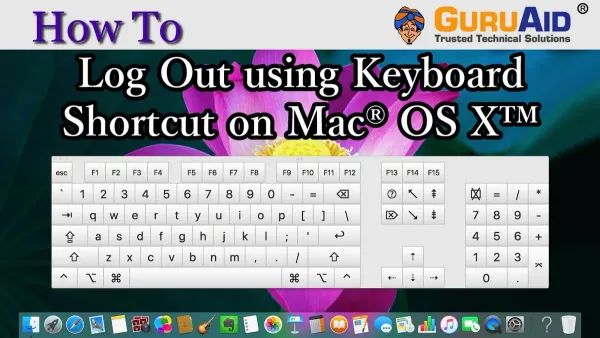
The default keyboard shortcut to hide the currently active app on a Mac is Command + H. When you press these keys together, all windows associated with the frontmost app disappear from view immediately, while the app itself keeps running in the background. This is useful when you want to clear your workspace without quitting or minimizing the app.
For example, imagine you have Safari open with multiple browser windows visible. Pressing Command + H will instantly hide all those Safari windows, leaving your desktop clear of them. The Safari icon remains active in the Dock, indicating the app is still running and can be reopened quickly.
If you want to hide all apps except the one currently in use, you can press Command + Option + H. This shortcut hides every other open app simultaneously, helping you focus solely on your active app without distractions from other windows.
To use these shortcuts effectively, make sure the app you want to hide or keep visible is active by clicking on one of its windows or its Dock icon before pressing the keys. This ensures the correct app responds to the hide command.
How to hide an app on MacBook using the keyboard shortcut
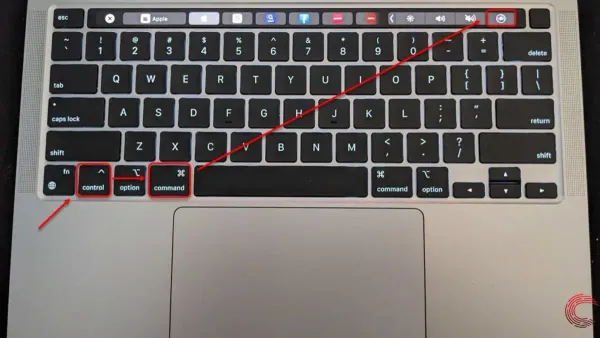
On a MacBook keyboard, hiding an app is straightforward with the Command + H shortcut. Simply press the Command key (⌘) and the H key simultaneously while the app you want to hide is active. This instantly removes all windows of that app from your screen without quitting it, keeping your workspace tidy.
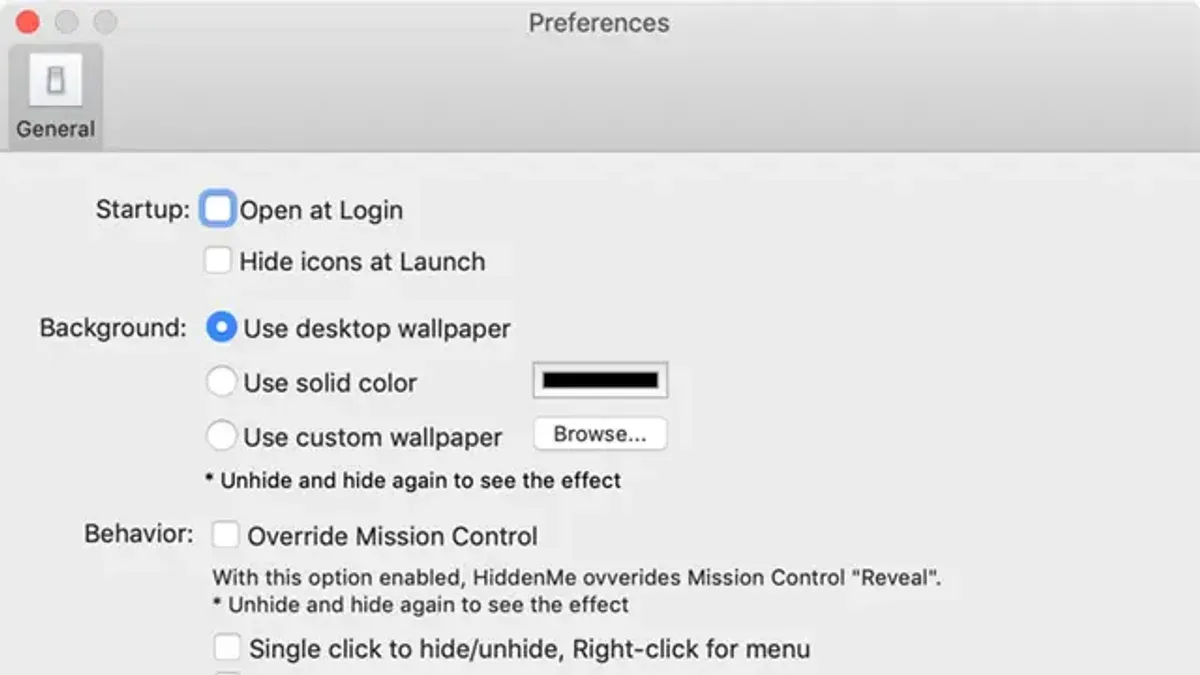
For MacBooks equipped with a Touch Bar, the process is similar but with subtle differences. While the physical Command and H keys remain, the Touch Bar may display dynamic controls that can include app-specific buttons, but it does not replace the Command + H shortcut for hiding apps. You will still rely on pressing the physical keys. Some users find that the tactile feedback of a physical keyboard edge makes this shortcut easier to perform quickly compared to tapping virtual keys.
To build muscle memory for this shortcut, practice using it during regular workflow moments—such as when switching between writing and research apps. For example, if you are writing an email in Mail and need to check a document in Preview without cluttering your screen, press Command + H in Mail to hide it quickly, then switch focus to Preview.
This approach is effective on MacBooks both with and without the Touch Bar, ensuring consistent behavior across models. A common oversight is not having the target app active before pressing the shortcut; make sure the app you want hidden is frontmost to avoid confusion.
How to hide shortcuts and apps on Mac and Windows: key differences
On a Mac, hiding an app with Command + H removes its windows from view without minimizing them to the Dock, allowing you to maintain desktop organization while keeping the app running in the background. In contrast, Windows primarily uses minimizing (Windows key + Down Arrow) to reduce app windows to the taskbar, which differs from hiding because the app's icon remains visible and accessible.
Hiding shortcuts or icons is a separate concept from hiding apps. On Mac, you generally manage shortcut visibility through Finder preferences or by organizing the Desktop manually, rather than a dedicated keyboard shortcut. Windows users might hide desktop shortcuts by right-clicking and choosing "Delete" (which removes the shortcut, not the app) or by toggling "Show desktop icons" in the View menu, which hides all icons at once.
Windows users often seek a way to quickly hide apps like on Mac for better focus, but Windows lacks a direct equivalent to Command + H. Instead, users minimize or use third-party apps for similar functionality. Mac’s hide feature is unique in that it conceals app windows without altering their minimized state or quitting them.
| Action | Mac Shortcut | Windows Shortcut | Effect on App |
|---|---|---|---|
| Hide active app | Command + H | No direct equivalent | Windows are hidden (not minimized) |
| Minimize active window | Command + M | Windows key + Down Arrow (when active) | Window minimized to Dock or taskbar |
| Hide other apps | Command + Option + H | No direct equivalent | All other app windows hidden except active |
For example, if you are working on a document and want to quickly clear the screen, pressing Command + H on Mac immediately hides the app's windows, while on Windows, you would minimize the window, leaving its icon visible on the taskbar. This subtle difference affects workflow, especially when you want to switch context without closing or minimizing windows.
How to show hidden apps and files on Mac using keyboard shortcuts
When you hide an app on your Mac using Command + H, it remains running but its windows disappear from view. To bring the app back, simply click its icon in the Dock. Alternatively, you can use Command + Tab to cycle through open applications; releasing the keys on the desired app will bring it to the front, making its windows visible again.
Showing hidden files in Finder is a different process and requires a specific keyboard shortcut. Press Command + Shift +. (period) to toggle the visibility of hidden files and folders. This shortcut reveals files that are normally invisible, such as system files or configuration folders, directly within Finder windows.
For instance, if you have a folder with hidden configuration files, pressing Command + Shift +. will display these files, enabling you to interact with them without changing any system settings. Pressing the shortcut again will hide these files once more.
It’s important to understand that hiding apps and hiding files address different needs: app hiding manages window visibility without quitting programs, while file hiding controls whether certain files appear in Finder. Using these shortcuts appropriately helps maintain a clutter-free workspace and quick access when needed.
Common mistakes to avoid when using the hide app shortcut
One frequent error is confusing the hide shortcut with minimizing or quitting an app. Hiding removes the app’s windows from view but keeps it running in the background. For example, if you hide Mail using Command + H expecting it to close and stop fetching new messages, it will continue running, which might lead to unexpected notifications or battery use.
Another common misunderstanding is assuming that hiding an app frees up system resources. Unlike quitting an app, hiding does not release memory or CPU usage. If you have multiple resource-heavy apps hidden, your Mac may still slow down, which can confuse users who expect improved performance after hiding them.
Using hide indiscriminately can also disrupt workflow. For instance, if you frequently switch between a document editor and a browser, hiding the editor might slow you down compared to minimizing or using Mission Control because you need to bring the app back manually. In such cases, minimizing or using virtual desktops could be more efficient.
Finally, some users forget that hidden apps remain active and accessible via the Dock or Command + Tab. This can lead to confusion about whether an app is still open, particularly for those who rely on visual cues like open windows alone.
Practical tips for incorporating the hide shortcut into your workflow
Use the hide shortcut to clear your desktop without quitting apps, especially when you need a clutter-free workspace but plan to return to your tasks shortly. For example, if you are writing a report and want to temporarily clear away a messaging app, pressing Command + H hides it instantly, keeping your focus on the document without losing your chat session.
Combine hiding with Mission Control (accessed via the F3 key or a three-finger swipe up on the trackpad) and app switching shortcuts like Command + Tab to switch quickly between apps while keeping non-essential windows out of sight. This approach helps maintain a streamlined view without the distraction of minimized windows or multiple open tabs.
In shared environments, use the hide shortcut to protect your privacy quickly. For instance, if you receive a private notification or need to conceal sensitive information when someone walks by, Command + H hides the active app’s windows immediately without closing or logging out, preserving your workflow and confidentiality.
Remember, hiding is most effective when you want to maintain app states and resume work seamlessly. Avoid overusing it to hide too many apps simultaneously, as it can make it harder to track what’s running. Instead, target apps that interrupt your visual flow but don’t require quitting or minimizing.
Frequently asked questions
How to hide app shortcuts?
App shortcuts on Mac can be hidden by organizing them into folders within the Applications folder or on the Dock. However, there is no direct keyboard shortcut to hide shortcuts themselves; you manage their visibility by rearranging or removing them from view manually.
How to hide app in macbook?
To hide an app on a MacBook, use the keyboard shortcut Command (⌘) + H while the app is active. This instantly hides the app’s windows without quitting it, keeping it running in the background.
How to hide app on mac?
Hiding an app on a Mac involves pressing Command (⌘) + H when the app is focused. This clears its windows from the screen but leaves the app open, allowing you to quickly switch back without reopening it.
How to hide an app on apple?
On Apple computers, hiding an app works the same across macOS devices. Press Command (⌘) + H with the app selected to hide it. This differs from minimizing, as the app stays active but its windows disappear from view.
What is the keyboard shortcut for hide?
The standard keyboard shortcut to hide the active app on Mac is Command (⌘) + H. Using this shortcut removes the app’s windows from the screen without closing the app, which conserves system resources and maintains your workflow.
Limits of hiding an app and when to fully quit
Using the hide app shortcut only affects the app’s visibility; it does not close the application or reduce its CPU or memory usage. If your goal is to free up system resources or solve performance issues, quitting the app via Command + Q or the app menu is necessary. This shortcut is best suited for managing screen clutter and maintaining quick access to running apps without interruption.
For users who need to conserve battery life or optimize system performance, relying solely on hiding apps may not suffice. Instead, close unused apps completely or use macOS’s Activity Monitor to monitor and manage resource-heavy processes.
To get started integrating the hide shortcut effectively, practice using Command + H during your next multitasking session to quickly clear your desktop without losing app state. This simple habit can streamline your workflow and reduce distractions while keeping your apps ready for when you need them again.