
Mac Keyboard Shortcut to Log Out Instantly: How to Do It Fast
Learn the Mac keyboard shortcut to log out instantly and secure your session fast without losing unsaved work or navigating menus.
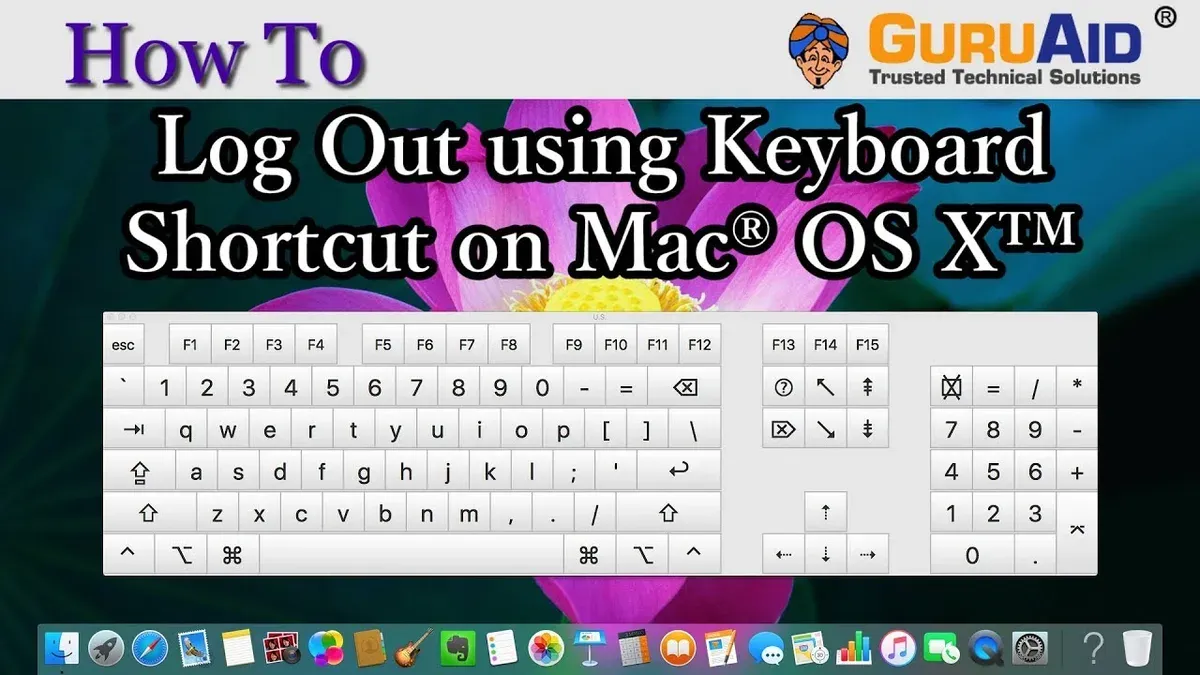
You step away from your Mac and want to lock your session quickly. Typing your password on return or ensuring no one else accesses your files is essential, especially in shared spaces. The Mac keyboard shortcut to log out instantly offers a fast, reliable way to close your user session without navigating menus.
This article explains how this shortcut works, explores alternative shortcuts and methods for logging out, and highlights common mistakes that can lead to data loss or security issues. You will also learn how to create custom logout shortcuts to match your workflow and when it’s safer to avoid instant logout altogether.
Key takeaways
- The standard shortcut to log out immediately is Control + Shift + Power (or Control + Shift + Eject on older Macs).
- Creating custom shortcuts requires using System Preferences > Keyboard > Shortcuts and caution to prevent accidental logouts.
- Instant logout can cause unsaved work loss if applications don’t prompt to save before closing.
- Alternative logout methods include Apple menu options and fast user switching with password locking.
- Avoid instant logout during active tasks or unsaved work to maintain data integrity and security.
What the Mac log out shortcut is and why it matters
Logging out on a Mac means ending your user session and closing all running applications, which is different from putting your Mac to sleep, locking the screen, or shutting it down. Sleep mode saves power while keeping your session active; locking the screen prevents access but leaves apps running; shutting down powers off the device entirely. Logging out clears your session and requires re-entry of your password to resume, enhancing security.
Using a keyboard shortcut to log out instantly saves time compared to navigating through the Apple menu and selecting Log Out. For example, while manually logging out might take 10 to 15 seconds, a shortcut can do this in under 3 seconds, which matters in situations where you need to leave your Mac quickly.
Fast logout is especially critical on shared computers or in public spaces like libraries or offices, where leaving your session open can expose your data to others. Leaving an active session unattended increases the risk of unauthorized access. Using a quick log out shortcut minimizes this risk by allowing you to lock down your account immediately.
How to log out shortcut works on Mac
The default keyboard shortcut to log out instantly on a Mac is Control + Shift + Q. Pressing this combination prompts a confirmation dialog asking if you want to log out, allowing you to cancel if needed. However, if you want to skip the confirmation and log out immediately, you can hold the keys for approximately two seconds, after which the system logs you out without further prompts.
Another related shortcut is Control + Command + Q, which immediately locks your screen without logging you out. This distinction is important depending on whether you want to secure your session or completely end it.
| Shortcut | Action | Behavior |
|---|---|---|
| Control + Shift + Q | Log out | Shows confirmation dialog; hold keys for 2 seconds for instant logout |
| Control + Command + Q | Lock screen | Instantly locks screen without logging out |
For example, when you press Control + Shift + Q, a pop-up appears asking "Are you sure you want to log out now?" If you confirm, your session ends, all apps close, and you return to the login screen. If you hold the keys a bit longer, the system skips this prompt and logs out immediately, which can risk unsaved data loss if you are not careful.
The exact behavior may vary slightly depending on your macOS security and user account settings. For instance, if "Require password immediately after sleep or screen saver begins" is enabled in System Preferences under Security & Privacy, logging out will require reauthentication at login, enhancing security.
How to log out of a Mac using other shortcut keys or methods
Besides the default Control + Shift + Q shortcut, you can log out using this key combination with confirmation: press Control + Shift + Q once, then click Log Out in the dialog box that appears. This adds a safety step to prevent accidental logout.
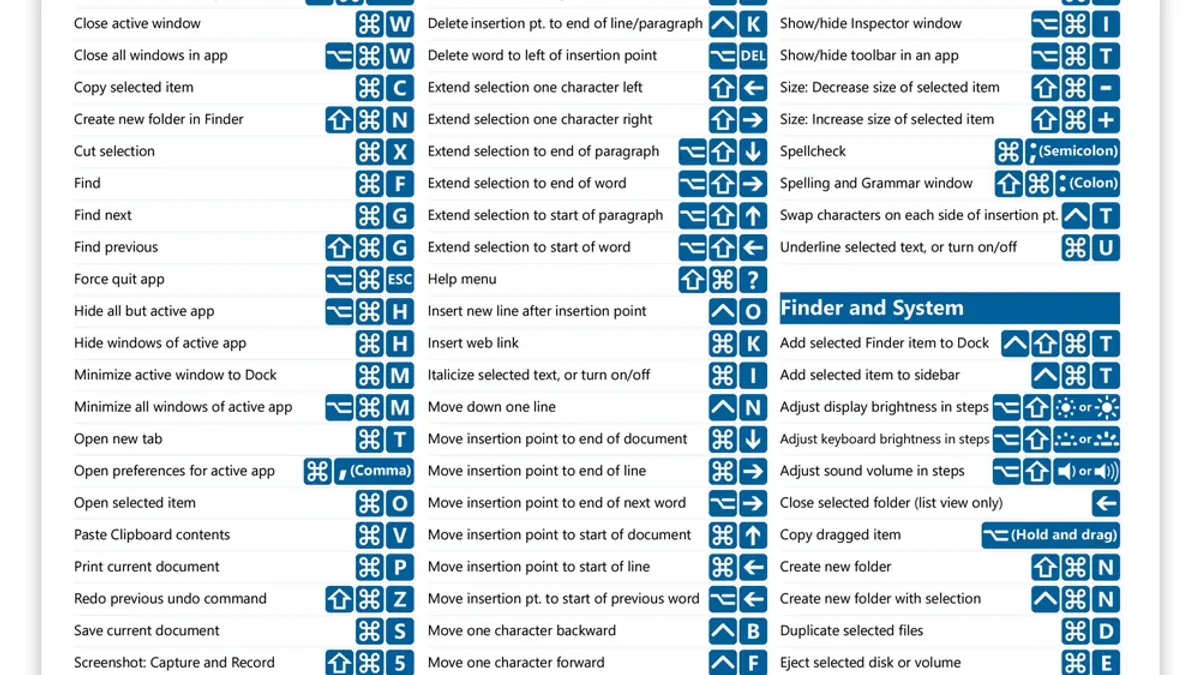
You can also create a custom log out shortcut via System Settings. Go to Keyboard > Keyboard Shortcuts > App Shortcuts, then click the + button. Choose All Applications, enter “Log Out” (exactly as it appears in the Apple menu), and assign your desired key combination. For example, you might set Command + Option + L. This method allows you to tailor the shortcut to your workflow but requires remembering your custom keys.
Another approach is to use Automator or AppleScript to create an instant log out workflow. In Automator, select Quick Action, add the “Run AppleScript” action with the script tell application "System Events" to log out, then save it. You can assign this quick action a keyboard shortcut in System Settings under Keyboard Shortcuts > Services. This method logs out immediately without confirmation, making it the fastest option but with higher risk of accidental data loss.
In terms of speed, the Automator/AppleScript method logs out instantly (1–2 seconds), the default Control + Shift + Q with confirmation takes a few seconds longer, and custom shortcuts vary depending on the keys chosen. For safety, shortcuts with confirmation dialogs reduce accidental logout chances, while instant methods are best when speed is the priority and you ensure all work is saved.
Common mistakes when using the log out shortcut and how to avoid them
One frequent mistake is accidentally logging out without saving your work. For example, if you hold Control + Shift + Q too long, the Mac will log out instantly, closing all apps and potentially causing loss of unsaved documents. Imagine writing a report and losing an hour of work because the logout occurred without confirmation. To prevent this, ensure that the confirmation prompt is enabled in System Settings under Desktop & Dock > Confirm before logging out. This setting asks for your approval before the session ends, reducing accidental data loss.
Another common confusion arises between the logout shortcut (Control + Shift + Q) and the lock screen shortcut (Control + Command + Q). Locking the screen keeps your session active and protects your data, while logging out closes all apps and ends your session. Misusing these shortcuts can either cause unnecessary session termination or leave your Mac accessible if you intended to log out.
To avoid these pitfalls, double-check your shortcut usage and system preferences. If you create custom logout shortcuts through System Settings > Keyboard > Shortcuts > App Shortcuts, test them carefully to confirm they prompt when needed. This approach balances speed with security and protects against unintended data loss or exposures.
When not to use the instant log out shortcut
You should avoid using the instant log out shortcut if your Mac is running critical background tasks, such as large file transfers, software updates, or active downloads. Logging out abruptly in these cases can interrupt processes, causing data corruption or failed installations. For example, a user downloading essential work files via a slow connection might lose progress if they log out without waiting for completion.
On shared Macs, instant logout can disrupt other users' sessions, especially if multiple accounts are active or if someone else is remotely connected. In such environments, logging out without warning may cause loss of unsaved work for others, leading to frustration or data loss.
Instead of logging out instantly, consider locking the screen with Control + Command + Q or putting the Mac to sleep via the Apple menu. These options secure your session without interrupting ongoing tasks or affecting other users. Locking or sleeping keeps your work intact while protecting access, making them safer alternatives in many daily scenarios.
- How to Restart Your Mac Using Keyboard Shortcuts
- Mac Keyboard Shortcut to Force Quit an App: How to Quickly Close Unresponsive Programs
Frequently asked questions
How to log out keyboard shortcut?
To log out using a keyboard shortcut on a Mac, press Control + Shift + Power or Control + Shift + Eject if your Mac has an optical drive. This immediately logs you out without the usual confirmation prompt, so ensure all work is saved before using it.
How to log out on mac?
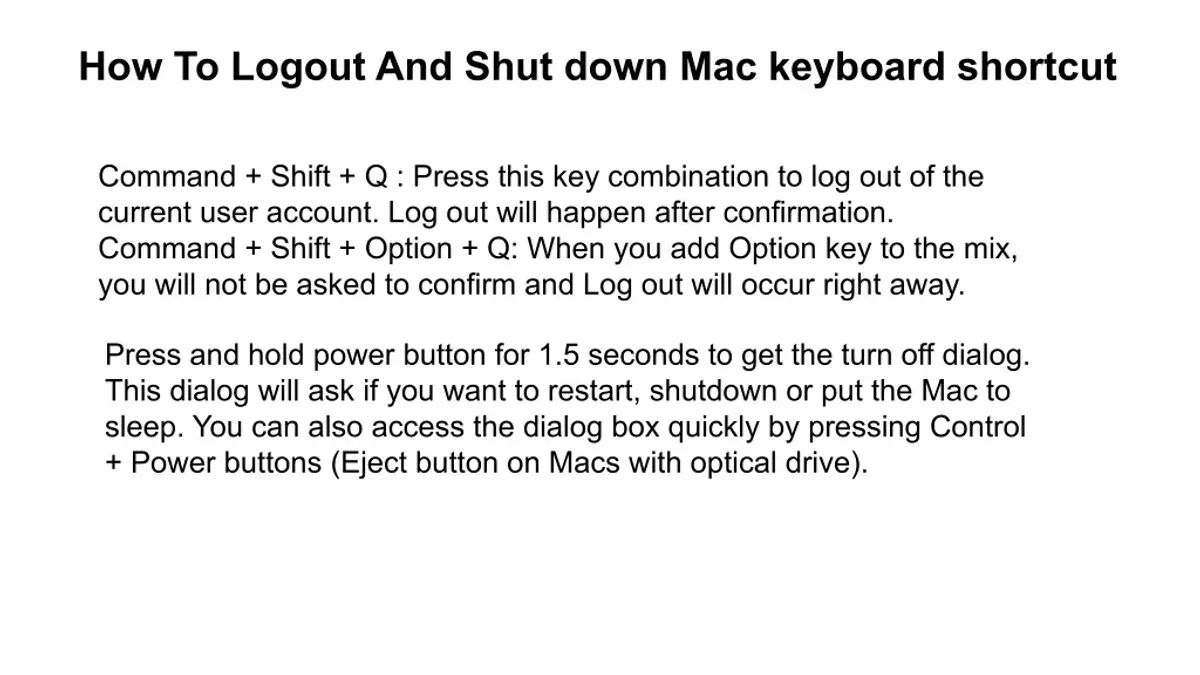
You can log out on a Mac by clicking the Apple menu in the top-left corner and selecting Log Out [username]. Alternatively, use the keyboard shortcut Command + Shift + Q, which brings up a confirmation dialog before logging out.
What is the shortcut to log out?
The most common shortcut to log out is Command + Shift + Q. Pressing it once opens a confirmation dialog; to bypass the dialog and log out immediately, press Command + Option + Shift + Q.
How to make a log off shortcut?
You can create a custom log out shortcut by going to System Preferences > Keyboard > Shortcuts > App Shortcuts. Add a new shortcut for the Log Out... menu item in the Finder or System UI to assign a preferred key combination that suits your workflow.
how to log out shortcut
The log out shortcut on Mac is Command + Shift + Q, which prompts you to confirm before logging out. For instant log out without confirmation, use Command + Option + Shift + Q. Remember to save all work to prevent data loss before using these shortcuts.
What this advice does not cover and who should do something else
This guide focuses exclusively on logging out of your Mac using keyboard shortcuts and built-in graphical methods. It does not cover logging out remotely or via terminal commands, which involve different procedures and require more advanced technical knowledge. If you need to log out another user from a remote session or manage user sessions through command-line tools, consider consulting specialized resources or system administrators.
For users managing multiple accounts on shared Macs or in enterprise environments, automated logout policies and mobile device management (MDM) solutions might better suit your security and workflow needs.
To make the most of Mac’s logout shortcuts while safeguarding your data, the single most useful next step is to customize your shortcut keys via System Settings > Keyboard > Keyboard Shortcuts > App Shortcuts. This allows you to tailor instant logout commands to your workflow and reduces the risk of accidental logouts or data loss.



