
Mac Keyboard Shortcut to Lock the Screen: How to Secure Your Mac Quickly
Discover the Mac keyboard shortcut to lock your screen quickly and protect your data without closing apps or logging out.
You step away from your Mac for a moment, intending to return shortly, but you want to ensure no one else can access your data in the meantime. Quickly locking your screen is an effective way to protect your information without shutting down your work.
This article explains the Mac keyboard shortcut to lock the screen and explores how it compares to other locking methods. You will learn the pros and cons of various shortcuts, how to combine them with macOS features, and practical advice to secure your Mac efficiently while maintaining your workflow.
Key takeaways
- Press Control + Command + Q to lock your Mac screen instantly.
- Using Hot Corners can complement shortcuts but may trigger accidentally.
- Locking the screen requires a password to resume, enhancing security.
- Sleep mode delays might affect how quickly the Mac locks after using shortcuts.
- Choosing the right method depends on balancing convenience and security needs.
What locking your Mac screen does and why it matters
Locking your Mac screen immediately restricts access to your desktop without closing your apps or logging out. It requires your password or biometric authentication to regain access, safeguarding your data and ongoing work from unauthorized use. This function is critical for maintaining privacy, especially when you step away from your device, even briefly.
Unlike logging out, which ends your session and closes all applications, or shutting down, which powers off the Mac, locking the screen is much faster and less disruptive. This makes it ideal for quick breaks or interruptions, where you want to resume your tasks quickly but keep your information safe.
In public spaces, shared offices, or coworking environments, unattended Macs are vulnerable to unauthorized access. Studies have shown that a significant portion of data breaches occur because devices are left unlocked and unattended. For example, leaving your Mac unlocked while grabbing a coffee in a busy café can expose sensitive files or emails to anyone passing by.
Choosing to lock your screen instead of logging out or shutting down balances convenience with security, ensuring your data remains protected without interrupting your workflow.
How to lock Mac screen shortcut
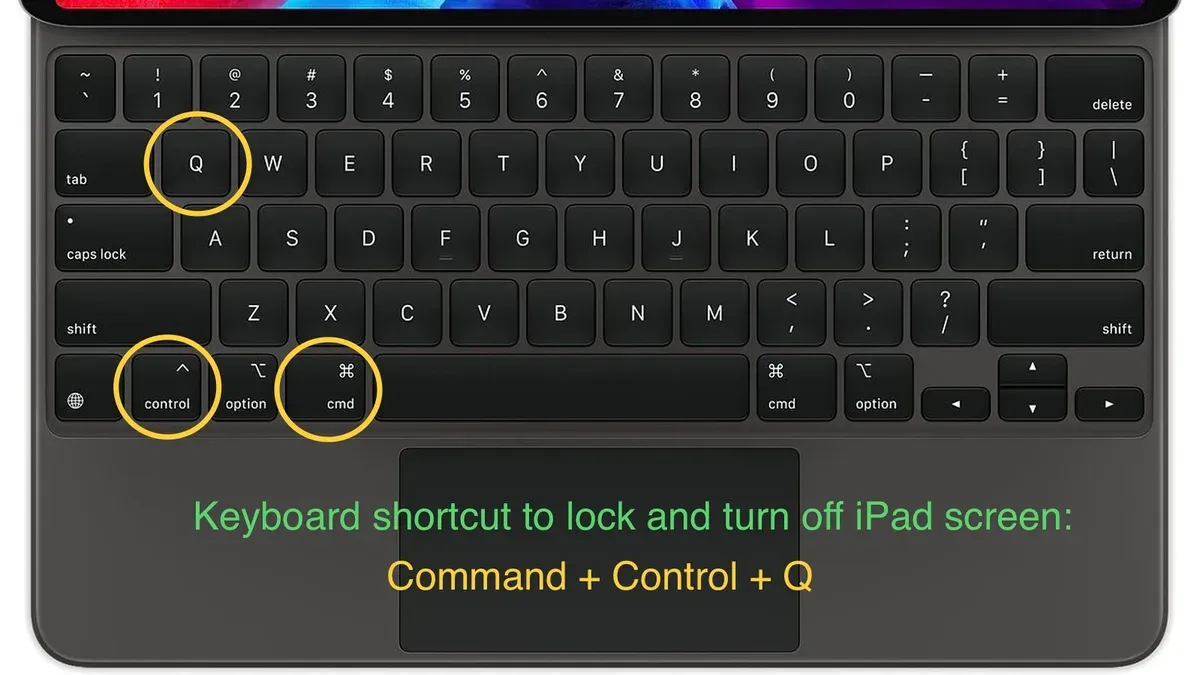
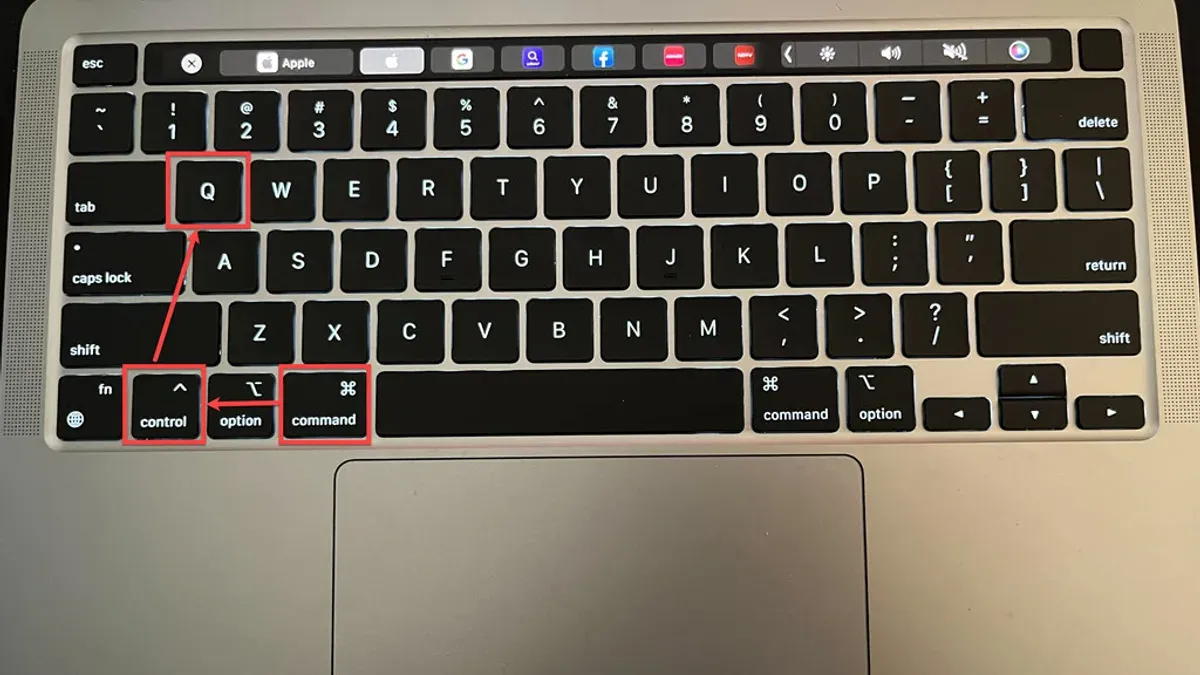
The primary keyboard shortcut to lock your Mac screen immediately is Control + Command + Q. Pressing these keys simultaneously activates the lock screen without logging you out or closing any open applications.
Once you press Control + Command + Q, the screen will darken briefly, then display the login window or lock screen, confirming that your Mac is secured. This visual cue ensures you know the shortcut worked and your device is protected.
This shortcut is compatible across most modern macOS versions and works with Apple’s built-in keyboards, including MacBook models with Touch Bar and those with traditional function keys. For example, if you are working on a MacBook Pro, just hold Control and Command, then tap Q, and your screen locks instantly.
| Mac Model | Shortcut Works |
|---|---|
| MacBook Pro (Touch Bar) | Yes |
| MacBook Air (M1/M2) | Yes |
| iMac (Intel and Apple Silicon) | Yes |
| Older Mac models (pre-macOS Sierra) | May not support this shortcut |
Using Control + Command + Q is the most straightforward way to lock your screen quickly without interrupting your workflow or risking accidental logouts.
How to use macOS features combined with shortcuts to lock your screen
macOS offers several built-in features you can combine with keyboard shortcuts to enhance screen security. One popular method is setting up Hot Corners to activate the screen saver, which, when configured to require a password immediately upon wake, effectively locks your Mac. To do this, navigate to System Preferences > Desktop & Screen Saver > Screen Saver > Hot Corners. Assign a corner to “Start Screen Saver.” Then, in System Preferences > Security & Privacy > General, check “Require password after sleep or screen saver begins” and set it to “immediately.” Moving your cursor to that corner triggers the screen saver and locks the screen promptly.
Another shortcut to consider is Control + Shift + Power (or Control + Shift + Eject on older Macs), which puts the display to sleep. If your settings require a password on wake, this also locks your Mac effectively. This method provides a fast way to secure your screen without logging out or closing applications.
These options complement the Control + Command + Q shortcut by offering alternative ways to lock your device depending on your workflow. For instance, Hot Corners can be useful if you prefer a physical gesture, while putting the display to sleep via shortcut is ideal for quick manual locking. Adjusting the password requirement timing in System Preferences ensures these methods provide immediate security.
Practical applications and best practices for locking your Mac quickly
Choosing the right locking method depends on your workflow and security needs. Direct shortcuts like Control + Command + Q lock your Mac instantly, ideal for quick breaks or shared spaces. Alternatively, using screen saver activation or display sleep delays can automate locking when you step away, but these introduce a slight delay before the screen actually locks.
Developing muscle memory for your preferred shortcut is key. Practice pressing Control + Command + Q until it becomes second nature, so you can lock your screen without thinking, even in public or busy environments. Consider placing your hands on the keyboard naturally and integrating the shortcut into your routine when leaving your desk.
To ensure automatic locking, set a short delay in System Preferences under Security & Privacy > General, enabling “Require password immediately after sleep or screen saver begins.” Adjust your screen saver start time or display sleep settings in Energy Saver to match how quickly you want your Mac to lock when idle.
If you use Touch ID or Apple Watch to unlock your Mac, remember that while these provide convenience, they don’t replace the need to lock promptly. For example, Apple Watch unlock can quickly authenticate you after locking, but you still need to actively lock your Mac to prevent unauthorized access.
Imagine you work in a busy office and often move between meetings. Using Control + Command + Q lets you secure your Mac the moment you stand up. If you prefer a more passive approach, set your Mac to sleep after five minutes of inactivity and require a password immediately, balancing security with convenience during short absences.
Common mistakes to avoid when using Mac keyboard shortcuts to lock the screen
One frequent mistake is not configuring your Mac to require a password immediately after the screen locks or the display goes to sleep. Without this setting enabled, pressing Control + Command + Q or using other lock shortcuts may leave your Mac vulnerable, as anyone could wake it without entering a password. You can check this by going to System Preferences > Security & Privacy > General, then ensuring "Require password immediately after sleep or screen saver begins" is selected.
Another pitfall is confusing shortcuts that put the display to sleep (like Control + Shift + Power) with actual screen locking shortcuts. Display sleep alone does not always trigger a password prompt, so it may not secure your Mac as expected.
Compatibility issues also arise when using older Mac models or non-Apple keyboards. Some legacy Macs or third-party keyboards might not recognize the standard locking shortcuts, leading to inconsistent behavior or no action at all. For example, users with a MacBook Air from several years ago have reported that Control + Command + Q does not lock the screen but only puts the display to sleep.
Finally, relying solely on keyboard shortcuts without additional security measures can weaken protection. It's advisable to combine shortcuts with automatic lock timers, strong passwords, and, if available, biometric authentication like Touch ID or Face ID for layered security.
- Mac Keyboard Shortcut to Force Quit an App: How to Quickly Close Unresponsive Programs
- Mac Keyboard Shortcut to Switch Between Windows of the Same App
- How to Shutdown Your Mac with a Timer Using Terminal
- How to Restart Your Mac from the Command Line in Terminal
Frequently asked questions
How to lock Mac screen shortcut without logging out?
You can lock your Mac screen without logging out by using the shortcut Control + Command + Q. This instantly locks the screen and requires your password to re-enter, but your apps and documents remain open. Unlike logging out, it preserves your session exactly where you left off.
What is the Apple keyboard shortcut to lock the screen?
The standard Apple keyboard shortcut to lock the screen is Control + Command + Q. This is the quickest way to activate the lock screen on macOS starting from recent versions. Alternatively, you can use Shift + Command + Power (or Shift + Command + Eject on older Macs) to put the display to sleep, effectively locking the screen if a password is required on wake.
Which Mac OS keyboard shortcut locks the screen fastest?
Control + Command + Q is generally the fastest keyboard shortcut to lock your Mac screen instantly. It immediately shows the login window without putting the display to sleep first. Using Shift + Command + Power may take a moment longer since it puts the display to sleep before locking.
Can I customize the keyboard shortcut to lock my Mac screen?
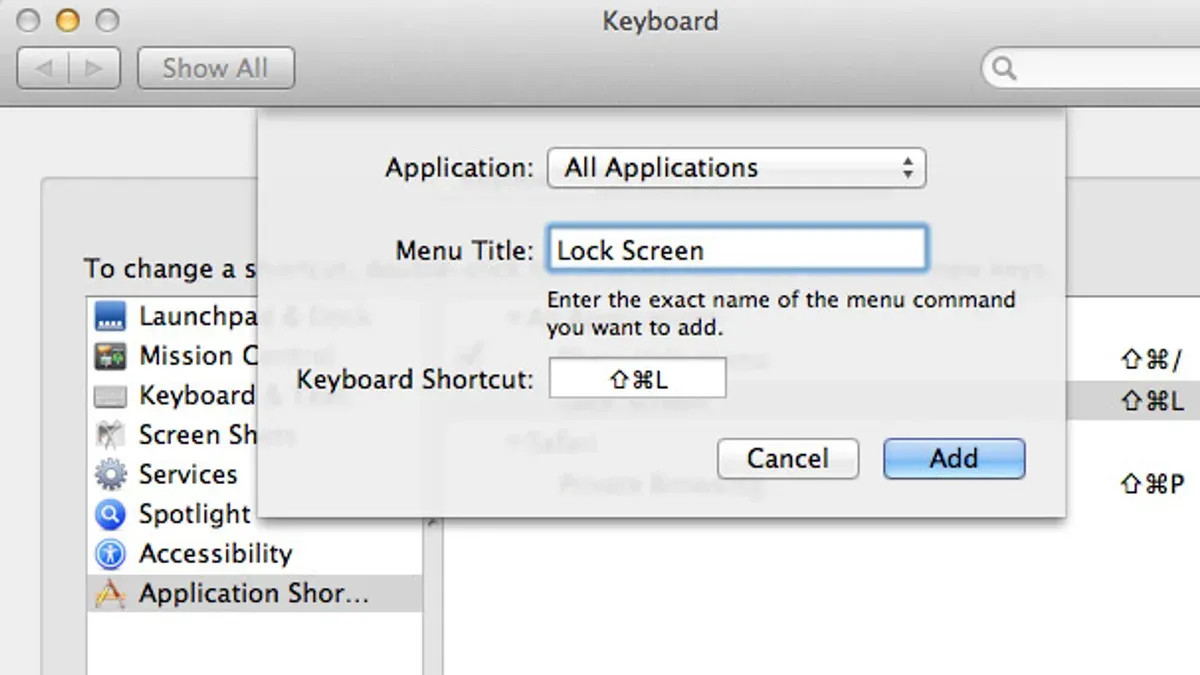
Yes, you can customize the lock screen shortcut by going to System Settings > Keyboard > Keyboard Shortcuts. From there, select “App Shortcuts” or “Mission Control” and set a new shortcut for “Lock Screen” or “Start Screen Saver,” depending on your macOS version. Keep in mind that some default shortcuts like Control + Command + Q may not be changeable, but alternatives can be assigned.
Limitations and when to seek other solutions
This advice does not cover third-party software solutions or enterprise security policies that may override local locking behavior. If your Mac is managed by an organization, your IT department may enforce specific screen locking rules that differ from the native shortcuts and settings described here. Additionally, more advanced security needs such as biometric authentication or remote lock capabilities require specialized tools beyond macOS’s built-in features.
For most users, the quickest and most reliable way to secure your Mac is to configure your system preferences so that the screen locks immediately after sleep or screen saver begins. To do this, go to System Preferences > Security & Privacy > General and check Require password immediately after sleep or screen saver begins. Combining this with the keyboard shortcut Control + Command + Q lets you lock your screen instantly while maintaining strong security without relying on additional software.



