
Mac Keyboard Shortcut to Switch Between Windows of the Same App
Discover how to use the Mac keyboard shortcut to switch between windows of the same app and streamline your multitasking workflow efficiently.
You’re working on a project that requires juggling several documents within the same application, and clicking between windows with the mouse slows you down. Knowing the Mac keyboard shortcut to switch between windows of the same app can streamline your workflow and save valuable time.
This article explains how this shortcut functions on macOS, helping you decide when it’s the most efficient choice among window-switching options. You’ll learn practical tips to use it effectively, common pitfalls to avoid, and alternative methods for navigating multiple windows within a single app.
Key takeaways
- Use Command + ` (backtick) to cycle through open windows of the current app quickly.
- This shortcut works well when you have multiple windows open but fewer total apps running.
- Be mindful that it only switches windows within the active app, unlike Command + Tab which switches between apps.
- Avoid confusion by ensuring your keyboard layout supports the backtick key in this shortcut.
- Consider Mission Control or app Exposé as alternatives when managing many windows across apps.
What the keyboard shortcut does and why it matters
The Mac keyboard shortcut to switch between windows of the same app allows you to cycle through multiple open windows within one application without leaving it. This differs from general app switching shortcuts like Command + Tab, which jump between different apps rather than individual windows inside a single app.
Imagine working on several documents in Pages or multiple tabs open in separate Safari windows. Using this shortcut saves you the time and effort of reaching for the mouse or navigating through the Window menu. Instead, you can quickly toggle between each window, streamlining your workflow and maintaining focus.
For example, if you have three Word documents open, pressing Command + ` (backtick) lets you move through these documents in order. This is faster than using Command + Tab to switch apps or manually selecting windows from the Dock.
| Shortcut | Function | Use Case |
|---|---|---|
| Command + Tab | Switch between different apps | When changing focus to a different application |
| Command + ` (backtick) | Cycle through windows of the same app | When working with multiple windows in one app |
| Mission Control (Control + Up Arrow) | View all open windows and spaces | When visually selecting windows or desktops |
Using this shortcut is especially beneficial if you regularly multitask within a single app, as it reduces interruptions and keeps your hands on the keyboard.
How the shortcut works on macOS
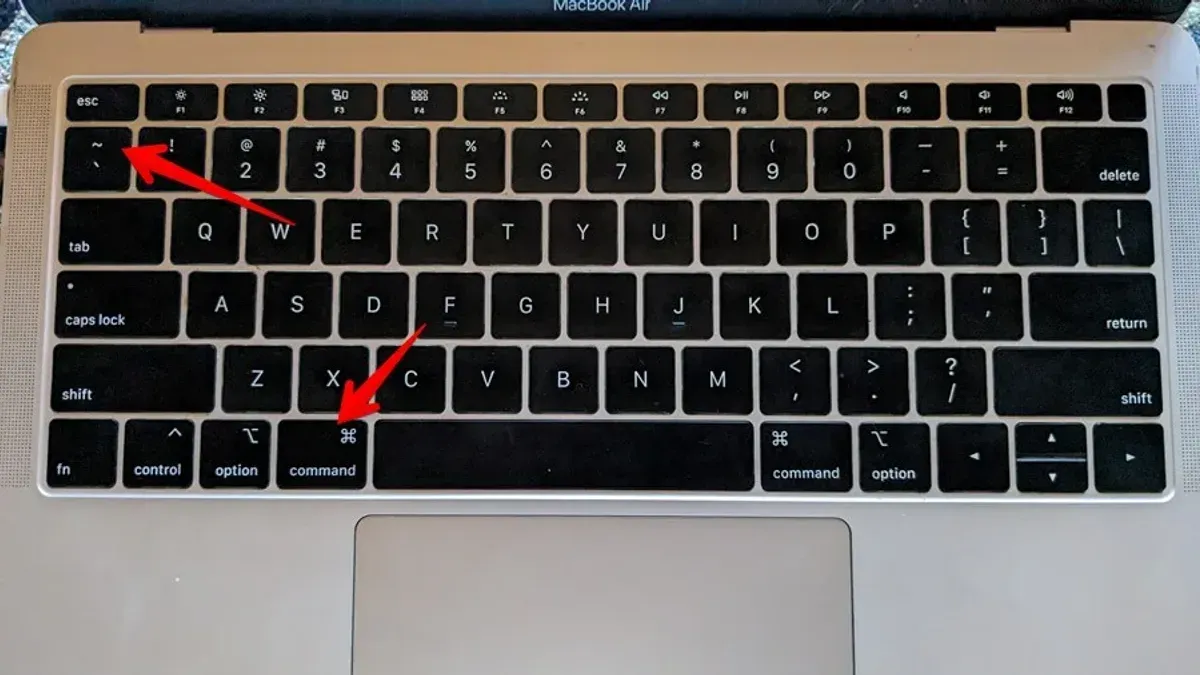
The default keyboard shortcut to switch between windows of the same app on macOS is Command (⌘) + ` (the grave accent key, located just above the Tab key on US keyboards). This combination prompts macOS to cycle forward through all open windows of the active application.
For example, if you have three Safari windows open and press Command + ` once, the focus moves from the current window to the next one in the sequence. Pressing it repeatedly continues cycling through all Safari windows in order.
To cycle backward through windows, hold Shift along with Command and ` (Shift + Command + `). This reverses the order, letting you navigate windows in the opposite direction.
Keep in mind that keyboard layouts differ internationally. On some regional keyboards, the grave accent key may be in a different position or require an extra modifier. Users should identify the exact key by locating the key just above Tab or consult their keyboard viewer in System Preferences under Keyboard > Input Sources.
macOS handles this shortcut at the system level, meaning it works consistently across most apps that support multiple windows, such as Finder, Safari, and Microsoft Word. The cycling order typically follows the windows’ activation history or their creation order.
Practical tips for using the shortcut effectively
To make the most of Command + `, combine it with Mission Control or app Exposé for a visual overview before cycling through windows. For example, pressing Control + Down Arrow reveals all windows of the active app, helping you identify the one you want quickly, then use the shortcut to jump between them without using the mouse.

You can customize this shortcut in System Preferences under Keyboard > Shortcuts > Keyboard. If Command + ` conflicts with another shortcut or feels uncomfortable, assign a different key combination that suits your typing habits better.
Consider workflow scenarios like editing multiple documents in a word processor or managing several chat conversations simultaneously. For instance, when working on three text files, you can open all in separate windows and swiftly cycle through them with the shortcut to compare content or copy information without switching apps.
Remember, pairing this shortcut with visual tools and customizing it to your needs enhances efficiency, especially in multitasking environments with frequent window switching within the same application.
Common mistakes and how to avoid them
A frequent confusion among users is mixing up Command + Tab with Command + `. While Command + Tab switches between different applications, Command + ` is designed to cycle through multiple windows within the same app. For example, if you press Command + ` expecting to jump to a window in another app, nothing will happen, which often leads to frustration.
Another common misconception is expecting the shortcut to switch windows across different applications. It only works within the active app’s open windows, so attempting to use it to navigate between Safari and Mail windows will not work.
Users with non-standard keyboard layouts or remapped keys may find that Command + ` behaves unexpectedly or does not work at all. For instance, in some international keyboards, the backtick key (`) is located differently or requires additional modifiers, affecting shortcut functionality. Checking System Preferences > Keyboard > Shortcuts can help confirm or customize these settings.
Additionally, minimized windows are skipped when cycling through windows with this shortcut. If you have minimized a window in Finder and try to reach it using Command + `, the shortcut will jump past it. To include minimized windows, you must restore them manually before they appear in the cycle.
One user on a popular macOS forum shared frustration seeing Command + ` do nothing, only to realize that their windows were minimized or the keyboard layout remapped the backtick key. This shows the importance of understanding these limitations to use the shortcut effectively.
Alternative methods to switch windows within the same app
If the Command + ` shortcut feels limiting or inconvenient, you can use macOS’s Mission Control or app Exposé features. For example, pressing Control + Down Arrow activates app Exposé, displaying all open windows of the current app. This visual overview allows you to click the desired window directly, which can be faster when many windows are open or when you want to see window previews before switching.
Trackpad users benefit from multi-finger gestures: a three-finger swipe down (configurable in System Preferences > Trackpad > More Gestures) also triggers app Exposé. On Macs with a Touch Bar, some apps let you switch windows via Touch Bar buttons, providing an alternative when keyboard shortcuts are less accessible.
Third-party window managers like Magnet, Rectangle, or Witch offer enhanced window switching capabilities, including window previews, customizable shortcuts, and even cycling through minimized windows. These tools can speed up window navigation substantially but require installation and configuration.
For instance, if you often juggle more than five windows in one app, app Exposé’s visual approach may save time over cycling through windows with a shortcut. Conversely, the shortcut is quicker for users comfortable with keyboard commands and dealing with fewer windows.
When this shortcut might not be the best choice
If you manage a very large number of windows within the same app—such as dozens of browser tabs or multiple document windows—the Command + ` shortcut can become inefficient. Cycling through many windows sequentially may slow you down, especially if the target window is several positions away in the cycle.
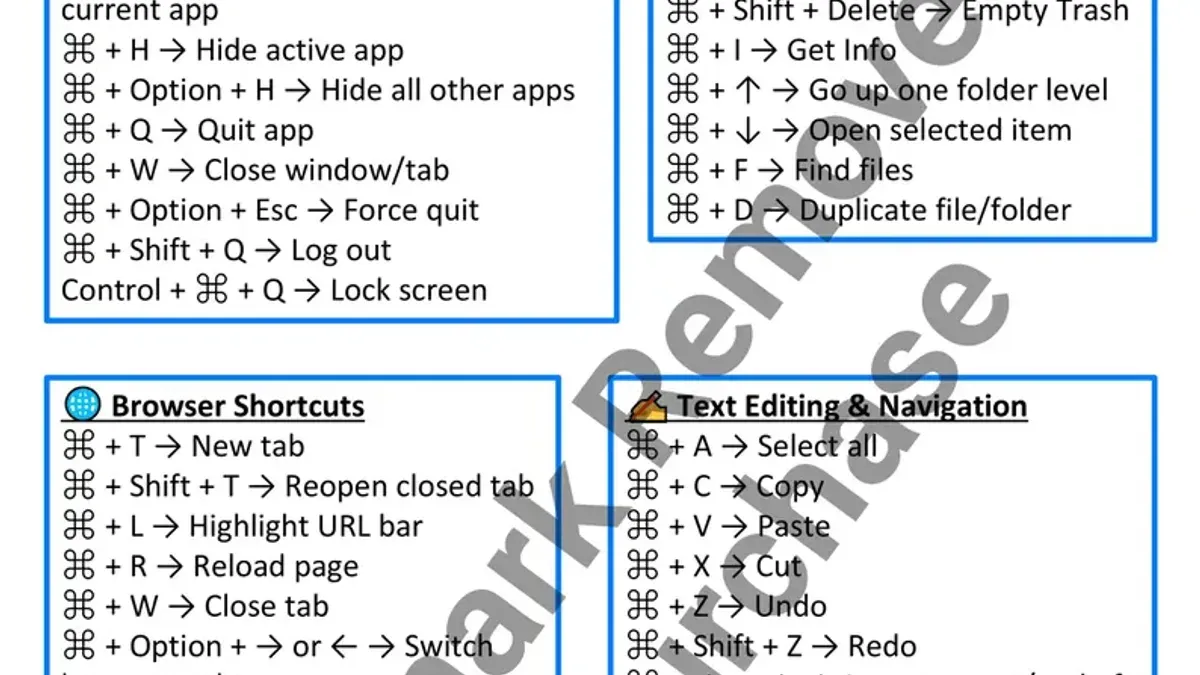
In situations where you need a quick visual overview before switching, relying solely on this shortcut lacks the benefit of window previews. Tools like Mission Control (activated by F3 or Control + Up Arrow) provide thumbnails of all open windows, making it easier to identify and select the desired one without guessing its position in the cycle.
Users with accessibility needs might find the cycling shortcut challenging. For example, those who use VoiceOver or alternative input devices often benefit from features designed explicitly for navigation, such as the Accessibility Keyboard or VoiceOver rotor, which offer more controlled window selection. These methods can reduce confusion and enhance usability beyond what the shortcut provides.
Imagine you have 20 open Word documents and want to switch to the 18th one. Pressing Command + ` repeatedly is cumbersome compared to invoking Mission Control to visually locate and select it directly.
- Mac Keyboard Shortcut to Force Quit an App: How to Quickly Close Unresponsive Programs
- How to Reset Dock to Default Using Mac Terminal: Step-by-Step Guide
Frequently asked questions
What is the default Mac keyboard shortcut to switch between windows of the same app?
The default shortcut is Command + ` (the backtick key, located above Tab). Pressing this combination cycles forward through all open windows of the currently active application, allowing quick navigation without using the mouse.
Can I customize the shortcut for switching windows on Mac?
Yes, you can customize this shortcut via System Settings. Go to Keyboard > Keyboard Shortcuts > Keyboard, then locate "Move focus to next window" and assign a new key combination that suits your workflow better.
Does this shortcut work with all Mac apps?
Most native and many third-party Mac apps support this shortcut, but exceptions exist. Apps with custom window management or those that implement unique interface behaviors might not respond to Command + ` as expected.
How do I switch backward through windows of the same app?
To cycle backward, use Command + Shift + `. This reverses the window-switching order, helping you navigate to previously accessed windows within the same application.
What this shortcut does not cover and when to consider other options
This shortcut only cycles through open windows of the active app and does not switch between different apps or minimized windows. If you frequently need to jump between entirely different applications, using Command + Tab is more effective. Additionally, if many windows are minimized or hidden, this shortcut won’t bring them to the foreground, so consider using Mission Control or the app’s Window menu to locate those windows faster.
For users who manage numerous windows across multiple apps or rely heavily on virtual desktops, integrating these shortcuts with macOS’s broader window management tools will provide greater control. Also, if you use third-party window managers or have customized keyboard shortcuts, the default behavior might differ.
To make the most of switching between windows within the same app, start by practicing the Command + ` shortcut regularly. This simple step will help you navigate your workspace more efficiently and reduce the need for manual window searching, saving time and keeping your workflow smooth.



