
How to Install Oh My Zsh in Mac Terminal: A Clear Step-by-Step Guide
Discover clear steps to install Oh My Zsh in Mac Terminal and customize your command line experience with themes and plugins.
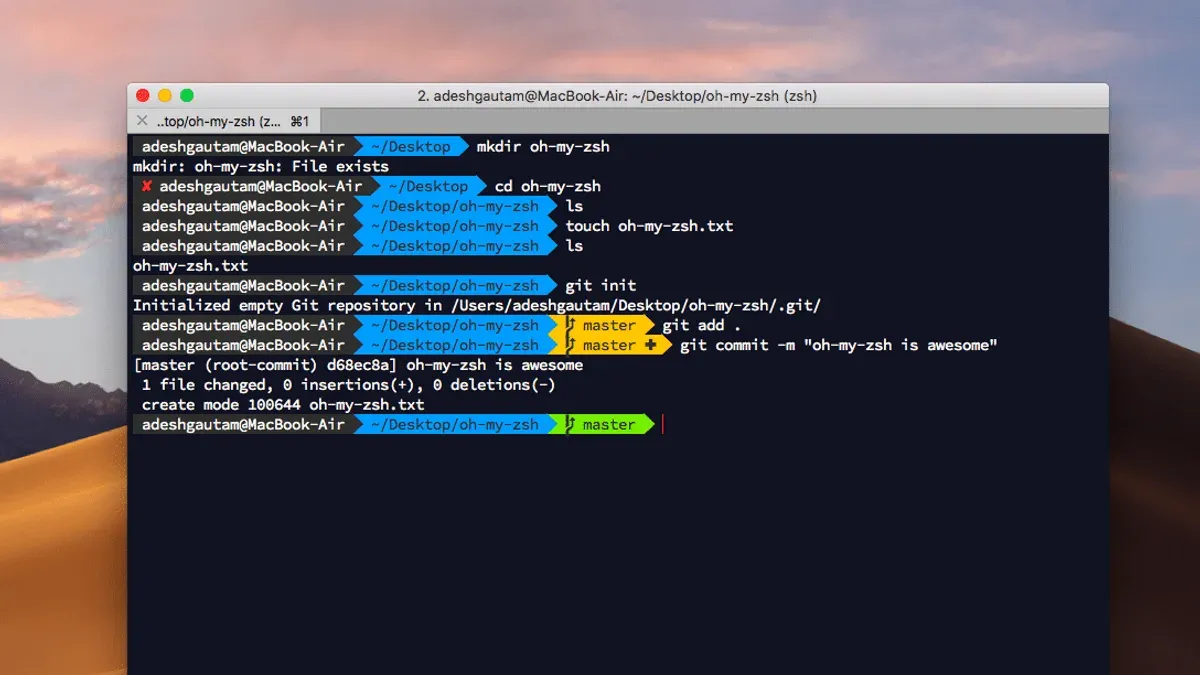
When you open your Mac Terminal, you might find the default shell limiting or lacking customization options. You want a more powerful, user-friendly command line environment but aren’t sure where to start. This article explains how to install Oh My Zsh in Mac Terminal, a popular framework that enhances the Zsh shell with themes, plugins, and improved usability.
You'll learn what Zsh is, how to check if it’s already installed, and the clear steps to install Oh My Zsh. The guide also covers how to configure your PATH settings properly and offers practical troubleshooting tips for common installation issues. By the end, you’ll be equipped to customize your Terminal experience confidently.
Key takeaways
- Zsh is the default shell on recent Macs but may need installation or updating on older versions.
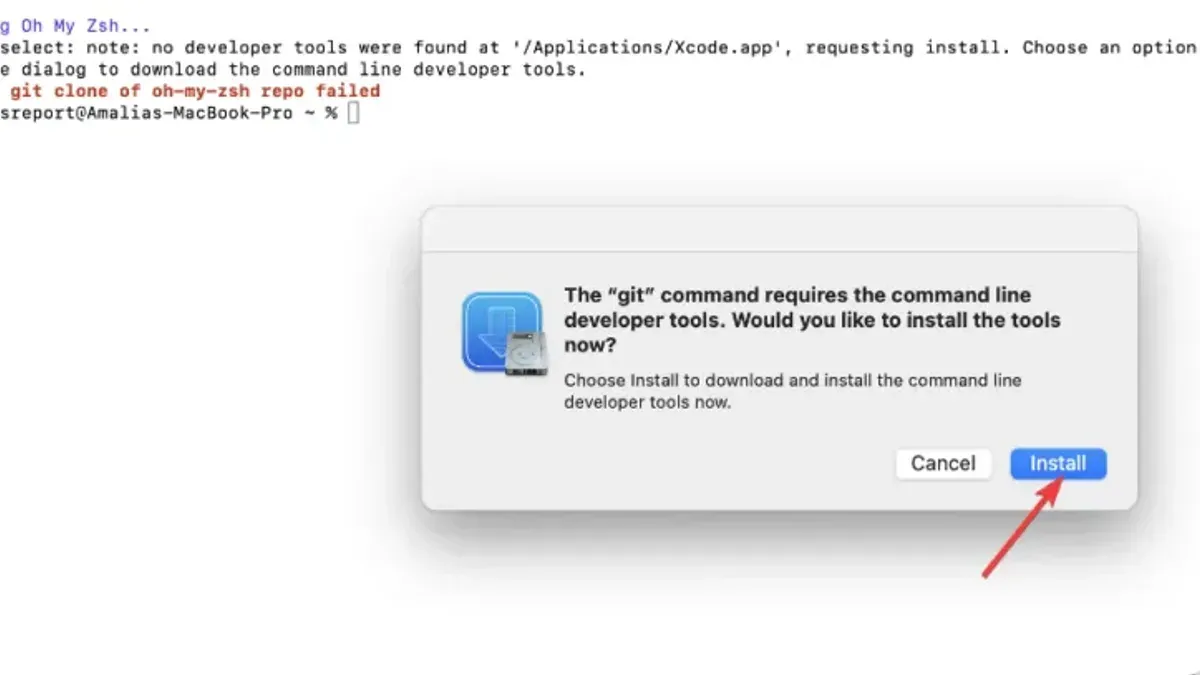
- Installing Oh My Zsh involves running a simple install script in Terminal, but prerequisites like Git are required.
- Adjusting your PATH in Zsh ensures installed tools and scripts run smoothly from the command line.
- Common issues include permission errors and conflicting configuration files, which can be resolved with targeted fixes.
- Using Oh My Zsh plugins and themes can significantly improve your command line workflow and appearance.
Before you start: What you need to install Oh My Zsh on Mac
Before installing Oh My Zsh, ensure your Mac has Zsh installed, which is the shell that Oh My Zsh customizes and enhances. Zsh (Z shell) is a powerful command-line interpreter that offers improvements over the default shell, such as better tab completion and customization options.
To check if Zsh is installed and its version, open Terminal and run:
zsh --version- You should see output like zsh 5.8 (x86_64-apple-darwin20.0), indicating Zsh is present.
By default, macOS uses Zsh as the default shell starting with macOS Catalina, replacing Bash. You can verify your current shell by running echo $SHELL, which typically returns /bin/zsh for the default.
Installing Oh My Zsh requires some basic Terminal knowledge and administrator access to your Mac. You'll also need a stable internet connection to download the installation script and themes/plugins.
Oh My Zsh is an open-source framework that simplifies managing Zsh configuration with themes, plugins, and sensible defaults, making your command line more efficient and visually appealing.
How to install Zsh on Mac if it’s not already installed
First, check your current default shell by opening Terminal and running:
echo $SHELL
You should see a path like/bin/zshor/bin/bash. If it’s/bin/zsh, Zsh is already your default shell.- To verify Zsh installation and version, run:
zsh --version
This outputs the installed Zsh version if present. - If Zsh is missing or you want a newer version, install Homebrew if needed, then run:
brew install zsh
This installs the latest Zsh. - After installation, confirm the new Zsh path with:
which zsh
Typical output is/usr/local/bin/zshor/opt/homebrew/bin/zsh, depending on your Mac’s architecture. - Set Zsh as your default shell by running:
chsh -s $(which zsh)
No output means success; restart Terminal and checkecho $SHELLagain to see the updated default shell path.
Once set, every new Terminal window will launch with Zsh as the default shell.
How to install Oh My Zsh on Mac Terminal
- Open the Terminal app on your Mac. You should see a command prompt ready for input.
- Run the official Oh My Zsh installation script by entering one of the following commands:After you press enter, the script will start downloading and setting up Oh My Zsh.
- Using curl: sh -c "$(curl -fsSL https://raw.githubusercontent.com/ohmyzsh/ohmyzsh/master/tools/install.sh)"
- Or using wget: sh -c "$(wget https://raw.githubusercontent.com/ohmyzsh/ohmyzsh/master/tools/install.sh -O -)"
- During installation, you may be prompted to enter your password to grant permission for changing your shell settings. You will also see messages about backing up your existing .zshrc file if it exists, and the progress of the installation.
- Once the installation completes, the terminal will automatically switch to the Zsh shell configured by Oh My Zsh. This includes a new prompt appearance and basic theme applied.
- Verify the installation by checking that a new .zshrc file exists in your home directory. You can do this by running ls -a ~ | grep.zshrc. The .zshrc file should contain lines such as ZSH="$HOME/.oh-my-zsh" and source $ZSH/oh-my-zsh.sh, indicating Oh My Zsh is active.
Oh My Zsh automatically configures your Zsh shell by loading its framework and default settings from .zshrc. This setup enables plugins, themes, and other enhancements without manual configuration.
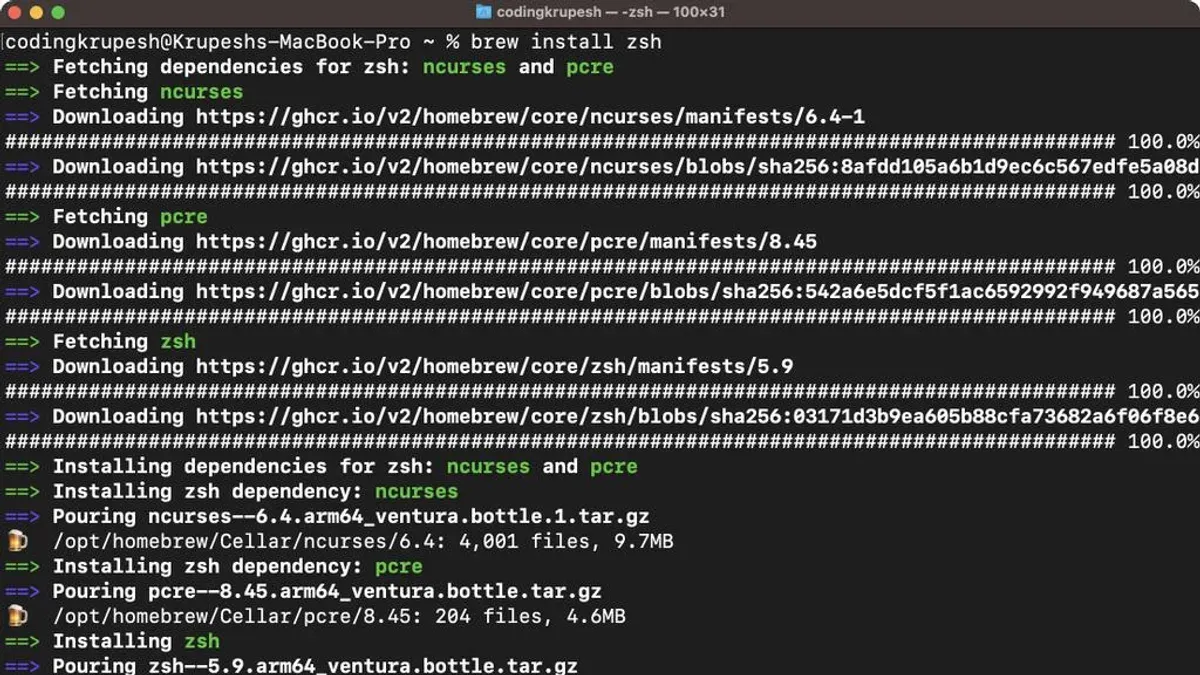
How to open and use Zsh on Mac Terminal after installing Oh My Zsh
- Open a new Terminal window. By default, macOS Terminal should launch using Zsh after Oh My Zsh installation. You should see a customized prompt indicating Oh My Zsh is active, often with your username, hostname, and current directory displayed.
- Test basic shell functionality by typing ls to list directory contents and cd ~ to navigate to your home directory. The prompt should update accordingly.
- Check Oh My Zsh features by running git status inside a Git repository. You will notice colored output and branch information integrated into the prompt.
- Explore themes by opening your
~/.zshrcfile in a text editor and locating theZSH_THEMEvariable. Change the theme name and save the file, then reload the shell with source ~/.zshrc. You will see the prompt style change accordingly. - Activate plugins by editing the
plugins=()array in~/.zshrc. For example, addgitandzplugins for enhanced Git commands and directory jumping. Save and reload to activate. - Customize your prompt further by modifying prompt elements or adding environment variables within
~/.zshrc. Restart Terminal or source the file to apply changes.
Here is a sample prompt after customizing with the agnoster theme and enabling the git plugin:
user@MacBook ~/projects/myrepo main ✗
This shows your username, current directory, Git branch, and status symbols, demonstrating Oh My Zsh’s enhancements.
How to add to PATH on Mac using Zsh
The PATH environment variable tells your shell where to look for executable files when you run a command. You might need to add directories to PATH to use software installed outside default locations, such as Homebrew packages or custom scripts.
To modify PATH in Zsh, you edit the .zshrc file in your home directory. Adding directories here ensures they are included every time you start a new shell session.
- Open Terminal and run
nano ~/.zshrcto edit your Zsh configuration file. - Find any existing PATH modification lines or add a new one. For example, to add Homebrew and a custom binaries folder, insert:
export PATH="/usr/local/bin:/opt/homebrew/bin:$HOME/bin:$PATH" - Save and exit the editor (in nano, press Control + O then Enter to save, and Control + X to exit).
- Apply the changes immediately by running
source ~/.zshrcor restart Terminal. - Verify the updated PATH by running
echo $PATH. You should see the new directories listed before the existing ones.
Before modification example:/usr/bin:/bin:/usr/sbin:/sbin
After modification example:/usr/local/bin:/opt/homebrew/bin:/Users/yourname/bin:/usr/bin:/bin:/usr/sbin:/sbin
Troubleshooting common issues installing Oh My Zsh on Mac
If the installation script fails, check for network or permission problems. A common error is curl: (7) Failed to connect indicating no internet or firewall blocks. Also, permission denied errors suggest you need to run Terminal as an admin or use sudo cautiously.
If Zsh does not switch as your default shell after installation, confirm by running echo $SHELL. If it still shows /bin/bash, use chsh -s $(which zsh) and restart Terminal. You should then see /bin/zsh.
When Oh My Zsh themes or plugins do not load, verify your .zshrc file syntax and that the theme name exists. Run source ~/.zshrc to reload settings and watch for errors like command not found.
If PATH changes do not apply, ensure export commands are in .zshrc, not .bash_profile, and reload the shell. Check with echo $PATH.
Conflicts with existing shell configurations can cause unpredictable behavior. Temporarily move your .zshrc file (mv ~/.zshrc ~/.zshrc.backup) and reinstall Oh My Zsh to isolate issues.
- How to Generate an SSH Key in Mac Terminal: A Step-by-Step Guide
- How to Use SSH in Mac Terminal: A Clear Step-by-Step Guide
Frequently asked questions
How to install oh my zsh mac?
To install Oh My Zsh on a Mac, open Terminal and run the installation command from the official Oh My Zsh repository. This typically involves using curl or wget to download the installation script and piping it to sh. Ensure that Zsh is installed and set as your default shell before running the installer to avoid configuration issues.
How to use zsh on mac?
Once Zsh is installed and set as your default shell, open Terminal and you will automatically be using Zsh. You can customize it by editing the ~/.zshrc file, where you set aliases, environment variables, and enable Oh My Zsh plugins. Restart the Terminal or source the configuration file with source ~/.zshrc to apply changes.
How to add to path mac zsh?
To add a directory to your PATH in Zsh on Mac, edit the ~/.zshrc file and include a line like export PATH="/your/directory/path:$PATH". This prepends the directory so executables there take precedence. After saving, run source ~/.zshrc or restart Terminal to apply the update.
How to open zsh terminal in mac?
Since macOS Catalina, Zsh is the default shell in Terminal. To open a Zsh terminal, simply launch the Terminal app from Applications > Utilities. If your shell is not Zsh, change it by running chsh -s /bin/zsh and then reopen Terminal.
What does zsh mean in terminal?
Zsh stands for Z Shell, a powerful command-line shell and scripting language that serves as an alternative to Bash. It offers advanced features like improved tab completion, better scripting capabilities, and customization options, making it popular among developers and power users.
What this guide does not cover and who should seek other resources
This guide does not cover advanced Oh My Zsh customization, plugin development, or scripting, which require deeper knowledge of shell scripting and may involve editing complex configuration files. If you are unfamiliar with Terminal commands or unsure about modifying system files like ~/.zshrc, consider backing up existing configurations before proceeding or seek additional tutorials focused on safe shell customization.
Users looking to create custom plugins or themes for Oh My Zsh should refer to dedicated developer documentation and resources. Likewise, if you encounter issues outside the scope of basic installation and PATH adjustments, consulting community forums or more specialized guides is recommended.
To get the most out of your new setup, the next step is to explore the ~/.zshrc file where you can enable themes and plugins by editing the ZSH_THEME variable and plugins=() array. This simple customization significantly improves your command line experience and helps you tailor Oh My Zsh to your workflow.



