
How to Set Environment Variables in zsh on Mac Terminal
Learn how to set temporary and permanent environment variables in zsh on Mac Terminal to manage your shell sessions effectively.
You open your Mac Terminal and need to quickly configure an environment variable for your current project. Maybe you want to adjust a path or define a key for a development tool without affecting other sessions. Understanding how to set environment variables in zsh in Mac Terminal helps you manage these needs efficiently.
This article explains the difference between temporary and permanent environment variables in zsh on Mac. You will learn where to define variables based on whether you want them for a single session or all future shell sessions. Additionally, it covers how to set variables system-wide and how to verify your settings.
Key takeaways
- Temporary variables set with
exportlast only for the current Terminal session. - Permanent variables are added to
~/.zshrcto persist across all zsh sessions. - System-wide variables can be defined in
/etc/zshenvfor all users. - Use
echo $VARIABLE_NAMEto check if your environment variables are active. - Common issues include syntax errors or conflicts between different shell configuration files.
Before you start: what you need to know
Environment variables are key-value pairs that influence how your shell sessions and programs behave. They can control paths, settings, and other important parameters that affect command execution and development environments.
It’s important to distinguish between shell variables and environment variables. Shell variables exist only within the current shell session and are not passed to subprocesses, while environment variables are exported to child processes, making them essential for configuring persistent settings.
Before proceeding, confirm you are using zsh, the default shell on modern macOS versions. Open Terminal and type echo $SHELL. If the output ends with /zsh, you’re set. If not, you may need to switch your default shell to zsh first.
Basic familiarity with Terminal commands and using text editors like nano or vim will help you edit configuration files where environment variables are set. Knowing how to navigate and save changes in these editors is essential for making permanent environment variable changes.
How to set a temporary environment variable in zsh
Temporary environment variables in zsh exist only for the duration of your current Terminal session. Once you close the Terminal window or tab, these variables are lost. Setting such variables is useful for testing or when you need a variable only briefly.
- Open your Terminal.
- Type export MY_VAR='hello' and press Enter. This command sets and exports the variable MY_VAR to the current session.
- Verify the variable is set by typing echo $MY_VAR and pressing Enter. You should see hello output.
- Try setting a variable without exporting: MY_VAR2='test'. Then type echo $MY_VAR2. You'll see test because it's set in the current shell.
- Open a new Terminal window or tab and type echo $MY_VAR or echo $MY_VAR2. Neither will output the values because these variables were not saved permanently.
- As an example, temporarily set export PATH="/usr/local/bin:$PATH" or export JAVA_HOME="/Library/Java/JavaVirtualMachines/jdk-17.jdk/Contents/Home" to adjust paths for the session only.
Remember, export makes the variable available to child processes, while assigning a variable without export restricts it to the current shell. Temporary variables are ideal for one-off changes without affecting future sessions.
How to set permanent environment variables for all zsh sessions
To make environment variables persist across all your zsh sessions, you need to add them to the appropriate zsh configuration files. The key files are ~/.zshrc, ~/.zprofile, and ~/.zshenv, each serving different purposes depending on the type of shell session.
| Configuration File | Typical Use Case |
|---|---|
~/.zshrc | Interactive shells (normal Terminal windows) |
~/.zprofile | Login shells (e.g., when logging in remotely or on a console) |
~/.zshenv | All shells (executed for every zsh invocation, even scripts) |
For most users setting environment variables for interactive Terminal use, ~/.zshrc is the best choice.
- Open Terminal and type
nano ~/.zshrcto edit your zsh resource file. You should see the file’s content or a blank screen if it doesn’t exist yet. - Scroll to the bottom (or an appropriate section) and add your export statements, for example:
export PATH="$HOME/bin:$PATH"orexport EDITOR=nano. This sets or modifies environment variables. - Save your changes by pressing Control + O, then Enter, and exit nano with Control + X.
- To apply changes immediately without restarting Terminal, run
source ~/.zshrc. You should see no errors, and new variables become active. - Alternatively, close and reopen Terminal to start a fresh session with the updated environment variables loaded.
How to set environment variables system-wide on Mac for zsh
To define environment variables that affect all users and shell sessions on your Mac, you need to modify system-level configuration files, such as /etc/zshenv or /etc/paths. These files apply settings globally, beyond individual user accounts.
Using /etc/zshenv: This file runs at the start of every zsh session, making it suitable for exporting variables system-wide. You can add export statements here, but be cautious since changes affect all users.
Using /etc/paths: This file specifically manages the system-wide PATH variable by listing directories line by line. It's a straightforward way to add directories to PATH for all users.
- Open Terminal and create a backup of the file you plan to edit, for example:
sudo cp /etc/paths /etc/paths.backup. You should see no output if successful. - Edit the file with a text editor such as nano:
sudo nano /etc/paths. The file will open showing each directory on its own line. - Add the full path of the directory you want to include (e.g.,
/usr/local/bin) on a new line at the end. Use the arrow keys to navigate. - Save and exit the editor (in nano, press
Ctrl+Oto save, thenCtrl+Xto exit). You return to the Terminal prompt. - Restart the Terminal or log out and back in for changes to take effect. Confirm by running
echo $PATH, which should display the new directory included.
Warning: Modifying system files requires sudo privileges and can affect all users. Always back up files before editing, and double-check paths to avoid system issues.
How to check if your environment variables are set correctly
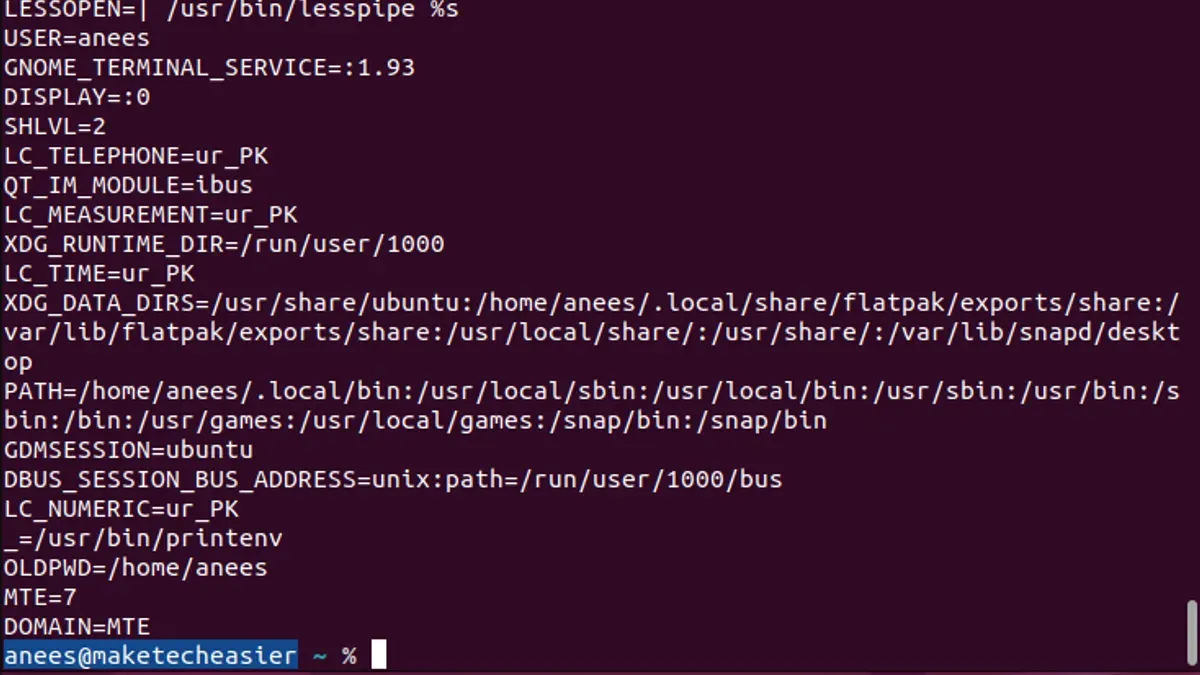
Verifying that your environment variables are set as intended ensures your shell and applications behave correctly. Use these steps to confirm and troubleshoot your variables in zsh on Mac.
- Open Terminal and type printenv VAR_NAME (replace VAR_NAME with your variable name). You should see the variable’s value displayed. For example,
printenv PATHshows the current PATH. - Alternatively, use echo $VAR_NAME. If the output is blank, the variable is not set in the current shell session.
- Run env to list all environment variables. Check your variable appears with the correct value.
- To confirm which configuration files are loaded, temporarily add
echo "Loaded ~/.zshrc"or similar messages in your config files. Open a new Terminal session to see which files print their messages, verifying they are sourced. - Understand that login and non-login shells may load different files, causing variables to appear or not. To simulate a login shell, run zsh -l. Then check your variables again with
printenvorecho. - If your variable does not appear as expected, check for typos in your config files and ensure you have reloaded them with
source ~/.zshrcor restarted Terminal.
Example: If you set export MY_VAR="hello" in ~/.zshrc, then running printenv MY_VAR after opening a new Terminal should output hello. If it doesn’t, verify the file is sourced and the syntax is correct.
This process helps pinpoint whether environment variables are set temporarily, permanently, or affected by the shell type in use.
Troubleshooting common problems with environment variables in zsh
One frequent issue is that environment variables do not persist after closing Terminal. This usually happens if you add variables to the wrong config file or forget to use export. For permanent variables, ensure you place export VARIABLE=value lines inside ~/.zshrc and restart the Terminal.
Syntax errors in config files can prevent zsh from loading your settings. A common mistake is missing quotes or unescaped special characters. For example, export PATH=$PATH:/new/path is correct, while export PATH=$PATH:/new path without quotes causes errors. If you see messages like zsh: parse error, check your config files for typos.
Conflicts may arise when the same variable is set differently in ~/.zshrc and ~/.zprofile. Remember that .zprofile runs only on login shells, so variables there might not affect interactive shells. To avoid confusion, keep environment variables in ~/.zshrc unless you need them for login sessions only.
Editing system-wide files like /etc/zshenv often triggers permission errors. Use sudo cautiously and back up original files before changes. If system-wide variables cause issues, revert by restoring your backup.
To safely revert changes, follow these steps:
- Open Terminal and run
mv ~/.zshrc ~/.zshrc.bakto back up your current config. - Create a minimal
~/.zshrcwith only essential exports. - Restart Terminal and verify if the problem persists.
- If the issue resolves, add your custom variables back one by one to isolate errors.
- If system files were changed, restore backups with
sudo cp /etc/zshenv.bak /etc/zshenv(or relevant file) and restart.
- How to Update Homebrew Packages in Mac Terminal: A Clear Step-by-Step Guide
- How to Use sudo Safely in Mac Terminal: A Step-by-Step Guide
- How to Generate an SSH Key in Mac Terminal: A Step-by-Step Guide
- How to Use SSH in Mac Terminal: A Clear Step-by-Step Guide
Frequently asked questions
What is the difference between setting environment variables in.zshrc and.zprofile?
.zshrc is executed for interactive shell sessions, so environment variables set there apply when you open a new Terminal window or tab..zprofile runs during login shells, which includes the initial Terminal launch, making it suitable for environment variables needed at login but not necessarily for every new shell. Use.zshrc for variables related to interactive use and.zprofile for variables that must be set once per login session.
How do I make environment variables available to GUI applications on Mac?
GUI applications launched outside Terminal do not inherit environment variables from shell configuration files. To make variables available system-wide, create or edit the file ~/.MacOSX/environment.plist or use launchctl setenv commands in your user launch agents. Alternatively, define variables in /etc/launchd.conf for system-wide settings, but note this method is deprecated in recent macOS versions.
Can I set environment variables for just one Terminal window or tab?
Yes, you can set temporary environment variables directly in the Terminal window or tab by using export VARIABLE_NAME=value. These variables persist only for the current shell session and disappear when you close that window or tab. This method is useful for testing or session-specific needs without altering configuration files.
Why are my environment variables not showing up after restarting Terminal?
This often happens if the variables are set in the wrong file or not exported properly. Ensure you place export VARIABLE_NAME=value lines in.zshrc for interactive shells or.zprofile for login shells. Also, verify that the files have correct permissions and that you restart Terminal completely or source the configuration files to apply changes.
What this advice does not cover and who should look elsewhere
This article focuses exclusively on setting environment variables within zsh on the Mac Terminal. It does not address configuration for other shells such as bash or fish. Additionally, it does not cover environment variable management for graphical user interface (GUI) applications outside the Terminal environment. Users who require environment variables to affect GUI apps or who are working in different shell environments should consult documentation specific to those contexts.
For the most reliable setup, the single most useful next step is to edit your ~/.zshrc file to add permanent environment variables you need regularly. This file loads with every new zsh session, ensuring your variables are always available. Remember to reload the file with source ~/.zshrc or restart your Terminal after changes to apply them immediately.



