
How to Open Apps from Terminal on Mac: A Step-by-Step Guide
Discover practical methods to open Mac apps from Terminal, including using the open command and launching executables inside app bundles.
You often find yourself juggling multiple apps on your Mac and want a quicker way to launch them without leaving the Terminal. Maybe you’re scripting or prefer to keep your hands on the keyboard. Understanding how to open apps from Terminal in Mac Terminal lets you streamline your workflow beyond the usual click-and-drag.
This guide walks you through practical methods to start Mac applications via Terminal, including using the open command, launching executables inside app bundles, passing arguments, and running apps with specific options. You’ll also learn how to handle common errors that might occur, giving you precise control over app launching from the command line.
Key takeaways
- Use the open command with the app’s.app path to launch most Mac applications quickly.
- Launch executables inside app bundles for more direct control, especially useful with developer tools.
- Pass command-line arguments by running the app’s executable directly, not via open.
- Open apps in the background using
open -gto avoid interrupting your Terminal session. - Check app permissions and paths if you encounter common errors when launching from Terminal.
Before you start: what you need to open apps from Terminal
To open applications from the Terminal on your Mac, you should have a basic understanding of command-line usage and be comfortable navigating the Terminal app. Familiarity with how macOS organizes applications is also helpful, as apps are typically packaged in bundles with a.app extension.
Most apps reside in the /Applications folder, though some may be within user folders like ~/Applications. Knowing the exact path to an app is crucial when launching it from the command line.
Here is a typical example of an app path and a Terminal prompt:
/Applications/Safari.app
username@MacBook ~ %
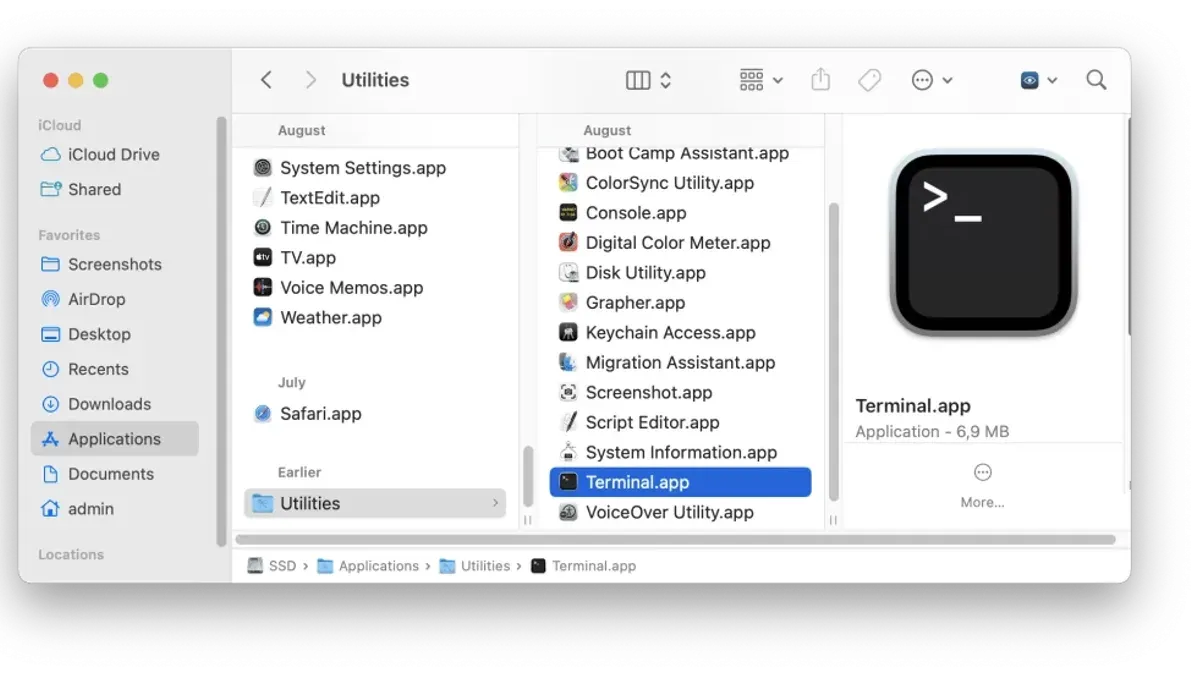
Before proceeding, ensure you can open Terminal by navigating to Applications > Utilities > Terminal or by using Spotlight search.
- Open the Terminal app. You should see a prompt similar to
username@MacBook ~ %. - Verify the location of the app you want to open. For example, type
ls /Applications/to list apps in the main Applications folder. - Confirm the app bundle exists by checking for the
.appextension in the app name.
Once these prerequisites are met, you are ready to use commands to launch apps effectively from Terminal.
Using the open command to launch Mac applications
The open command is the simplest and most common way to launch Mac applications from Terminal. It lets you open apps either by their name or by specifying the full path to the application bundle.
- Type
open -a ApplicationNameto launch an app by its name. For example,open -a Safariopens the Safari browser. You should see Safari launch immediately. - Alternatively, use
open /Applications/ApplicationName.appto open an app with its full path. For example,open /Applications/TextEdit.appopens TextEdit. The app will launch as expected. - To open a specific file with a certain app, use
open -a ApplicationName /path/to/file. For example,open -a TextEdit ~/Documents/notes.txtopens the file notes.txt in TextEdit. The file opens within the specified app.
Using open is reliable for launching most standard Mac applications quickly. It handles app paths internally, avoiding the need to locate executable files yourself. The -a flag is essential for specifying the application name instead of a file.
Launching apps directly using their executable inside the app bundle
To gain more control over how you launch an application from Terminal, you can run the app's executable file directly. Mac applications are packaged as bundles with a specific folder structure. Inside the app bundle, the executable resides within the Contents/MacOS directory.
- Locate the app bundle in Finder or Terminal. For example, Safari.app is typically in
/Applications/Safari.app. - Open Terminal and navigate to the executable's directory by typing
cd /Applications/Safari.app/Contents/MacOS. Press Enter. - Run the executable directly by typing
./Safariand pressing Enter. This launches Safari and may display Terminal output or logs.
Unlike the open command, running the executable directly bypasses macOS’s launch services, giving you access to command-line arguments and potential debug information. This method is useful when you want to pass custom flags or troubleshoot app behavior. However, it may not trigger all usual app launch processes, such as opening associated files or registering the app in the Dock.
Passing arguments to apps when opening from Terminal
The open command does not support passing command-line arguments directly to applications. If you need to supply arguments, you must launch the app's executable directly from its Contents/MacOS folder.
This method provides precise control over the app's behavior and is essential for apps designed to accept parameters, such as Google Chrome or Visual Studio Code. For example, launching Google Chrome’s executable with the --incognito flag starts the browser in incognito mode.
- Locate the app executable, for instance:
/Applications/Google\ Chrome.app/Contents/MacOS/Google\ Chrome. - Run the executable with the desired argument, e.g.,
/Applications/Google\ Chrome.app/Contents/MacOS/Google\ Chrome --incognito. You should see Chrome open in a private browsing window. - Verify the argument’s effect by confirming the app’s behavior matches the parameter, such as no browsing history being recorded in incognito mode.
This approach is necessary when you want to customize app startup beyond what the generic open command allows, especially for development or testing workflows.
Opening apps in the background or with specific options
You can customize how apps open from Terminal by using specific flags with the open command to control focus and behavior. The -g flag opens an app without bringing it to the foreground, allowing it to run silently in the background. Without -g, the app will automatically gain focus and appear on top.
To open multiple instances or force a new window, use the -n flag. This launches a new separate instance of the app even if one is already running, useful for apps that support multiple sessions. Combining flags like -g and -n lets you open a new instance quietly.
- Run
open -a Safari. Safari will open and become the active window. - Run
open -ga Safari. Safari opens or activates but stays in the background without stealing focus. - Run
open -n -a Safari. A new Safari window opens even if one exists, appearing in the foreground. - Run
open -gn -a Safari. A new Safari window opens quietly in the background.
These options give precise control over app visibility and focus from Terminal, enabling workflows where you might want an app running without interrupting your current task or managing multiple app instances efficiently.
Troubleshooting common issues when opening apps from Terminal
When you encounter problems launching apps from Terminal, start by verifying the app path and name. A common error message like "The file doesn’t exist." indicates an incorrect path or misspelled app name. Double-check the exact app bundle location, typically in /Applications or ~/Applications.

Permission errors often appear as "Permission denied". To resolve this, ensure the executable has the right permissions by running chmod +x on the app’s binary inside Contents/MacOS. If System Integrity Protection or sandboxing restricts access, you may need to adjust your workflow or use the open command instead.
If the app fails to launch or crashes immediately, examine Terminal output for error messages or open Console.app to view relevant crash logs. These logs can indicate missing dependencies or sandbox violations.
- Confirm the full path and name of the app bundle or executable. You should see no "file not found" errors after correction.
- Check and modify permissions with chmod +x on the app binary if you see "Permission denied" errors.
- Use Console.app or Terminal output to review crash logs. Identifying errors here helps pinpoint issues like sandbox restrictions or missing files.
- How to Uninstall Homebrew Using Mac Terminal: A Step-by-Step Guide
- How to Use Aliases in zsh on Mac Terminal: A Practical Guide
- How to Change Your Default Shell to Bash in Mac Terminal
Frequently asked questions
Can I open any app installed on my Mac using Terminal?
You can open most apps installed in standard locations like the Applications folder using Terminal commands. However, some system apps or those installed in non-standard directories may require full path specification or special permissions. Apps downloaded from the App Store or identified developers usually work seamlessly with Terminal commands.
How do I find the exact path to an app’s executable?
Locate the app in Finder, right-click it, and select "Show Package Contents." Navigate to Contents > MacOS to find the executable file. Alternatively, use the Terminal command mdfind kMDItemCFBundleIdentifier == <bundle-id> to locate the app’s path, or drag the app icon into the Terminal to auto-fill its path.
Why does the 'open' command sometimes fail to launch an app?
The 'open' command can fail if the app’s path is incorrect, the app is quarantined by macOS, or if required permissions are missing. It may also fail for command-line-only apps that lack a graphical interface. Ensuring the correct bundle identifier or full path and checking macOS security settings often resolves these issues.
Is it possible to open multiple instances of the same app from Terminal?
By default, macOS prevents multiple instances of most apps from running simultaneously. However, you can open additional instances by launching the app’s executable directly from its bundle in Terminal with a special command. Note that not all apps support this and behavior can vary, especially with sandboxed or system apps.
What this advice does not cover and who should look elsewhere
This guide does not cover scripting complex automation workflows, such as those involving AppleScript or Automator, nor does it address managing app permissions beyond basic troubleshooting steps. If your needs include automating multi-step processes or dealing with security and privacy settings in depth, you should consult resources dedicated to macOS automation or system administration.
The most practical next step is to experiment with the open command using various flags and app paths on your Mac. This hands-on approach will help you understand how different options affect app launching, giving you precise control over your workflow. Pay particular attention to correctly specifying app bundle paths and using the -a flag for app names, as these are common areas where users encounter errors.



