
How to Change Your Default Shell to Bash in Mac Terminal
Switch your Mac Terminal default shell to Bash for better compatibility and a smoother command line experience with this easy step-by-step guide.
You open your Mac Terminal and realize the default shell isn’t Bash, which you're more comfortable with or need for compatibility with certain scripts. Switching your default shell to Bash can streamline your workflow and reduce unexpected behavior when running scripts or commands.
This article explains how to change default shell to bash in Mac Terminal, guiding you through checking available shells, making the switch, updating configuration files, and understanding the impacts of this change compared to other shells like Zsh.
Key takeaways
- Check available shells on your Mac by viewing the
/etc/shellsfile. - Use the
chsh -s /bin/bashcommand to set Bash as your default shell. - Update your
~/.bash_profileor~/.bashrcto customize your Bash environment. - Be aware Bash on Mac may lack some newer features compared to Zsh, the current default shell.
- Troubleshoot permission issues by ensuring Bash is listed in
/etc/shellsand you enter your password correctly when prompted.
Before you start: what you need
Changing your default shell to Bash requires some preparation to ensure a smooth transition. First, you need administrative access to your Mac since modifying the default shell involves system-level changes.
It's useful to confirm your current default shell. Recent macOS versions, starting with Mojave, use zsh by default. To check, open Terminal and enter echo $SHELL. The output typically shows /bin/zsh if you haven't changed it.
Be aware that the Bash version pre-installed on macOS is older (version 3.2) due to licensing reasons. This may lack features found in newer Bash releases. If your scripts require a newer Bash, consider installing it separately.
Finally, clarify why you want to switch to Bash. Common reasons include compatibility with legacy scripts, personal preference, or familiarity. Understanding this helps you weigh the benefits and potential limitations before making the change.
- Open Terminal on your Mac.
Terminal window appears, ready for input. - Type echo $SHELL and press Enter.
Terminal displays the current default shell path, such as /bin/zsh. - Confirm you have administrative rights by running whoami and ensuring you are the Mac’s administrator.
Your username appears; if you manage the Mac, proceed.
Check the available shells on your Mac
Before changing your default shell to Bash, verify that Bash is listed as a valid login shell on your Mac. This ensures the system recognizes the shell and allows you to use it safely.
- Open Terminal.
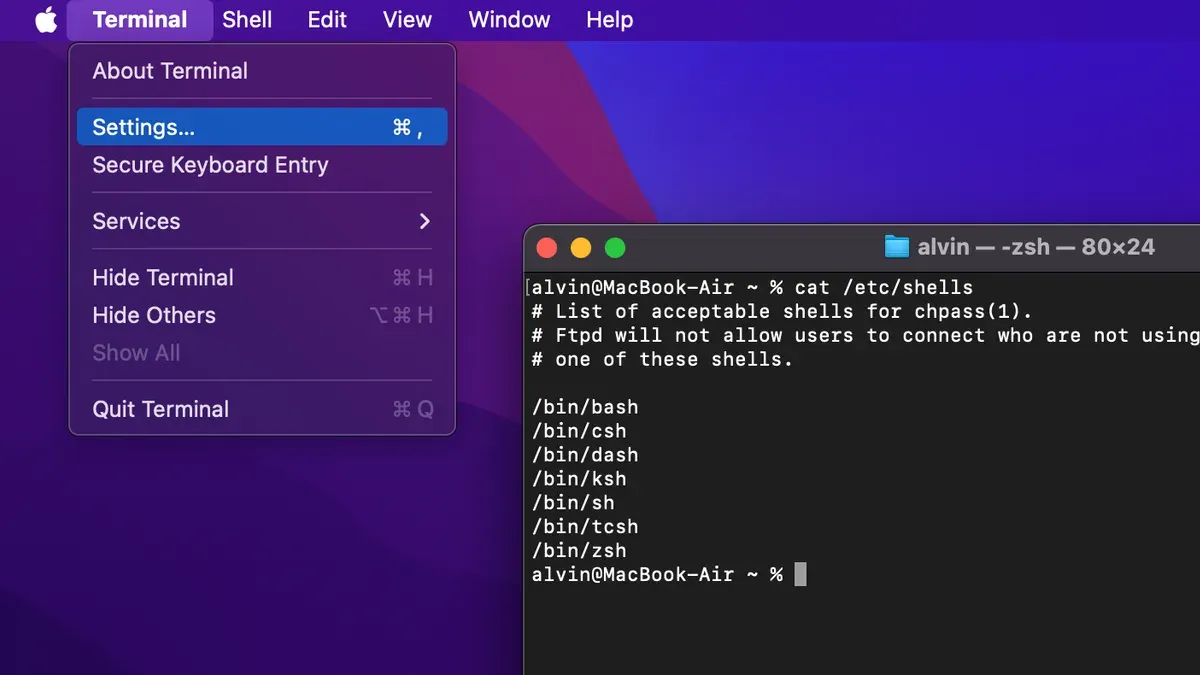
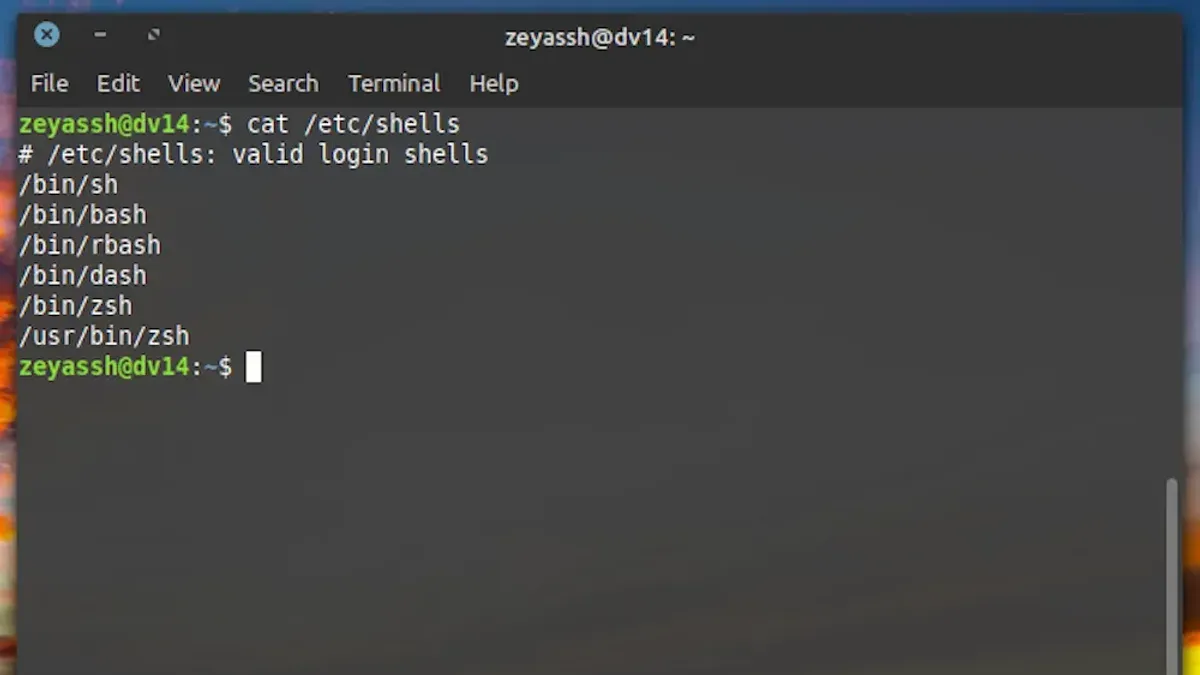
- Enter cat /etc/shells and press Enter. This command displays all available shells configured on your system.
- Look for the Bash entries, typically /bin/bash and possibly others like /usr/local/bin/bash.
Sample output might include:
/bin/bash
/bin/zsh
/usr/local/bin/bash
/bin/sh
The Bash version located at /bin/bash is the system-provided Bash, usually version 3.2. This older version remains for licensing reasons but may lack features found in newer Bash releases.
If you installed a newer Bash version via Homebrew, it’s commonly found at /usr/local/bin/bash or /opt/homebrew/bin/bash on Apple Silicon Macs. This newer Bash supports enhanced scripting capabilities.
To add a custom Bash path to the list of valid shells, use sudo sh -c 'echo /path/to/bash >> /etc/shells'. Replace /path/to/bash with your actual Bash binary path. Afterward, you can select this Bash as your default shell.
Change your default shell to Bash using Terminal
- Open the Terminal application on your Mac.
- Enter the command chsh -s /bin/bash and press Enter. You should see no output, indicating the command was successful.
- Close the Terminal window and log out of your macOS user account, then log back in to apply the shell change.
- Open Terminal again and type echo $SHELL. The output should be /bin/bash, confirming Bash is now your default shell.
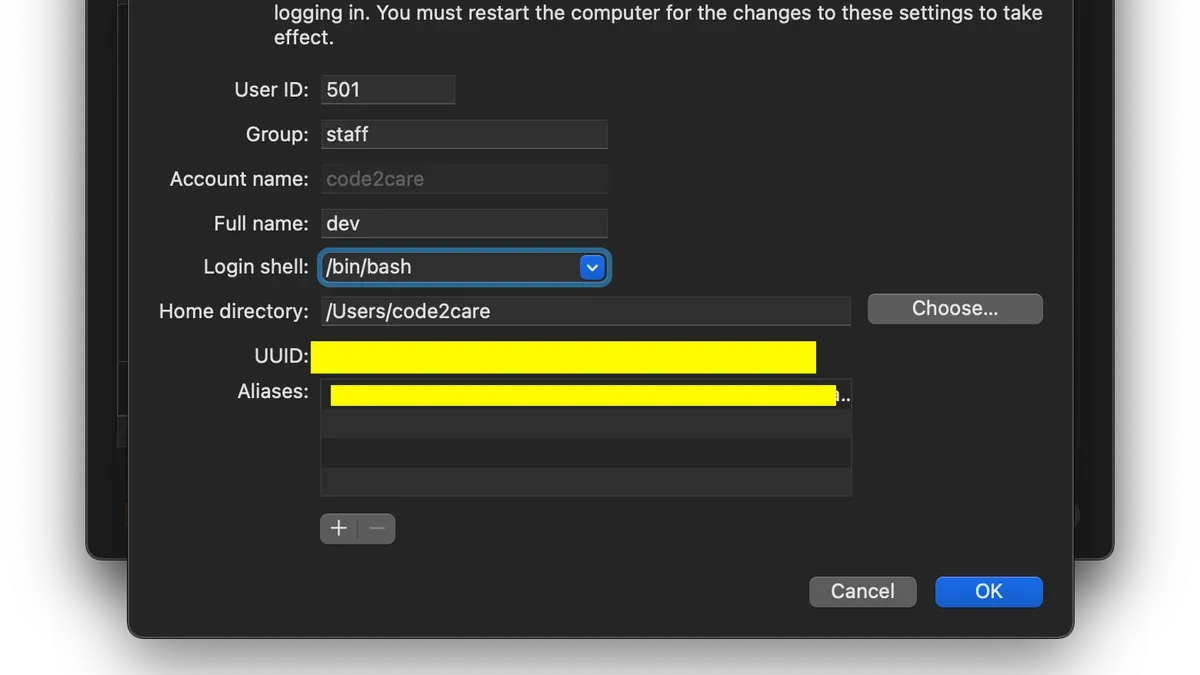
Alternatively, you can change the default shell via System Preferences by navigating to Users & Groups, unlocking the pane with your admin password, right-clicking your user account, selecting Advanced Options, and choosing Bash from the Login shell dropdown. Another option is setting the shell for individual Terminal profiles in the Terminal app preferences, allowing multiple shells without changing the global default.
Remember that changes will not take effect until you have logged out and back in or restarted Terminal. Using chsh affects all Terminal sessions globally for your user, while profile-specific settings only affect that profile.
Update your shell configuration files for Bash
When switching to Bash, you need to adjust your shell configuration files to ensure your environment works as expected. Bash primarily uses three files: ~/.bash_profile, ~/.bashrc, and ~/.profile. Typically, ~/.bash_profile runs for interactive login shells, while ~/.bashrc runs for interactive non-login shells. The ~/.profile is a fallback for login shells if ~/.bash_profile is absent.
Zsh users often configure ~/.zshrc, which combines these roles. To migrate, copy important settings like aliases, environment variables, and functions from your ~/.zshrc into ~/.bash_profile or ~/.bashrc depending on your needs.
- Open or create
~/.bash_profilewith a text editor.
Expected: A blank or existing file opens. - Add or migrate environment variables, for example:
export PATH="$HOME/bin:$PATH"
Expected: PATH updates when the shell starts. - Add aliases, such as:
alias ll='ls -la'
Expected: Typinglllists files in long format. - Source
~/.bashrcfrom~/.bash_profileto unify settings:if [ -f ~/.bashrc ]; then. ~/.bashrc; fi
Expected: Settings in both files load correctly. - Create or update
~/.bashrcfor interactive non-login shell customizations.
Expected: New terminal tabs inherit these settings.
Differences to note: Bash does not source ~/.zshenv or ~/.zprofile, so any environment setup there must be manually migrated. Also, functions and scripts written for zsh syntax may require adjustment to Bash syntax.
Troubleshooting common issues when switching to Bash
If the chsh command fails, check whether you have the necessary permissions and confirm that the Bash path is listed in /etc/shells. An error like "chsh: shell not changed" often indicates the shell is not approved. To fix this, add the Bash path to /etc/shells using sudo nano /etc/shells, then retry.
After switching, you might encounter "command not found" errors if your Bash profile files (~/.bash_profile or ~/.bashrc) are missing configurations you had in zsh files. To resolve this, migrate essential aliases and environment variables carefully, or create minimal profile files to restore command functionality.
Scripts or tools designed for zsh may not work as expected in Bash due to syntax differences or specific features. Test critical scripts before switching permanently, and update or replace incompatible commands.
If you need to revert, use the chsh command with your previous shell’s full path, for example:
- Type
chsh -s /bin/zshand press Enter. - Log out and back in to apply the change.
- Verify the default shell with
echo $SHELL, which should display/bin/zsh.
Understanding the limitations of using Bash as your default shell on Mac
macOS includes Bash version 3.2 by default, an older release due to licensing restrictions. Newer Bash versions, such as 5.x, are not bundled and require manual installation via package managers like Homebrew. This means that unless you install a newer Bash, you may miss out on modern shell enhancements.
Many macOS features and scripts assume zsh or other shells as the default. Since macOS switched to zsh as the default shell starting with macOS Catalina, some system tools and third-party utilities may expect zsh-specific syntax or behavior, leading to compatibility issues when using Bash.
Bash lacks several modern conveniences present in shells like zsh or fish, including advanced tab completion, prompt customization, and plugin frameworks. This can affect your productivity and scripting capabilities if you rely on such features.
Changing your default shell affects only your user environment; it does not change system scripts or other users’ shells. System processes continue using their configured shells, so switching to Bash does not impact system-wide behavior or multi-user setups.
For a detailed comparison of shell features, consult resources comparing Bash 3.2, Bash 5.x, and zsh capabilities to choose what fits your needs best.
- How to Generate an SSH Key in Mac Terminal: A Step-by-Step Guide
- How to Use SSH in Mac Terminal: A Clear Step-by-Step Guide
- How to Use sudo Safely in Mac Terminal: A Step-by-Step Guide
Frequently asked questions
How do I check which shell I am currently using in Terminal?
Open Terminal and type echo $SHELL, then press Enter. This command displays the path of the shell currently in use. Alternatively, you can type echo $0 to see the active shell process name.
Can I switch back to zsh if I don’t like Bash?
Yes, you can switch back to zsh anytime by running chsh -s /bin/zsh in Terminal. This command changes your default shell to zsh, which is the macOS default. You will need to restart Terminal or log out and back in to see the change.
What is the difference between /bin/bash and Bash installed via Homebrew?
/bin/bash is the version of Bash that comes preinstalled with macOS, often an older release. Bash installed via Homebrew is typically a more recent version with additional features and security updates. Using the Homebrew version requires adding it to the list of allowed shells and specifying its full path when changing your default shell.
Will changing my default shell affect system scripts or other applications?
Changing your user’s default shell does not affect system scripts or applications, as they run under their specified shells. However, some user scripts or tools configured for a specific shell might behave differently or require adjustment. It’s advisable to test critical workflows after switching to ensure compatibility.
What this guide does not cover and who should look elsewhere
This guide focuses on changing the default login shell for your user account on Mac and does not cover scripting techniques, advanced shell usage, or system-wide shell configuration. If you require automated shell scripting, cross-shell compatibility, or system administrator-level shell management, you may need specialized resources or professional assistance.
Switching your default shell to Bash can simplify your command-line experience if you prefer Bash’s syntax and scripting capabilities. To get started, open Terminal and verify your shell with echo $SHELL. The most useful next step after changing your default shell is to customize your ~/.bash_profile or ~/.bashrc files to tailor your environment with aliases, PATH adjustments, and prompt settings that fit your workflow.



