
Mac Keyboard Shortcut to Go to a Folder Path: A Practical Guide
Discover how to quickly navigate to any folder on your Mac using keyboard shortcuts for faster file management and workflow.
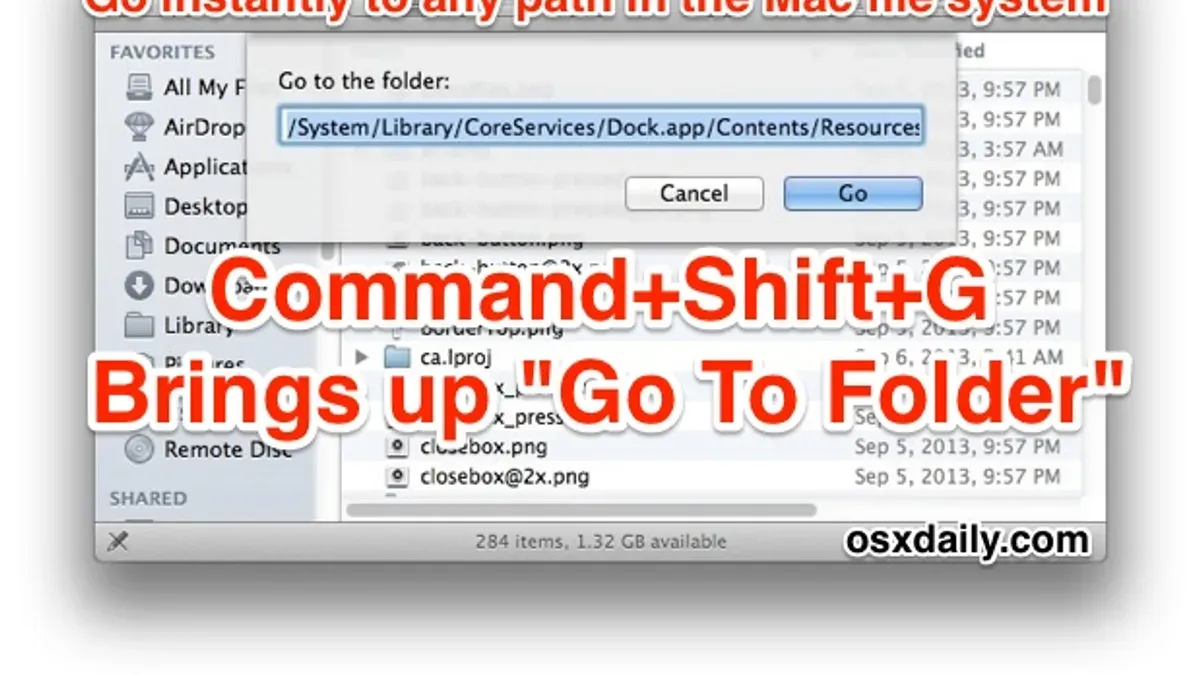
Imagine you need to quickly navigate to a specific folder on your Mac but don’t want to hunt through multiple Finder windows. Or perhaps you want to copy the full folder path to share with a colleague or use in a script. Knowing the Mac keyboard shortcut to go to a folder path can save you time and streamline these tasks.
This article covers practical methods to efficiently navigate to, copy, and create shortcuts for folder paths using keyboard shortcuts within Finder and Terminal. You will learn how to handle folder paths whether you start with a file, a Finder window, or want to automate access to frequently used folders.
Key takeaways
- Use Command+Shift+G in Finder to open the “Go to Folder” dialog for quick navigation by path.
- Copy a folder’s path by right-clicking the folder icon in a Finder window’s title bar and holding Option to reveal the path copy option.
- Press Command+Option+C in Finder to copy the full folder path directly to the clipboard.
- Use Terminal’s cd command combined with Tab for fast folder navigation when working in the command line.
- Create Finder sidebar shortcuts or aliases for folders you access frequently to avoid repeatedly typing paths.
What it means to go to a folder path on Mac and why it matters
A folder path in macOS represents the precise location of a folder within the hierarchical file system. It shows the sequence of directories you need to follow to reach that folder, starting from the root or your home directory. Understanding and using folder paths allows you to navigate directly to any location on your Mac without relying solely on visual browsing.
Knowing how to go to a folder path speeds up your workflow by bypassing multiple clicks and folder openings. For example, instead of clicking through Finder windows to reach a deeply nested folder like /Users/yourname/Documents/Work/Projects/2026/Reports, you can use a keyboard shortcut to jump straight there, saving time and reducing the chance of opening the wrong folder.
This direct navigation contrasts with visual navigation where you manually open each folder one by one. Using folder paths and shortcuts is especially helpful in scenarios such as accessing configuration files buried within system folders, quickly opening project directories, or managing files across various drives. It makes file management more efficient and reliable.
How to get folder path in Mac using keyboard shortcuts
To quickly access a folder path in Finder, press Command + Shift + G to open the “Go to Folder” dialog. Here, you can type or paste the exact path to jump directly to a folder without navigating manually.
To reveal the current folder’s full path in the Finder window title bar, hold down the Option key and click the folder name at the top. This displays a dropdown menu of the entire folder hierarchy, letting you see and select parent folders easily.
Copying a folder’s path can be done swiftly using the contextual menu combined with a keyboard modifier. Select the folder, then press Control + Click (or right-click) while holding Option. The option “Copy [Folder Name] as Pathname” appears, allowing you to copy the full POSIX path to the clipboard.
Another method is opening the folder’s Get Info window with Command + I. The “Where” section shows the folder’s location relative to your drive. While not a full path, it helps confirm the folder’s position quickly without navigating away.
For example, if you want to copy the path to your Documents folder, select it in Finder, hold Option, right-click, then choose “Copy Documents as Pathname.” Paste this path anywhere to use it in Terminal or scripts.
How to copy folder path in Mac quickly and accurately
Copying a folder or file path on Mac can be done swiftly using several methods, each suited to different needs. The quickest built-in shortcut is Command + Option + C while a folder or file is selected in Finder. This copies the exact POSIX path to the clipboard, ready for pasting into Terminal or scripts.
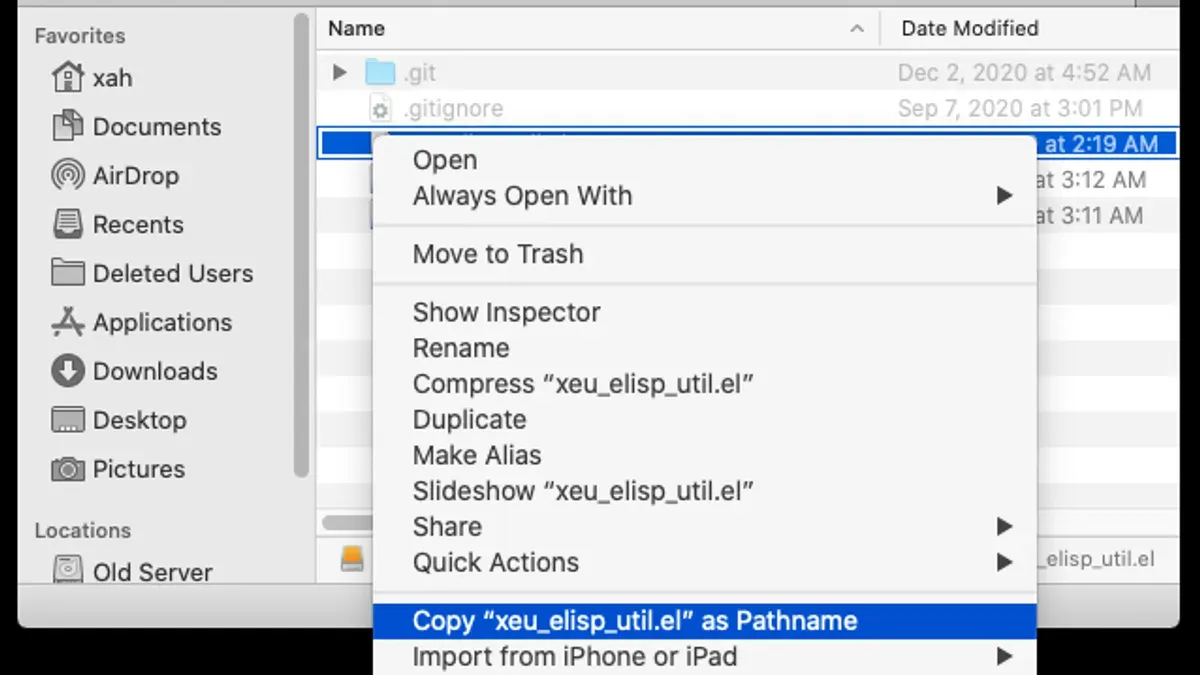
Alternatively, you can drag a folder or file directly into a Terminal window, which automatically inserts its full path. This method is visual and reduces errors when typing complex paths but requires having Terminal open.
For repetitive workflows, creating custom Automator services or keyboard shortcuts via System Preferences offers a tailored solution. These can include copying paths as URLs, aliases, or POSIX paths depending on your preference.
Note the distinction between copying a file's POSIX path (the actual location) and its URL or alias path, which might differ when dealing with network drives or shortcuts.
| Method | Speed | Accuracy | When to Use |
|---|---|---|---|
| Command + Option + C | Fast | High (exact POSIX path) | Quick copying within Finder |
| Drag and drop into Terminal | Medium | Very high (visual confirmation) | Terminal users needing exact path entry |
| Custom shortcuts/Automator | Varies | High (customizable) | Frequent path copying with specific format |
For example, if you want to copy the path to a folder named Projects located in your Documents, select the folder in Finder and press Command + Option + C. You can then paste the full path like /Users/yourname/Documents/Projects directly into Terminal or a text editor without manually navigating or typing the path.
How to find folder path in Mac when you only have the file or Finder window
If you have a file but need to locate its folder path, use the Reveal in Finder option. With the file selected in Finder, press Command + R to jump directly to its containing folder. This instantly shows you the folder holding the file without manually searching.
From there, navigate up the folder hierarchy using Command + Up Arrow to move to the parent folder. Repeating this lets you trace back through nested folders via keyboard alone.
To visualize the full folder path, toggle the Finder's path bar by pressing Option + Command + P. The path bar appears at the bottom of the Finder window, showing the folder trail you can click to jump around. Similarly, enable the status bar with Command + / to see additional file info.
Alternatively, open Terminal and drag the file into the window. Terminal will display the full path to the file, which you can then manipulate or copy. For example, dragging "Report.docx" from Documents into Terminal shows "/Users/yourname/Documents/Report.docx".
Creating shortcuts to folders on Mac for faster access
To speed up folder access, you can create shortcuts using Finder’s Add to Sidebar or Dock, Automator services with keyboard shortcuts, or symbolic links and aliases. Each method suits different workflows and skill levels.
Adding a folder to Finder’s Sidebar is straightforward: drag the folder into the Sidebar under Favorites. This provides one-click access but no keyboard shortcut. Similarly, dragging a folder to the Dock’s right side (near the Trash) allows quick access through a click or right-click menu.
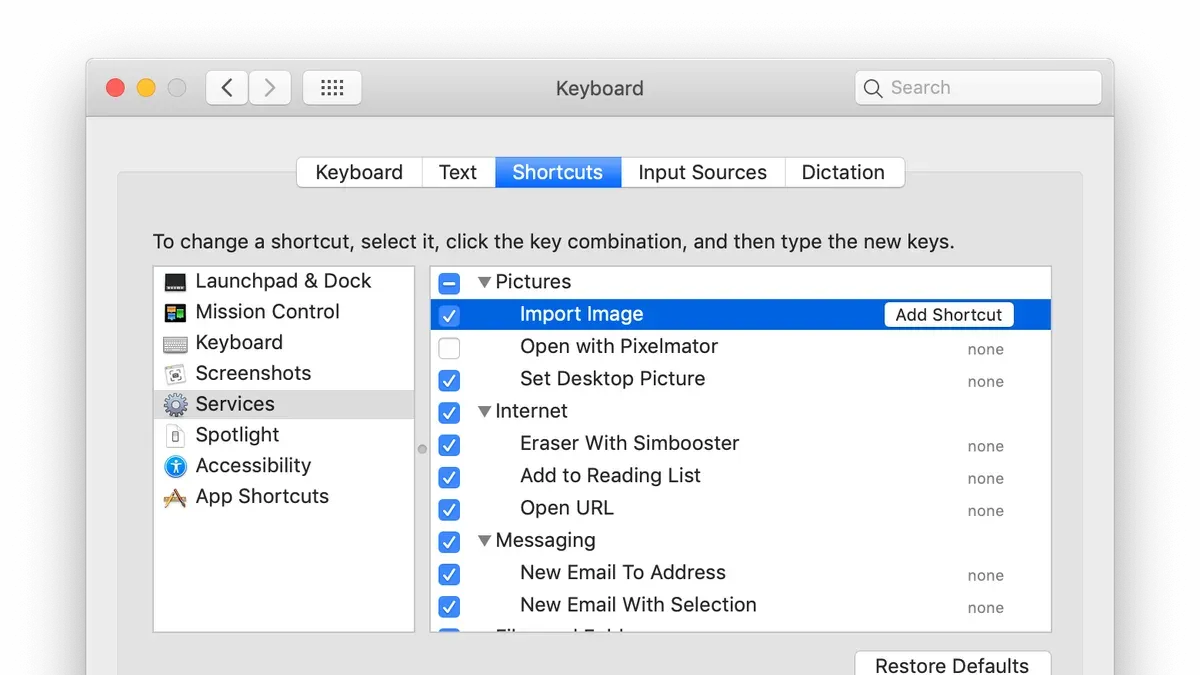
For keyboard shortcuts, Automator offers a practical solution. Create a new Quick Action in Automator set to receive “no input” in “Finder.” Add the “Run AppleScript” action with a script like tell application "Finder" to open folder "Macintosh HD:Users:YourUser:Documents:Projects". Save it as “Open Projects Folder.” Then, assign a keyboard shortcut via System Preferences > Keyboard > Shortcuts > Services, selecting your new service. Now pressing that shortcut opens your Projects folder instantly.
Aliases or symbolic links are file system shortcuts. Right-click a folder, select “Make Alias,” then place the alias anywhere convenient. Clicking it opens the original folder. Symbolic links created using Terminal’s ln -s command work similarly but are preferred for advanced users managing scripts or Terminal workflows.
Sidebar and Dock shortcuts excel in simplicity and visual access but lack direct keyboard triggers. Automator services provide customizable shortcuts but need setup and occasional maintenance. Aliases and symbolic links are flexible for both Finder and Terminal but require manual placement and can clutter folders if overused.
Common mistakes and pitfalls when using Mac keyboard shortcuts for folder paths
One frequent issue is confusing a file path with a URL or an alias. For example, copying a folder path that is actually an alias can lead you to a shortcut file rather than the target folder, causing confusion when you try to navigate or script with it. Users have reported errors when expecting a direct folder location but instead opening a symbolic link or web URL.
Another challenge is that keyboard shortcuts may behave inconsistently across different macOS versions or with customized system settings. For instance, Command + Shift + G might open a different dialog or fail to respond if Finder is not the active application. This can leave users wondering why the shortcut suddenly stopped working.
Permissions and app focus also affect shortcut functionality. If Finder or Terminal lacks the necessary permissions, shortcuts to reveal or copy paths can be disabled or produce errors. An example is when macOS privacy settings block Terminal from accessing certain directories, causing path commands to fail.
Shortcuts also have limitations with network drives or cloud-synced folders, where paths may not resolve as expected. Users working with folders in iCloud Drive or mounted SMB shares sometimes encounter incomplete or inaccessible paths when relying solely on keyboard shortcuts, requiring manual verification.
- Mac Keyboard Shortcut to Switch Between Windows of the Same App
- Mac Keyboard Shortcut to Copy Screenshot to Clipboard Explained
- How to Take a Screenshot of a Selected Area on Mac Using Keyboard Shortcuts
Frequently asked questions
How to get file path in mac?
To get the file path on a Mac, you can right-click the file in Finder and hold down the Option key, then select "Copy [filename] as Pathname". Alternatively, you can drag the file into a Terminal window to reveal its full path. Viewing the file's Info panel (Command + I) also shows its location under "Where."
How to get file path in Mac using keyboard shortcuts?
You can use Command + Option + C while a file is selected in Finder to copy its full path to the clipboard. Another method is pressing Command + Shift + G in Finder to open the "Go to Folder" dialog, then typing or pasting a path to navigate directly. These shortcuts help you quickly access or share the exact location of files.
What is the shortcut to copy path of folder on Mac?
Select the folder in Finder and press Command + Option + C to copy its absolute path to the clipboard. This shortcut avoids needing to open additional menus and ensures accuracy when sharing or scripting folder locations.
How to create shortcut to folder on Mac easily?
To create a shortcut (alias) to a folder, right-click the folder and select "Make Alias." You can also select the folder and use the menu File > Make Alias or press Command + L. The alias acts as a quick link to the original folder and can be moved anywhere for faster access.
What is the Mac Finder open folder keyboard shortcut?
In Finder, pressing Command + Shift + O opens the "Documents" folder by default, but there is no universal single shortcut to open any folder. To open a specific folder, use Command + Shift + G to bring up the "Go to Folder" dialog, then enter the folder path to jump there directly.
What this guide does not cover and who should look elsewhere
This guide focuses exclusively on native macOS keyboard shortcuts and common Finder and Terminal utilities for navigating and managing folder paths. It does not cover third-party applications or scripts that can extend or automate folder navigation beyond the built-in functionality. Some shortcuts may perform differently depending on your macOS version or any custom keyboard mappings you have applied.
If you are unfamiliar with Terminal commands, proceed with caution, as unintended inputs can affect system settings or file integrity. For complex workflows involving automated path management or advanced file system operations, dedicated third-party tools or professional support may be more appropriate.
To refine your file navigation skills, start by practicing the Finder shortcut Command (⌘) + Shift + G to open the “Go to Folder” dialog. This direct access to folder paths is often overlooked but significantly speeds up locating nested folders without relying on clicking through Finder windows.



