
Mac Keyboard Shortcut to Open Applications Folder Quickly
Discover how to quickly open the Applications folder on Mac using keyboard shortcuts and custom methods to speed up your workflow.
You frequently need to open the Applications folder to launch or manage your apps, but navigating through Finder menus can slow you down. While macOS offers several ways to access this folder, there is no single default Mac keyboard shortcut to open Applications folder instantly, which can be frustrating.
This article explains the options available for quickly opening the Applications folder using keyboard shortcuts. You will learn about built-in macOS methods, why no universal shortcut exists by default, and how to create custom shortcuts that suit your workflow. Whether you prefer ready-to-use commands or tailored solutions, this guide helps you find the most efficient approach.
Key takeaways
- macOS has no default universal keyboard shortcut to open the Applications folder directly.
- You can use Finder shortcuts or Spotlight Search as quick access alternatives.
- Creating a custom shortcut involves Automator or AppleScript combined with System Preferences settings.
- Custom shortcuts can streamline your workflow but require careful setup to avoid conflicts.
- Common mistakes include assigning shortcuts already used by system functions or neglecting to enable accessibility permissions.
What the Applications folder is and why quick access matters
The Applications folder on a Mac is the central location where macOS stores most installed programs. It is usually found in the root directory of your startup disk, accessible via Finder’s sidebar or through the Go menu. This folder serves as the hub for launching, organizing, and managing your apps.
Quick access to the Applications folder can significantly improve your productivity. For example, when you install new software, you often need to open this folder to verify the app or move it to a desired location. Launching apps directly from here is common, especially if they are not placed in the Dock or Launchpad.
Using a keyboard shortcut to open the Applications folder can save time compared to clicking through Finder windows. Instead of navigating with the mouse—opening Finder, locating the sidebar, and selecting Applications—you can press a shortcut key combination to reveal the folder instantly. This reduces repetitive hand movements and streamlines workflows, especially when you frequently install or organize apps.
Default macOS shortcuts related to opening the Applications folder
macOS does not provide a single, dedicated keyboard shortcut exclusively for opening the Applications folder. Instead, you can use a combination of Finder shortcuts and menu navigation to reach it quickly.
One way is to open a new Finder window using Command (⌘) + N. Once the Finder window is active, press Shift (⇧) + Command (⌘) + G to open the "Go to Folder" dialog, then type /Applications and hit Enter. This will open the Applications folder directly.
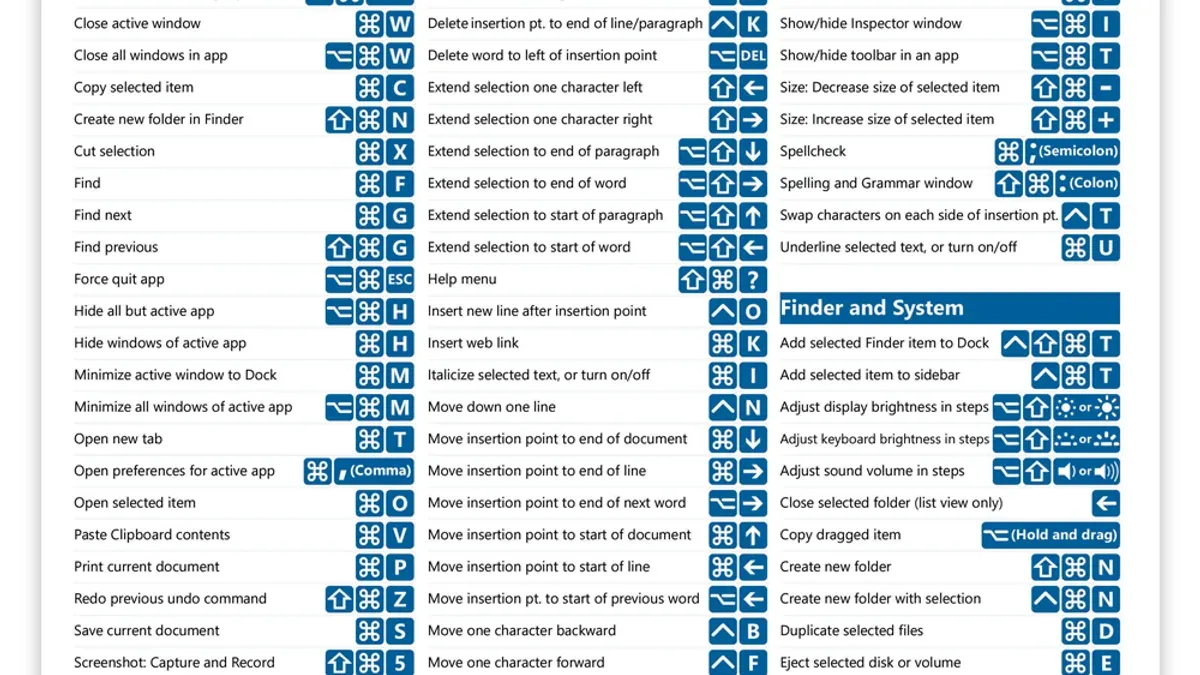
Alternatively, press Shift (⇧) + Command (⌘) + A while in Finder. This shortcut opens the Applications folder immediately, but it only works if Finder is the active application.
Another powerful shortcut is Command (⌘) + Spacebar to open Spotlight. Typing "Applications" here highlights the folder, allowing you to open it quickly with the Return key. Spotlight serves as a versatile launcher beyond just accessing the Applications folder.
For example, pressing Shift + Command + A from the desktop opens the Applications folder in a new window without additional steps, illustrating the most direct built-in shortcut available.
How to create a custom keyboard shortcut to open the Applications folder
You can set up a custom keyboard shortcut by creating a simple Automator or AppleScript application that opens the Applications folder, then assigning a shortcut to it via System Preferences.
First, open Automator and select "Application" as the document type. Add the action "Get Specified Finder Items," click "Add," and select the Applications folder from the sidebar or by navigating to /Applications. Next, add the action "Open Finder Items." Save this workflow as "Open Applications" on your Desktop or another convenient location.
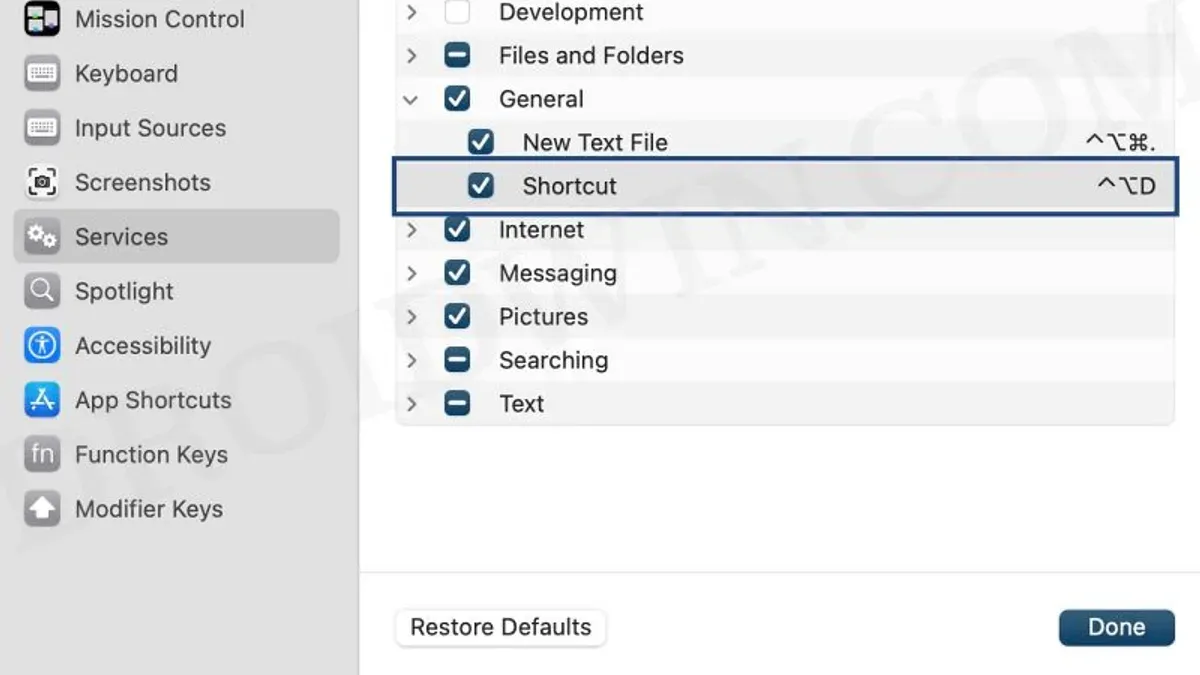
Then, open System Preferences, go to Keyboard > Shortcuts > Services. Scroll to the bottom to find your newly created Automator application listed under General. Click on it and assign a keyboard shortcut by clicking "add shortcut"—for example, Control + Option + A.
Choose a shortcut combination that avoids conflicts with existing system or app shortcuts; for example, avoid Command + A, which is commonly used for "Select All." Test the shortcut by pressing it from Finder or the desktop to confirm it opens the Applications folder reliably.
Practical ways to integrate Applications folder shortcuts into your workflow
Using a keyboard shortcut to open the Applications folder can speed up app launching when combined with the Dock or Launchpad. For example, you can quickly access the folder, locate the app icon, and drag it to the Dock for one-click access later. This saves time compared to searching through multiple Finder windows or typing app names in Spotlight.
Adding the Applications folder to the Finder sidebar provides a visual anchor, confirming you’re in the right place after using the shortcut. This small step helps avoid confusion, especially if you often switch between folders. To do this, open Finder, drag the Applications folder into the sidebar under "Favorites," and it will remain accessible across Finder windows.
You can also combine the shortcut with Spotlight or Siri for flexible app launching. For instance, use the shortcut to open the folder if you want to browse manually, or activate Spotlight (Command-Space) or Siri to launch apps by voice or text command. Users often report that toggling between these methods depending on context reduces friction and improves overall workflow efficiency.
Common mistakes and pitfalls when using or creating shortcuts for Applications folder
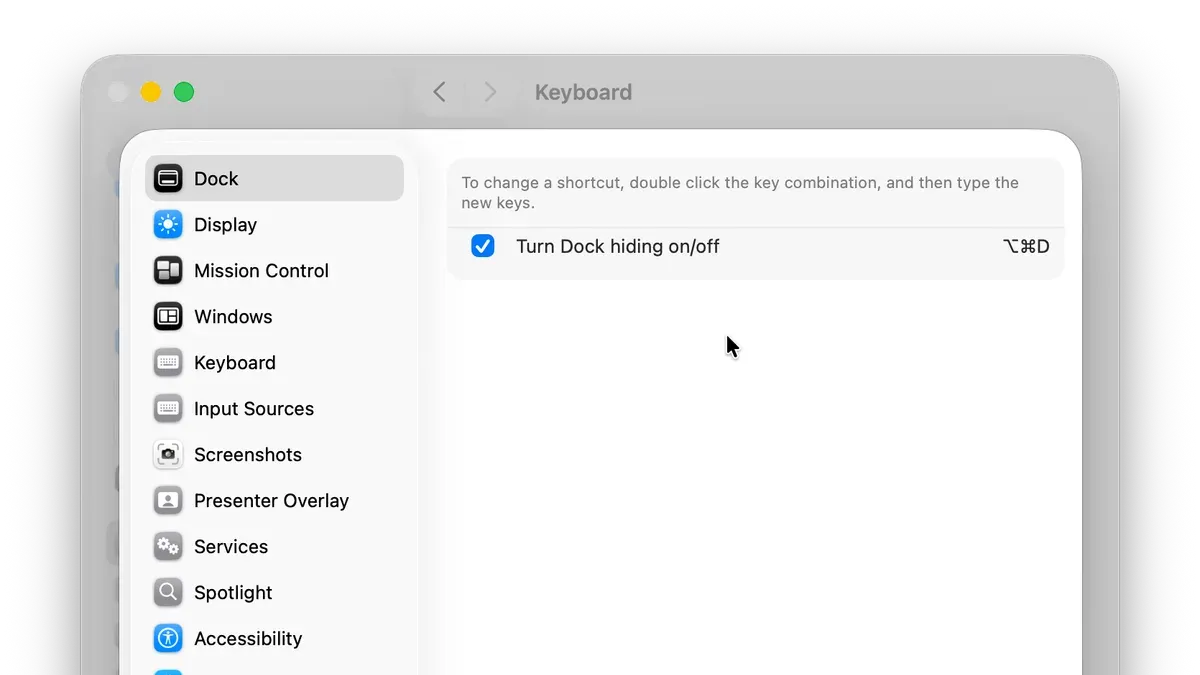
One frequent issue is assigning a custom shortcut that conflicts with existing macOS shortcuts. For example, choosing Command-C for your Applications folder shortcut will override the standard Copy command, leading to confusion and workflow disruption. To avoid this, verify your shortcut does not duplicate any system-wide or app-specific commands by checking System Preferences > Keyboard > Shortcuts.
Another pitfall is expecting a shortcut to behave identically across different Mac models or macOS versions. Some shortcuts like Shift-Command-A work in Finder but may function differently or be unavailable in third-party file managers or older macOS releases. User reports often highlight this inconsistency, so test your shortcuts in your particular environment before relying on them.
Additionally, confusion between the Applications folder and related folders such as Utilities can cause errors. For instance, a shortcut intended to open Applications might mistakenly be set to open Utilities, which contains only system tools. Ensuring you select the correct folder path in Automator or shortcut creation prevents this common mix-up.
- Mac Keyboard Shortcut to Open Downloads Folder Quickly
- How to Open Apps from Terminal on Mac: A Step-by-Step Guide
Frequently asked questions
Is there a built-in keyboard shortcut that opens the Applications folder directly?
No, macOS does not include a built-in keyboard shortcut that opens the Applications folder directly. While you can quickly open Finder with shortcuts like Command + Space to access Spotlight or Command + Shift + A to open the Applications folder when Finder is active, there is no single default keystroke dedicated solely to launching the Applications folder from anywhere.
Can I use Spotlight as a shortcut to open the Applications folder?
Yes, Spotlight can serve as a convenient shortcut to access the Applications folder. Press Command + Space to open Spotlight, then type "Applications" and press Return. This method quickly opens the folder without needing a dedicated shortcut but requires a couple of keystrokes and search input.
How do I avoid shortcut conflicts when creating a custom key combination?
To avoid conflicts, check existing shortcuts in System Preferences under Keyboard > Shortcuts before assigning a new one. Choose a unique combination that doesn’t overlap with system-wide or app-specific shortcuts. Using multiple modifier keys (Command, Option, Control) together reduces the chance of conflicts.
What is the fastest way to access the Applications folder without a dedicated shortcut?
The fastest way is using Finder’s built-in shortcut Command + Shift + A when Finder is frontmost. Alternatively, adding the Applications folder to the Dock or Finder sidebar provides quick mouse access. Spotlight search (Command + Space) is also efficient if you prefer keyboard navigation.
What this advice does not cover
This article does not cover third-party apps that add shortcut functionality or alternative launchers, focusing solely on built-in macOS capabilities and user-created shortcuts. If you require more advanced features such as global hotkeys for any folder or app, or integration with automation tools like Alfred, Keyboard Maestro, or BetterTouchTool, those options are beyond this guide’s scope.
For users who want to automate complex workflows or customize their Mac extensively, exploring dedicated launcher apps or scripting solutions may provide more flexibility and power than the methods described here.
The most useful next step is to create your own custom keyboard shortcut via System Settings > Keyboard > Keyboard Shortcuts > App Shortcuts. Assign a shortcut to open the Applications folder using the exact menu command “Applications” or by saving a Finder alias of the Applications folder and linking it to your shortcut. This approach ensures you have a consistent, personalized way to access your Applications folder without relying on multiple steps or the Dock.



