
Mac Keyboard Shortcut to Open Finder: Quick Access Guide
Discover how to use the Mac keyboard shortcut to open Finder quickly and customize shortcuts for faster file management.
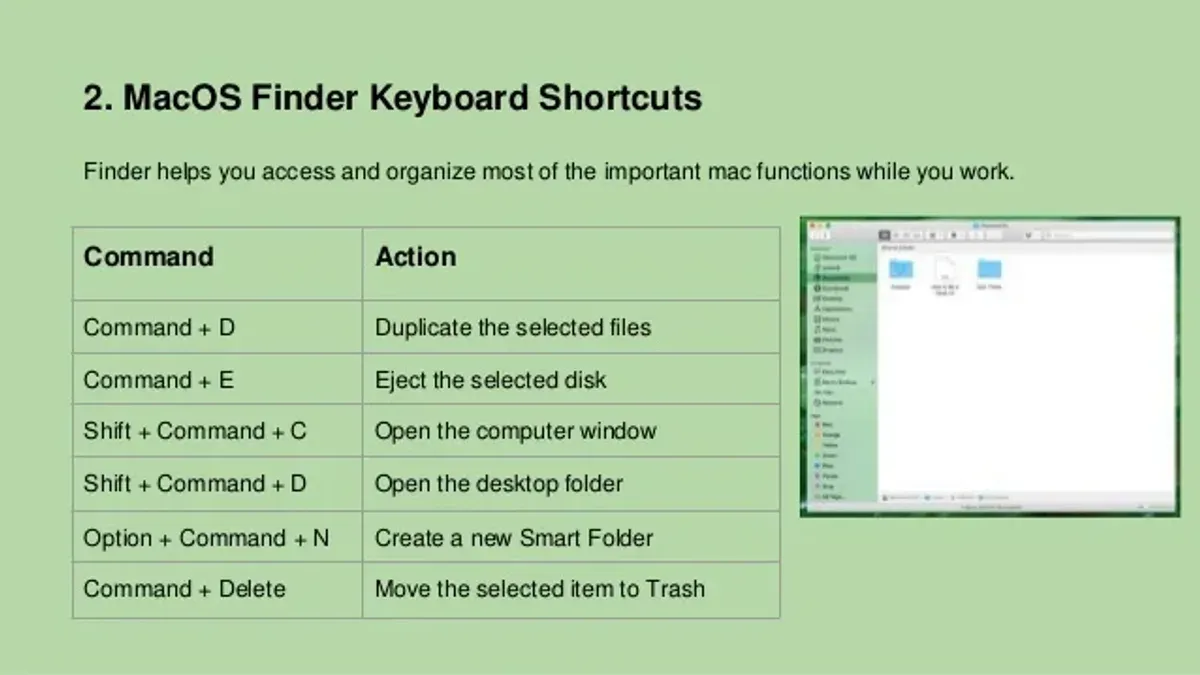
You’re working on a Mac and need to quickly open a Finder window to locate a file or manage your folders. Instead of reaching for the mouse, you want a faster way to do this—ideally using the keyboard.
This guide covers the Mac keyboard shortcut to open Finder and how you can customize and troubleshoot Finder access for improved productivity. Beyond the basic shortcut, you’ll learn how to open Finder from Terminal, adjust keyboard shortcuts in System Settings, add shortcuts for specific folders or actions, and avoid common pitfalls when using Finder shortcuts.
Key takeaways
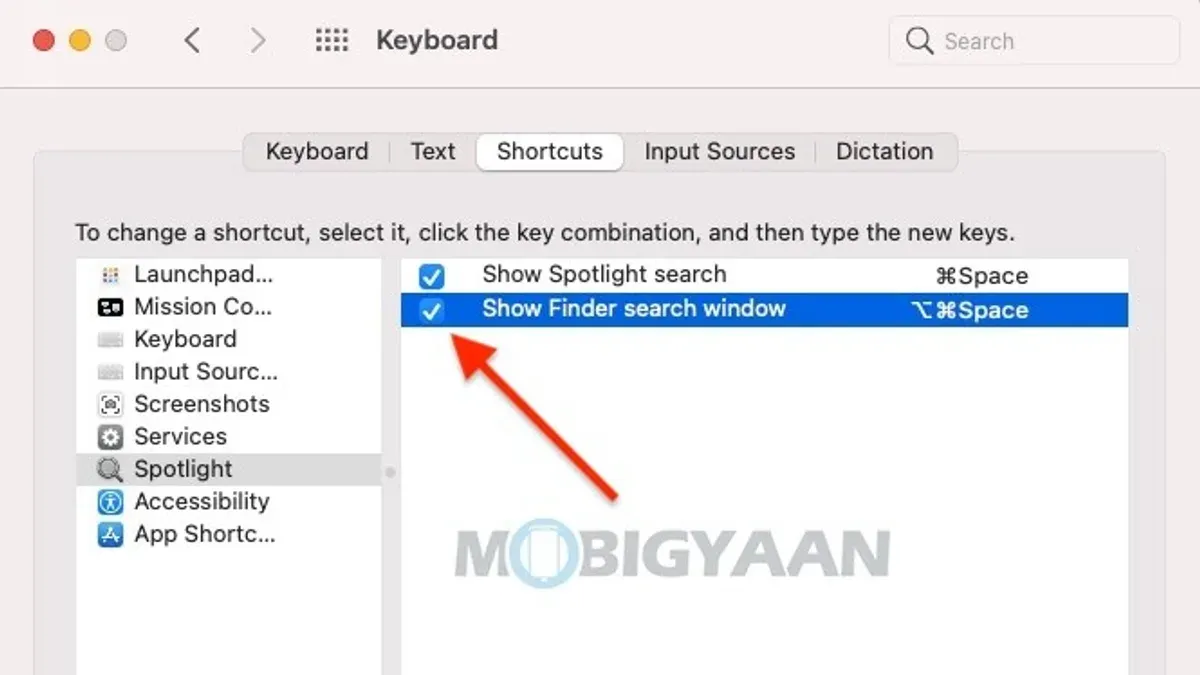
- Press Command + Option + Space to open a new Finder window quickly.
- Use System Settings > Keyboard > Keyboard Shortcuts to view and customize Finder shortcuts.
- You can open Finder from Terminal with the command 'open.'.
- Create Finder shortcuts for frequently accessed folders by adding them to the Sidebar or using Automator workflows.
- Be aware that some shortcuts may conflict with app-specific commands or require enabling accessibility features.
What Finder is and why quick access matters
Finder is the primary file management application on Mac, providing the interface for browsing, organizing, and accessing files and folders. It serves as the backbone for managing documents, applications, and system locations, making it essential for nearly every interaction with the operating system.
Knowing how to open Finder quickly boosts productivity by reducing reliance on the mouse and navigating menus. Keyboard shortcuts allow you to open new Finder windows instantly, streamlining tasks such as moving files, launching apps, or accessing frequently used folders without interrupting your workflow.
For example, consider a user organizing a large batch of documents. Without quick Finder access, they might repeatedly switch between the desktop and menus to open folders, costing several seconds each time. Using a keyboard shortcut to open Finder can save these seconds on every instance, adding up to significant time savings over the course of a day.
Keyboard shortcut to open Finder and new Finder windows
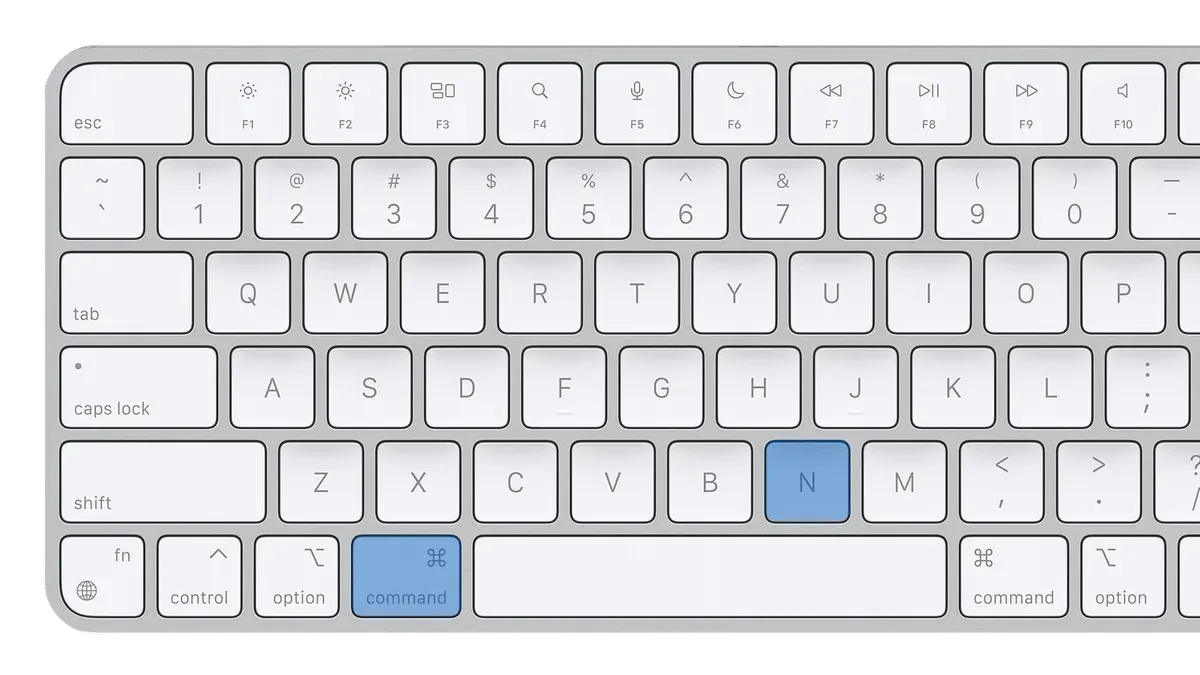
The primary shortcut to open a new Finder window is Command + N, but this works only when Finder is the active application. To bring Finder to the front, you can use Command + Tab to cycle through open apps until Finder is selected. Once Finder is active, pressing Command + N immediately opens a new window.
If Finder is not running or you want to open it directly from anywhere, you can use Spotlight by pressing Command + Space, typing "Finder," and hitting Enter. Alternatively, clicking the Finder icon in the Dock also launches or brings it forward, though this requires more precise mouse movement.
For example, suppose you are working in a browser and need quick access to a file. Pressing Command + Tab twice brings Finder forward; then Command + N opens a new window ready for navigation. This is often faster than moving the cursor to the Dock and clicking. The keyboard method reduces interruptions in your workflow and improves speed when managing files.
How to open Finder on Mac with keyboard from Terminal
You can launch Finder directly from the Terminal by using the command open -a Finder. This command tells your Mac to open the Finder application, similar to clicking its icon in the Dock.
For example, open Terminal, type open -a Finder, and press Enter. Instantly, a Finder window will appear, allowing you to navigate your files without using the mouse.
This method is particularly useful if you are working within Terminal and want to quickly switch to Finder without leaving the command line interface. It also comes in handy when scripting or automating workflows that require Finder to open at specific times or in response to certain commands.
However, opening Finder from Terminal lacks the convenience and speed of dedicated keyboard shortcuts like Command + Tab followed by Command + N. It requires you to switch context to Terminal and type the command, which may interrupt your workflow if you aren’t already using Terminal.
How to see and customize keyboard shortcuts on Mac
To view and modify keyboard shortcuts on your Mac, open System Settings and navigate to Keyboard > Keyboard Shortcuts. Here, you’ll find categories like App Shortcuts, Mission Control, and Services, which include default shortcuts for Finder and other applications.
To add a custom shortcut for a Finder action, select App Shortcuts and click the + button. Choose Finder from the application dropdown, enter the exact menu command name (for example, "Open Downloads Folder"), and assign your preferred key combination. This lets you open specific folders or trigger actions faster.
Be cautious when assigning shortcuts to avoid conflicts with existing ones. If a shortcut overlaps with a system or app command, it may not work as expected. Testing new shortcuts immediately after setting them helps confirm they function properly.
For example, to create a shortcut for opening the Downloads folder, add an app shortcut named "Open Downloads Folder" and assign Command + Option + D. Make sure the menu command name matches exactly how it appears in Finder menus or scripts, or the shortcut won’t activate.
How to add shortcuts to Finder for folders or actions
To quickly access specific folders, add them to the Finder sidebar. Open Finder, navigate to the folder you want, then drag it to the sidebar on the left. This creates a persistent shortcut accessible in every Finder window. To remove it, right-click the folder in the sidebar and select "Remove from Sidebar."
You can also customize the Finder toolbar by adding buttons for frequent actions. Right-click the toolbar area and choose "Customize Toolbar..." From there, drag desired actions like "New Folder" or "Get Info" onto the toolbar for one-click access.
For more advanced shortcuts, use the Shortcuts app to create keyboard-triggered workflows that perform Finder actions. For example, create a shortcut that opens your "Projects" folder: in Shortcuts, add the "Open Folder" action, select the folder path, then assign a keyboard shortcut in System Settings under Keyboard > Shortcuts > App Shortcuts. Triggering this shortcut opens the folder instantly, streamlining your workflow.
How to get to Users folder and other common locations in Finder
Finder offers keyboard shortcuts to quickly navigate to essential system folders, streamlining your file management tasks. For example, pressing Shift + Command + U opens the Users folder immediately, allowing you to access user profiles without manually browsing through directories.
Other useful shortcuts include Shift + Command + H to go to your Home folder, Shift + Command + A for the Applications folder, and Shift + Command + D to open the Desktop. These key combinations save time by jumping directly to frequently used locations.
To keep these folders easily accessible, you can add them to the Finder sidebar. Simply drag the folder icon from the Finder window’s title bar or window content area into the sidebar. This creates a persistent shortcut that appears in every Finder window, reducing the need to memorize shortcuts or navigate menus repeatedly.
For example, if you often access the Users folder, press Shift + Command + U to open it, then drag the folder icon into the sidebar for one-click future access. This combination of keyboard shortcuts and sidebar bookmarks optimizes your workflow in Finder.
How to use Finder effectively with keyboard shortcuts
Beyond opening Finder, mastering keyboard shortcuts can greatly speed up your file management tasks. To switch between multiple Finder windows, use Command + ` (backtick). For navigating tabs within a Finder window, Control + Tab moves forward, while Control + Shift + Tab moves backward. This eliminates the need to reach for the mouse when juggling multiple locations.
Selecting files without a mouse is straightforward: Shift + arrow keys select a range, and Command + click adds individual files. Once selected, Command + C copies files, and Command + Option + V moves them, streamlining workflows that otherwise require drag-and-drop.
To access contextual menus, press Control + F3 to highlight the Dock, then use arrow keys to select Finder and press Control + click (or right-click if your keyboard has a dedicated button) to open the menu. Alternatively, use Command + I to quickly open the Info window for any selected file, allowing you to review or edit metadata without using a mouse.
Picture organizing photos: instead of dragging files between folders, you can select multiple images via keyboard, copy them with Command + C, switch tabs with Control + Tab, and paste with Command + V. This method reduces hand movement and can significantly speed up repetitive tasks.
Common mistakes and limitations when using Finder shortcuts
Finder keyboard shortcuts often require Finder to be the active application; if another app is frontmost, shortcuts like Command + N to open a new Finder window may not work. This context dependence can confuse users who expect shortcuts to function globally.
Conflicts with custom shortcuts or third-party applications are another frequent issue. For example, if you assign Command + N to a different app or system-wide shortcut, it may override Finder’s default behavior, causing unexpected results. Checking System Settings > Keyboard > Keyboard Shortcuts can help identify and resolve conflicts.
Shortcuts have limitations when it comes to complex Finder customizations. For instance, there is no default keyboard shortcut to open a specific folder without manually creating a shortcut via the Shortcuts app or sidebar. Users expecting extensive customization purely through shortcuts might find themselves needing additional tools or mouse input.
To troubleshoot shortcut issues, ensure Finder is frontmost, verify no conflicting shortcuts exist in System Settings, and test shortcuts after disabling third-party utilities that modify keyboard behavior.
- Mac Keyboard Shortcut to Rename a File: Quick and Efficient Guide
- Mac Keyboard Shortcut to Move a File to Trash: How to Do It Fast
- Mac Keyboard Shortcut to Go to a Folder Path: A Practical Guide
Frequently asked questions
How to open finder in mac?
You can open Finder on a Mac by clicking the Finder icon, which looks like a blue and white smiling face, located in the Dock. Alternatively, pressing Command + Option + Space opens a new Finder window directly.
How to open finder window on mac?
To open a Finder window, press Command + N while Finder is the active application. If Finder is not active, click its Dock icon first, then use the shortcut to open a new window.
How to open finder from terminal mac?
In Terminal, type open. and press Enter to open the current directory in Finder. You can also specify a path like open /Users/yourusername/Documents to open a specific folder.
How to see keyboard shortcuts on mac?
To view keyboard shortcuts, go to System Settings and select Keyboard, then click Keyboard Shortcuts. This pane shows categories like Mission Control, Spotlight, and Finder, allowing you to browse existing shortcuts.
How to open keyboard shortcuts on mac?
Open keyboard shortcuts by navigating to System Settings > Keyboard > Keyboard Shortcuts. Here you can enable, disable, or customize shortcuts for different system features and apps, including Finder.
Limits of this guide and when to seek other solutions
This article focuses on default macOS shortcuts and basic customization options available through System Settings and simple Terminal commands. It does not cover third-party Finder alternatives like Path Finder or ForkLift, nor does it delve into advanced AppleScript or Automator workflows beyond launching Finder from Terminal. Users requiring highly specialized automation or extensive shortcut remapping should explore dedicated automation tools or scripting resources.
For most users, the single most effective next step is to open System Settings, navigate to Keyboard > Keyboard Shortcuts, and explore the Finder section. Here, you can review existing shortcuts, enable or disable them, and customize commands to better suit your workflow. Adjusting these settings is often overlooked but provides immediate control over how you access and manage Finder with the keyboard.



