
Mac Keyboard Shortcut to Select All Files: Complete Guide
Discover how to use the Mac keyboard shortcut to select all files efficiently in Finder and various apps to streamline your workflow.

You need to select all files in a folder quickly, but you’re not sure how to do it without reaching for the mouse every time. Whether you’re managing documents in Finder or organizing items in an app, knowing the Mac keyboard shortcut to select all files can save time and streamline your workflow.
This guide explains how to use the select all shortcut across different Mac environments, including Finder, various apps, and even the Terminal. It also covers how to adapt when using Windows keyboards or other hardware variations, plus practical tips to avoid common pitfalls when selecting multiple files.
Key takeaways
- Use Command (⌘) + A to select all files in Finder and most Mac apps.
- Windows keyboards map the Command key to the Windows key, so press Windows key + A for select all.
- In Terminal, use commands like ls with wildcards or select all alternatives rather than keyboard shortcuts.
- Selecting all files is useful for batch renaming, moving, or deleting but double-check before executing destructive actions.
- Some apps may override the shortcut, so look for app-specific select all commands if Command + A doesn’t work.
What the select all keyboard shortcut on Mac does and why it matters
The select all keyboard shortcut on Mac, typically Command (⌘) + A, instantly highlights every item within the active window or application. Whether you’re in Finder selecting files or in an app working with text or images, this shortcut triggers a full selection without the need for manual clicking.
Using this shortcut significantly speeds up common file management tasks such as moving, copying, or deleting multiple files at once. Imagine needing to move 10 files from one folder to another: manually clicking each file might take 15 to 20 seconds, especially if you have to shift-click or drag the cursor precisely. In contrast, pressing Command + A selects all files instantly, reducing that task to a second or two.
This efficiency gain also improves accuracy by avoiding missed selections or accidental deselections that can occur with manual methods. For example, when selecting files scattered across a folder, dragging the cursor can be imprecise, causing some files to be overlooked. Command + A eliminates this risk by capturing every item at once.
Overall, mastering the select all shortcut streamlines workflows, minimizes errors, and frees you to focus on what to do with the files rather than how to select them.
How to select all on Mac keyboard in Finder and other apps
To select all files, text, or items on a Mac, the standard shortcut is Command (⌘) + A. In Finder, pressing Command + A instantly highlights every file and folder in the active window or folder you are viewing. For example, if you open your Documents folder and hit Command + A, all files inside will be selected, as indicated by a blue highlight around each icon.
In text editors like TextEdit or Microsoft Word, the same shortcut selects all the text within the active document, allowing you to quickly copy, cut, or format everything at once. In image editing apps such as Preview or Photoshop, Command + A selects the entire canvas or all objects depending on the context.
Modifier keys can change how selection behaves. Holding Shift while using arrow keys extends the current selection, useful for selecting a range without grabbing everything. The Option key can modify selection behaviors in some apps, like selecting non-contiguous items or duplicating selections, but it doesn't alter the effect of Command + A directly.
After using Command + A in Finder, you’ll see all files outlined and highlighted in blue, confirming the selection. This visual feedback helps avoid accidental actions on unselected files. Remember that in some apps, selection may appear as a highlighted background over text or objects, depending on the interface.
How to select all on Mac with Windows keyboard and other hardware variations
If you use a Windows keyboard with your Mac, the key labeled with the Windows logo generally functions as the Command key. This means that to execute the select all shortcut, you press Windows key + A instead of Command + A.
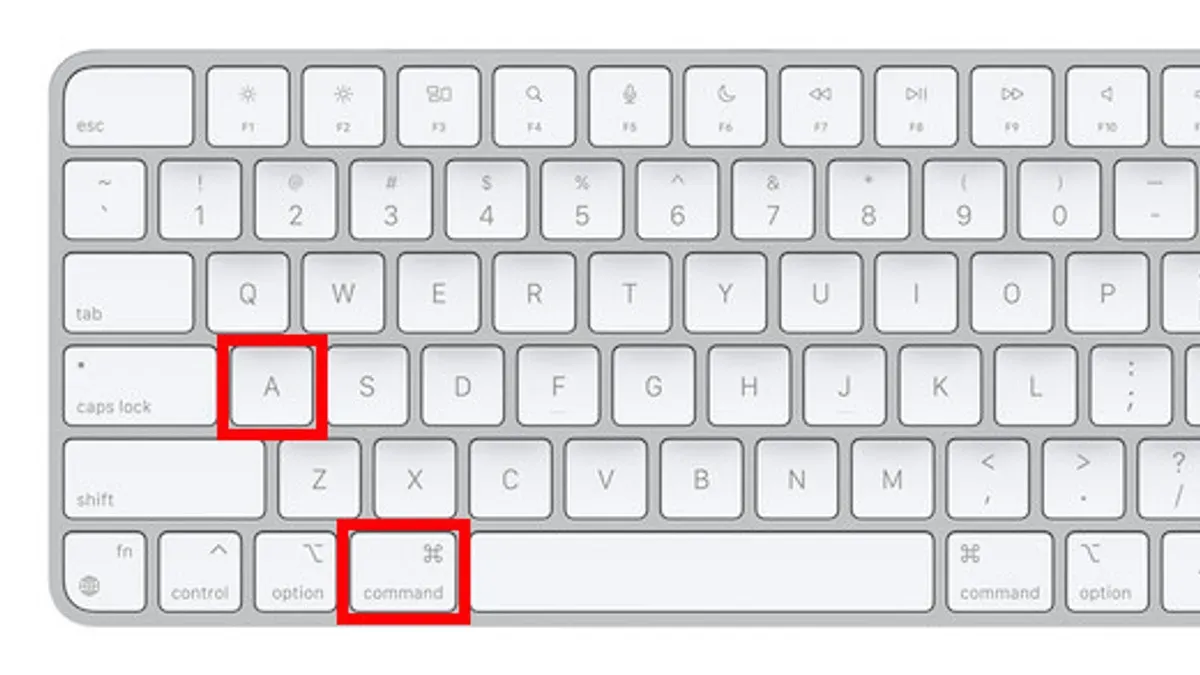
Here is a comparison of common Mac and Windows keyboard keys relevant for shortcuts:
| Mac Key | Windows Keyboard Equivalent |
|---|---|
| Command (⌘) | Windows key (⊞) |
| Option (⌥) | Alt |
| Control (⌃) | Ctrl |
For example, when selecting all files in Finder using a Windows keyboard on your Mac, hold the Windows key and press A. This mirrors the Mac shortcut but uses the Windows key as the Command key substitute.
Some Windows keyboards may lack Mac-specific function keys or have different placements for keys like Delete and Backspace, which can affect certain shortcuts. Additionally, function keys (F1–F12) might require pressing the 'Fn' key on some hardware to activate their standard functions.
To address any confusion, you can remap modifier keys in System Settings under Keyboard > Modifier Keys, allowing you to customize which physical keys correspond to Command, Option, and Control.
Practical applications of the select all shortcut for file management
Using the select all shortcut before copying or moving files streamlines transferring large groups of files. For example, in Finder, you can press Command + A to select every file in a folder, then press Command + C to copy them. Navigate to the destination folder or an external drive, and use Command + V to paste all the selected files at once, avoiding the need to drag and drop each file manually.
Combining select all with other shortcuts enhances efficiency. After selecting all files, pressing Command + Delete moves them to the Trash, enabling quick cleanup. Similarly, selecting all and pressing Return lets you rename files one by one, or use batch rename options available under Finder’s File menu for bulk renaming.
In third-party file managers like ForkLift or Path Finder, the select all shortcut functions similarly, allowing batch operations such as moving, copying, or deleting files. This consistency across apps means you can rely on Command + A as a foundational step for any bulk file management task.
Common mistakes and how to avoid them when using select all on Mac
One frequent mistake is accidentally selecting all files in the wrong folder or application, which can lead to unintended actions like mass deletion or moving files to an incorrect location. For example, if you switch to a different Finder window or app without noticing and press Command + A, you might select every item there instead of your intended folder.
Another common error is confusing Command + A with similar shortcuts such as Command + Shift + A, which opens the Applications folder in Finder. Pressing the wrong shortcut can disrupt your workflow or cause confusion, especially when quickly switching between tasks.
Additionally, the select all shortcut has limitations in some apps or protected system folders. For instance, certain system directories restrict selection or modification for safety reasons, so Command + A may not behave as expected. Being aware of these restrictions helps avoid frustration and potential errors.
To prevent these issues, always verify your active window or folder before using the shortcut and familiarize yourself with closely related shortcuts. When working in sensitive directories, consider manual selection or check permissions to ensure actions are safe.
- Mac Keyboard Shortcut to Duplicate a File: How to Copy Quickly
- Mac Keyboard Shortcut to Permanently Delete a File Explained
- Mac Keyboard Shortcut to Move a File to Trash: How to Do It Fast
Frequently asked questions
How to select all files in mac?
To select all files on a Mac, open the Finder window or the app where your files are located, then press Command (⌘) + A on your keyboard. This shortcut highlights every file or item in the current view, making it easy to move, copy, or delete multiple files at once.
How to select all files keyboard shortcut?
The keyboard shortcut to select all files on a Mac is Command (⌘) + A. This works in Finder, most apps, and even in Terminal when selecting text or files, providing a quick way to highlight everything in the active window or pane.
How to use shortcuts on mac?
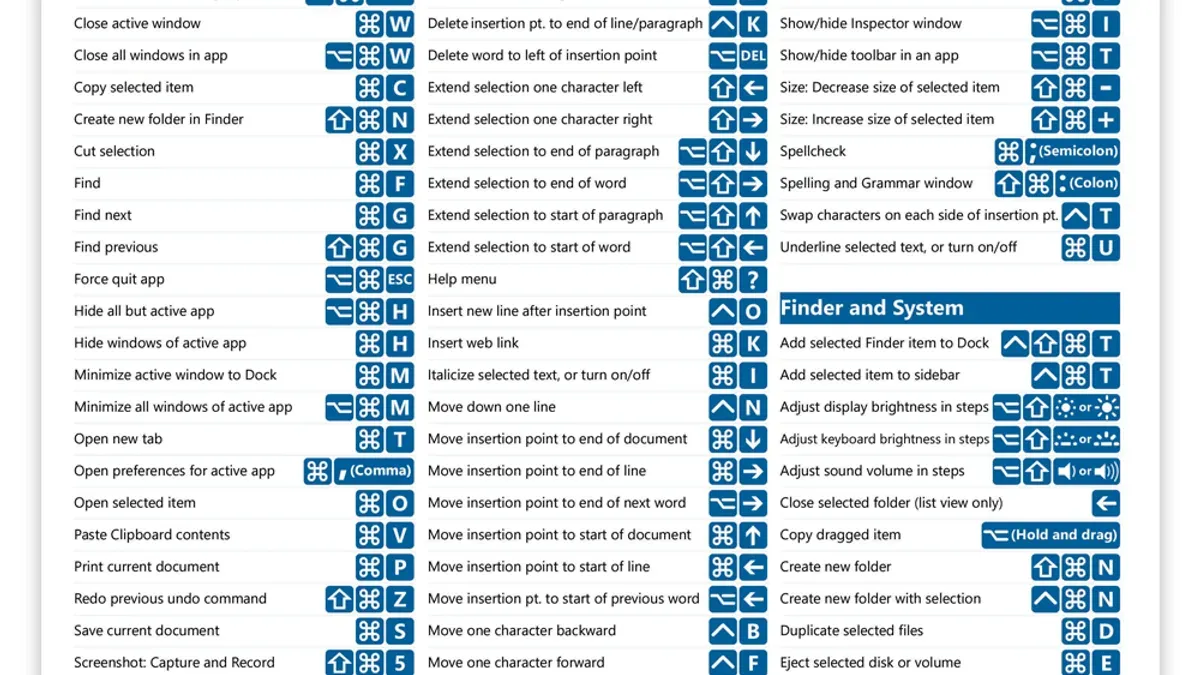
Shortcuts on Mac combine modifier keys like Command (⌘), Option (⌥), Control (^) with letter keys or function keys. To use one, simply press and hold the modifier key(s) and then press the other key. For example, Command + C copies selected items, and Command + V pastes them.
How to select all keyboard shortcut?
The select all keyboard shortcut on Mac is Command (⌘) + A. This is a universal shortcut supported by the operating system and most applications, allowing you to quickly select all text, files, or objects within the current context.
How to select all files on mac?
Selecting all files on a Mac involves opening the location in Finder or an app and pressing Command (⌘) + A. If you use a Windows keyboard, the Command key corresponds to the Windows key, so pressing Windows key + A achieves the same result.
What this advice does not cover
This guide does not cover scripting or automation methods for selecting files and assumes default macOS settings without custom remapping of keys. If you rely on tools like AppleScript, Automator workflows, or third-party utilities for file selection, those are beyond this scope. Additionally, users with heavily customized keyboard layouts or accessibility configurations may experience different shortcut behaviors.
For those needing advanced batch file operations or automation, exploring dedicated scripting solutions or automation apps is recommended to complement manual keyboard shortcuts.
To get the most out of the select all shortcut, practice using Command + A in Finder and various apps to build muscle memory. This foundational step streamlines your workflow and makes managing files across macOS more efficient.



