
Mac Keyboard Shortcut to Rename a File: Quick and Efficient Guide
Discover how to rename files quickly on your Mac using a simple keyboard shortcut and improve your workflow efficiency.
You're organizing files on your Mac and want to rename several quickly without reaching for the mouse. Instead of clicking each file and waiting for the context menu, you can use a simple Mac keyboard shortcut to rename a file instantly.
This guide covers the standard shortcut and what to do when it doesn’t work, explains how using keyboard shortcuts can speed up your workflow, and offers tips for renaming multiple files. You’ll also learn common pitfalls to avoid and how to customize or create your own shortcut for file renaming on Mac.
Key takeaways
- Press Return or Enter to rename a selected file quickly in Finder.
- If the shortcut doesn’t work, check keyboard settings and Finder preferences.
- Using keyboard shortcuts reduces interruptions and speeds up file organization.
- Batch renaming requires using Finder’s built-in tools, not just a keyboard shortcut.
- You can create custom shortcuts via System Settings > Keyboard > Keyboard Shortcuts.
How to rename a file on Mac using the keyboard shortcut
To rename a file quickly on your Mac, start by selecting the file in Finder. You can do this by clicking the file with your mouse or navigating to it using the arrow keys on your keyboard. Once the file is selected, press the Return (or Enter) key on your keyboard.
Pressing Return activates the rename mode, turning the filename into an editable text field. For example, if your file is named Document1.pdf, the text becomes highlighted, allowing you to edit it directly. You can then type the new name, such as ProjectPlan.pdf.
After typing the new name, confirm the change by pressing Return again or by clicking anywhere outside the filename field. The file will update its name immediately in Finder, reflecting your changes.
This method streamlines the renaming process without needing to use menus or the mouse extensively, making it a fast and efficient way to update filenames.
How to rename a file on MacBook when the keyboard shortcut doesn’t work
When pressing Return after selecting a file fails to activate rename mode, several factors could be at play. One common cause is file permissions. If you do not have write access to the file or its containing folder, the system will block renaming attempts. To check this, right-click the file, select Get Info, and look under Sharing & Permissions. Ensure your user account is set to Read & Write. If not, click the lock icon, authenticate, and update your privileges.
Another issue may be Finder focus or keyboard settings interfering with the shortcut. For example, if Finder is not the active application or a third-party utility overrides Return key behavior, the shortcut won't work. You can test this by clicking directly on the file in Finder and pressing Return again.
If the shortcut remains unresponsive, use alternative methods such as right-clicking the file and selecting Rename from the context menu or choosing File > Rename from the Finder menu bar.
Additionally, verify accessibility and keyboard preferences. Navigate to System Settings > Accessibility > Keyboard and ensure that key repeat or shortcut features are configured properly. In System Settings > Keyboard, check that no conflicting shortcuts disable the Return key function in Finder.
For example, suppose you select a file but pressing Return does nothing. After confirming you have write permissions and Finder is active, you discover a custom keyboard shortcut set by a third-party app intercepts Return. Temporarily disabling that app or remapping its shortcuts restores the rename function.
Why using keyboard shortcuts to rename files improves your workflow
Using keyboard shortcuts to rename files significantly speeds up your file management compared to relying solely on the mouse. Studies on general productivity suggest that keyboard shortcuts can reduce task completion time by up to 30%, allowing you to rename files faster without shifting hand position.
Keyboard shortcuts also reduce repetitive strain by minimizing mouse use, which can help prevent discomfort during long work sessions. This ergonomic benefit is especially helpful when you need to rename large numbers of files, such as organizing photos after an event or updating filenames in coding projects where consistent naming conventions are crucial.
For example, photographers sorting hundreds of images can quickly select each file and press Return to rename it, maintaining focus and rhythm without pausing to grab the mouse. However, keyboard shortcuts have limits: for bulk or complex renaming tasks, such as adding sequential numbers or changing file extensions en masse, dedicated batch renaming tools or Finder’s built-in batch rename feature remain more efficient.
Shortcut keys for renaming multiple files on Mac: what you need to know
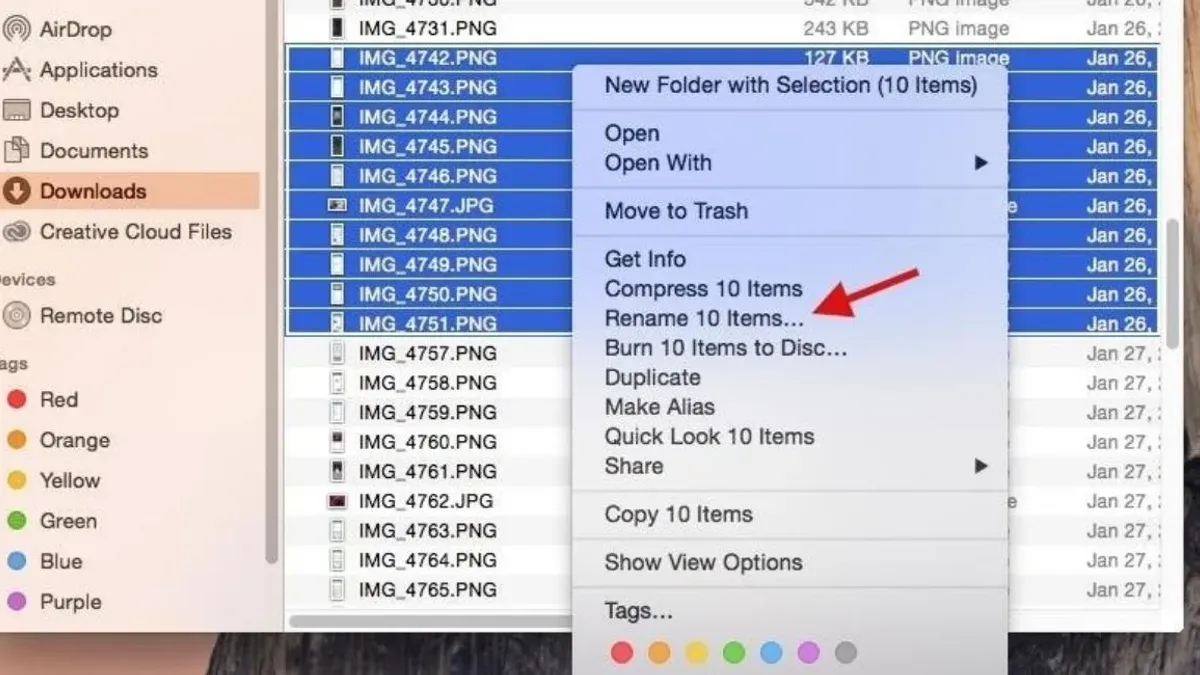
Finder does not provide a direct keyboard shortcut for batch renaming files. Instead, you can select multiple files by holding Shift or Command while clicking, then right-click any selected file and choose Rename X Items... from the context menu. This opens a batch rename dialog with options like Replace Text, Add Text, or Format, allowing you to customize the filenames for the entire selection.
For example, selecting 10 photos and choosing Rename X Items... lets you add a date prefix or sequential numbering efficiently. While this method relies on mouse interaction to open the menu, keyboard navigation using Control + F7 (to enable full keyboard access) and arrow keys can help reach the rename option without a mouse.
For more advanced batch renaming, Automator workflows can automate repetitive renaming tasks. You might create a workflow that appends a timestamp or changes file extensions automatically. Third-party apps like NameChanger or Better Rename 11 offer even more flexibility and keyboard shortcut support.
Use Finder’s built-in batch rename when you need quick, simple edits across multiple files. For complex or repetitive patterns, Automator or dedicated apps provide greater control and efficiency beyond basic keyboard shortcuts.
Common mistakes to avoid when renaming files on Mac using shortcuts
One frequent error is accidentally changing a file's extension while renaming. For example, if you rename "report.pdf" to "report.docx" without realizing, the system may no longer recognize the file correctly, causing issues when opening it. Always double-check the extension if your workflow depends on specific file types.
Another common mistake is overwriting existing filenames. If you rename "photo1.jpg" to "photo2.jpg" when a file named "photo2.jpg" already exists in the same folder, macOS will prompt you to replace it. Confirming this without caution can lead to permanent data loss.
Using the rename shortcut without first selecting the correct file can cause confusion or rename unintended files, especially when multiple Finder windows or tabs are open. Always ensure the intended file is highlighted before pressing Return.
Finally, not confirming the rename properly can leave files in inconsistent states. For instance, pressing Escape instead of Return cancels the rename, but clicking away without confirming might leave the filename partially edited, making it difficult to locate or open the file later.
How to customize or create your own rename shortcut on Mac
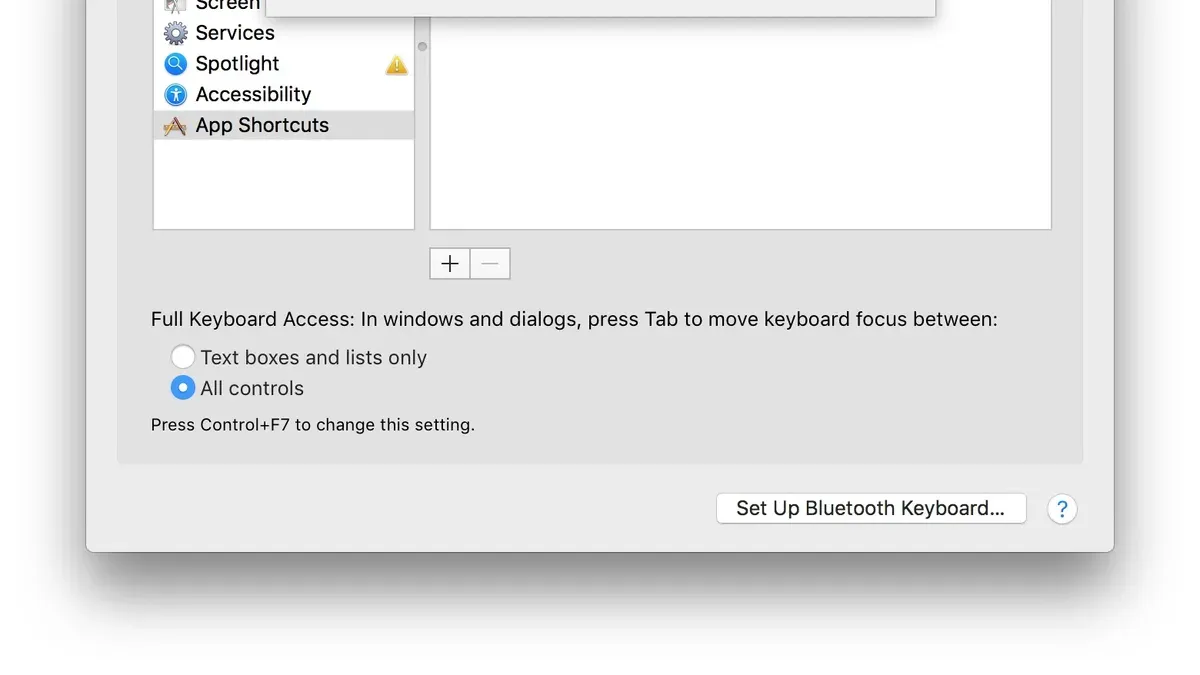
You can modify or add keyboard shortcuts for renaming files in Finder through System Preferences by navigating to Keyboard > Shortcuts > App Shortcuts. Click the plus (+) button, select Finder as the application, enter the exact menu command name such as "Rename" or "Rename Item," and assign your preferred key combination. However, the default rename shortcut (Return key) cannot be changed directly because it is a built-in Finder function without a menu item.
For more advanced customization, third-party utilities like Keyboard Maestro allow you to create macros that emulate the rename action with custom shortcuts. For example, you can set a macro that selects a file, presses Return to activate rename mode, and even inserts a predefined text snippet. This level of personalization helps if you frequently rename files following a specific pattern.
Customization is beneficial when the default shortcut conflicts with other apps or if you want to streamline a complex workflow. Yet, it can complicate usage if shortcuts become inconsistent or hard to remember across different contexts. Always test new shortcuts to ensure they do not interfere with existing system or application shortcuts.
Screenshot example: In System Preferences > Keyboard > Shortcuts > App Shortcuts, you see Finder selected with a new shortcut assigned to "Rename" using Command-Option-R.
Keyboard Maestro example: A macro triggers the Return key press and inserts "_v2" at the end of the filename, triggered by Control-Shift-R.
- Mac Keyboard Shortcut to Go to a Folder Path: A Practical Guide
- Mac Keyboard Shortcut to Open Spotlight: A Clear Guide
- Mac Keyboard Shortcut to Delete Forward: How to Use It Effectively
- Mac Keyboard Shortcut to Close All Windows: A Practical Guide
Frequently asked questions
Is there a keyboard shortcut to rename a file?
Yes, on a Mac, you can rename a selected file quickly by pressing the Return (or Enter) key. This action highlights the file name, allowing you to type a new name without using the mouse.
Is there a shortcut to rename files?
The standard approach on Mac is to select the file and press Return. For bulk renaming, macOS offers a built-in batch rename tool accessed via right-clicking and selecting "Rename X Items," but this does not have a direct keyboard shortcut by default.
Is there a keyboard shortcut to rename a file on mac?
Yes, pressing Return after selecting a file in Finder initiates renaming. If this shortcut does not work, checking keyboard settings or conflicting shortcuts in System Preferences is recommended.
How to rename mac?
If you mean renaming your Mac computer itself, go to System Settings > General > About. Click the current name at the top and enter a new name, then confirm to update your Mac’s network identity.
Is there a keyboard shortcut to rename a file on Mac?
The Return key is the default shortcut to rename a file in Finder. Make sure the file is selected first; pressing Return will enable renaming mode immediately.
Limits of this guide and when to seek other options
This article does not cover command-line renaming methods or scripting solutions which may be preferred by advanced users handling bulk or complex file renaming tasks. If you require automation beyond keyboard shortcuts or need to rename files based on metadata or patterns, tools like Terminal commands or third-party apps may be more suitable.
For most users aiming to speed up everyday file renaming on a Mac, mastering the built-in keyboard shortcut and its related workflows offers a straightforward and efficient approach. If your needs grow beyond this, exploring Automator workflows or AppleScript could provide additional power.
To get the most immediate benefit, practice using the standard Return key shortcut in Finder to rename files, and combine it with the Tab key to quickly jump between filenames when renaming multiple files. This simple habit can noticeably streamline your file management without adding complexity.



