
Mac Keyboard Shortcut to Move a File to Trash: How to Do It Fast
Discover the fastest Mac keyboard shortcut to move files to Trash and streamline your file management without dragging and dropping.
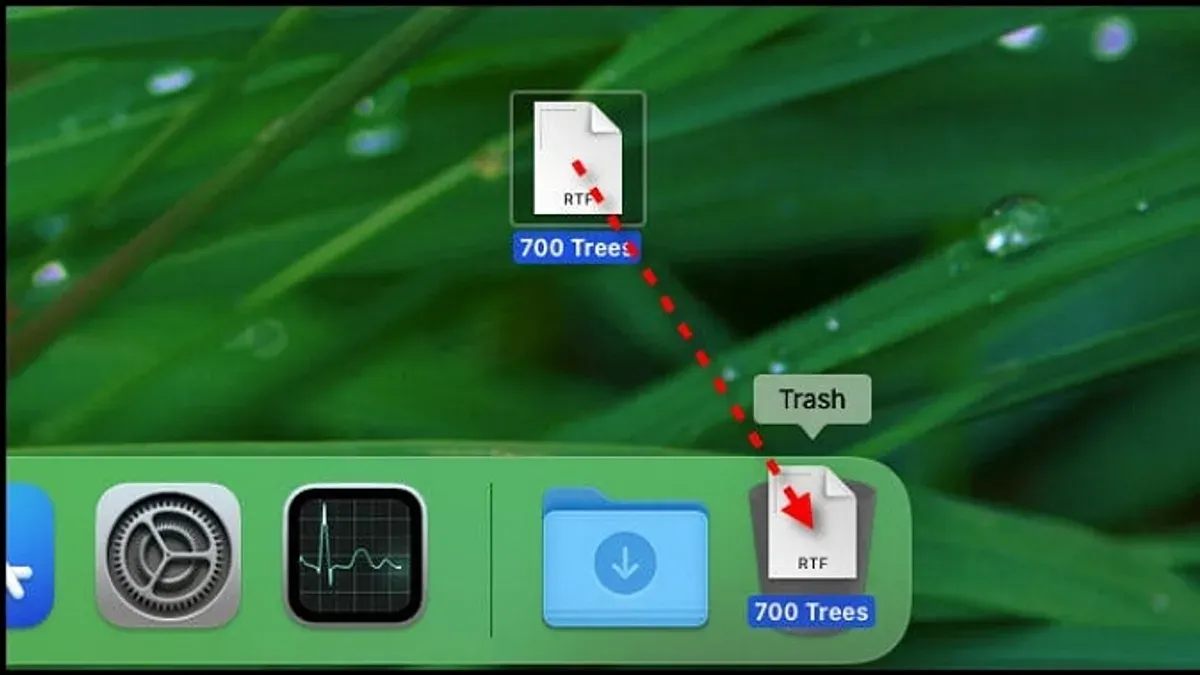
You’re organizing your files on a Mac and want to quickly clear out unwanted documents. Instead of dragging a file to the Trash with your mouse, you prefer a faster, keyboard-based method.
This article explains the Mac keyboard shortcut to move a file to Trash and clarifies how it differs from cutting and moving files elsewhere. You’ll also find practical tips to streamline your file management using macOS keyboard shortcuts, helping you avoid common mistakes and save time.
Key takeaways
- Use Command + Delete to instantly move selected files to the Trash on Mac.
- Cutting a file (Command + X) does not move it to Trash but prepares it for pasting elsewhere.
- Keyboard shortcuts speed up file management and reduce reliance on drag-and-drop.
- Confirm file selection before trashing to avoid accidental deletion.
- Combine shortcuts with Finder views for efficient navigation and file handling.
How do you move a file on Mac
Moving files on a Mac involves transferring them from one Finder folder to another without deleting them. This differs from deleting, where files are sent to the Trash, potentially for permanent removal later. Understanding the distinction helps maintain a clean and organized file system.
You can move files using several methods. The most common is drag-and-drop: select the file in Finder, then drag it to the target folder in the sidebar or another window. Alternatively, you can use copy-paste commands—copy the file with Command + C, navigate to the destination folder, and paste with Command + V. This duplicates the file, so you must manually delete the original to complete the move.
Keyboard shortcuts provide a faster way to move files without the mouse. For example, Command + C followed by Option + Command + V moves the file instead of copying it, reducing extra steps.
Consider a photo you want to organize: dragging it from the Downloads folder into a Pictures folder takes one step, but using copy-paste then deleting involves three steps. Using the move shortcut streamlines this process.
| Method | Steps | Notes |
|---|---|---|
| Drag-and-drop | 1 | Intuitive, but requires mouse |
| Copy and paste, then delete | 3 | More steps, risk of duplicates |
| Keyboard move shortcut (Cmd+C + Opt+Cmd+V) | 2 | Efficient, mouse-free |
How to move a file in macOS using keyboard shortcuts
Unlike typical cut-and-paste functions for text, macOS does not offer a direct 'Cut' command for files in Finder. Instead, moving a file using the keyboard involves a two-step shortcut sequence: first copying the file, then pasting it into a new location with a move command.
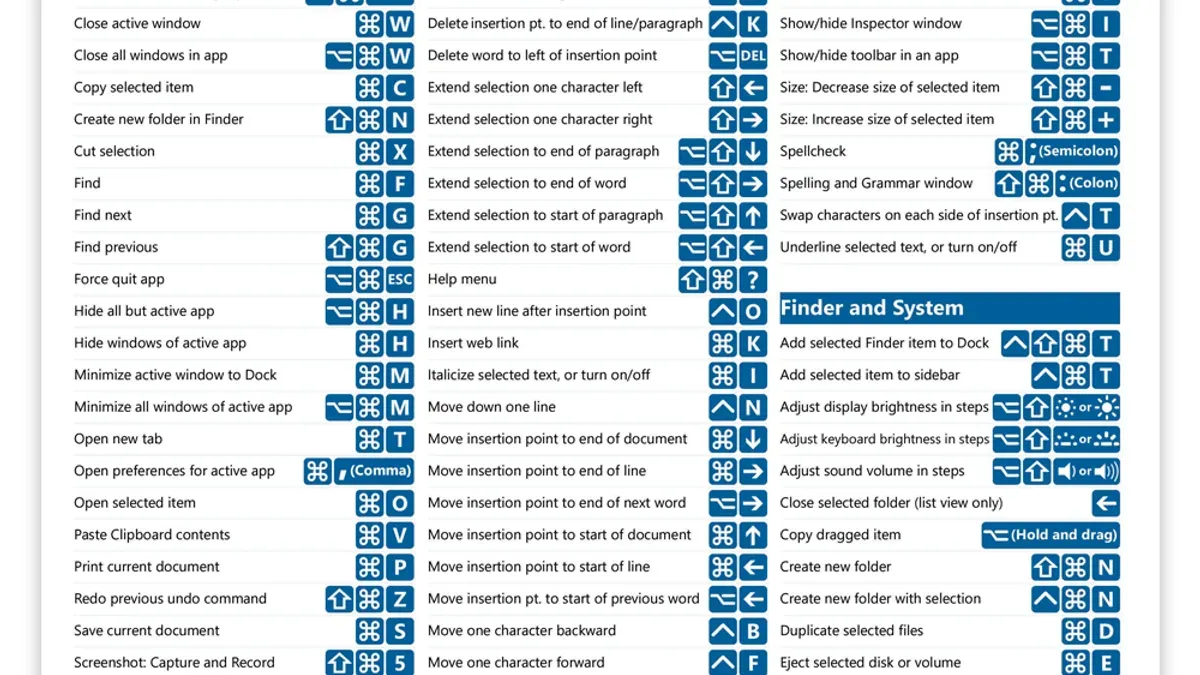
To move a file, select it in Finder and press Command + C to copy it. Next, navigate to the destination folder where you want the file relocated. Instead of the usual paste shortcut, hold down Option and press Command + V. This combination triggers the 'Move item here' command, which pastes the file and removes it from its original location.
For example, if you want to move "Report.pdf" from your Desktop to Documents, first select the file on the Desktop and press Command + C. Then open the Documents folder and press Option + Command + V. The file will appear in Documents and no longer be in Desktop.
This method differs from the regular copy-paste operation, where Command + V alone duplicates the file. It also contrasts with shortcuts that send files to Trash, as this sequence physically relocates the file without deleting it.
Mac keyboard shortcut to move a file to Trash
The quickest way to send a file to the Trash on a Mac is by selecting the file in Finder and pressing Command + Delete. This keyboard shortcut instantly moves the selected file(s) to the Trash without needing to drag them physically.
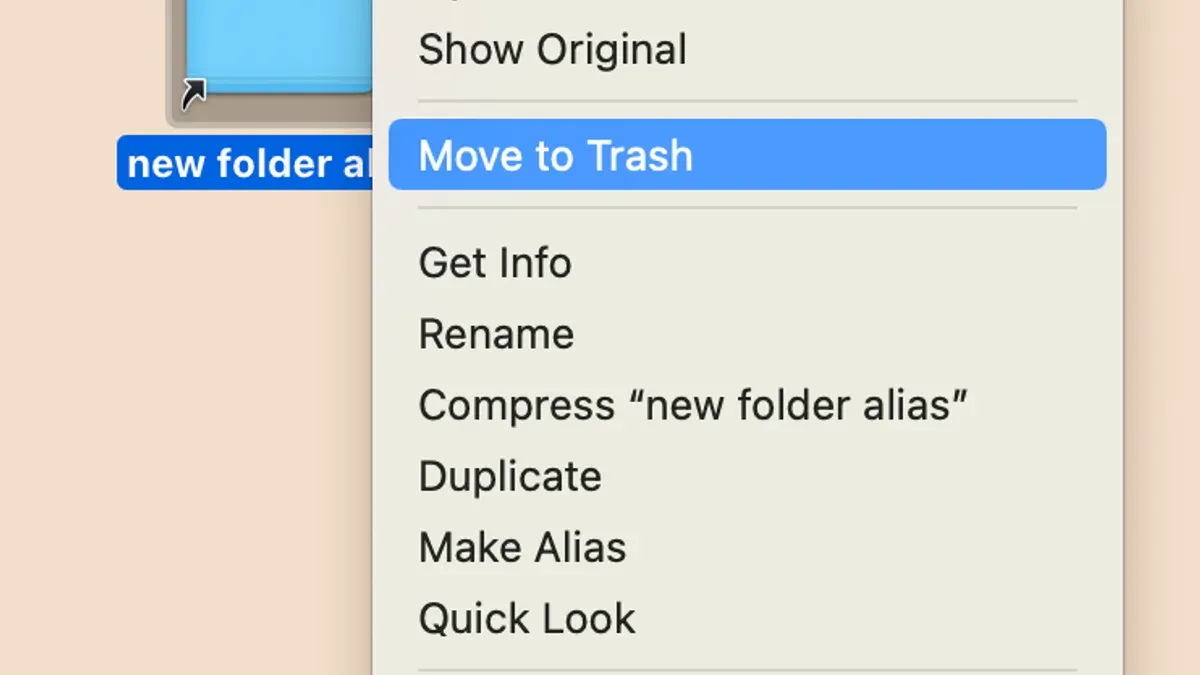
This shortcut works consistently in Finder and many other macOS applications that handle files, such as TextEdit or Preview. For example, if you have a document open in Preview and want to delete it, you can close it, select it in Finder, and press Command + Delete to move it to the Trash immediately.
Using this shortcut is faster than dragging files to the Trash icon because you avoid precise mouse movements and potential misplacement. It also reduces the chance of accidentally dropping files into the wrong folder, making it safer for your file organization.
To picture this, imagine a user with a cluttered Desktop. Instead of dragging multiple files one by one to the Trash icon at the Dock, the user selects all unwanted files using Shift or Command-click and then presses Command + Delete once. This action moves all selected files to Trash instantly, saving time and effort.
Practical tips for managing files with keyboard shortcuts on Mac
To streamline your file management, combine shortcuts with Finder’s navigation features for faster organization. For example, switch Finder to List View (View > as List or Command+2) to see file details, then use arrow keys to select multiple files with Shift+arrow or Command+click before pressing Command+Delete to move them to Trash swiftly.
Another efficient workflow is selecting files using Spotlight (Command+Space) to quickly find documents, then opening Finder with Command+Return to highlight the file and immediately trash it with Command+Delete, cutting down search and cleanup time significantly.
If you accidentally move a file to Trash, you can undo this action instantly by pressing Command+Z or choosing Edit > Undo Move in Finder. This safety net saves time and prevents data loss during rapid file management.
By integrating these shortcuts and navigation tips, you can reduce the time spent organizing files from minutes to seconds, making daily cleanup and file moves smoother without relying on the mouse.
Common mistakes to avoid when moving or trashing files using shortcuts
A frequent error is confusing moving a file to the Trash with permanently deleting it. Using Command + Delete sends files to the Trash, but they remain recoverable until you empty the Trash manually. Accidentally thinking the file is gone may lead to unnecessary worry or repeated deletions.
Another common misunderstanding stems from macOS lacking a traditional 'Cut' command for files. Unlike Windows, the Mac uses Command + C to copy and Option + Command + V to move files. Trying to use Command + X to cut a file in Finder does nothing, which can confuse users expecting immediate relocation.
Failing to confirm the file's new location after moving it via keyboard shortcuts often results in lost files. For example, if you use Option + Command + V to move a file but the destination folder is not clearly visible or confirmed, the file might end up somewhere unexpected, causing frustration in locating it later.
Lastly, keyboard shortcuts may not work if you lack proper permissions or if the active app context blocks them. For instance, trying to move system files or files in a locked folder will silently fail or trigger error dialogs. Also, shortcuts may be ineffective if the Finder window is not the active application.
- Mac Keyboard Shortcut to Rename a File: Quick and Efficient Guide
- Mac Keyboard Shortcut to Delete Forward: How to Use It Effectively
Frequently asked questions
How to move a file on macbook?
To move a file on your MacBook, you can click and drag the file from its current location to the desired folder. Alternatively, use the keyboard: copy the file with Command + C, navigate to the target folder, then paste it with Command + Option + V to move rather than copy.
How to move files in mac os?
Moving files in macOS works similarly across devices. Select the files, press Command + C to copy, then go to the destination folder and press Command + Option + V to move them. Using drag-and-drop in Finder also moves files by default.
How to cut and move a file in mac?
Unlike Windows, macOS doesn’t have a traditional cut command for files. Instead, copy the file with Command + C, then move it by pasting with Command + Option + V. This combination deletes the original after pasting, effectively moving the file.
How do you move a file on MacBook?
Moving a file on a MacBook can be done by dragging it to a new folder or using keyboard shortcuts: copy with Command + C and paste with Command + Option + V to move. Finder’s drag-and-drop is often the quickest method.
How to cut and move a file in Mac?
Since macOS lacks a direct cut option for files, you use Command + C to copy the file, then Command + Option + V to move it to the new location. This removes the file from the original folder after pasting, which mimics cutting and moving.
What this advice does not cover
This article does not cover third-party file management apps that may use different shortcuts or behaviors; you should verify shortcuts within those specific apps. Keyboard shortcuts for moving files may also not work in applications that do not support Finder-style file management, such as some specialized editing or cloud storage clients.
For users who rely heavily on such apps or require advanced file organization features beyond the native macOS Finder, exploring dedicated file management tools or their documentation for shortcut customization is recommended.
The single most useful next step is to practice the core Finder shortcuts discussed here in your daily workflow. Start by selecting files and using Command + Delete to move items to the Trash quickly, then explore combining shortcuts with Finder views like List or Column to speed up navigation and file organization. This hands-on approach ensures you build muscle memory and optimize your file management efficiency on Mac.



