
Mac Keyboard Shortcut to Open Downloads Folder Quickly
Discover how to quickly open the Downloads folder on Mac using keyboard shortcuts and customize your own for faster access.
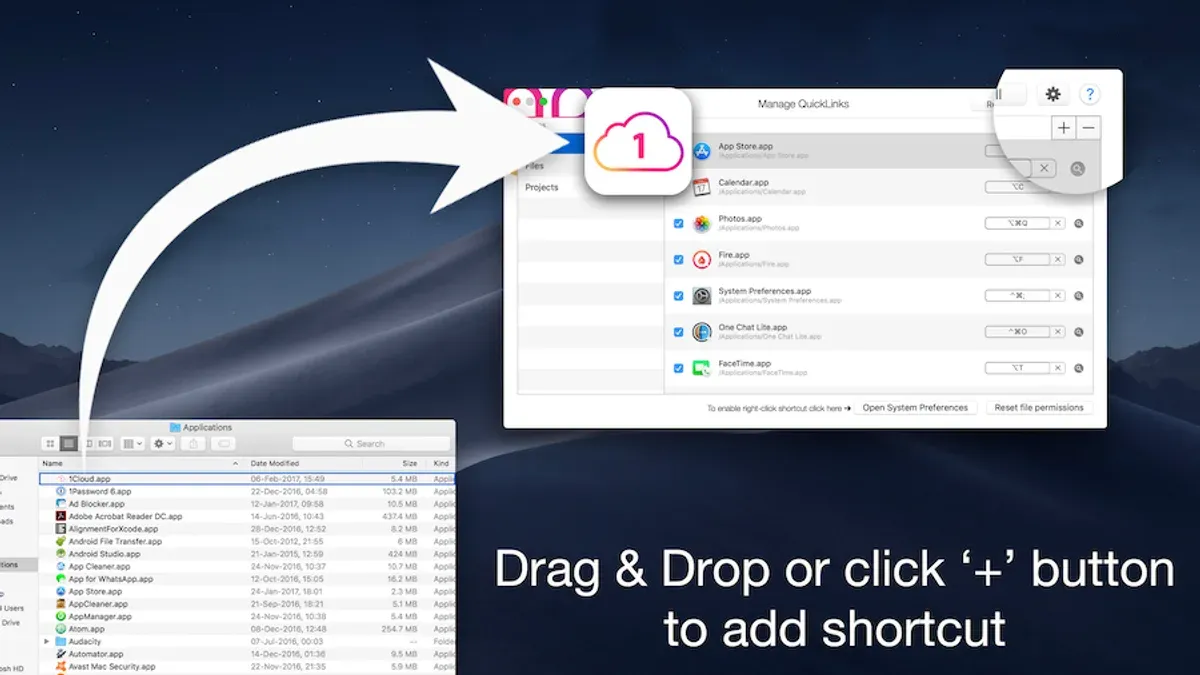
You frequently download files and find yourself reaching for the Downloads folder multiple times a day. Navigating through Finder menus or the Dock can slow your workflow, especially if you prefer keyboard efficiency. Knowing a Mac keyboard shortcut to open Downloads folder can save precious seconds and streamline your tasks.
This article covers how to access the Downloads folder quickly using default shortcuts, Spotlight, Finder methods, and how to create or customize your own keyboard shortcuts. It also outlines common pitfalls and best practices for managing your Downloads folder to make your daily Mac experience more productive.
Key takeaways
- The default shortcut Command + Option + L opens the Downloads folder in Finder.
- Spotlight search (Command + Space) is a quick alternative but requires typing.
- You can create custom shortcuts via System Settings > Keyboard > Shortcuts for personalized access.
- Custom shortcuts may conflict with system or app shortcuts, so choose combinations carefully.
- Organizing your Downloads folder regularly improves efficiency beyond just shortcut use.
How to open Downloads folder on Mac using keyboard shortcuts
Mac does not provide a universal single-keyboard shortcut dedicated exclusively to opening the Downloads folder by default. However, there are several system-supported shortcuts and quick methods you can use to access it efficiently.
One of the most straightforward ways is using the Finder shortcut Command + Option + L. Pressing these keys together opens the Downloads folder immediately in a new Finder window. For example, pressing Command + Option + L will open your Downloads folder without any additional navigation.
If you prefer a search-based approach, the Spotlight search shortcut Command + Space activates Spotlight. Typing “Downloads” and pressing Enter quickly opens the folder from the search results. This method requires three steps but works anywhere on your Mac.
Another option involves keyboard navigation to the Dock. Press Control + F3 (or Control + Fn + F3 on some keyboards) to focus on the Dock, use the arrow keys to highlight the Downloads folder icon (if it’s in the Dock), and press Enter. This takes more key presses but can be useful if you keep Downloads handy in the Dock.
| Method | Key Presses | Speed | Ease |
|---|---|---|---|
| Finder Shortcut (Command + Option + L) | 3 keys simultaneously | Fast | Easy |
| Spotlight Search (Command + Space, type “Downloads”, Enter) | 3+ keys and typing | Moderate | Moderate |
| Dock Navigation (Control + F3, arrows, Enter) | Multiple keys | Slower | Moderate to Hard |
Where is the Downloads folder on a Mac and why it matters
The Downloads folder is located within your user home directory at the path ~/Downloads. This means it resides inside your personal space on the Mac’s internal drive, separate from system or shared folders. Understanding this exact location is useful when creating custom shortcuts or Automator workflows, as you can reference the folder directly by its path.
In Finder, the Downloads folder typically appears in the sidebar under the “Favorites” section, providing quick access without navigating through multiple directories. Additionally, many Mac users keep the Downloads folder in the Dock for one-click access, where it appears as a stack showing recent downloads or file previews.
For example, when setting up a custom keyboard shortcut through System Preferences or a third-party app, knowing that ~/Downloads points directly to your folder ensures the shortcut opens the correct location. Without this clarity, shortcuts may fail or open unintended folders. Visual cues like the Finder sidebar icon or Dock stack confirm you are targeting the correct Downloads folder for your workflow needs.
How to open folder in Mac shortcut: general methods beyond Downloads
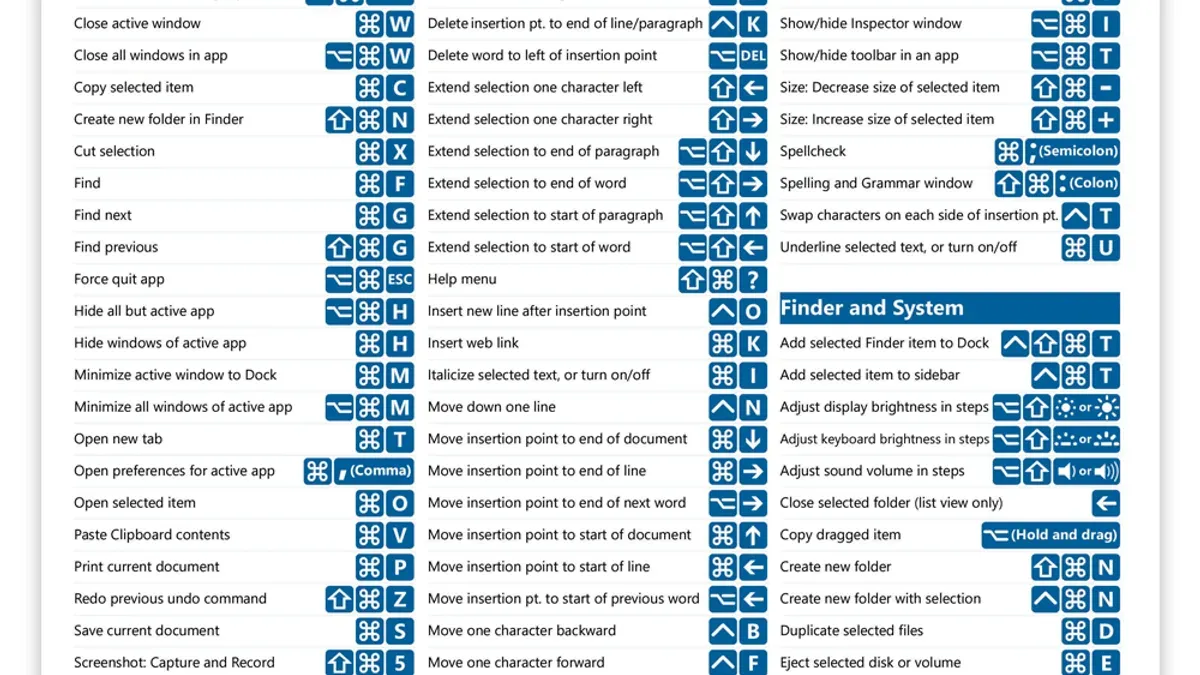
You can quickly open various folders on your Mac using built-in Finder keyboard shortcuts. For example, pressing Command + Shift + H opens your Home folder immediately, placing you at the root of your personal files. Similarly, Command + Shift + D takes you to the Desktop folder.
If you want to open a folder not covered by default shortcuts, use the Go to Folder feature. Press Command + Shift + G, then type the folder’s full path (like /Users/yourname/Documents/Projects) and hit Enter to jump directly there.
To streamline access even further, you can create custom keyboard shortcuts for specific folders via System Preferences > Keyboard > Shortcuts > App Shortcuts. For example, assign Control + Option + P to open a particular projects folder by creating a shortcut that runs an Automator script or shortcut app that opens that folder.
This combination of default shortcuts, Go to Folder, and custom keys lets you tailor folder access to your workflow efficiently.
How to create or customize a keyboard shortcut to open the Downloads folder
If the default shortcuts don’t fit your workflow, you can create a custom keyboard shortcut by using macOS System Preferences and Automator or AppleScript. This approach lets you assign a single keystroke that opens the Downloads folder instantly.
Start by creating a quick service in Automator. Launch Automator and select “Quick Action.” Set “Workflow receives” to “no input” in “any application.” Then add the “Run AppleScript” action and enter the following code:
tell application "Finder"
open (path to downloads folder as text)
end tell
Save this service with a descriptive name like “Open Downloads Folder.”
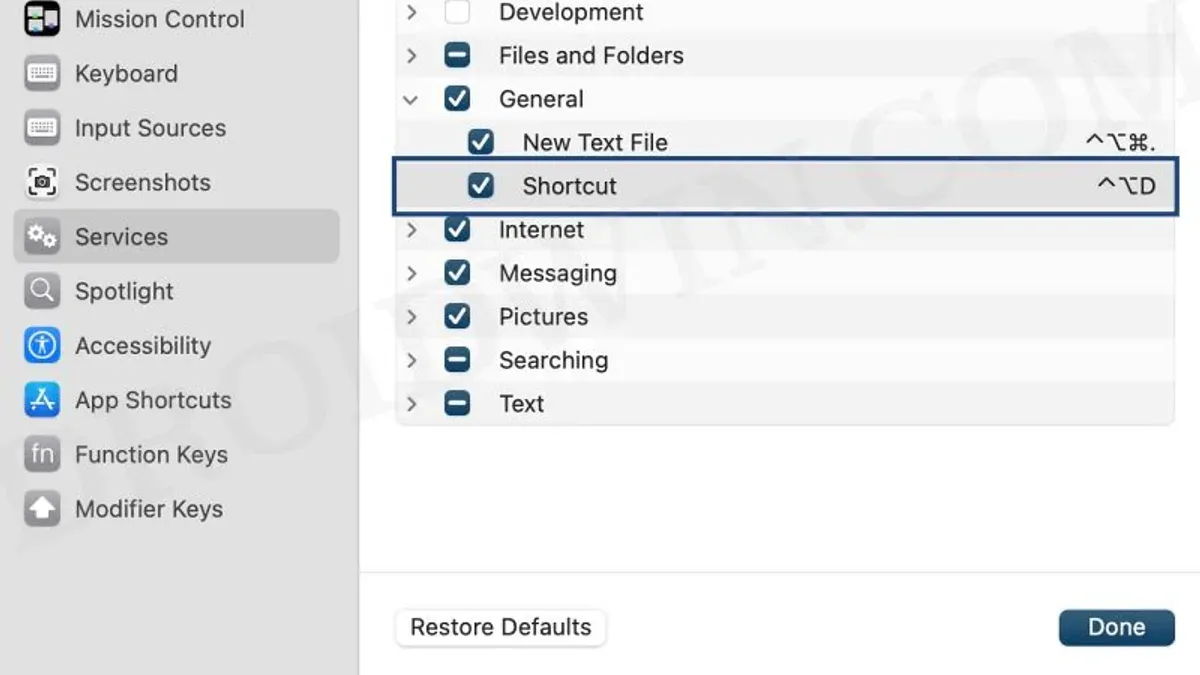
Next, assign a keyboard shortcut. Open System Preferences, go to Keyboard > Shortcuts > Services. Find your new service under the "General" section and click “add shortcut.” Choose a key combination that doesn’t conflict with existing shortcuts, for example, Control + Option + D.
Now, pressing your custom shortcut will open the Downloads folder immediately. This method offers flexibility and works across all applications, unlike menu-specific shortcuts. Remember to pick a shortcut that’s easy to remember and doesn’t override essential system commands.
Common mistakes and how to avoid them when using keyboard shortcuts for Downloads
One frequent error is confusing Dock focus shortcuts with direct folder opening. For example, pressing Control + F3 (or Control + Fn + F3 on some keyboards) moves focus to the Dock but does not open the Downloads folder. Users expecting immediate access can become frustrated. Instead, ensure your shortcut triggers the folder opening action, not just navigation.
Many assume there is a universal default shortcut for all folders, including Downloads. However, macOS only provides Command + Option + L specifically for Downloads; other folders require custom shortcuts. Attempting to use default shortcuts for arbitrary folders can lead to confusion and wasted effort.
Overloading shortcuts is another common pitfall. Assigning a custom shortcut that conflicts with system-wide or app-specific ones often results in unintended actions. For instance, setting Command + D to open Downloads may clash with the Finder’s duplicate command. To avoid this, check existing shortcuts in System Preferences under Keyboard > Shortcuts before creating new ones.
Lastly, failing to test newly created shortcuts immediately can leave hidden issues unnoticed. After customization, try the shortcut in different contexts—Finder, desktop, or apps that may intercept key combinations—to confirm it works as intended. Troubleshoot by revisiting Automator services, System Preferences, or resetting shortcuts if conflicts arise.
Best practices for managing and accessing your Downloads folder efficiently
Keeping your Downloads folder organized reduces clutter and speeds up file retrieval. Creating subfolders by file type or project within Downloads helps you avoid an overwhelming pile of files, making navigation faster and more intuitive.
Pinning the Downloads folder to the Finder sidebar and Dock offers quick mouse-based access alongside keyboard shortcuts. To pin, simply drag the Downloads folder from Finder to the sidebar or Dock; this dual access method supports a smoother workflow.
Spotlight search and Siri provide efficient alternative ways to open Downloads without relying solely on shortcuts or mouse navigation. For example, activating Spotlight with Command + Space and typing “Downloads” quickly locates the folder.
Regularly clearing out unnecessary files maintains optimal folder performance. A cluttered Downloads folder can slow productivity by making it harder to find relevant files. Setting a weekly reminder to review and delete or move files keeps the folder manageable.
Combining these practices with custom shortcuts creates an efficient workflow: use a shortcut to open Downloads, organize files into subfolders immediately, and access the folder via Dock or Spotlight as needed.
- Mac Keyboard Shortcut to Go to a Folder Path: A Practical Guide
- Mac Keyboard Shortcut to Select All Files: Complete Guide
- Mac Keyboard Shortcut to Rename a File: Quick and Efficient Guide
- Mac Keyboard Shortcut to Move a File to Trash: How to Do It Fast
Frequently asked questions
How to open downloads on mac?
You can open the Downloads folder on a Mac by clicking the Finder icon in the Dock and selecting Downloads from the sidebar. Alternatively, you can use the Dock’s Downloads stack by clicking the stack icon, which shows recent items. Keyboard shortcuts or Spotlight search also provide quick access.
How to open downloads folder on Mac without a shortcut key?
Without using a shortcut key, you can access the Downloads folder via the Finder sidebar or the Dock’s Downloads stack. You can also open Finder, press Command + Shift + G, and type ~/Downloads to go directly to the folder. Another option is to use Spotlight search by pressing Command + Space and typing “Downloads.”
Is there a default keyboard shortcut to open downloads folder on Mac?
macOS does not have a default single keyboard shortcut specifically assigned to open the Downloads folder. However, you can use Command + Option + L in Safari to open the Downloads list, which is different from the folder. To open the folder itself, you typically need to create a custom shortcut or use Finder navigation.
Can I change the shortcut key to open downloads folder on Mac?
Yes, you can create a custom keyboard shortcut to open the Downloads folder by using Automator to create a quick action, then assigning a shortcut via System Preferences > Keyboard > Shortcuts > Services. This approach works across most recent macOS versions but requires some setup. Third-party apps like BetterTouchTool also allow more advanced shortcut customizations.
Where is the downloads folder located on a Mac?
The Downloads folder is located within your user home directory, specifically at /Users/[your username]/Downloads. You can quickly access it in Finder by selecting the Downloads item in the sidebar or by navigating to your home folder and opening the Downloads folder manually.
Limits of this advice and who should look elsewhere
This advice assumes you are using a relatively recent macOS version; older or heavily customized systems may not support all shortcut customizations or system behaviors described. If your Mac runs macOS versions prior to Sierra or has third-party utilities that alter keyboard mappings, some steps might not apply or require additional troubleshooting. Users seeking automation across multiple apps or integrating Downloads folder access into complex workflows may benefit more from scripting solutions using Automator or AppleScript, which are beyond the scope of this guide.
To streamline your access to the Downloads folder with keyboard shortcuts, the single most useful next step is to create a custom shortcut via System Preferences > Keyboard > Shortcuts > App Shortcuts. Assign a unique key combination to the Finder menu item “Downloads” or create a quick action in Automator linked to a shortcut. This ensures consistent, personalized access tailored to how you work, regardless of macOS updates or default shortcut changes.



