
How to Increase Mac Screen Brightness in Small Steps Using Keyboard Shortcuts
Discover how to fine-tune your Mac screen brightness using keyboard shortcuts that adjust brightness in smaller, precise increments.
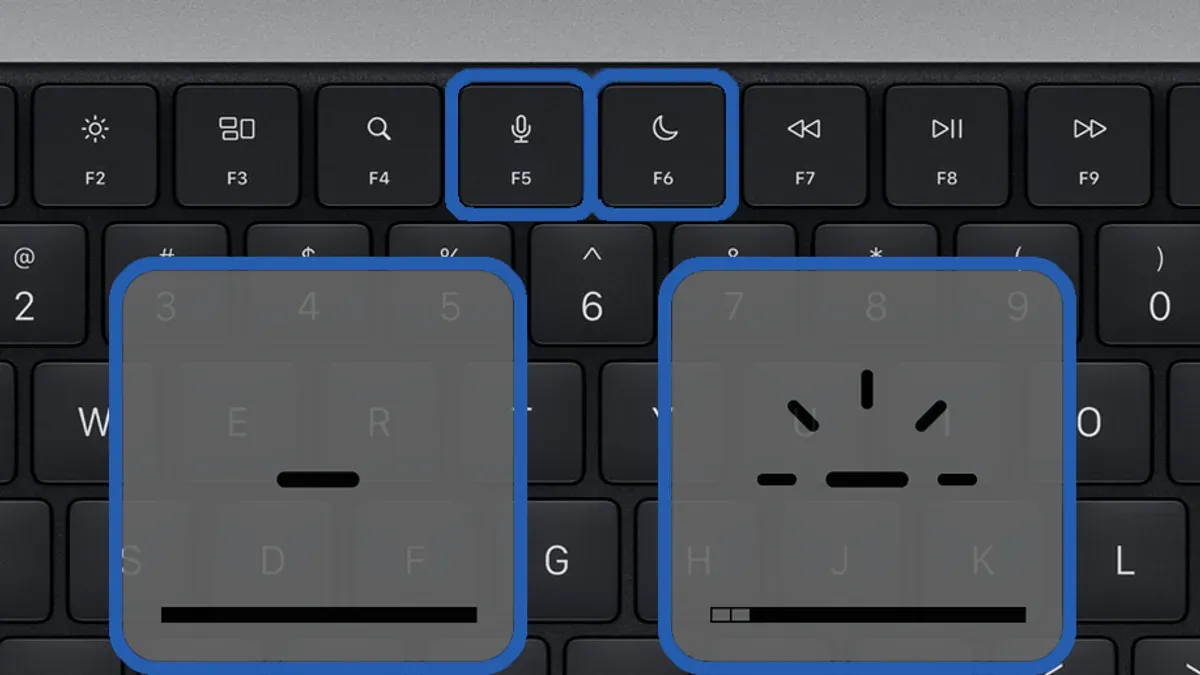
You’re adjusting your Mac’s screen brightness and find the default keyboard shortcuts increase or decrease brightness in steps that are too large. This can make fine-tuning your display difficult, especially in dim lighting or when working on color-sensitive tasks. Fortunately, there are ways to use a Mac keyboard shortcut to increase brightness in small steps, allowing you more precise control without opening System Preferences or using third-party tools.
This article guides you through the standard brightness shortcuts, explains how to use modifier keys for smaller increments, explores alternative keyboard methods for precise adjustments, and covers common troubleshooting tips. By the end, you’ll know how to manage your Mac’s brightness smoothly and efficiently using only your keyboard.
Key takeaways
- The F1 and F2 keys adjust brightness in default, larger steps.
- Holding Option + Shift while pressing brightness keys changes brightness in smaller increments.
- Some Macs support Touch Bar brightness sliders for finer control.
- Third-party apps can offer even more granular adjustment but are not required.
- If shortcuts don’t work, check keyboard settings and display support.
Before you start: What you need to know about Mac brightness controls
Not all Mac keyboards include dedicated brightness keys. Most MacBook models with built-in Retina displays feature brightness adjustment keys on the top row, typically identified by a sun icon: F1 to decrease and F2 to increase brightness. External Apple keyboards like the Magic Keyboard also include these keys, but many third-party or Windows-style keyboards do not.
By default, macOS adjusts screen brightness in approximately 16 discrete steps. This means each press changes brightness by about 6.25%, which can feel coarse when you want finer control.
Brightness keys control built-in displays directly, but they usually cannot adjust external monitors. External displays typically require their own hardware buttons or software controls, as macOS does not manage their brightness via system shortcuts.
Some system settings or permissions can affect brightness shortcut functionality. For example, if you have enabled accessibility features that remap keys or installed third-party utilities, brightness keys may behave differently. Also, macOS requires the keyboard to be recognized as an Apple or compatible device for these shortcuts to work.
| Mac Model | Brightness Keys Present | Key Location |
|---|---|---|
| MacBook Pro (Retina) | Yes | F1 (decrease), F2 (increase) |
| MacBook Air (Retina) | Yes | F1 (decrease), F2 (increase) |
| iMac with Magic Keyboard | Yes | F1, F2 |
| Mac mini with third-party keyboard | Depends | Varies or none |
| External monitors | No | N/A (use monitor controls) |
Standard keyboard shortcuts to increase brightness in default steps
On most Mac keyboards, you adjust screen brightness using the dedicated brightness keys, typically labeled with a sun icon. The key for increasing brightness is usually F2 (or the corresponding brightness-up key on the Touch Bar), while F1 decreases brightness.
Each press of the brightness-up key raises the screen brightness by one fixed increment, which is about 6.25% of the total brightness range. This means there are 16 distinct brightness levels between minimum and maximum.
If you hold down the brightness-up key, the brightness increases continuously, moving through these steps smoothly until you release the key or reach maximum brightness. During this process, an on-screen brightness indicator appears, showing a segmented bar that fills up with each step, providing visual feedback on your current brightness level.
- Locate the brightness-up key (usually F2 or the sun icon key) on your Mac keyboard.
- Press the key once; you will see the on-screen brightness indicator increase by one segment.
- Continue pressing the key to raise brightness further, observing the indicator fill up incrementally.
- Alternatively, press and hold the key to increase brightness continuously through each step until you release it or reach full brightness.
Using modifier keys to adjust brightness in smaller increments
You can achieve finer control over your Mac's screen brightness by holding down the Option and Shift keys while pressing the brightness adjustment keys. Normally, each press changes brightness by roughly 6.25%, but with these modifiers, the change is reduced to about 1.25% per step, allowing for much smoother adjustments.
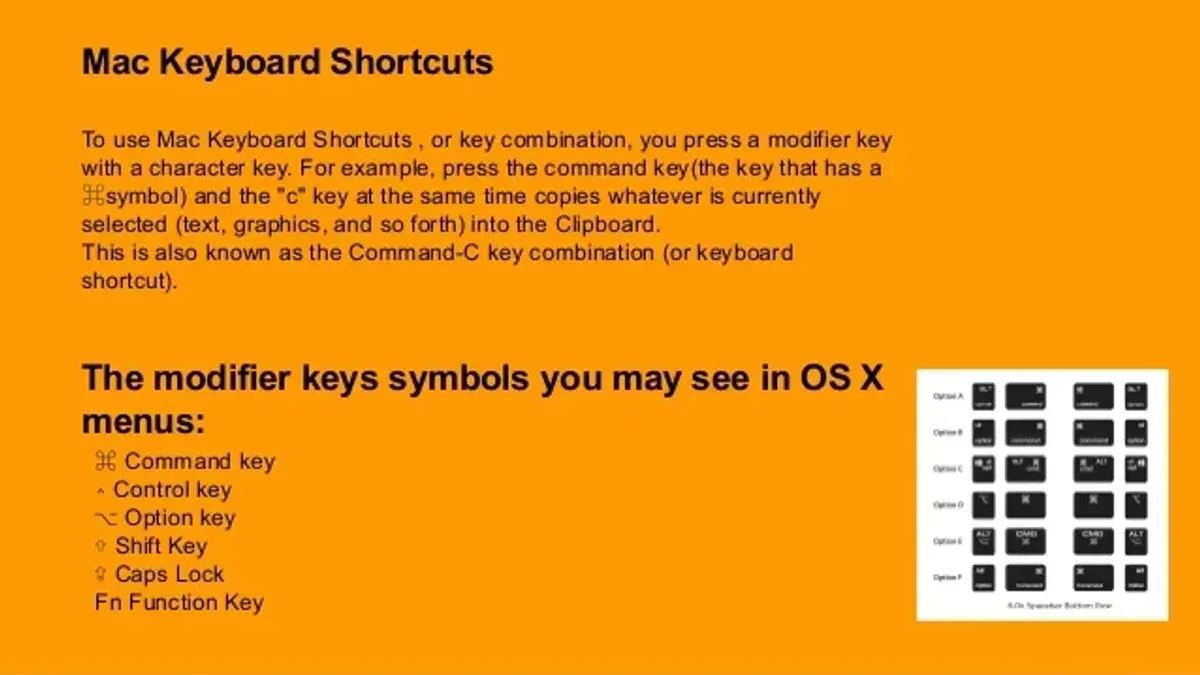
This smaller increment is particularly useful in low-light environments or when you need precise brightness levels for color-sensitive work. The trade-off is that it takes more key presses to reach maximum or minimum brightness.
- Press and hold the Option and Shift keys simultaneously.
- While holding these keys, tap the brightness up (usually F2) or brightness down (usually F1) key once.
- Observe the on-screen brightness indicator—it should move in smaller increments compared to a normal press, roughly one-fifth the usual step size.
- Release the keys when you've reached your desired brightness level.
For example, if a normal key press increases brightness from 50% to 56.25%, a modified key press will increase it to approximately 51.25%. This method offers more granular control without opening system settings or using external tools.
Alternative keyboard methods to increase brightness precisely
If native shortcuts don’t offer the fine control you need, you can use keyboard-driven alternatives such as Control Center hotkeys or custom Automator workflows. These methods provide varying granularity and speed but require setup and trade-offs.
Using Control Center shortcuts
You can open the Control Center via keyboard by pressing Control + F8 (or Control + fn + F8 on some Macs), then navigate using arrow keys to the Brightness slider. Adjust the brightness incrementally with left and right arrows for fine control. This method offers more precise steps than standard keys but is slower as it involves menu navigation.
Creating custom keyboard shortcuts with Automator or third-party apps
For smoother brightness adjustments, you can create custom scripts using Automator or apps like BetterTouchTool to change brightness in smaller increments (e.g., 1-2%). An example Automator workflow uses a shell script with the brightness command-line tool to increase brightness by 0.02 (2%).
- Open Automator and create a new Quick Action.
- Set "Workflow receives no input" in "any application."
- Add a "Run Shell Script" action with:
brightness -i $(brightness -l | grep brightness | awk '{print $4 + 0.02}'). - Save the Quick Action with a descriptive name like "Increase Brightness Slightly."
- Assign a keyboard shortcut in System Preferences > Keyboard > Shortcuts > Services.
This method allows rapid, precise adjustments but requires installing command-line tools and some configuration. It may not work seamlessly on all Mac models or macOS versions.
Trade-offs: Native shortcuts are fastest and simplest but limited in granularity. Control Center navigation offers finer steps but is slower. Custom shortcuts provide the most precise control but need setup and can introduce complexity or compatibility issues.
Troubleshooting common issues with brightness shortcuts
If your brightness keys are unresponsive, first check if the function keys require holding the Fn key. On some Macs, system preferences under Keyboard > Keyboard tab include "Use F1, F2, etc. keys as standard function keys." If enabled, brightness keys need Fn pressed simultaneously.
Brightness adjustments often do not affect external monitors because these monitors use independent controls. Use the monitor’s physical buttons or software provided by its manufacturer to adjust brightness.
macOS accessibility or security settings can block shortcut functionality. Check System Preferences > Security & Privacy > Privacy tab for apps controlling input. Also, review Accessibility settings to ensure no conflicting features like Display Contrast or Zoom prevent visible changes.
If problems persist, resetting the System Management Controller (SMC) or Non-Volatile RAM (NVRAM) can resolve hardware or firmware glitches affecting brightness keys.
- Shut down your Mac.
- For SMC reset on Intel Macs, press and hold Shift + Control + Option keys and the power button simultaneously for about 10 seconds, then release and power on normally. You should see normal startup behavior.
- To reset NVRAM, restart your Mac and immediately press Option + Command + P + R keys, holding them for about 20 seconds until you hear a second startup chime or see the Apple logo appear and reappear.
After these resets, test brightness keys again; they should respond normally if hardware or firmware issues were the cause.
When keyboard shortcuts aren’t enough: limits and alternatives
Brightness adjustment via keyboard shortcuts has its boundaries. Some Mac models, especially with external displays, may not support fine or any keyboard-based brightness control due to hardware or firmware restrictions. For example, when using certain third-party monitors, brightness keys might be inactive or cause no visible change.
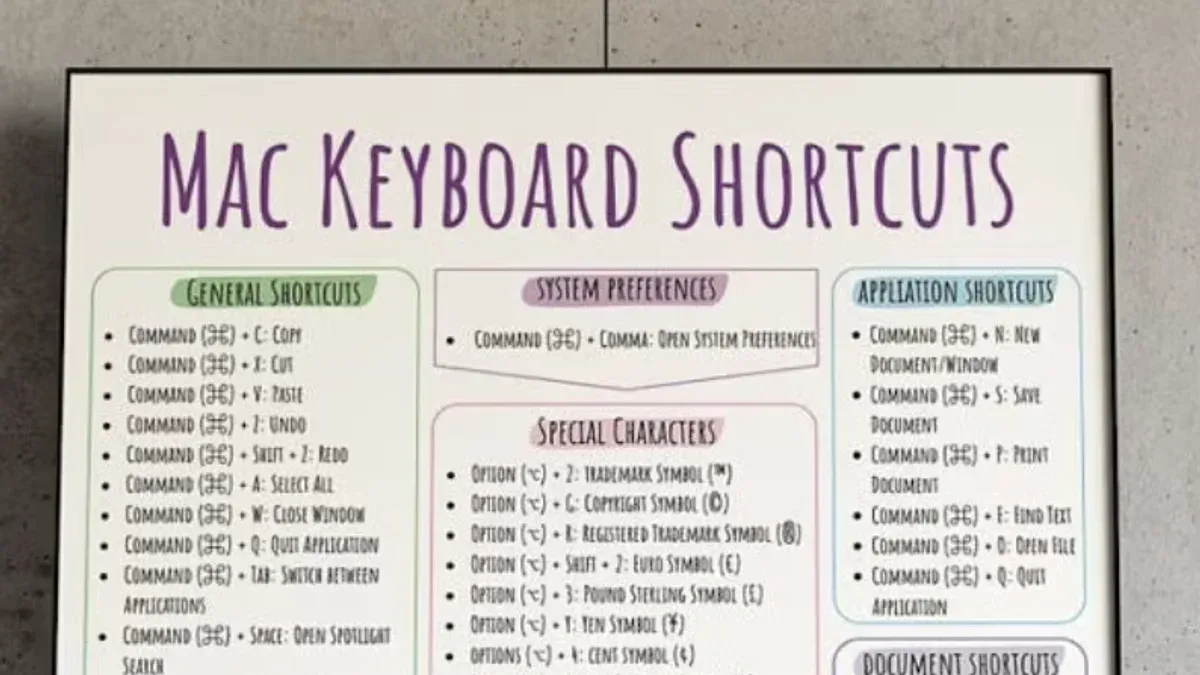
Additionally, some apps running in full-screen mode or system states like macOS Login or Recovery disable brightness shortcuts temporarily. In such cases, keyboard shortcuts won’t function until you return to a regular desktop session.
If keyboard shortcuts don’t meet your needs, macOS’s System Preferences > Displays offers slider controls for brightness adjustment, though they lack keyboard precision. For more advanced control, third-party utilities like Brightness Slider or MonitorControl provide customizable increments and support for external monitors but may require granting additional permissions.
Users with accessibility requirements should consider these alternatives carefully, as relying solely on keyboard shortcuts might not offer the necessary granularity or responsiveness.
Frequently asked questions
Can I adjust screen brightness in smaller increments without using the mouse?
Yes, you can adjust brightness in smaller steps using keyboard shortcuts combined with modifier keys. For example, holding the Option (⌥) and Shift (⇧) keys while pressing the brightness up or down keys on your Mac keyboard increases or decreases brightness in finer increments than the default steps.
Why do some Macs not respond to brightness keys on the keyboard?
Brightness keys may not work if your Mac is connected to an external display that doesn’t support keyboard brightness control or if the keyboard is not properly recognized. Additionally, certain apps or system settings can override or disable these keys. Checking System Preferences under Keyboard and Displays can help identify and resolve these issues.
Is it possible to customize the brightness step size on a Mac?
macOS does not provide a built-in way to customize brightness step size beyond the default and fine increments available via modifier keys. To achieve more precise control, you can use the Option and Shift keys with brightness shortcuts, but completely custom step sizes require third-party software.
How do I adjust brightness for an external monitor connected to my Mac?
Adjusting brightness on an external monitor typically requires using the monitor’s physical buttons or on-screen menu, as macOS keyboard shortcuts often don’t control external display brightness. Some monitors support DDC/CI protocols that allow software control, and apps like Lunar or MonitorControl can enable keyboard brightness adjustments for compatible external displays.
Limits of keyboard shortcuts for brightness adjustments
This article does not cover brightness adjustment via third-party hardware controls or apps that require paid licenses. If you need extremely precise control beyond what modifier keys and built-in shortcuts offer, or if your Mac’s brightness keys are unresponsive due to hardware issues, consider using dedicated external tools or apps like Lunar or MonitorControl, some of which may require payment.
Keep in mind that macOS itself restricts brightness increments to certain steps, and modifier keys can only offer modestly finer adjustments. Additionally, Macs with external monitors might not support keyboard brightness controls at all, requiring adjustments on the monitor or via software.
The most useful next step is to explore the System Settings > Displays pane, where you can manually fine-tune brightness with a slider. Combining this with the modifier key shortcuts allows you to achieve smoother adjustments that suit your environment better than relying solely on default brightness keys.



