
Mac Keyboard Shortcut to Maximize a Window: How to Do It Efficiently
Discover how to maximize a window on Mac using keyboard shortcuts and understand the differences between full screen, zoom, and resizing.
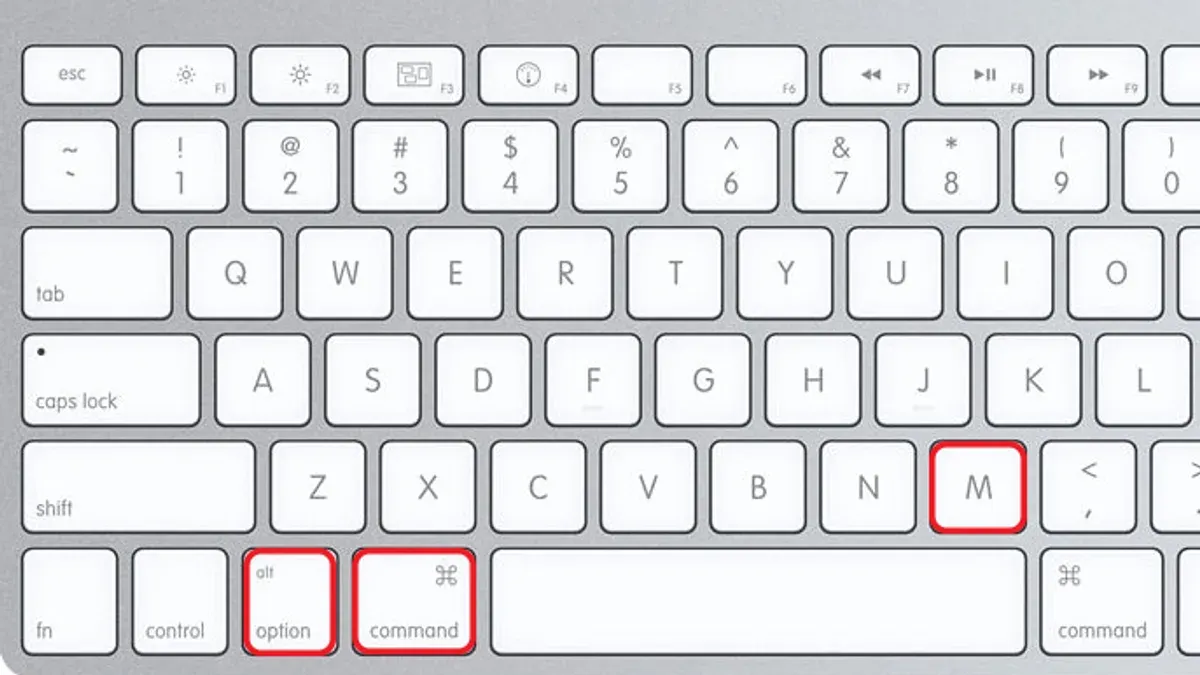
When working on a Mac, you might find yourself juggling multiple windows and wondering how to quickly maximize one without using the mouse. Unlike Windows, macOS handles window resizing differently, which can cause confusion if you’re searching for a straightforward Mac keyboard shortcut to maximize a window.
This article clarifies what maximizing a window means on a Mac, distinguishes it from full-screen and zoom options, and provides practical keyboard shortcuts and workflows to help you manage your desktop efficiently. You’ll also learn common pitfalls to avoid and tips for smoother window control beyond simple shortcuts.
Key takeaways
- The green traffic light button toggles full-screen mode, not traditional maximize.
- Pressing Option + click on the green button triggers the Zoom function, which resizes but doesn't always fill the screen.
- There is no single universal Mac keyboard shortcut to maximize a window like on Windows.
- Using third-party apps or custom shortcuts can enable maximize-like behavior.
- Understanding macOS window management helps avoid common user misconceptions.
Understanding What Maximizing a Window Means on Mac
On macOS, the concept of "maximizing" a window differs significantly from the familiar behavior on Windows. While Windows typically expands a window to fill the entire screen (excluding the taskbar), macOS distinguishes between three main window states: full screen, zoom, and manual resizing.
The green button on the top-left corner of Mac windows controls these states, but its behavior can vary. Clicking it usually toggles full screen mode, which hides the menu bar and Dock, dedicating the entire display to the app. Holding the Option key while clicking the green button activates the zoom function, which resizes the window to fit its content optimally without covering the Dock.
Unlike Windows, where maximizing fills the screen uniformly, macOS’s zoom adjusts based on the app's content and window constraints, making it less predictable. For example, a Finder window zoom might increase its width but keep the height unchanged to show all columns clearly.
Understanding these distinctions matters for productivity because blindly clicking the green button may switch you to full screen, disrupting multitasking. Knowing when to zoom, full screen, or manually resize helps you manage windows efficiently without losing context or workspace.
| Window State | Windows | macOS |
|---|---|---|
| Maximize / Full Screen | Fills screen except taskbar | Full screen mode hides menu bar and Dock |
| Zoom | Not applicable | Adjusts window size based on content and view |
| Manual Resize | Drag edges/corners | Drag edges/corners, similar but with different snapping behavior |
What is the keyboard shortcut to maximize a window on Mac
macOS does not have a single dedicated shortcut labeled "maximize" like Windows, but you can achieve similar results using a few methods. The primary way to zoom a window—expanding it to fit the content or screen—is by holding the Option key and clicking the green window button in the window’s top-left corner. This toggles between the window's last size and a zoomed size.
For a full-screen mode, which differs from maximizing, press Control + Command + F. This removes window borders and menu bars, dedicating the entire display to the app. Press the same shortcut again to exit full screen.
To use keyboard and mouse combinations: first select the window you want to adjust, then hold Option and click the green button with your mouse or trackpad. Alternatively, use Control + Command + F to switch to full screen quickly.
Keep in mind that these built-in shortcuts have limitations. The zoom function depends on the app’s implementation and does not always fill the screen, while full screen changes your workspace and hides other windows. There is no universal keyboard-only shortcut that maximizes without affecting macOS's window management behavior.
For example, if you have Safari open in a small window and want to zoom it, hold the Option key and click the green button. The window expands but retains the menu bar and Dock. Pressing Control + Command + F instead sends Safari to full screen, hiding the Dock and menu bar until you exit.
How to maximize and minimize windows quickly using keyboard shortcuts on MacBook
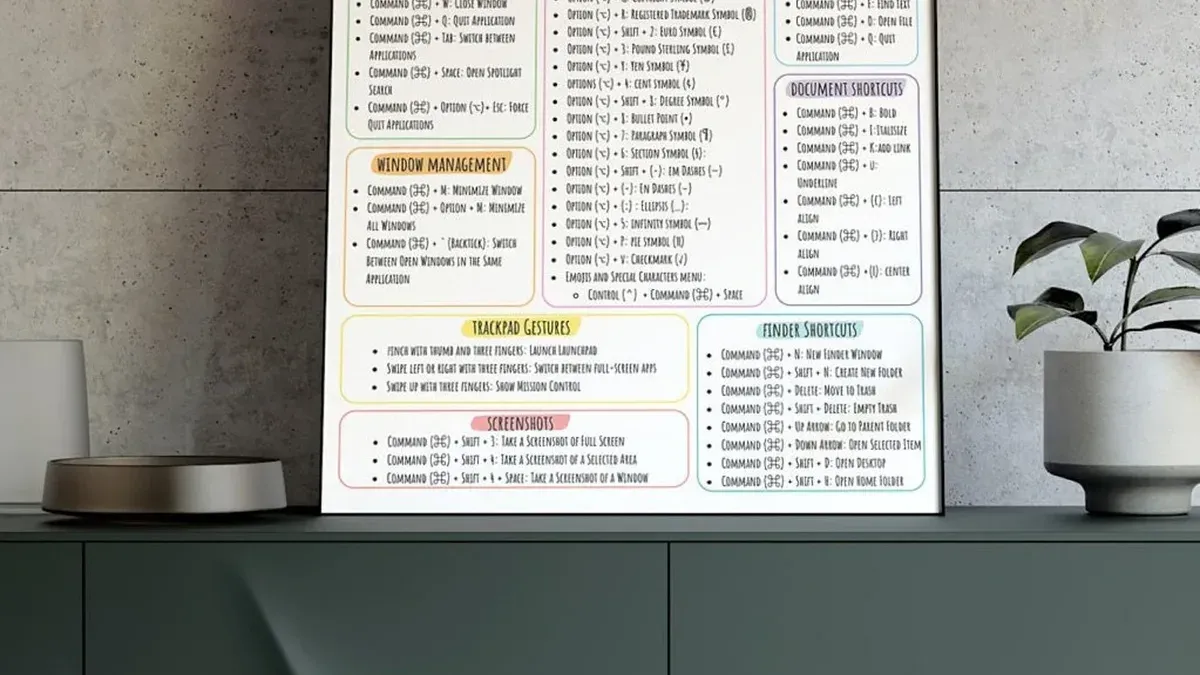
To minimize a window on your MacBook, use the shortcut Command + M. This instantly sends the active window to the Dock, clearing your workspace without closing the app. Minimizing is different from hiding an app (Command + H), which conceals all windows of the app but keeps them active in the background.
While maximizing involves either zooming or entering full-screen mode, minimizing helps you manage clutter by temporarily removing windows from view. Cycling through window sizes can be achieved by repeatedly pressing the Option key while clicking the green maximize button or using the Zoom shortcut (Option + click green button).
For example, if you’re working on a report with multiple apps open, you can maximize the document window to focus, minimize your email with Command + M to clear distractions, and quickly restore it by clicking its icon in the Dock. This workflow saves time compared to manually dragging windows or navigating menus, enabling faster multitasking and smoother transitions between tasks.
Practical tips for efficient window management beyond shortcuts
To gain more precise control over window sizing and placement, consider third-party apps like Magnet or Rectangle. These tools let you snap windows to halves, quarters, or full screen with customizable keyboard shortcuts and mouse dragging. Rectangle, for example, is highly rated for its simplicity and reliability, with many users appreciating its free and open-source nature.
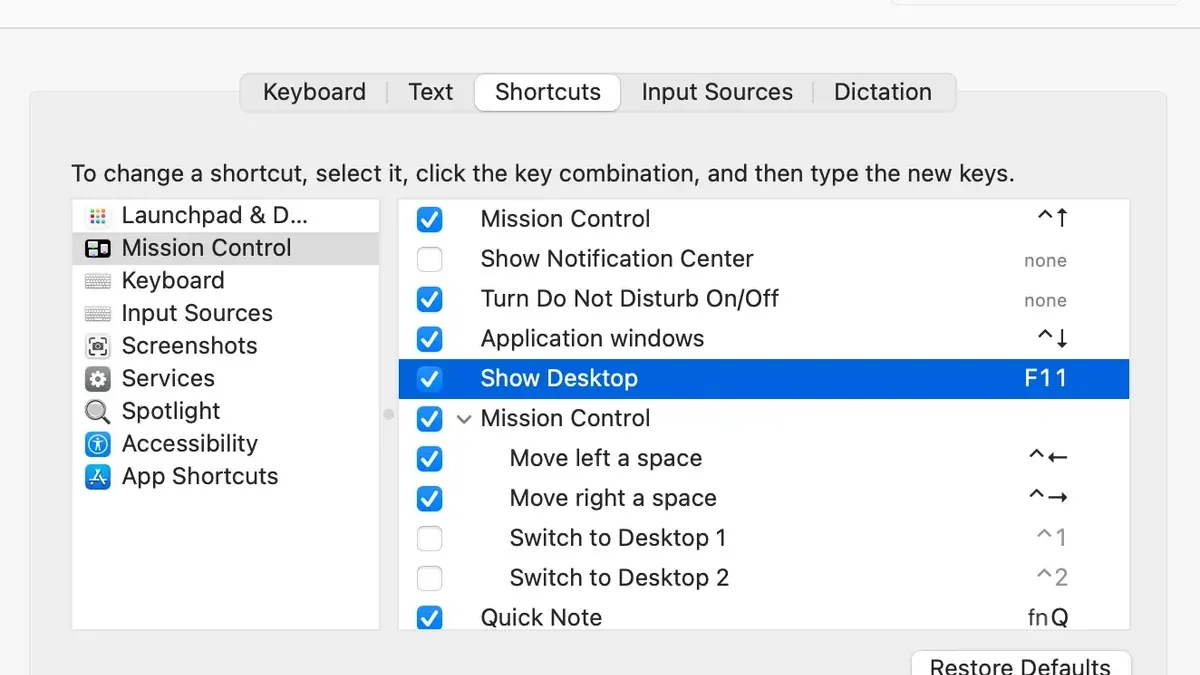
You can also customize macOS shortcuts by going to System Settings > Keyboard > Keyboard Shortcuts > App Shortcuts. Here, you can assign your preferred key combinations to actions like zoom or full screen, tailoring window management to your workflow.
Alternatives built into macOS include Mission Control and Split View. Mission Control offers an overview of open windows and desktops, accessed by swiping up with three or four fingers or pressing the Mission Control key. Split View lets you work with two apps side-by-side by holding the green window button and selecting a screen half, useful when you want to maximize screen real estate without fully switching to full screen mode.
Choosing when to use full screen, zoom, or a third-party solution depends on your needs: full screen is ideal for focused work, zoom is quick for fitting content without hiding the Dock or menu bar, and apps like Magnet excel when juggling multiple windows frequently.
Common mistakes and misconceptions about maximizing windows on Mac
Many Mac users expect the green maximize button to behave like Windows, instantly filling the screen without entering full screen mode. This often leads to confusion, as macOS prioritizes zooming, which resizes windows based on content rather than screen size, and full screen mode, which creates a separate desktop space.
Another common error is confusing full screen mode with maximizing. Full screen hides the menu bar and Dock, which can disrupt multitasking if you’re not prepared. Users often struggle to exit full screen quickly, but the shortcut Control + Command + F toggles this mode efficiently.
Relying too much on the mouse instead of keyboard shortcuts also slows window management. For example, dragging to resize or clicking the green button repeatedly wastes time compared to using Option + click on the green button for zoom, or keyboard shortcuts to switch views.
A typical scenario involves opening a document and clicking the green button expecting a full-screen view; instead, the window zooms oddly or partially resizes. To fix this, try holding the Option key while clicking the green button or use the full screen shortcut. Learning these quick fixes can reduce frustration and streamline your workflow.
Frequently asked questions
How to maximize window mac shortcut?
On a Mac, there isn't a single dedicated shortcut that always maximizes a window like on Windows. Instead, you can use Option + Green Zoom button in the window's title bar to toggle maximizing behavior, which resizes the window to fill the screen without entering full-screen mode.
Is there a keyboard shortcut to maximize a window on mac?
Mac does not have a universal keyboard shortcut solely for maximizing windows. However, you can press Control + Command + F to enter full-screen mode, which makes the window occupy the entire screen, but this differs from traditional maximizing.
How to maximize window Mac shortcut?
To maximize a window on Mac, hold the Option key and click the green traffic light button in the top-left corner of the window. This triggers the zoom function, resizing the window to fit its content or screen without switching to full-screen.
Is there a keyboard shortcut to maximize a window on Mac?
While no direct keyboard shortcut exists to maximize a window, you can combine mouse and keyboard by holding Option and clicking the green button. Alternatively, use Control + Command + F for full-screen mode, which is similar but not identical to maximizing.
What is the Mac keyboard shortcut to minimize a window?
To minimize the active window on a Mac, press Command + M. This sends the window to the Dock, clearing your workspace but keeping the app running.
Limits of this advice and who should look elsewhere
This advice does not cover custom keyboard shortcuts created by third-party software or system accessibility settings that may override default behavior. If you use apps like BetterTouchTool, Keyboard Maestro, or have configured your own shortcuts in System Preferences > Keyboard > Shortcuts, your experience may differ. Additionally, users with specific accessibility needs might need to adjust settings in System Preferences > Accessibility to better suit their workflow.
For the most straightforward way to maximize windows using built-in macOS features, focus on the native shortcuts and window controls described here. If you require more complex window management, multi-window layouts, or automation, exploring dedicated window management apps will be more effective.
To get the most out of macOS window management, start by familiarizing yourself with the green window button’s behavior when clicked while holding Option or Shift keys, combined with the standard shortcuts like Command + Control + F for full screen. This practical step often solves common frustrations with resizing and maximizing windows efficiently.



