
Mac Keyboard Shortcut to Reopen Last Closed App Window Explained
Discover how to use the Mac keyboard shortcut to reopen the last closed app window and maintain your workflow seamlessly.
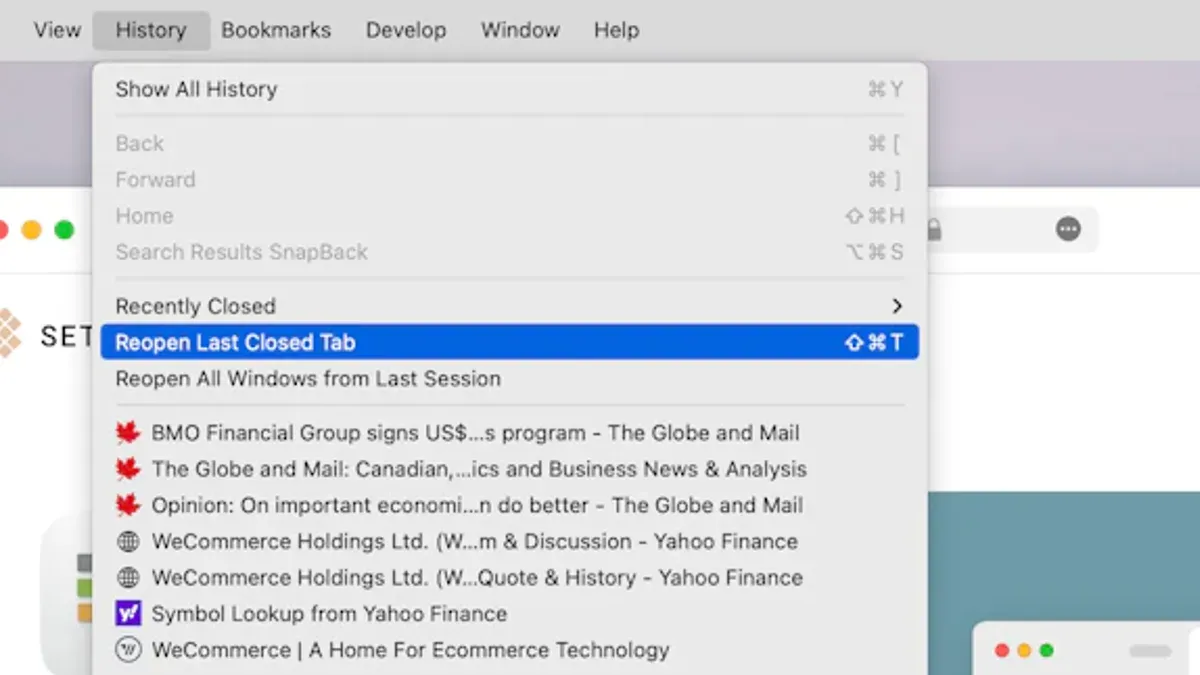
Accidentally closing an important app window on your Mac can disrupt your workflow and cause frustration. You might instinctively reach for a keyboard shortcut, but do you know exactly how the Mac keyboard shortcut to reopen last closed app window works and when it can be trusted?
This article explains the difference between reopening a closed window and relaunching an app, clarifying common misconceptions. You'll also learn how app-specific behaviors influence shortcut effectiveness, practical tips for using the shortcut, and alternatives when it doesn’t work as expected.
Key takeaways
- Command + Shift + T is the usual shortcut to reopen the last closed window in many apps, but not all support it.
- Reopening a closed window differs from reopening an app; some apps don’t restore windows automatically.
- Check app menus like File > Open Recent for alternatives if the shortcut fails.
- App design and macOS settings can restrict window recovery options.
- Using the shortcut immediately after closing a window increases the chance of success.
What it means to reopen the last closed app window
Reopening the last closed app window on a Mac means restoring the most recently closed window within an application without relaunching the app itself. This differs from quitting an app, which closes all windows and ends the app process, while closing a window typically leaves the app running in the background.
This feature is valuable for maintaining workflow continuity. For example, in Safari, if you accidentally close a tab or an entire browser window, reopening the last closed window quickly brings back your browsing session. Similarly, in Finder, if you close a window showing a specific folder, reopening it lets you return to that folder view immediately.
Imagine working on multiple PDFs in Preview and accidentally closing one window—using the reopen command saves the hassle of navigating back to the file manually. This saves time and reduces frustration, helping you pick up exactly where you left off without interrupting your productivity.
How the Mac keyboard shortcut for reopening last closed window works
The standard Mac keyboard shortcut to reopen the last closed window or tab is Command + Shift + T. This shortcut is widely recognized in web browsers like Safari and Chrome, where it reopens the most recently closed tab, allowing you to quickly recover your browsing session without navigating menus.
In Safari, pressing Command + Shift + T will reopen the last closed tab in the current window, while in Chrome, it behaves similarly but can also restore multiple closed tabs in sequence if pressed repeatedly. For example, if you close a tab showing a news article, this shortcut will immediately bring that article back into view.
In Finder and some other apps, the shortcut can restore the last closed Finder window, though this functionality is less consistent. Finder remembers recently closed windows like folder views, but the shortcut only works if the app explicitly supports reopening windows via this command.
When an app does not support reopening closed windows through Command + Shift + T, pressing the shortcut will have no effect. This limitation occurs because macOS relies on individual app implementations to manage window state restoration; the system does not universally track closed windows across all applications.
Practical ways to use the shortcut effectively
To recover a closed tab or window quickly, use the Command + Shift + T shortcut immediately after closure. For example, if you accidentally close a Safari tab, pressing this shortcut will reopen that tab, allowing you to continue browsing without searching your history.

Similarly, in Finder, if you close a window by mistake, the shortcut can restore it, provided Finder supports this action at that moment. This works well when combined with macOS’s Resume feature, which restores your app’s state after quitting or restarting, making the shortcut a handy tool to recover recent windows without fully relying on Resume.
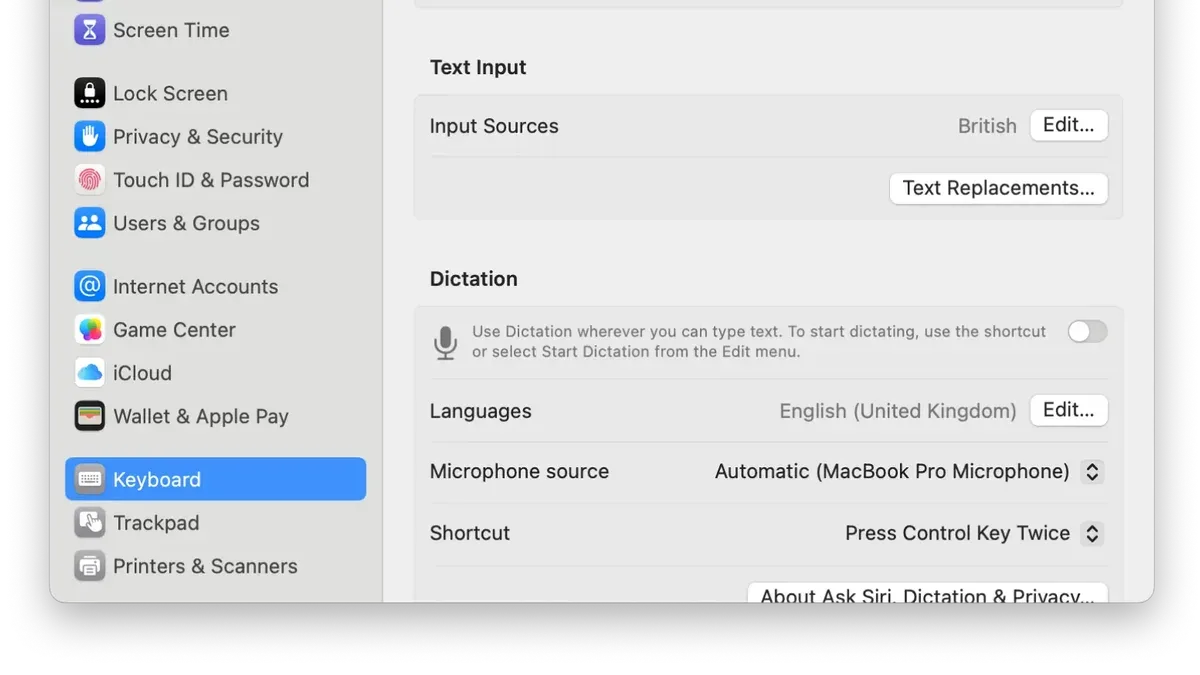
If the shortcut doesn’t work as expected, check or customize it in System Settings by navigating to Keyboard > Keyboard Shortcuts > App Shortcuts. Here, you can add or modify shortcuts for specific apps, ensuring Command + Shift + T performs the desired action. This customization is useful when default shortcuts conflict with other app commands or if an app uses a different key combination.
Common mistakes and misunderstandings to avoid
One common misconception is that the Command + Shift + T shortcut reopens fully quit apps or multiple closed windows at once. In reality, it only restores the last closed window or tab within an active app session. For example, if you quit Safari completely, pressing the shortcut after reopening the app won’t restore all previously closed windows; it works only for tabs or windows closed during the current session.
Another frequent confusion is between reopening the last closed tab versus the last closed window. Some apps like Safari treat tabs and windows differently—Command + Shift + T typically reopens the last closed tab, not an entire window if it had multiple tabs. In contrast, Finder’s behavior is more focused on windows, but still limited to the last one closed.
Not all apps support this shortcut. For instance, Pages does not respond to Command + Shift + T to reopen a closed document window. Some apps require enabling features like “Reopen windows when logging back in” under System Settings > General > Login Items to retain window states. Expecting uniform behavior across apps leads to frustration since app developers decide whether to implement and how to handle this functionality.
Imagine you accidentally close a document in Pages and try the shortcut expecting it to reopen; it won’t work because Pages lacks that support. You’ll need to manually reopen the document from recent files instead. Understanding these differences helps set realistic expectations and avoid relying solely on the shortcut.
Alternatives when the shortcut doesn’t work
If Command + Shift + T doesn’t restore your closed window, try using the app’s menu options. For example, in Safari, look under History > Reopen Last Closed Tab or in Finder, use File > Reopen Closed Window if available. These menu commands often provide access to recently closed windows or tabs beyond what the shortcut can recover.
macOS also includes features like Resume and Versions that help recover app states. Resume automatically restores windows after quitting and reopening an app, while Versions allows you to browse and revert to earlier document states in supported apps like TextEdit or Pages. These can be valuable when a window’s content was saved before closure.
Third-party utilities such as SessionRestore for browsers or window-management apps like Stay offer enhanced session tracking and recovery options. These tools save window layouts and app states more persistently, helping you recover even after a full app quit or system restart. For example, Stay can remember window positions and reopen them on demand, which is useful if the built-in macOS features or shortcuts fall short.
How app design choices affect shortcut availability
Not all Mac apps support reopening closed windows via keyboard shortcuts because developers control session management and window state differently. Some apps opt for simple session handling without preserving closed windows, prioritizing performance or reducing memory use. For example, a lightweight text editor may close a window permanently without storing its state, making shortcut-based recovery impossible.
Sandboxing and security considerations also impact shortcut behavior. Apps running in stricter sandbox environments have limited access to system resources and saved state files, which can restrict their ability to restore windows automatically. Apple’s developer documentation advises careful management of window restoration to prevent data leaks and ensure user privacy.
macOS updates have influenced shortcut functionality historically. The introduction of macOS Lion brought system-level Resume, letting apps reopen windows after quitting. However, developers must explicitly implement support for this feature. Apps that do not enable state restoration won't respond to reopening shortcuts. For instance, some third-party apps lag in adopting these APIs, so Command + Shift + T or similar shortcuts won’t work as expected.
- Mac Keyboard Shortcut to Undo Close Tab: How to Restore Tabs Quickly
- Mac Keyboard Shortcut to Switch Between Windows of the Same App
- Mac Keyboard Shortcut to Hide an App: How to Use It Efficiently
Frequently asked questions
What is the keyboard shortcut to reopen the last closed window on a Mac?
The standard keyboard shortcut to reopen the last closed window or tab on a Mac is Command + Shift + T. This shortcut generally works within apps that support tabbed browsing or multiple windows, like Safari or Finder. However, its effectiveness depends on the app’s design and whether it tracks closed windows or tabs.
Does Command + Shift + T work in all Mac apps?
No, Command + Shift + T does not work in all Mac apps. It is primarily supported in apps that have built-in tab or window session management, such as web browsers like Safari, Chrome, or Finder windows. Many third-party or specialized apps may not support this shortcut, requiring other methods to recover closed windows.
How can I reopen a closed tab in Safari using keyboard shortcuts?
In Safari, you can reopen a closed tab by pressing Command + Shift + T. This shortcut reopens the most recently closed tab in the current window. You can repeat the shortcut multiple times to reopen several closed tabs in the order they were closed.
What should I do if the shortcut to reopen a window doesn’t work?
If the shortcut doesn’t work, first check whether the app supports reopening closed windows or tabs via keyboard shortcuts. You can also look for a "Reopen Last Closed Tab" or "Reopen Closed Window" option in the app’s Edit menu. If no such option exists, consider using the app’s History menu or session recovery features, or manually reopen the app or document from recent files.
Limits of this shortcut and who should look elsewhere
This shortcut primarily reopens closed windows or tabs within apps that support session restoration and may not work universally across all macOS applications. Apps that do not save session data or use custom window management may not respond to this shortcut. If you need to recover unsaved work or closed apps without session memory, relying on keyboard shortcuts alone won’t suffice. Consider using Time Machine backups or app-specific recovery features instead.
To make the most of this shortcut, focus on apps like Safari, Finder, and some document editors that explicitly support reopening closed windows or tabs. For apps with unique window behavior, review their specific menus or preferences to understand available recovery options.
The single most useful next step is to familiarize yourself with the “Reopen Last Closed Window” command under the app’s “File” menu or use the shortcut Shift + Command + T to quickly test its availability. This ensures you know when and where the shortcut works, helping you recover windows efficiently without relying solely on guesswork.



