
Mac Keyboard Shortcut to Open New Private Window: A Clear How-To Guide
Discover how to quickly open a new private window on your Mac using a simple keyboard shortcut for private browsing without hassle.
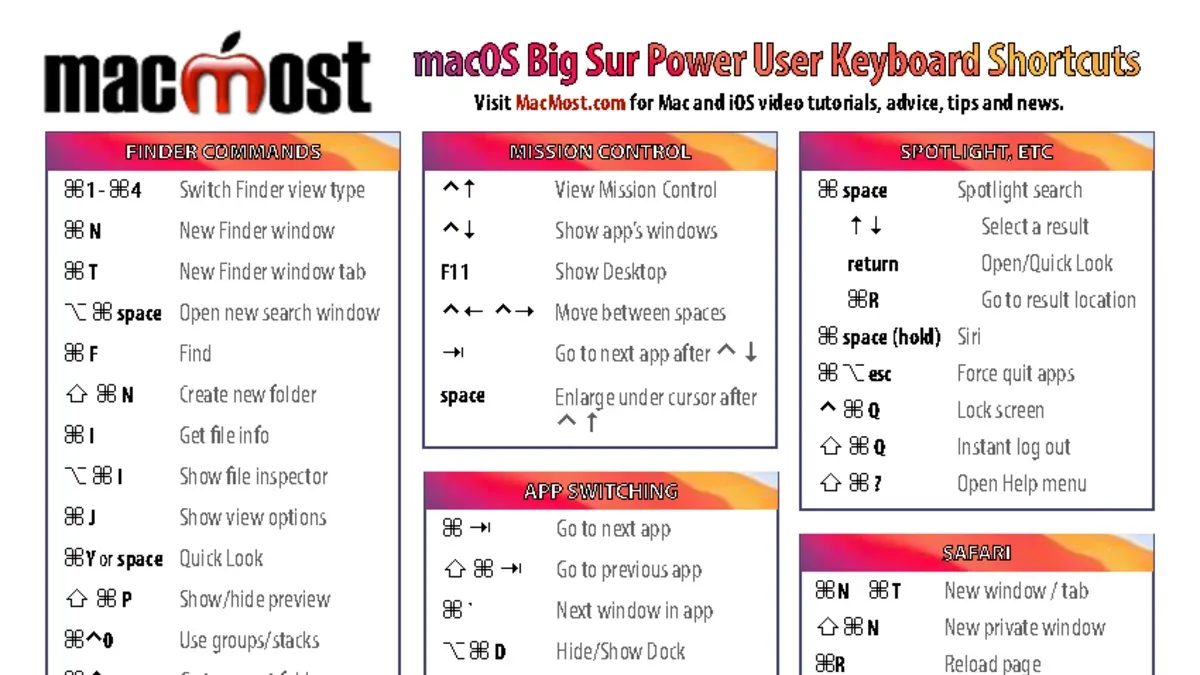
You’re working on your Mac and need to browse privately without leaving a trace in your history. Instead of navigating menus, you want a faster way to open a private window. Knowing the Mac keyboard shortcut to open new private window can save you time and help maintain your privacy with minimal disruption to your workflow.
This guide explains what a new private window is, why it matters, and how you can use the keyboard shortcut effectively. It also covers practical ways to incorporate private browsing into your routine, common pitfalls to avoid, and troubleshooting tips if the shortcut doesn’t work as expected.
Key takeaways
- Use Shift + Command + N to quickly open a new private window in Safari on Mac.
- Private windows prevent browsing history and cookies from being saved but don’t make you anonymous online.
- Integrate private windows for tasks like signing into multiple accounts or shopping without targeted ads.
- Avoid expecting private windows to block all trackers or hide your IP address.
- If the shortcut fails, check your Safari version and keyboard settings.
What a New Private Window Is and Why It Matters
A new private window in Mac browsers like Safari, Chrome, and Firefox creates a browsing session that does not save your history, cookies, or search data once closed. Unlike regular windows, private windows isolate cookies and site data so they aren’t shared with other browser sessions, helping to keep your activity separate.
Private browsing is useful when using shared or public computers, or when entering sensitive information, such as online banking or medical sites, where you may not want your browsing history or login data saved. For example, if you’re checking your bank account on a friend’s Mac, opening a private window prevents the browser from storing your credentials or visited pages.
However, private windows do not make you invisible online. Your internet service provider, employer, or websites themselves can still track your activity. They mainly prevent local data storage, not external tracking.
| Feature | Private Window | Regular Window |
|---|---|---|
| Browsing history saved | No | Yes |
| Cookies shared with other windows | No | Yes |
| Temporary session | Yes (cleared on close) | No |
| Protection against external tracking | No | No |
This distinction helps you decide when to quickly open a private window, balancing privacy needs with everyday convenience.
How to Use the Mac Keyboard Shortcut to Open a New Private Window
Opening a new private window quickly on a Mac is straightforward once you know the right keyboard shortcuts for your browser. This saves time compared to navigating through menus with a mouse and helps you maintain focus.
| Browser | Keyboard Shortcut | Visual Confirmation |
|---|---|---|
| Safari | Shift + Command (⌘) + N | Window title says “Private” and the address bar has a dark background |
| Google Chrome | Shift + Command (⌘) + N | Window title shows “Incognito” and the browser icon appears with a spy silhouette |
| Mozilla Firefox | Shift + Command (⌘) + P | Window title indicates “Private Browsing” and the toolbar displays a purple mask icon |
For example, if you use Safari and want to open a private window without interrupting your workflow, simply press Shift + Command + N. This opens a new window with the word “Private” clearly visible in the title bar and a darker address bar background, signaling you are browsing privately. The same shortcut works in Chrome but the visual cues differ, showing an incognito icon instead.
Using these shortcuts is faster than clicking through the "File" menu and selecting "New Private Window". This efficiency encourages frequent use when you need privacy quickly, whether for sensitive searches or logging into multiple accounts simultaneously.
Practical Ways to Integrate Private Windows into Your Browsing Workflow
Using private windows strategically can enhance your browsing efficiency beyond the initial shortcut. For example, if you need to log into two different email accounts simultaneously, open a regular window for one and a private window for the other. This avoids the hassle of signing out and back in, saving several minutes each time.
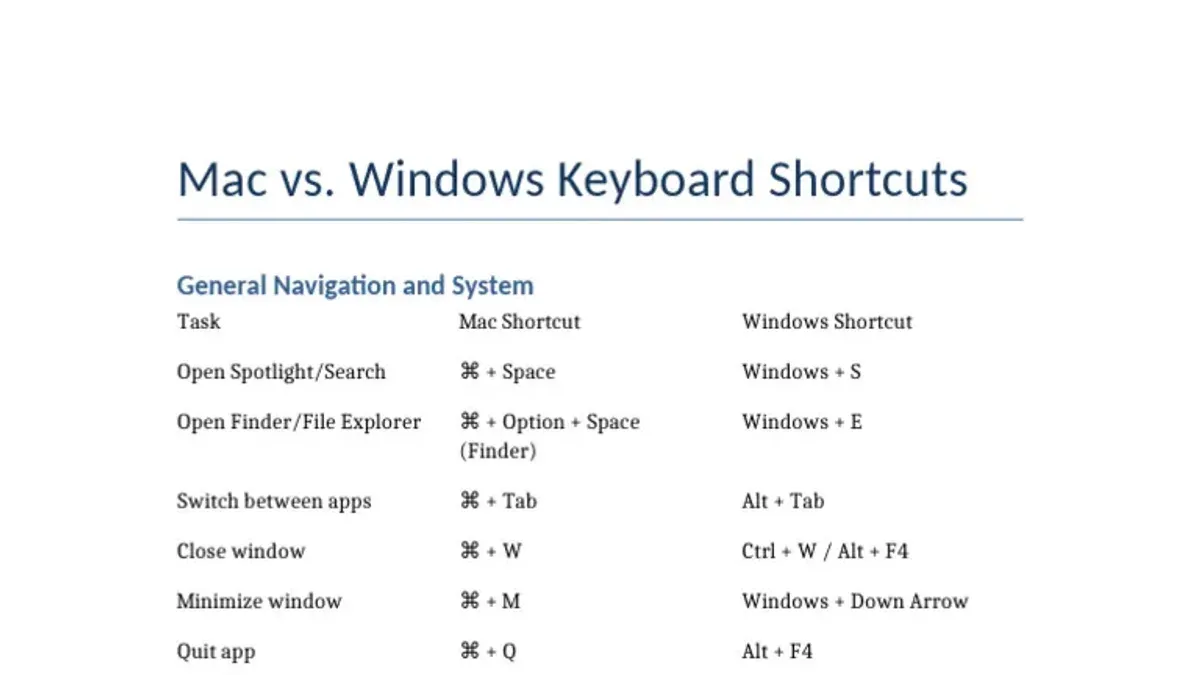
Combine the private window shortcut with other Mac shortcuts to boost multitasking. For instance, after pressing Shift + Command + N to open a new private window in Safari, use Command + T to open new tabs within it quickly. You can also switch between windows using Command + `, allowing smooth navigation without reaching for your mouse.
When managing multiple private windows or tabs, keep your workflow organized by naming windows or using distinct tab groups if your browser supports it. This practice prevents confusion when working across projects or tasks that require temporary, untracked sessions.
Imagine researching competitive pricing: open a regular window for your account and a private window to simulate a first-time visitor’s view. This separation helps you spot differences without logging out or clearing cache, saving time and reducing errors.
Common Mistakes to Avoid When Using Private Windows
One frequent misunderstanding is assuming private windows provide complete anonymity or block all tracking. While private windows stop your Mac from storing browsing history and cookies locally, they do not encrypt your connection or block trackers embedded on websites. For example, if you visit a site without a VPN or tracker blocker, the site and your internet provider can still see your activity.
Another mistake is expecting private windows to offer permanent privacy. Private sessions end when you close the window, and any open tabs or entered data are lost. Imagine working on a draft in a private window and accidentally closing it—without saving elsewhere, the content disappears.
Users sometimes confuse private windows with incognito modes on other devices or different browsers, assuming all behave identically. However, privacy features and default settings vary, so relying on one without checking its specifics can lead to unexpected exposure.
Security experts emphasize that private windows are a helpful tool for local privacy but not a substitute for more robust protections like VPNs or dedicated privacy extensions. Using private windows thoughtfully as part of a broader privacy strategy prevents overreliance and potential data risks.
Troubleshooting When the Shortcut Doesn’t Work
If the keyboard shortcut to open a new private window fails, start by verifying whether your browser supports the default shortcut or if it has been customized. For example, Safari typically uses Shift + Command + N, while Chrome and Firefox use the same combination, but users or system policies might alter these. Check your browser’s settings under Preferences > Keyboard Shortcuts or similar menus to confirm or reset shortcuts.
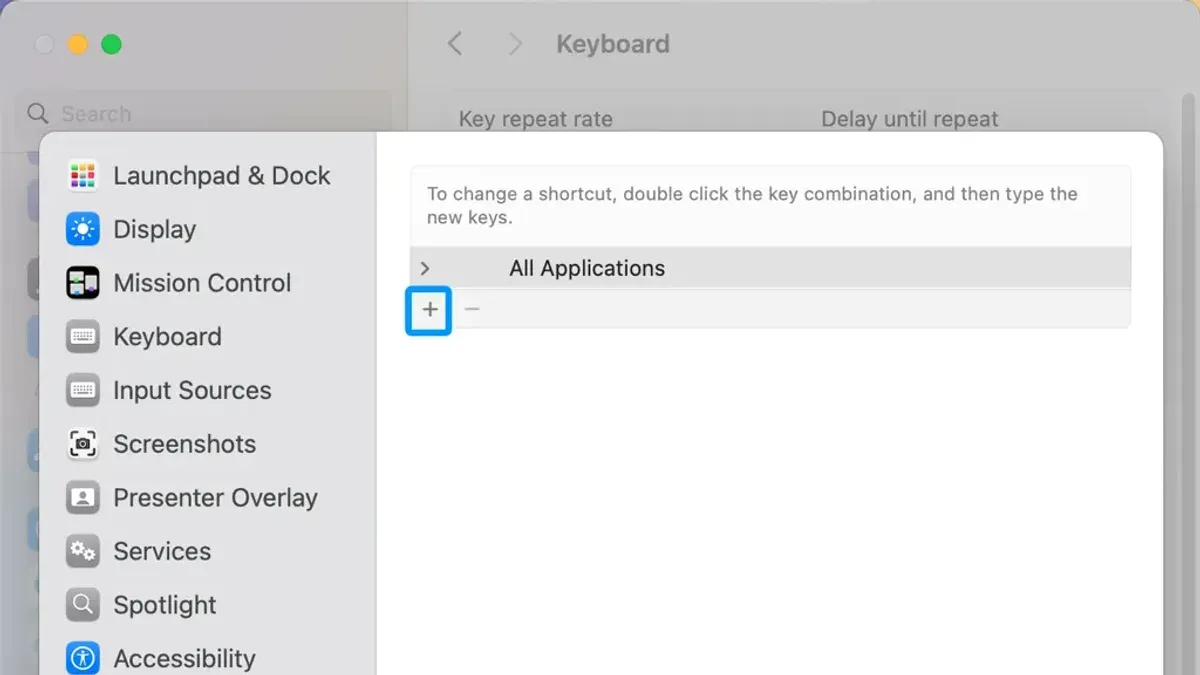
Next, inspect macOS keyboard settings. Go to System Settings > Keyboard > Keyboard Shortcuts and ensure no conflicting shortcuts override the browser’s command. Third-party apps like keyboard managers or automation tools can also intercept or block shortcuts; temporarily disabling them can help isolate the issue.
If the shortcut remains unresponsive, use alternative quick access methods. For instance, in Safari, select File > New Private Window from the menu bar, or right-click the Safari icon in the Dock and choose it from the context menu. Assigning a custom shortcut via System Settings > Keyboard > Shortcuts > App Shortcuts is another option.
Finally, outdated software can cause unexpected behavior. Updating your browser through its About menu or the Mac App Store and ensuring macOS is current can resolve shortcut issues caused by bugs or compatibility problems.
- Mac Keyboard Shortcut to Reopen Last Closed App Window Explained
- Mac Keyboard Shortcut to Maximize a Window: How to Do It Efficiently
- Mac Keyboard Shortcut to Full Screen an App: Complete How-To Guide
Frequently asked questions
What is the keyboard shortcut to open a new private window on a Mac?
To open a new private window on a Mac, press Shift + Command + N while using Safari. This shortcut instantly launches a private browsing window without navigating through menus.
Does using a private window make me completely anonymous online?
No, private windows do not make you completely anonymous. They prevent your browser from saving history, cookies, and form data locally, but your internet service provider, websites, and network administrators can still track your activity.
Can I open multiple private windows at the same time using shortcuts?
Yes, you can open multiple private windows by pressing Shift + Command + N repeatedly. Each shortcut activation opens a new separate private window, allowing you to manage different sessions independently.
Why is my shortcut for opening a private window not working on my Mac?
If the shortcut doesn’t work, ensure you are using Safari, as this shortcut is specific to that browser. Also, check if any custom keyboard shortcuts or third-party apps have reassigned or blocked Shift + Command + N. Restarting Safari or your Mac can sometimes resolve temporary issues.
What private windows don’t do and when to look beyond them
Private browsing windows prevent your Mac from saving your browsing history, cookies, and form data during that session. However, they do not hide your activity from websites, internet service providers, or network administrators. This article does not cover privacy protections beyond what private windows offer, such as VPNs or tracker blockers, and users seeking full anonymity should consider additional tools.
The most useful next step is to practice using the shortcut Shift + Command + N regularly. This will help you quickly access private windows whenever needed, seamlessly integrating privacy-conscious browsing into your workflow without disrupting your usual habits.



