How to Convert WebP to PNG on Mac: Step-by-Step Methods
Discover easy step-by-step methods to convert WebP images to PNG on your Mac using built-in tools, batch converters, and online options.
You have a WebP image that you want to open or edit on your Mac, but the app you're using doesn't support this format. Maybe you want to use the image in a project that requires PNG files, or you simply prefer the compatibility PNG offers across applications.
This article explains how to convert WebP to PNG on Mac with clear, step-by-step instructions. You'll learn multiple methods, including using built-in tools like Preview, automating bulk conversions with Automator, and free online converters. We'll also cover when to choose PNG over JPG and common issues you might encounter during conversion.
Key takeaways
- Preview lets you convert individual WebP files to PNG quickly through the Export menu.
- Automator can batch convert multiple WebP images to PNG, saving time for large collections.
- Free online converters offer a no-install option but may have file size or privacy limitations.
- PNG is best for lossless image quality, while JPG suits photos with smaller file size needs.
- Common conversion issues include unsupported WebP features and Automator workflow setup errors.
Before you start: What you need to convert WebP to PNG on Mac
WebP is a modern image format developed by Google that offers superior compression, making files smaller without sacrificing much quality. PNG, on the other hand, is widely used for lossless images with transparency support. You might need to convert WebP files to PNG to ensure compatibility with certain apps, websites, or workflows that do not fully support WebP yet.
Your Mac includes built-in tools like Preview that can handle simple WebP to PNG conversions without extra software. For bulk conversions or advanced options, third-party apps like XnConvert, GraphicConverter, or ImageOptim are popular choices, each with strong user ratings and tens of thousands of downloads from reliable sources.
To use these methods, your Mac should be running macOS Mojave (10.14) or later to ensure good compatibility with WebP files. Make sure you have enough free disk space to store the converted PNG files, as they are typically larger than WebP images. Some methods, especially online converters, require a stable internet connection, while others may need you to download and install apps.
Knowing these basics helps you pick the right approach based on your Mac setup, file volume, and whether you prefer offline or online tools.
How to convert WebP files to PNG using Preview on Mac
Preview is the simplest tool for converting single WebP files to PNG on your Mac without additional software. It’s built into macOS and supports WebP natively in recent versions.
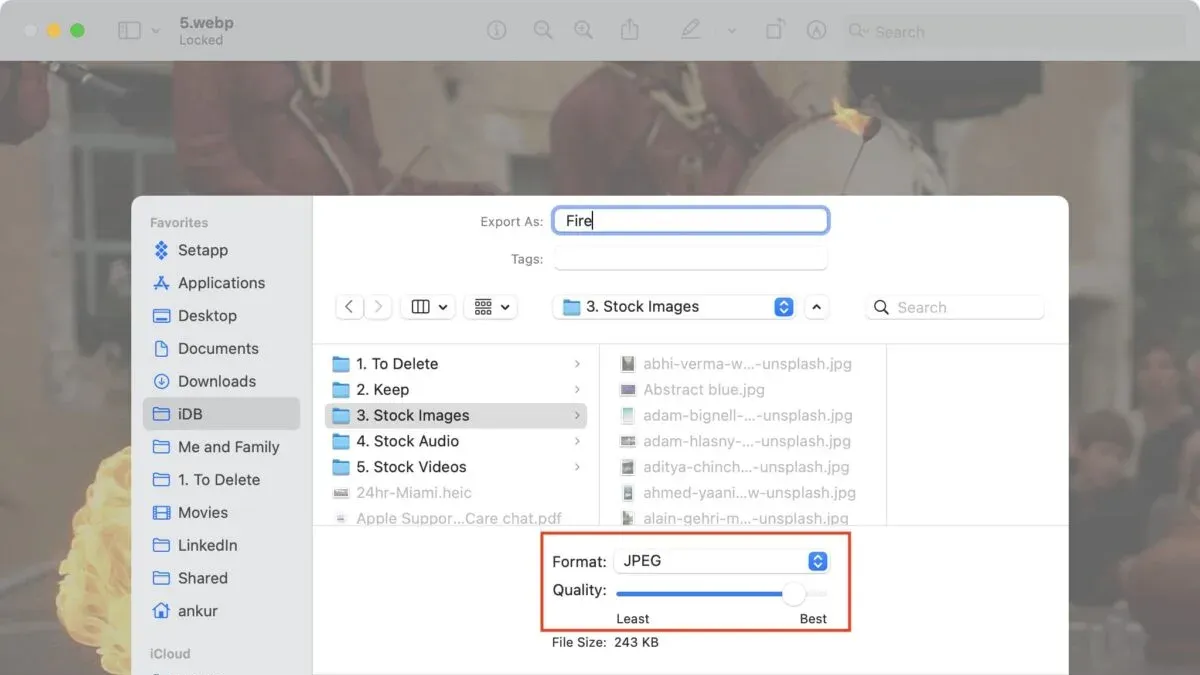
- Locate the WebP file in Finder and double-click it to open in Preview. If it opens in another app, right-click the file, choose Open With, then select Preview. You should see the image displayed.
- From Preview’s menu bar, click File and select Export…. This opens the export dialog.
- In the Export As field, enter a new name if you want to avoid overwriting the original file.
- Click the Format dropdown menu and choose PNG as the output format.
- Optionally adjust the Resolution or Quartz Filter, but usually the defaults preserve quality well.
- Choose the destination folder and click Save. The PNG file will be created there.
Preview does not support batch conversion, so you’ll need to repeat these steps for each file. For multiple files, consider other methods like Automator.
After exporting, check your PNG file by selecting it in Finder and pressing Command+I to open the Info window. Verify the file size and format under More Info to ensure the conversion succeeded. The PNG file is typically larger than the WebP due to the lossless format.
How to mass convert WebP to PNG on Mac with Automator
Automator is a free, built-in Mac application that lets you create custom workflows to automate repetitive tasks like batch image conversion. Using Automator, you can convert multiple WebP files to PNG format quickly without installing extra software.
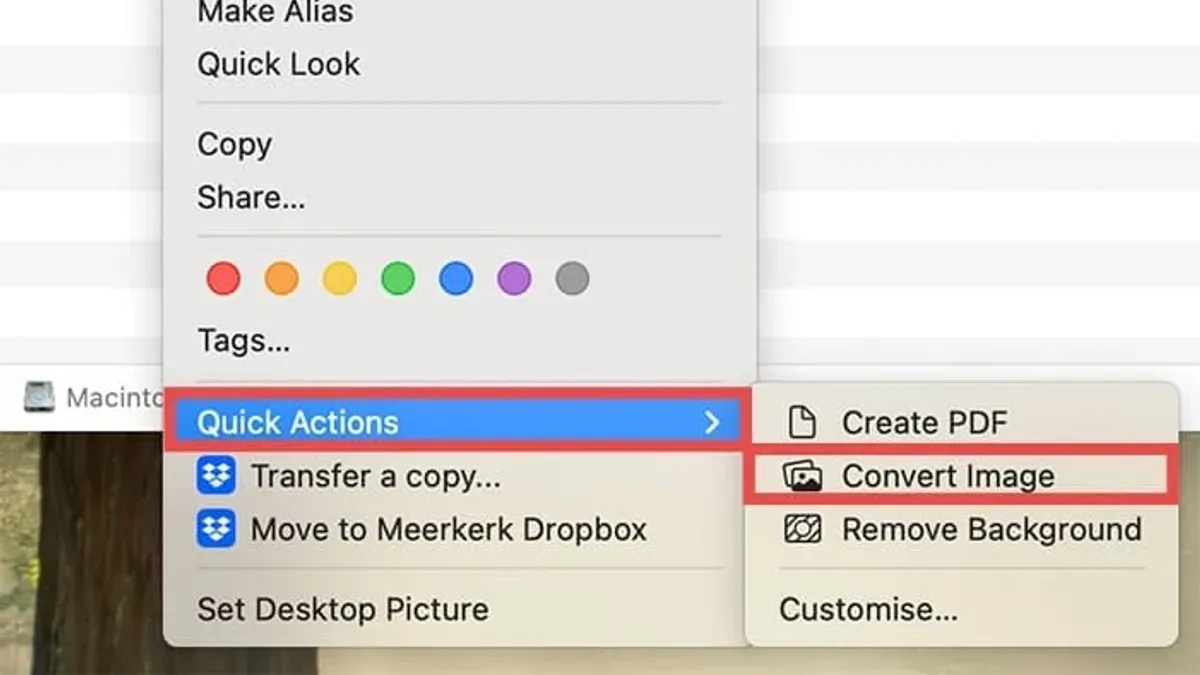
- Open Automator from the Applications folder. You should see a prompt to choose a document type; select "Workflow" and click "Choose." You now have a blank workflow canvas.
- In the left sidebar, search for and add the action "Get Specified Finder Items." Click "Add" to select your WebP files. The selected files will appear in the action's list.
- Next, search for "Change Type of Images" and drag it below the previous action. When prompted to add a copy action, click "Add" to avoid overwriting originals. Set the output format to "PNG." This configures the workflow to convert files to PNG format.
- Save your workflow with a descriptive name like "Convert WebP to PNG." To run it, click the "Run" button in the upper right. The workflow processes all selected files, creating PNG copies in the same folder as the originals.
Using Automator for batch conversion saves significant time compared to converting files one by one in Preview. However, errors may occur if files are corrupted or inaccessible. Automator workflows can be reused anytime, making it a dependable option for frequent conversions.
Note: Automator does not provide progress bars or detailed logs by default, so large batches may require patience. If you encounter errors, verify file permissions and file integrity.
How to convert WebP to PNG free using online converters
Online converters offer a quick alternative if you prefer not to install software on your Mac. When choosing a free online converter, consider privacy policies, file size limits, and supported formats. Reliable sites usually limit uploads to around 10–50 MB per file and clearly state how they handle your data.
Be cautious about uploading sensitive or private images, as online services may store or access your files temporarily.
Conversion quality and speed vary: online tools can be slower than local apps, and output quality may depend on the service's compression settings.
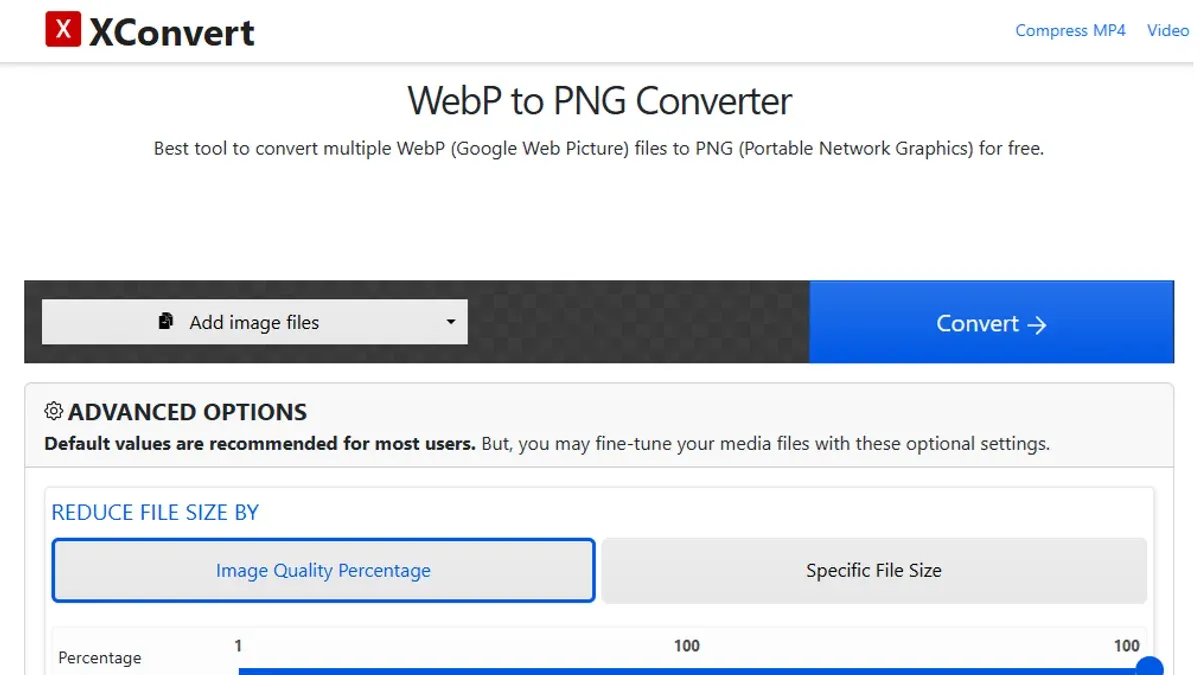
- Open a trusted online converter website that supports WebP to PNG (e.g., CloudConvert, Online-Convert, or Convertio). You should see an upload button labeled “Select files” or “Choose files.”
- Click the upload button and select your WebP image(s) from your Mac. The site will display the file name and size once uploaded.
- Choose PNG as the output format if not preselected. Some sites offer optional settings like image quality or resizing.
- Click “Convert” or a similar button to start the process. A progress indicator or loading bar typically appears.
- After conversion, download the PNG file(s) to your Mac. The site usually provides a direct download link or a zip archive for multiple files.
Compared to offline methods like Preview or Automator, online converters offer convenience without installation but may impose file size limits and slower processing times.
How to convert WebP to JPG on Mac and when to choose JPG or PNG
You can convert WebP images to JPG on Mac using Preview or other image editors like Photos or third-party apps. To do this in Preview:
- Open your WebP file in Preview. You should see the image displayed.
- Go to the menu bar and select File > Export.
- In the export dialog, choose JPEG as the format from the dropdown menu.
- Adjust the quality slider if available to balance image quality and file size.
- Click Save. Your JPG image will be saved to the chosen location.
JPG images typically produce smaller files than PNG, making them ideal for photographs or images where file size matters more than lossless quality. However, JPG does not support transparency, so if your WebP image has transparent areas, converting to JPG will fill those with a solid color, usually white.
PNG images preserve transparency and have lossless compression, making them preferable for logos, icons, or images requiring sharp edges and transparent backgrounds. For side-by-side comparisons, JPG files often have some quality degradation and compression artifacts but are significantly smaller, while PNG files maintain crispness and full detail but at larger file sizes.
If your goal is web optimization, converting PNG images back to WebP can reduce file size while maintaining quality, especially for photographic content.
Troubleshooting common problems converting WebP to PNG on Mac
If Preview won’t open your WebP files, check that the file extension is correct and the file isn’t corrupted. You may see an error like “The document could not be opened.” Try renaming the file with a lowercase ".webp" extension or test opening it in another app to confirm file integrity.
For corrupt or unsupported WebP files, errors such as "The file is damaged or unsupported" indicate the image might be incomplete or use uncommon encoding. Re-download the image if possible or use a dedicated converter app that supports more WebP variations.
If your Automator workflow fails, common errors include “Action failed” or “Could not complete the workflow.” Verify your workflow steps: ensure “Get Specified Finder Items” includes the correct files, and the “Change Type of Images” action is set to PNG. Also, check Automator has permission to access files in System Preferences > Security & Privacy > Privacy > Files and Folders.
When using online converters, slow or failed uploads often result from large files or unstable internet. Error messages like “Upload failed” or “Conversion timed out” suggest retrying with smaller files or a different network. Clearing browser cache or switching browsers can also help.
- How to Convert PNG to PDF on Mac: Simple Step-by-Step Methods
- How to Convert M4A to MP3 on Mac: Clear Step-by-Step Methods
Frequently asked questions
How to convert webp to jpg mac?
To convert WebP to JPG on a Mac, you can use Preview by opening the WebP file, then selecting File > Export, and choosing JPEG as the format. Adjust the quality slider if needed, then save the file. Alternatively, use Automator to batch convert multiple WebP images to JPG.
How to convert png to webp?
You can convert PNG to WebP using online converters or dedicated apps. On Mac, tools like Preview don’t support WebP export directly, so using an online service or third-party app like XnConvert is common. Upload your PNG files, select WebP as the output, and download the converted files.
How to convert from webp to png?
Converting WebP to PNG can be done easily with Preview by opening the WebP file and exporting it as PNG. For bulk conversions, Automator workflows streamline the process. Online converters also offer free options if you prefer not to use built-in tools.
How to convert webp to png in mac?
On Mac, open your WebP image in Preview, then go to File > Export and pick PNG as the format. If you have many files, create an Automator Quick Action to convert all WebP images in a folder to PNG at once. This saves time and avoids manual exporting.
how to convert webp to png free
Several free online converters allow WebP to PNG conversion without installing software. Upload your WebP files, choose PNG as the output format, and download the results. Be mindful of file size limits or privacy concerns when using online tools.
What this advice does not cover and who should do something else
This article does not cover professional-level image editing software workflows or bulk conversions beyond Automator, which may be better suited for users with advanced needs. If you require detailed image optimization, color management, or batch processing involving thousands of files, consider dedicated applications like Adobe Photoshop or specialized command-line tools such as ImageMagick. These offer deeper control but require more technical know-how.
For most Mac users seeking straightforward conversion from WebP to PNG, the methods outlined here provide clear, accessible solutions without extra software purchases.
The single most useful next step is to open your WebP file in Preview and use the Export option to convert it to PNG. This quick action guarantees compatibility with most applications and preserves image quality without complicated setups or additional downloads.