How to Convert PNG to PDF on Mac: Simple Step-by-Step Methods
Discover easy step-by-step methods to convert PNG images to PDF on your Mac using built-in tools like Preview and the Print dialog.
You have a collection of PNG images saved on your Mac, but you need to combine or share them as PDFs for easier viewing or printing. Whether you're working on a MacBook, MacBook Air, MacBook Pro, or iMac, converting PNG files to PDF format is a straightforward process using built-in macOS tools.
This article covers how to convert PNG to PDF on Mac using simple, practical methods tailored to all Mac models. You’ll find step-by-step instructions for using Preview and the Print dialog, tips for batch conversion, free third-party options, and troubleshooting advice to ensure a smooth experience.
Key takeaways
- You can convert PNG to PDF on Mac easily with the Preview app without installing extra software.
- The Print dialog offers a quick alternative method for single or multiple PNG files.
- Batch conversion saves time when working with multiple PNG images.
- Free third-party apps provide additional features but may have limitations or ads.
- Specific steps vary slightly depending on your Mac model and macOS version.
Before you start: What you need to convert PNG to PDF on Mac
Confirm your Mac model and macOS version to ensure compatibility with built-in tools. Preview, included in macOS versions from OS X Yosemite onward, supports exporting PNG files to PDF. Typical PNG files are widely supported, including common formats like 24-bit color and transparent backgrounds, with sizes ranging from a few kilobytes to several megabytes.
Check that your PNG files are accessible and not corrupted by opening them in Preview or Finder. Corrupted files may fail to convert properly or cause errors.
You have two main built-in options for conversion: the Preview app and the Print dialog's PDF export feature. Both are reliable and require no additional downloads. For users seeking more features, several free third-party apps are available, though they may require installation and carry varying interfaces.
Basic skills needed include locating files on your Mac, opening them in Preview, and navigating the Print dialog. These steps are straightforward and consistent across MacBook, MacBook Air, MacBook Pro, and iMac models.
- Locate your PNG file in Finder; you should see the image preview when selected.
- Open the PNG in Preview by double-clicking; the image should appear clearly with toolbar options.
- Ensure your macOS version supports PDF export via Preview (OS X Yosemite or later).
- Confirm the PNG file opens without errors; if not, try a different file.
- Decide if you prefer using built-in tools or want to try free third-party apps.
How to convert PNG to PDF on Mac using Preview
Preview is the built-in app on your Mac that lets you view and edit images and PDFs, making it the most straightforward tool to convert PNG files to PDF. You can convert single or multiple PNGs into one PDF without additional software.
- Locate your PNG file(s) in Finder and double-click to open them in Preview. If multiple files are selected, they open as separate windows.
- To combine multiple PNGs into a single PDF, open one PNG in Preview, then go to the menu bar and select View > Thumbnails to show the sidebar.
- Drag additional PNG files from Finder directly into the sidebar. You should see all images appear as thumbnails in the sidebar, indicating they will be combined.
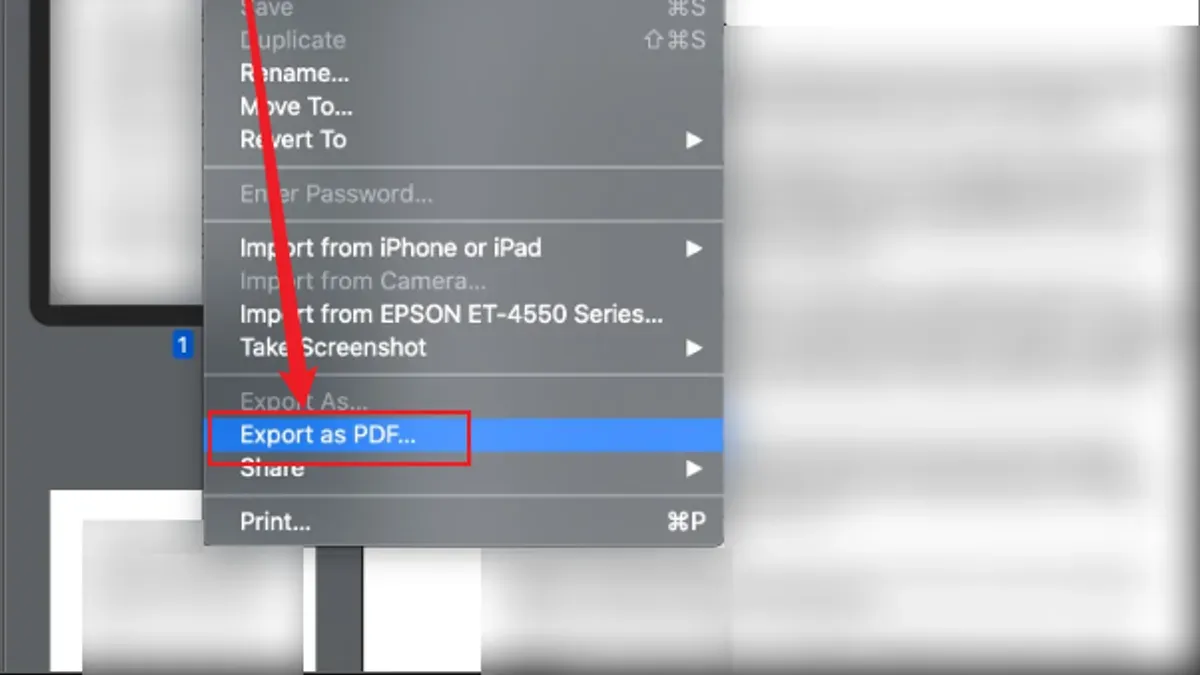
- Go to File > Export as PDF. A dialog box appears allowing you to name your file and choose the save location.
- Enter your desired file name and select where to save the PDF, then click Save. The PNG(s) are converted and saved as a single PDF file.
- Check the PDF by opening it in Preview. File sizes are typically smaller than the original PNGs combined, but this may vary depending on image complexity and resolution.
This method works consistently across all Mac models and macOS versions with Preview, providing a reliable and easy way to convert PNGs to PDFs without extra downloads.
How to convert PNG to PDF on Mac using the Print dialog
Another reliable way to convert PNG images to PDF on your Mac is through the macOS Print dialog. This method works with Preview or any image viewer that supports printing.
- Open your PNG file with Preview or your preferred image viewer. You should see the image displayed clearly.
- Go to the menu bar and select File > Print (or press Command + P). The Print dialog window will appear.
- At the bottom-left corner of the Print dialog, click the PDF button and choose Save as PDF from the dropdown menu.
- Enter a file name and choose the destination folder, then click Save. Your PNG is now saved as a PDF file.
This method is particularly useful if you want to quickly convert a single PNG without opening the export options. It sometimes results in slightly smaller PDF files compared to Preview’s export, though quality remains high.
For multiple PNG files, open all images in Preview's thumbnail sidebar, select all, then print following these steps. This creates a multi-page PDF combining all PNGs efficiently.
Use the Print dialog method when you prefer a straightforward approach or need to adjust print settings like paper size before saving as PDF. However, for more control over page order and combining images, Preview’s export remains the easier choice.
How to convert multiple PNG to PDF on Mac efficiently
To combine several PNG files into one PDF without using extra software, Preview offers a straightforward solution. Start by organizing your PNG files with clear, sequential names to avoid confusion during conversion. This preparation helps you maintain the desired order when combining images.
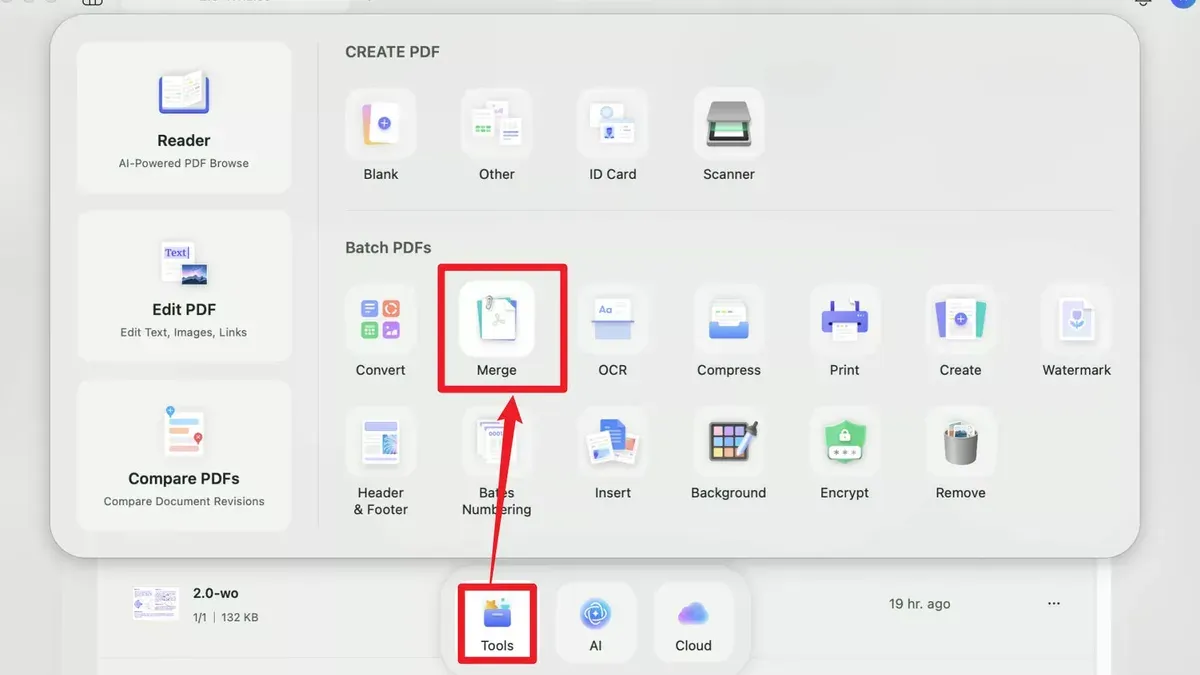
- Open all the PNG files you want to combine in Preview; they will appear as separate windows initially.
- In one Preview window, open the sidebar by clicking the Sidebar button or selecting View > Thumbnails.
- Drag the thumbnails of the other PNG files from their windows into the sidebar of the first Preview window; this merges all images into one document.
- Rearrange the images by dragging thumbnails in the sidebar to set the correct order for your PDF.
- Once ordered, go to File > Export as PDF, choose a name and location, then save to create a single PDF containing all your PNGs.
This manual method for combining about five PNG files usually takes a few minutes. While Preview is reliable and built into macOS, it lacks automation for large batches, which may require repetitive steps. For many images, third-party apps can speed up the process but may sacrifice control over file order and naming.
How to convert PNG to PDF on Mac for free with third-party apps
If you need features beyond macOS built-in tools, several free third-party apps offer reliable PNG to PDF conversion with added flexibility. Popular options include PDF Expert, Smallpdf Desktop, and iLovePDF, all compatible with macOS.
| App | Key Features | User Ratings | Privacy Policy Highlights |
|---|---|---|---|
| PDF Expert | Batch conversion, annotation, file merging | Highly rated for interface and speed | Data processed locally; no cloud upload by default |
| Smallpdf Desktop | Drag-and-drop, cloud integration, batch processing | Good ratings; occasional prompts for paid upgrade | Files uploaded to cloud unless offline mode used |
| iLovePDF | Simple interface, batch convert, cloud storage access | Positive feedback, some ads in free version | Uploads files to cloud servers during processing |
Compared to built-in methods, third-party apps can handle larger batches, offer editing tools, and support cloud workflows, but they may require uploading files online or installing additional software, which could raise privacy considerations.
- Download and install PDF Expert from the official website or Mac App Store. After launching, open the app and select "File" > "New PDF from Files." You should see a file picker dialog.
- Navigate to the folder containing your PNG files, select one or multiple images, then click "Open." The images will import into a new PDF document within PDF Expert.
- Use the sidebar to reorder or delete images if needed. When ready, select "File" > "Save As," choose your destination folder, enter a file name, and save. The PDF file will be created and accessible in the location you selected.
Before using third-party apps, review their privacy policies to understand how your files are handled. Prefer apps that process files locally without requiring internet upload for sensitive content.
How to convert PDF to PNG on Mac
Preview is the built-in app on Mac that allows you to export PDF pages as PNG images easily. This is useful when you need individual images from a PDF file.
- Open your PDF file with Preview. You should see the document pages in the sidebar.
- Select the page you want to convert. If you want multiple pages, select them by holding the Command key and clicking each page thumbnail.
- Go to the menu bar and click File > Export.
- In the export dialog, choose PNG from the Format dropdown menu.
- Adjust the Resolution (DPI) slider or input box to control the output image quality. Higher DPI values result in better quality but larger files.
- Choose the destination folder and click Save. Preview will export the selected page(s) as PNG files.
When exporting multiple pages, Preview creates separate PNG files for each page, named accordingly. This batch export method is straightforward but does not combine pages into a single image.
Keep in mind that the quality of the exported PNG depends on the resolution setting you choose. Lower resolutions may produce pixelated images, while very high resolutions increase file size and conversion time. Preview's export does not offer advanced image enhancement options, so the original PDF's quality limits the output.
How to convert PNG to PDF on specific Mac models: MacBook, MacBook Air, MacBook Pro, and iMac
Different Mac models handle PNG to PDF conversion with subtle variations due to hardware and macOS differences. MacBook Pro users benefit from the Touch Bar, which can be customized to include shortcuts like “Export as PDF” in Preview, speeding up the workflow. On models running macOS Ventura or later, including recent MacBook and iMac versions, conversion options appear streamlined within Preview and Print dialogs, making the process more intuitive.
Older MacBook Airs with limited RAM and slower processors may struggle with large or multiple PNG files. To improve performance, close unnecessary apps before conversion and convert files in smaller batches. This prevents sluggishness and reduces the chance of freezing.
Storage considerations are important across all models, especially when converting many images. PDFs can grow large if PNGs have high resolution or transparency. Monitor available disk space in Finder’s sidebar and clear temporary files if needed.
- Open your PNG file in Preview on your Mac model.
- For MacBook Pro, use the Touch Bar shortcut “Export as PDF” if available; on other models, go to File > Export as PDF.
- Choose the destination folder; ensure you have enough free storage to avoid errors.
- Click Save; the PDF file appears in the chosen location.
This method leverages built-in macOS features optimized per device, balancing speed and reliability for your specific Mac.
Troubleshooting common issues when converting PNG to PDF on Mac
If Preview won’t open your PNG or export a PDF, first check if the file is corrupted by opening it in another app like Safari or Photos. If it doesn’t open there, the PNG file may be damaged or in an unsupported format. Converting it to a standard PNG using an online tool or re-saving it from an image editor often helps.
When encountering error messages such as "Preview cannot open the file" or "Export failed," ensure your macOS and Preview app are up to date via the App Store. Restarting Preview or your Mac can also resolve temporary glitches.
For PDFs that are excessively large or low quality, adjust export settings by selecting File > Export as PDF and choosing a lower resolution or compression level. This balances file size with image clarity.
If multiple PNGs do not combine correctly in Preview’s sidebar, confirm all images are properly selected before exporting. Drag files into the sidebar in the desired order, then choose File > Export as PDF. If the PDF pages appear out of order or missing, repeat the process carefully, ensuring no files are locked or in use by other apps.
Tips for optimizing PNG to PDF conversion quality and file size
Balancing image quality and file size is key when converting PNG to PDF on your Mac. Preview and many third-party apps let you adjust resolution and compression settings to control this trade-off.
For printing, choose higher resolution (at least 300 dpi) to maintain clarity, but expect larger PDF files. When sharing online or via email, lower resolution (72-150 dpi) and stronger compression reduce file size without noticeable quality loss on screens.
In Preview, use File > Export as PDF and select the Quartz Filter dropdown. Filters like "Reduce File Size" apply compression but may blur details. Testing different filters helps find the best balance.
Color profiles also affect PDF appearance. Embedded profiles ensure consistent colors across devices, important for professional use. Preview preserves color profiles by default, while some free apps may not.
To maintain image clarity while reducing size, consider cropping unnecessary areas before conversion and avoid excessive compression. Comparing output PDFs with various compression settings reveals that moderate compression can reduce file size by half with minimal quality loss.
- How to Convert PDF to Word on Mac: Clear Step-by-Step Methods
- How to Convert HEIC to JPG on Mac: Simple Step-by-Step Guide
Frequently asked questions
How to convert a pdf to png?
You can convert a PDF to PNG on Mac using Preview. Open the PDF file, select the page you want, then go to File > Export. Choose PNG as the format, set the desired resolution, and save. This method lets you extract single pages as PNG images efficiently.
How to convert png to pdf on imac?
On your iMac, open the PNG image in Preview. From the menu, select File > Export as PDF. Name the file and choose the destination folder, then click Save. This uses built-in tools with no additional software needed.
How to convert png to pdf macos?
macOS offers several ways to convert PNG to PDF. The simplest is opening the PNG in Preview and using File > Export as PDF. Alternatively, you can print the image with File > Print, then select Save as PDF from the PDF dropdown.
How to convert pdf file to png on mac?
Open the PDF file in Preview, select the page you want, then choose File > Export. Select PNG as the format, adjust the resolution if needed, and save. This method is quick for converting individual PDF pages to PNG images.
How to turn a png into a pdf on mac?
To turn a PNG into a PDF on Mac, open the image in Preview and go to File > Export as PDF. Alternatively, print the PNG using File > Print and select Save as PDF from the PDF menu in the print dialog. Both methods are straightforward and use native macOS tools.
What this advice does not cover
This article does not cover paid professional software solutions that may offer advanced features like OCR (Optical Character Recognition) or batch automation beyond macOS built-in tools and free apps. If you regularly handle very large image files or complex multi-page PDFs, you might experience slower performance with built-in methods and could require specialized third-party software designed for those tasks.
For most users, the simplest and most reliable way to convert PNG to PDF on any Mac model is to use Preview or the Print dialog, both of which are pre-installed and require no additional downloads. If you want to move forward, try converting a single PNG file using Preview's File > Export as PDF option—this step is straightforward and typically avoids common pitfalls related to file size and formatting.