
How to Convert MKV to MP4 on Mac: Step-by-Step Methods
Discover easy methods to convert MKV to MP4 on Mac using VLC, FFmpeg, and iMovie for better compatibility and playback.
You have an MKV video file on your Mac that won’t play smoothly in your preferred app, or you need to upload it to a platform that only accepts MP4. Converting MKV to MP4 on Mac is a common task that can solve compatibility and playback issues without losing video quality.
This article explains how to convert MKV to MP4 on Mac using several practical methods, including VLC, FFmpeg, and iMovie. You’ll find step-by-step instructions suited to different skill levels and preferences, along with advice on free tools versus online converters and tips to ensure the best output quality.
Key takeaways
- Use VLC’s Convert/Stream feature for a straightforward, free conversion with customizable settings.
- FFmpeg offers advanced control but requires command-line use and familiarity with codecs.
- iMovie can import MKV files only after converting them or with additional codecs installed.
- Free tools vary in speed, quality, and ease—choose based on your technical comfort.
- Check codec compatibility and resolution settings to avoid playback issues after conversion.
Before you start: What you need to convert MKV to MP4 on Mac
MKV and MP4 are container formats that hold video, audio, and subtitle streams but differ in compatibility and codec support. MKV files often use codecs like H.264, H.265, or VP9, while MP4 is widely supported across devices and software, primarily using H.264 or H.265 codecs. Understanding this difference helps set expectations for conversion results and compatibility.
| Feature | MKV | MP4 |
|---|---|---|
| Container Type | Matroska (open standard) | MPEG-4 Part 14 |
| Common Video Codecs | H.264, H.265, VP9 | H.264, H.265 |
| Common Audio Codecs | AAC, AC3, DTS, FLAC | AAC, AC3 |
| Subtitle Support | Advanced (multiple formats) | Limited |
| Compatibility | Less universal, better for high quality and archiving | Highly compatible with most devices and players |
To convert MKV to MP4 on your Mac, you’ll need software such as VLC, FFmpeg, or iMovie. VLC offers a graphical interface and is free, FFmpeg provides powerful command-line control, and iMovie allows basic conversion embedded in video editing workflows. Additionally, online converters and dedicated apps exist, but be cautious about file size limits and privacy concerns.
Your Mac should meet minimum system requirements to ensure smooth conversion: a recent Intel or Apple Silicon processor, at least 8 GB of RAM, and macOS updated to a supported version. FFmpeg, especially, benefits from these specs due to its processing intensity.
| Minimum Mac Specs for Smooth FFmpeg Conversion | Requirement |
|---|---|
| Processor | Intel Core i5 or Apple M1 (or better) |
| RAM | 8 GB minimum |
| Storage | Enough free space for temporary files (at least twice the video size) |
| OS | macOS 10.14 Mojave or later |
Be aware that converting between formats can affect video quality and file size. MP4 conversion usually aims for compatibility and smaller size but may lose some quality depending on codec settings and bitrate. Adjust conversion parameters carefully to balance quality and file size according to your needs.
How to convert MKV to MP4 in Mac using VLC
VLC Media Player is a free, versatile option for converting MKV files to MP4 on your Mac. If you don’t have VLC installed, download it from the official VideoLAN website and complete the installation.
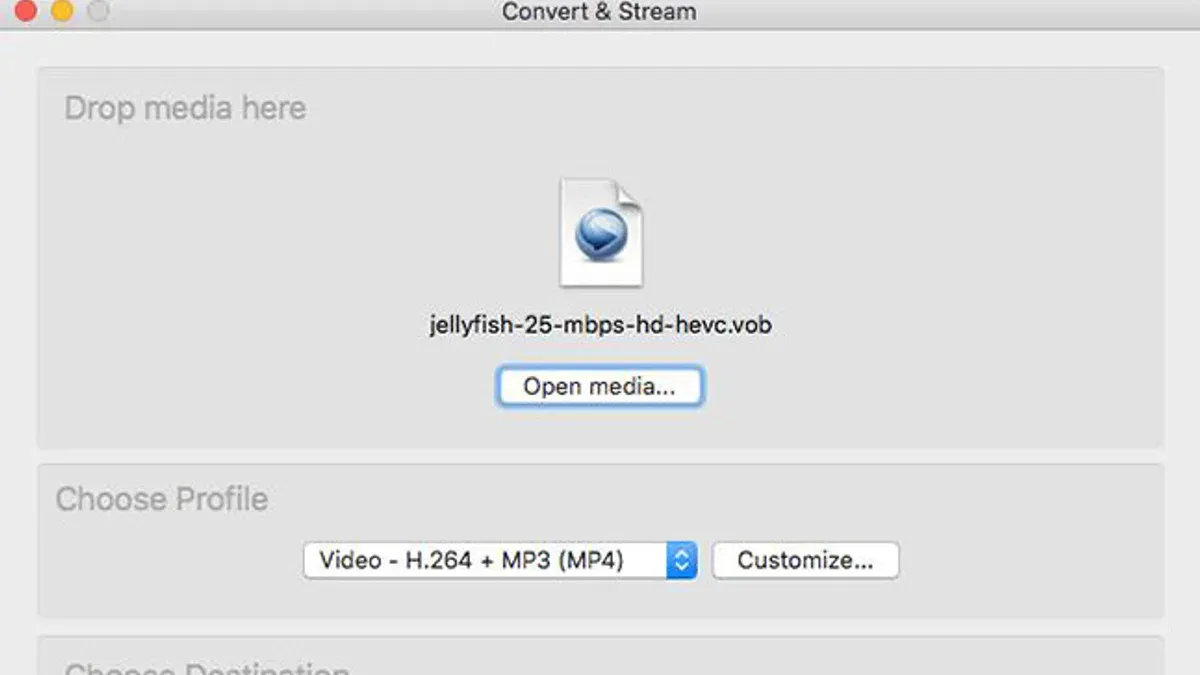
- Open VLC and select File from the menu bar, then click Convert / Stream.... A new window appears.
- Click Open media and browse to select your MKV file. The file name should appear under Open media.
- Under Choose Profile, select Video - H.264 + MP3 (MP4) to ensure MP4 output with widely compatible codecs.
- Optionally, click the Customize button next to the profile to adjust video codec, resolution, or audio settings if you want to control output quality or file size.
- Set the destination file by clicking Save as File, then Browse to choose the output folder and enter a file name ending with
.mp4. - Click Save to close the save dialog, then click Go to start the conversion.
- Conversion progress is not explicitly shown, but VLC will finish silently; the output MP4 file will be in your chosen location.
For a 1GB MKV file, conversion time typically ranges from several minutes to about 15 minutes depending on your Mac’s processor speed and settings. The output MP4 file size is usually slightly smaller or similar, depending on compression.
Common issues include choosing incompatible codecs in customization or not specifying the output file path, which causes the conversion to fail silently. VLC’s interface during conversion shows the Convert / Stream window with profile and destination settings clearly labeled.
How to convert MKV to MP4 in Mac using FFmpeg
FFmpeg is a powerful command-line tool that offers fast and customizable conversion of MKV files to MP4 on Mac. It is ideal if you are comfortable using Terminal and want control over encoding settings or speedy remuxing.
- Install FFmpeg: Open Terminal and type
brew install ffmpegif you have Homebrew installed. Alternatively, download a macOS build from the official FFmpeg website and follow the installation instructions. After installation, confirm by typingffmpeg -versionto see version details. - Convert without re-encoding (remux): Use the command
ffmpeg -i input.mkv -c copy output.mp4. This remuxes streams without re-encoding, making conversion fast and lossless if the codecs are compatible with MP4. Success is indicated by Terminal returning to the prompt without error and the output file playable in your video player. - Re-encode if necessary: If remuxing fails due to incompatible codecs, re-encode using
ffmpeg -i input.mkv -c:v libx264 -c:a aac output.mp4. This converts the video to H.264 and audio to AAC, widely supported formats for MP4. Note this process is slower and may reduce quality depending on settings. - Verify the conversion: Play the output file in QuickTime or VLC to check video and audio sync and quality. You can also run
ffmpeg -i output.mp4to inspect codec details. - Troubleshoot common errors: If you see errors about codec incompatibility or missing streams, try specifying codecs explicitly or check if your FFmpeg version supports the necessary codecs. Updating FFmpeg often resolves such issues.
Performance-wise, remuxing with -c copy takes seconds for typical MKV files, while re-encoding can take several minutes depending on file size and Mac hardware. Choose the method based on your need for speed versus compatibility.
How to convert MKV to MP4 in Mac using iMovie
iMovie is a native macOS app that can convert MKV files to MP4, but it has limitations with unsupported codecs inside MKV containers. If your MKV file uses a codec that iMovie cannot read, the file won’t import. Commonly, MKV files with H.264 video and AAC audio codecs import successfully.
- Open iMovie and create a new project by clicking File > New Movie. You should see a blank timeline ready for editing.
- Click the Import Media button or go to File > Import Media. In the file browser, locate and select your MKV file. If supported, the video will appear in the media library.
- Drag the imported MKV file into the project timeline. You can trim or make basic edits if desired. The preview window will display the video playback.
- To export, click the Share button (the square with an arrow) in the top-right corner and select File... from the dropdown menu.
- In the export settings, choose Video and Audio, set Resolution as needed (e.g., 1080p), and under Quality select High or Best (ProRes). iMovie exports files as MP4 by default.
- Click Next, choose the destination folder, and click Save. The exported MP4 file will be created in the chosen location.
Note that iMovie does not support batch processing, so you can only convert one MKV file at a time. Large MKV files may also cause sluggish performance or long export times. If your MKV uses unsupported codecs, consider converting it first with VLC or FFmpeg before importing to iMovie.
Example of codec limitation: An MKV file with HEVC (H.265) video may fail to import, whereas one with H.264 video typically imports without issue.
How to convert MKV to MP4 on Mac free: Comparing free tools and online converters
Besides VLC and FFmpeg, several free apps and online converters can help you convert MKV to MP4 on Mac. Popular free apps include HandBrake and Miro Video Converter, while online options like CloudConvert, Online-Convert, and Zamzar allow web-based conversion without installing software.
Each option has trade-offs. Free apps like HandBrake offer no file size limits, better control over output quality, and strong privacy since processing occurs locally. However, they may require more setup and longer processing times depending on file size and Mac specs.
Online converters are convenient for small files and quick jobs without software installation. Yet, they often impose file size limits—commonly under 500 MB to 1 GB—and can be slower due to upload and download times. Privacy is also a concern since your video is uploaded to third-party servers, which may not guarantee data security.
| Tool | Max File Size | Speed | Privacy |
|---|---|---|---|
| HandBrake | No limit | Depends on Mac specs | Local processing, high privacy |
| Miro Video Converter | No limit | Moderate | Local processing, high privacy |
| CloudConvert | Up to 1 GB free | Depends on internet speed | Files stored temporarily, privacy varies |
| Online-Convert | Up to 100 MB free | Depends on internet speed | Temporary storage, limited privacy |
| Zamzar | Up to 50 MB free | Depends on internet speed | Temporary storage, limited privacy |
Use online converters when you have small MKV files, need a quick conversion, and do not want to install software. For larger files, better quality control, or privacy concerns, free local apps like HandBrake are preferable.
How to convert MKV to MP4 on MacBook and macOS: Tips for best results
Optimizing your MacBook and macOS settings can improve conversion speed and stability when converting MKV to MP4, especially for large or lengthy videos.
- Adjust Energy Saver settings: Open System Preferences > Battery > Power Adapter and disable Put hard disks to sleep when possible. This prevents interruptions during long conversions, ensuring continuous processing.
- Monitor resource usage: Launch Activity Monitor from /Applications/Utilities/. While converting a 2-hour HD video on a MacBook Pro, CPU usage can spike above 80% and memory may approach 4GB. Keeping an eye on this helps identify if your system is overloaded or if other apps should be closed.
- Organize files with clear naming conventions: For batch conversions, create a dedicated folder and name files with consistent prefixes or timestamps (e.g., video_20261020_01.mkv). This simplifies tracking progress and locating outputs.
- Back up original files: Before converting, duplicate your MKV files to an external drive or cloud storage. This safeguards against accidental data loss or corruption during the process.
Following these steps balances performance and safety, making your MKV to MP4 conversions smoother on MacBook and macOS.
Troubleshooting common problems converting MKV to MP4 on Mac
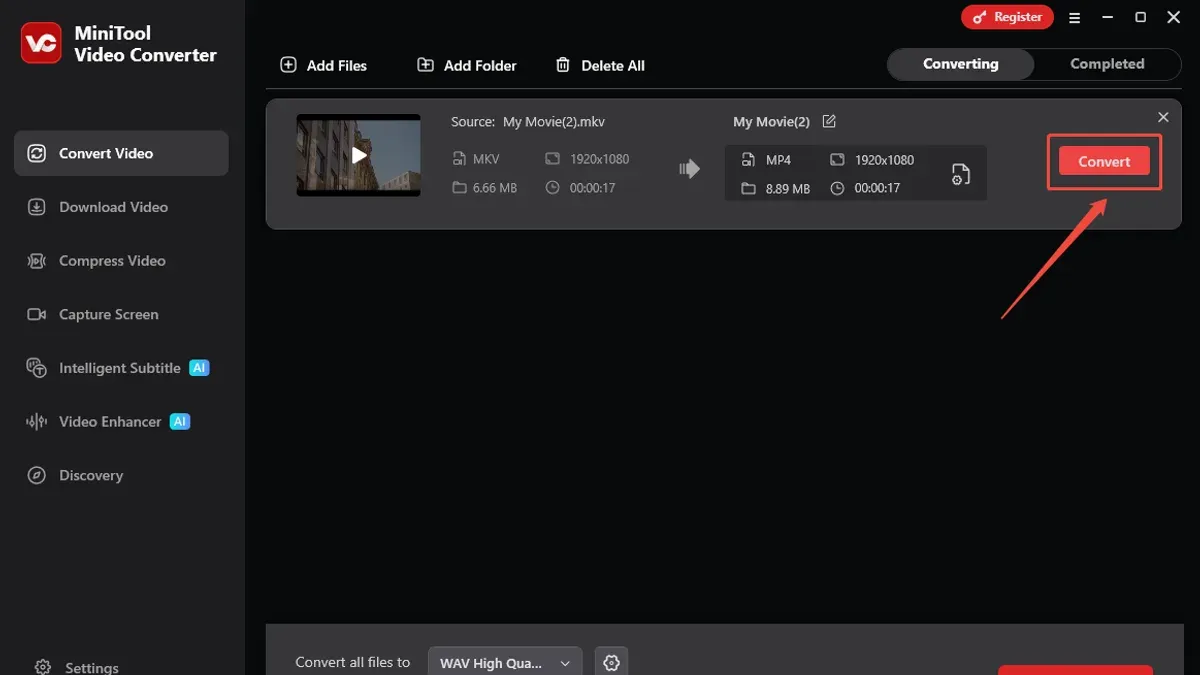
When converting MKV to MP4 on Mac, you might face errors such as VLC or FFmpeg crashing, unsupported codecs, or audio/video sync issues. Recognizing these common problems helps you apply the right fixes and decide when to re-encode rather than remux.
Fixing crashes and conversion failures
If VLC or FFmpeg fails to convert or crashes, check for corrupted source files first. Try opening the MKV in VLC to confirm it plays without errors. For VLC crashes during conversion, update to the latest version from the official website and reset preferences via VLC > Preferences > Reset All. For FFmpeg, ensure your command syntax matches the file’s codec specifications; an incorrect codec flag often causes failure.
Common error messages include:
- "Unsupported codec": The MKV contains codecs not supported by the chosen output profile.
- "Invalid data found when processing input": The source file is corrupted or partially downloaded.
- "Stream mapping failed": FFmpeg couldn’t correctly map audio/video streams, often due to complex MKV tracks.
Handling unsupported codecs and sync issues
If your MKV includes unsupported codecs, you may need to re-encode instead of remuxing. For example, H.265 (HEVC) videos require explicit support or re-encoding to H.264 for broader compatibility.
Audio/video sync problems often arise from variable frame rate videos or mismatched codecs. Use FFmpeg with the -async 1 flag or VLC’s advanced input options to correct timing during conversion.
Fixing output playback issues on devices
Output MP4 files might not play on certain devices due to unsupported audio codecs (like DTS) or subtitle streams. Remove or convert audio tracks to AAC and avoid embedding subtitles if unsupported.
When to re-encode versus remux
Remuxing copies streams without quality loss but requires compatible codecs. Choose remuxing to save time and preserve quality when possible. Re-encoding is necessary when you face codec incompatibility, need to compress files, or fix sync issues, but it takes longer and may reduce quality.
Troubleshooting flowchart
- Attempt conversion with remuxing (
ffmpeg -i input.mkv -codec copy output.mp4); if it works, conversion is complete. - If remuxing fails, check error messages for unsupported codecs or stream mapping issues.
- Try re-encoding with FFmpeg using standard codecs (
ffmpeg -i input.mkv -c:v libx264 -c:a aac output.mp4); successful output means problem solved. - If conversion still fails or crashes, verify source file integrity by playing MKV fully in VLC.
- Update software to the latest versions or try alternative tools if problems persist.
- How to Convert HEIC to JPG on Mac: Simple Step-by-Step Guide
- How to Open.srt Files on Mac: A Clear Step-by-Step Guide
- How to Open a.json File on Mac: Step-by-Step Guide
Frequently asked questions
How to convert mp4 to mkv file?
You can convert MP4 to MKV using free tools like VLC or FFmpeg on Mac. In VLC, select "Convert/Stream," add your MP4 file, then choose MKV as the output format. With FFmpeg, use the command ffmpeg -i input.mp4 -c copy output.mkv to remux without re-encoding, preserving quality.
How to convert mkv files to mp4?
To convert MKV files to MP4, use software like VLC, FFmpeg, or iMovie. VLC allows you to select your MKV file, choose MP4 as the output format, and start conversion. FFmpeg offers precise control with commands, while iMovie lets you import MKV (after conversion if needed) and export to MP4.
How to convert a mkv to mp4?
Converting MKV to MP4 typically involves selecting your MKV file in a converter tool, choosing MP4 as the output container, and adjusting codec settings if required. Tools like VLC provide easy GUI options, while FFmpeg offers command-line efficiency. Ensure you select H.264 video and AAC audio codecs for broad compatibility.
How to convert MP4 to MKV file on Mac?
On Mac, convert MP4 to MKV by using VLC's "Convert/Stream" feature or FFmpeg commands. Both options allow you to keep original codecs or re-encode if needed. Choose MKV as the container format, and verify output settings before starting the conversion.
How to convert MKV files to MP4 quickly and without quality loss?
To convert MKV to MP4 quickly without quality loss, use FFmpeg to remux the file instead of re-encoding. The command ffmpeg -i input.mkv -c copy output.mp4 copies streams directly, preserving original quality and speeding up conversion. This works when video and audio codecs are compatible with MP4.
What this advice does not cover
This article does not cover DRM-protected MKV files or professional-grade video editing software workflows. If you need to convert videos with digital rights management restrictions or require advanced editing features like multi-track timelines, color grading, or encryption removal, you should seek specialized commercial tools designed for those purposes.
For most Mac users aiming to convert MKV files to MP4 for everyday playback or basic editing, the methods outlined here using VLC, FFmpeg, and iMovie provide practical and cost-effective solutions. However, if your needs extend beyond straightforward conversion, professional software such as Adobe Premiere Pro or Final Cut Pro may be more appropriate.
The single most useful next step is to choose the conversion tool that matches your comfort level with software and desired output quality, then try a short test conversion. This helps ensure your settings produce the expected results, saving time and avoiding frustration when converting larger or multiple files.



