How to Open a.json File on Mac: Step-by-Step Guide
Discover easy methods to open and edit.json files on Mac using built-in apps, Terminal commands, Excel, and other tools.
You’ve just received a.json file on your Mac and need to view or edit its content. Whether it’s for checking data, importing into a spreadsheet, or running code, knowing how to open.json file on Mac efficiently will save time and frustration.
This article guides you through straightforward methods to open.json files using built-in text editors, Excel import options, Terminal commands, and handling compressed JSON files. You’ll also find tips on creating JSON files and using other apps like MATLAB or Microsoft Edge. Each method’s pros and cons are weighed to help you choose the best tool for your needs.
Key takeaways
- Text editors like TextEdit or VS Code let you view and edit JSON with syntax highlighting options.
- Excel can import JSON data but may require conversion to CSV or third-party add-ons for smooth handling.
- Terminal commands like 'cat' and 'jq' provide quick inspection and formatting of JSON files.
- Compressed JSON files (.json.gz) need decompression using Terminal’s 'gunzip' or apps like The Unarchiver.
- Apps like MATLAB and Microsoft Edge offer alternative ways to open and interact with JSON data on Mac.
Before you start: What you need to open a.json file on Mac
A JSON file is a plain text file that contains data structured in JavaScript Object Notation format. It is commonly used for configuration settings, data interchange between applications, and storing structured data. The file extension is usually .json. Sometimes, you may encounter compressed JSON files with the extension .json.gz, indicating the file is compressed using gzip and requires decompression before viewing.
On a Mac, you have several tools to open these files depending on your needs. For simple viewing and editing, built-in apps like TextEdit or third-party text editors can open.json files directly. For command-line access, the Terminal app lets you inspect files with commands like cat or less. If you want to import JSON data into a spreadsheet, Microsoft Excel on Mac offers import options though with some limitations. Specialized apps like MATLAB or browsers such as Microsoft Edge can also handle JSON files.
Some methods require internet access to download apps or additional tools, especially for decompressing.json.gz files or advanced editing capabilities.
For example, a simple JSON snippet might look like this:
{
"name": "Alice",
"age": 30,
"isMember": true
}
This text is small and easy to open in any text editor. However, large JSON files or compressed versions need more processing steps to open properly.
- Locate your JSON file on your Mac using Finder.
You should see the file name ending with.json or.json.gz. - Decide if you want to view, edit, or import the file.
This helps you choose the right tool. - Ensure you have the necessary software installed (TextEdit is built-in; Excel and others may require installation).
You will be ready to open the file without errors.
How to open the.json file using a text editor on Mac
You can quickly view a.json file on your Mac using the built-in TextEdit app or third-party text editors like Visual Studio Code (VS Code) or Sublime Text. These options allow you to open and read the JSON content without installing specialized JSON viewers.
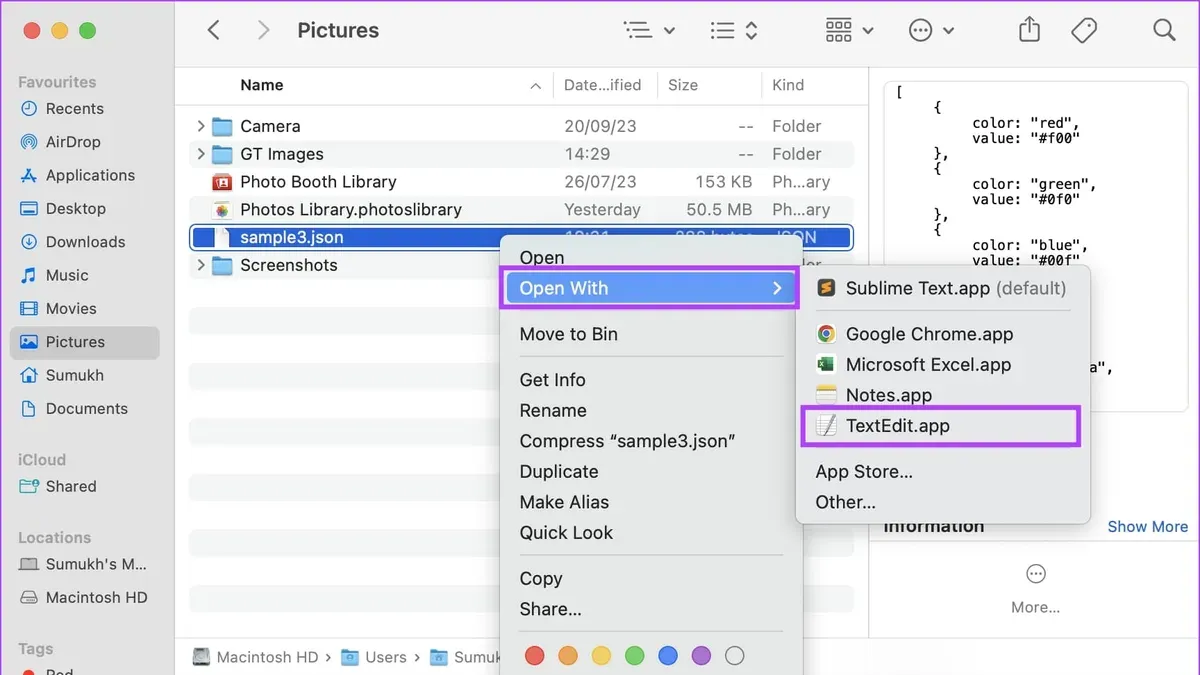
- Locate the.json file in Finder.
- Right-click (or Control-click) the file and select "Open With".
- Choose "TextEdit" for a basic view, or select "Visual Studio Code" or "Sublime Text" if installed.
- The file opens displaying the raw JSON text. In TextEdit, the data appears as plain text, while VS Code and Sublime Text apply syntax highlighting for easier reading.
Using TextEdit is straightforward and requires no extra installation, but it shows JSON as plain text without any structure or validation. VS Code and Sublime Text provide color-coded syntax and better readability, helping you spot errors or nested elements more easily.
| Feature | TextEdit (Default) | Visual Studio Code |
|---|---|---|
| Syntax Highlighting | No | Yes |
| JSON Validation | No | Yes |
| Collapsible Code Blocks | No | Yes |
| Search and Replace | Basic | Advanced |
Text editors provide a fast way to view JSON content but lack structured visualization or automatic error checking. For quick inspections, TextEdit suffices; for editing or troubleshooting complex JSON, a dedicated code editor is preferable.
How to open a.json file in Excel on Mac
Excel for Mac does not have native support for importing JSON files like its Windows counterpart, which limits direct data import. To work with JSON data in Excel on Mac, you need to convert the JSON file into a compatible format such as CSV before importing.
- Check if your Excel version supports Power Query (available in recent Microsoft 365 versions). If available, open Excel and go to Data > Get Data > From File > From JSON. Select your JSON file and Excel will attempt to parse it into a table format. You should see the data structured in columns after import.
- If Power Query is not available, use an online JSON to CSV converter. Upload your JSON file to a trusted converter website, then download the resulting CSV file.
- Open Excel, go to File > Open, and select the CSV file. The data will appear in the spreadsheet, typically with columns corresponding to JSON keys.
- Review the imported data for accuracy. Complex nested JSON structures may not translate cleanly into rows and columns and might require additional data transformation tools or manual editing.
- Save your Excel workbook to preserve the imported data.
For example, importing a simple JSON array of objects with keys like "name," "age," and "city" results in a clean table with those columns in Excel. However, deeply nested objects or arrays within the JSON often appear flattened or incomplete in CSV, necessitating further processing.
How to open a JSON file in Mac Terminal
If you are comfortable using the command line, Mac Terminal offers fast and scriptable ways to view and manipulate JSON files without needing a graphical interface.
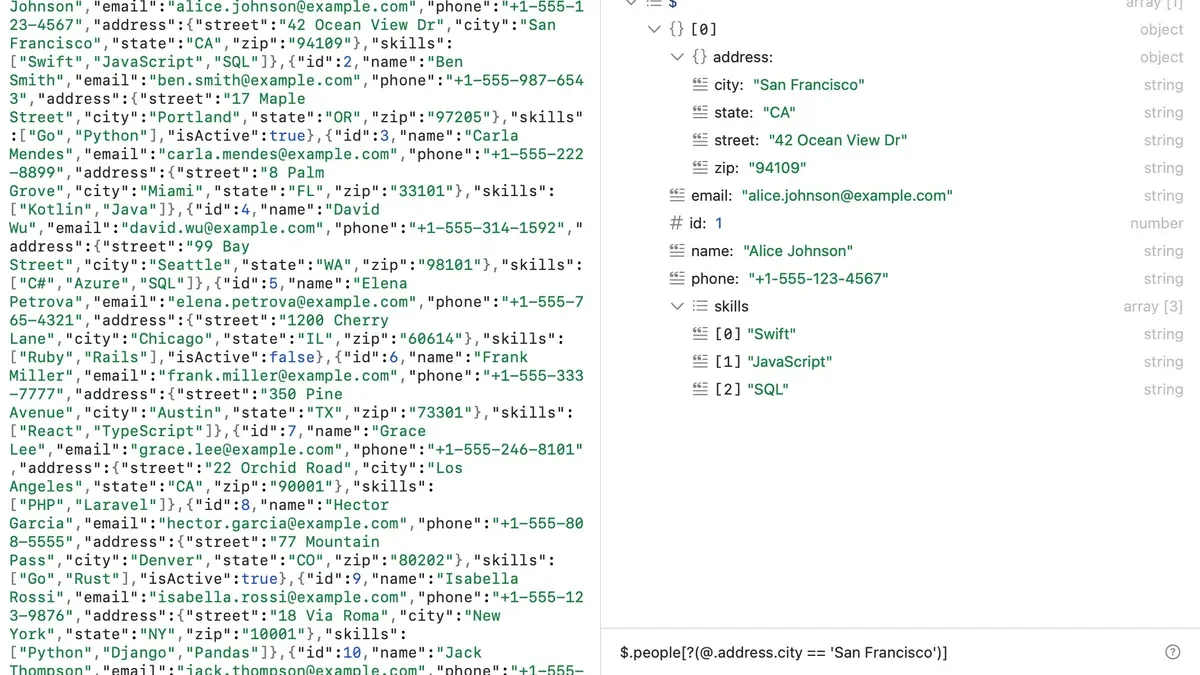
- View raw JSON content: Open Terminal and type
cat filename.json. This outputs the entire JSON file as a plain text stream. You should see the unformatted JSON data displayed in your Terminal window. - Page through JSON content: Use
less filename.jsonto view the file page by page, allowing easier navigation of long JSON files. Pressqto exit when done. - Pretty-print JSON using jq: If you want a readable, indented format, use
jq. filename.json. Ifjqis not installed, install it via Homebrew withbrew install jq. The command outputs the JSON with proper indentation, making it easier to inspect nested structures. - Validate JSON syntax: Run
jq empty filename.json. No output means the JSON is valid; errors indicate syntax problems. - Extract specific data fields: Use jq filters like
jq '.keyName' filename.jsonto retrieve values of a key. For example,jq '.name' data.jsondisplays the value associated with the "name" key.
Using Terminal tools like cat, less, and especially jq provides a quick, scriptable way to handle JSON on Mac, ideal for developers or users who prefer command-line workflows and need to validate or extract data without opening bulky GUI applications.
How to open a JSON.gz file on Mac
JSON files are sometimes compressed using the gzip (.gz) format to reduce file size for easier transfer or storage. To access the data, you need to decompress the.json.gz file before opening the JSON content.
macOS includes a built-in Archive Utility that can decompress.gz files by double-clicking them. Alternatively, you can use Terminal commands for more control.
- Locate your example.json.gz file in Finder.
- Double-click the file to automatically decompress it using Archive Utility. You should see a new file named example.json in the same folder.
- Open the decompressed example.json file with your preferred method, such as a text editor or Excel (following earlier instructions).
- Alternatively, open Terminal and navigate to the folder containing the file using
cd /path/to/folder. - Run the command
gunzip example.json.gz. This will decompress the file in place and remove the original.gz archive. - Confirm the file example.json now exists in the folder and open it as needed.
Some third-party apps like Keka or The Unarchiver can handle compressed files directly, allowing you to decompress.gz archives through their interfaces. However, these tools do not open the JSON content directly; they only extract the file. After extraction, you must open the JSON file with a suitable application.
How to create a JSON file on Mac
Creating a JSON file on your Mac is straightforward and useful for data exchange or configuration tasks. You can manually write JSON syntax using any text editor or leverage apps that generate JSON from templates or forms. Validating your JSON ensures it is correctly formatted and error-free.
- Open a text editor such as Visual Studio Code or TextEdit set to plain text mode. You should see a blank document ready for input.
- Write a simple JSON object. For example, type:
{
"name": "John Doe",
"age": 30,
"isMember": true
}
You should see properly formatted text representing key-value pairs enclosed in braces. - Save the file with a .json extension, for example, userdata.json. Choose File > Save, enter the filename, and confirm the extension. The file should save with JSON formatting recognized by your system.
- Validate the JSON syntax to avoid errors. Use an online validator like jsonlint.com by copying and pasting your JSON, or open Terminal and run
jq. userdata.json. A successful validation will return the formatted JSON without errors. - Alternatively, use apps or online tools that generate JSON from forms or templates if you prefer not to write JSON manually. These tools typically export directly to a JSON file ready for use.
Following these steps helps ensure your JSON file is correctly created, named, and validated for smooth use in other applications.
How to open JSON files in other Mac apps like MATLAB or Microsoft Edge
Several Mac applications beyond text editors and terminals can open JSON files, but their capabilities vary. MATLAB and Microsoft Edge are common choices for users needing to view or process JSON data.
Opening JSON files in MATLAB
- Launch MATLAB on your Mac.
- Load the JSON file into a character vector using the command
jsonText = fileread('filename.json');. Replace filename.json with your file's path. - Parse the JSON content by running
data = jsondecode(jsonText);. This converts the JSON into MATLAB data structures. - Access the data fields as MATLAB variables. You should see structured data in the Workspace pane.
MATLAB's built-in jsondecode function is straightforward for importing JSON data, but editing or exporting JSON requires additional scripting or toolboxes. Specialized toolboxes can enhance JSON handling but may require installation.
Viewing JSON files in Microsoft Edge
- Open Microsoft Edge on your Mac.
- Drag and drop the JSON file into the browser window or use File > Open File to select your JSON file.
- The browser will render the JSON as a formatted, collapsible tree, making it easy to read.
Edge provides a clean, readable view of JSON files without extra software. However, it does not allow editing or exporting JSON data. For modifications, a dedicated JSON editor or developer tool is recommended.
In summary, MATLAB is useful for programmatic JSON data import and analysis but limited for editing, while Microsoft Edge offers convenient viewing. For comprehensive editing or exporting, dedicated JSON tools remain the best choice.
Troubleshooting common issues when opening JSON files on Mac
If your JSON file won’t open, first verify the file extension is.json and the file is not corrupted. A corrupted file may cause errors like “Unexpected end of input” when opened in editors. Try opening the file in a different text editor to confirm.
JSON syntax errors are common and cause parsing failures. Use online JSON validators or tools like Visual Studio Code’s built-in JSON validation to identify errors. Fix missing commas, unmatched braces, or incorrect quotes. Error messages usually specify the line number and type of syntax problem.
Large JSON files may load slowly or freeze editors. To improve performance, split the file into smaller chunks using command line tools like jq or by writing scripts. For example, running jq. largefile.json | head -n 100 shows the first 100 lines without loading the entire file.
If a compressed JSON file (.json.gz) won’t decompress, confirm the file format using file filename.json.gz in Terminal. Use gunzip or Archive Utility to decompress. Errors like “not in gzip format” indicate the file may be corrupted or mislabeled.
- Check file extension and open with multiple editors; you should see the JSON content properly formatted.
- Validate the JSON syntax using an online tool or Visual Studio Code; errors will be highlighted with line numbers.
- For large files, use
jqcommands to view parts of the file; you should see output quickly without freezing. - Verify compressed files with Terminal’s
filecommand; correct gzip files will be recognized as such. - Decompress.json.gz files using
gunzipor Archive Utility; the resulting JSON file should open normally.
- How to Open and Edit.md Files on Mac: A Complete Guide
- How to Open.docx Files on Mac: A Step-by-Step Guide
- How to Open.xlsx Files on Mac: Easy Methods and Tips
- How to Open.pptx Files on Mac: Simple Step-by-Step Methods
Frequently asked questions
How to open.json file?
You can open a.json file with any plain text editor such as TextEdit on Mac, which allows you to view and edit the file's contents. For better readability, use a code editor like Visual Studio Code or Sublime Text that supports JSON formatting. If you want to analyze or manipulate the data, importing the file into Excel or using command-line tools in Terminal are also practical options.
How to open json file on mac?
On a Mac, open the Finder, right-click the.json file, select "Open With," then choose TextEdit or a code editor like Visual Studio Code. For data viewing in a spreadsheet, open Excel and import the JSON file using the Data tab’s import function, but note this may require converting JSON to CSV first or using additional tools. Terminal commands like 'cat' or 'jq' can display JSON content directly.
How to open json file on macbook?
The process is the same on a MacBook as on any Mac. Use TextEdit or a developer-friendly editor to open the file directly. For structured data handling, use Excel’s import feature after converting the JSON or open the Terminal app to run commands like 'less' or 'jq' for formatted viewing. Ensure your MacBook has appropriate software installed for these tasks.
How to open json file in mac?
To open a JSON file in Mac, right-click the file and pick an app such as TextEdit for basic viewing. Developers often prefer apps like Visual Studio Code or Atom for syntax highlighting and editing. If you want to process JSON data, importing it into Excel or using Terminal with commands like 'jq' can help, but these methods may require additional steps like file conversion or installation of utilities.
How to open file.json?
Opening a.json file depends on your goal. For simple viewing or editing, open it with a text editor or code editor. To analyze or manipulate data, import the file into a spreadsheet program such as Excel, possibly after converting it to CSV. You can also use command-line tools in Terminal for viewing or processing JSON files, but this requires familiarity with terminal commands and may need installing tools like 'jq'.
What this article does not cover and who should do something else
This article does not cover programmatic JSON parsing or editing within development environments beyond basic command line and app usage. If you require advanced JSON manipulation, validation, or integration into complex software projects, you should consult developer-specific resources or use specialized IDEs such as Visual Studio Code, PyCharm, or dedicated JSON tools like jq or Postman.
For tasks involving automated JSON workflows, APIs, or scripting, relying on terminal commands shown here may be insufficient, and learning scripting languages like Python or JavaScript will be necessary.
Next step to handle your.json files effectively
To get the most out of your.json files on Mac, start by opening them with a reliable text editor like Visual Studio Code or Sublime Text. These editors provide syntax highlighting and structure visualization, making it easier to inspect and edit JSON content without corrupting the file. From there, choose the method that fits your purpose, whether importing data into Excel for analysis or using the Terminal for quick checks. Always make a backup before editing, especially if you plan to use automated tools, to avoid accidental data loss.