How to Open.srt Files on Mac: A Clear Step-by-Step Guide
Discover easy methods to open and edit.srt subtitle files on your Mac using QuickTime, VLC, text editors, and online tools.
You have a video file and a separate.srt subtitle file that you want to watch together on your Mac. Maybe you downloaded subtitles for a foreign film or received them from a friend, but you’re unsure how to open or integrate these.srt files seamlessly.
This article explains how to open.srt file on Mac using several practical methods. You’ll learn how to use native apps like QuickTime Player, popular third-party media players such as VLC, and basic text editors for editing subtitles. We also cover online tools and common troubleshooting tips specific to macOS, helping you choose the best approach for your needs.
Key takeaways
- QuickTime Player requires manual subtitle enabling and compatible video formats to display.srt files.
- VLC Media Player supports.srt subtitles natively with easy drag-and-drop integration.
- Text editors like TextEdit allow you to open and edit.srt files directly as plain text.
- Other Mac video players may have different subtitle support and settings to explore.
- Online subtitle tools can open and edit.srt files without software installation.
Before you start: What you need to open.srt files on Mac
.srt files are subtitle text files commonly used to display captions for video content. They consist of plain text containing time codes and the corresponding subtitle text to appear during playback. For example, a snippet from an.srt file might look like this:
1
00:00:15,000 --> 00:00:18,000
Hello, welcome to this video.
Although.srt files are simple text files, they require compatible media players or text editors to display or edit subtitles correctly on a Mac. You cannot simply open them to view subtitles without a video player that supports subtitle integration.
Popular Mac media players that support.srt files include QuickTime Player (with plugins), VLC Media Player, IINA, and Elmedia Player. For editing.srt files, text editors like TextEdit, Sublime Text, or Visual Studio Code can open and modify the plain text content.
To use an.srt file effectively, you must have the corresponding video file. The subtitle timing aligns with the video’s timeline, so without the video, the subtitles alone have limited use.
- Locate the.srt subtitle file and ensure it matches the video you want to watch.
You should see the file with a.srt extension. - Choose a compatible media player or text editor installed on your Mac.
You will be ready to open or edit the subtitle file. - Keep the video file accessible and named similarly to the.srt file for easier automatic subtitle loading.
This helps some media players detect and display subtitles automatically.
How to open.srt files on Mac using QuickTime Player
QuickTime Player is the default media player on macOS but has limited native support for.srt subtitle files. It does not directly load.srt files alongside videos, which means you cannot simply open a video and add a.srt subtitle file within QuickTime without extra steps.
To use.srt subtitles in QuickTime, you need to convert the.srt file into a format that QuickTime supports, such as a.mov or.mp4 file with embedded subtitles, or use third-party plugins that enable subtitle loading. One popular plugin is Perian, although it is no longer actively maintained and may not work on the latest macOS versions.
- Open your video file with QuickTime Player by double-clicking the video or selecting File > Open File and choosing your video.
- If your video does not display subtitles, convert the.srt file to a compatible format. You can use free tools like Subler to embed the.srt subtitles into the video container.
- After embedding, open the new video file with QuickTime Player. You should see subtitles displayed automatically during playback.
- If you prefer using plugins, install a subtitle plugin compatible with your macOS version, then open QuickTime and load the video along with the.srt subtitles through the plugin’s interface.
Compared to players like VLC, which load.srt files directly and allow subtitle toggling on the fly, QuickTime requires these extra steps or tools. If QuickTime Player does not display your subtitles properly, consider using VLC or other media players with native.srt support for a simpler experience.
How to open.srt files on Mac with VLC Media Player
VLC Media Player is a popular free option for Mac users to open.srt subtitle files because it supports them natively without the need for conversion or embedding. Here’s how to use VLC to load and customize subtitles.
- Download VLC from the official website videolan.org and install it by dragging the app to your Applications folder. Once installed, open VLC.
- Open your video file by selecting File > Open File... from the menu bar. The video will start playing in VLC’s window.
- To load the.srt subtitle automatically, ensure the.srt file is named exactly the same as the video file and located in the same folder. VLC will detect and display the subtitles without additional action.
- If subtitles don’t load automatically, go to Subtitle > Add Subtitle File... from the menu and select your.srt file. The subtitles should appear immediately on the video.
- To adjust subtitle settings, navigate to VLC > Preferences > Subtitles / OSD. Here, you can change font size, color, and positioning to improve visibility and readability.
VLC’s subtitle display is generally clearer and more customizable compared to default Mac apps like QuickTime Player. It supports multiple subtitle tracks and various formats, making it versatile for different viewing needs. Its native subtitle support eliminates extra steps, streamlining subtitle use on Mac.
How to open and edit.srt files on Mac using text editors
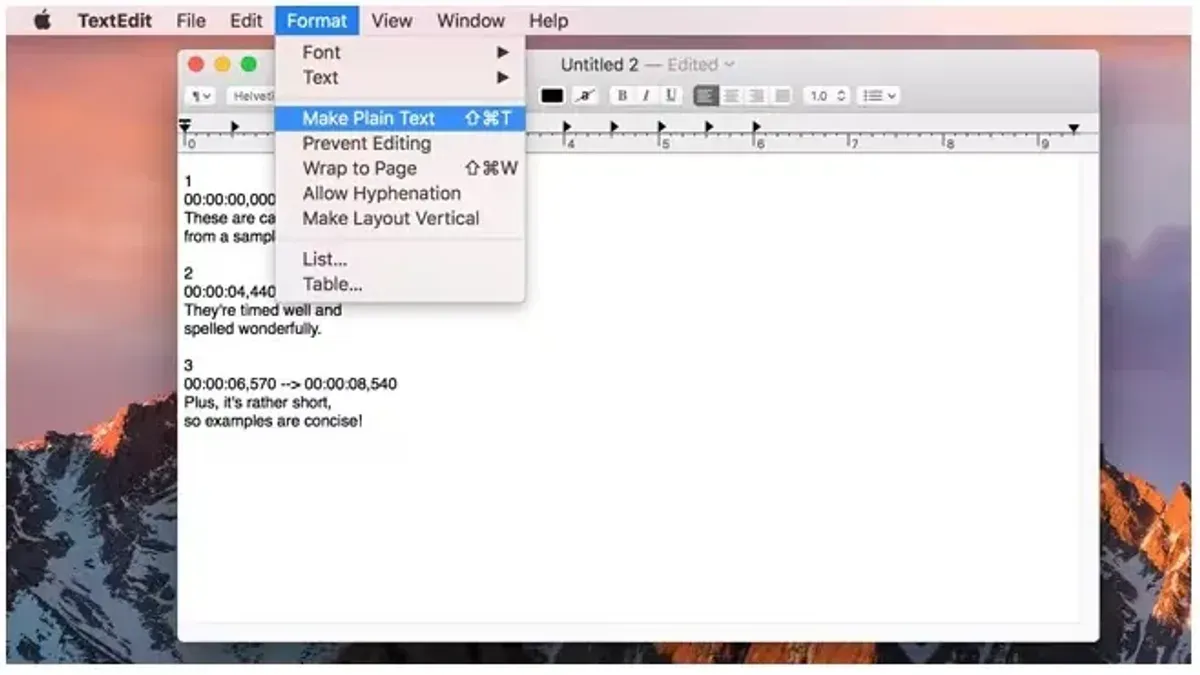
You can open and edit.srt subtitle files as plain text using native Mac apps like TextEdit or third-party editors such as Sublime Text. These files consist of numbered subtitle blocks with timestamps and corresponding text, making them straightforward to modify.
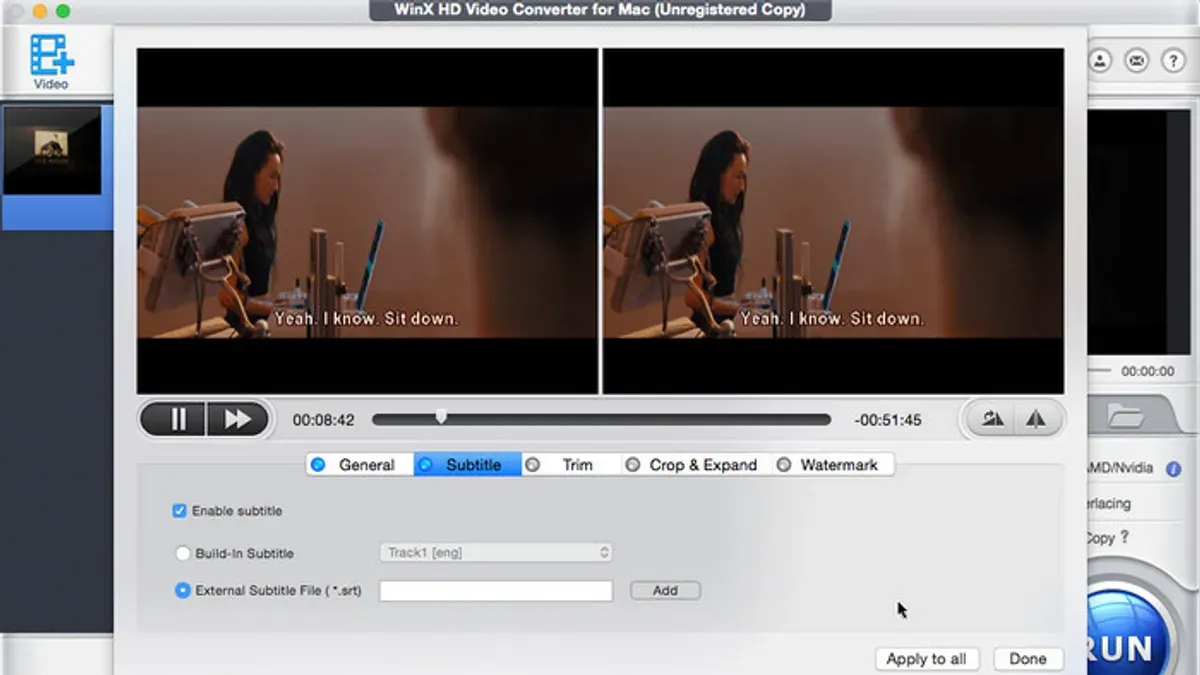
- Right-click the.srt file and select Open With > TextEdit (or your preferred text editor). The file will display blocks like:
1
00:00:05,000 --> 00:00:07,000
Hello, welcome to the video.
You should see this structure clearly with timestamps and text separated. - Edit the subtitle text directly within the blocks to correct errors or update phrasing. For example, changing "Hello, welcome to the video." to "Hello, welcome to our video tutorial." will update the subtitles accordingly.
- To adjust timing, modify the timestamps following the format hours:minutes:seconds,milliseconds. For instance, changing
00:00:05,000to00:00:06,000delays the subtitle by one second. - Save the file ensuring the encoding remains UTF-8. In TextEdit, use File > Save As and check the plain text option with UTF-8 encoding to preserve compatibility.
Warning: Avoid adding extra formatting or rich text, as.srt files must remain plain text. Introducing hidden characters or improper encoding can cause subtitles to fail when loaded in media players.
Editing.srt files this way gives you precise control, whether correcting typos or syncing subtitles accurately with your video.
How to use.srt files with popular Mac video players besides VLC and QuickTime
Several other Mac video players support.srt subtitles, each offering different features and user experiences. Three notable options are IINA, Elmedia Player, and Movist.
IINA is a modern macOS-native player with a sleek interface and robust subtitle support. To load an.srt file, open your video, then go to the menu bar and select Subtitles > Add External Subtitle. IINA supports automatic subtitle syncing and styling, making it flexible for different subtitle formats. It is free and open source.
Elmedia Player offers a free version with basic subtitle support and a Pro version that adds advanced features like subtitle delay adjustment and subtitle search. To add subtitles, open your video, click the Subtitles button on the control bar, and select Load Subtitle File. This player supports various subtitle formats and has decent customization options but some features require purchase.
Movist is a user-friendly player that includes smooth subtitle rendering and supports drag-and-drop for.srt files. Open a video, then drag your.srt file onto the player window or use File > Open Subtitle File. Movist supports multiple subtitle tracks and basic styling. It has a free version with optional paid upgrades.
| Player | Subtitle Support | Customization | Cost |
|---|---|---|---|
| IINA | Strong native support, auto-sync, styling | High (fonts, colors, syncing) | Free |
| Elmedia Player | Good, supports many formats | Moderate; advanced features in Pro | Free + Pro upgrade |
| Movist | Solid, drag-and-drop support | Basic styling and multiple tracks | Free + paid upgrades |
How to open.srt files on Windows: a brief comparison for Mac users
Windows users commonly open.srt subtitle files with media players like Windows Media Player and Media Player Classic - Home Cinema (MPC-HC). Unlike macOS, where native players such as QuickTime require embedding subtitles, Windows Media Player supports adding external.srt files via the "Lyrics, captions, and subtitles" menu, but with limited customization. MPC-HC offers more advanced subtitle controls similar to VLC on Mac, including font adjustments, synchronization, and multiple subtitle tracks.
For Mac users switching between platforms or sharing subtitle files, it is useful to know that Windows players generally recognize.srt files by default when placed in the same folder as the video and named identically. This contrasts with macOS players that sometimes need manual loading or embedding.
| Feature | Windows (MPC-HC) | Mac (VLC) |
|---|---|---|
| Native.srt support | Yes | Yes |
| Subtitle customization | High (fonts, sync) | High (fonts, sync) |
| Auto-load subtitles | Yes, if named properly | Yes, if loaded or embedded |
| Embedding subtitles | Possible with converters | Possible with converters |
To open.srt files on Windows with MPC-HC:
- Open MPC-HC and play your video file; the player should auto-load the.srt file if correctly named and in the same folder.
- If subtitles do not appear, right-click the video, select Subtitle > Load Subtitle, then navigate to and open the.srt file; subtitles should display immediately.
- Adjust subtitle settings via Options > Subtitles to customize font, size, and sync; changes apply instantly.
Understanding these differences helps ensure smooth subtitle use whether you are on Mac, Windows, or moving files between the two.
How to open.srt files online without installing software
If you prefer not to install software, several online tools let you view, convert, or embed.srt subtitle files quickly. These web-based services are convenient for one-time or occasional use but require you to upload your files to their servers.
Popular online subtitle viewers and converters include SubtitleTools (subtitletools.com), Subtitles Translator (subtitletranslator.com), and Kapwing (kapwing.com). They support uploading.srt files to view subtitles directly or convert them into other formats like.vtt or.ass.
- Go to a trusted online subtitle tool such as SubtitleTools.
- Click the button labeled "Upload Subtitle" or "Choose File" and select your.srt file from your Mac. Once uploaded, the interface should display the subtitle text and timestamps.
- If you want to convert the file, select the desired output format (for example,.vtt) and click "Convert". The site will generate the new file for download.
- To embed subtitles into a video, upload both the video file and the.srt file as prompted, then follow the tool's instructions to output a video with burned-in subtitles.
Be cautious with sensitive or private subtitle files, as uploading them exposes your data to third-party servers. Always review the privacy policy of the online service and avoid uploading confidential content.
Troubleshooting common issues when opening.srt files on Mac
If subtitles do not appear or are out of sync, first check the subtitle track is enabled in your media player. In VLC, for example, go to Subtitle > Subtitle Track and select the correct.srt file. If timing is off, adjust subtitle delay by pressing G or H keys to shift subtitles backward or forward until they match the video.
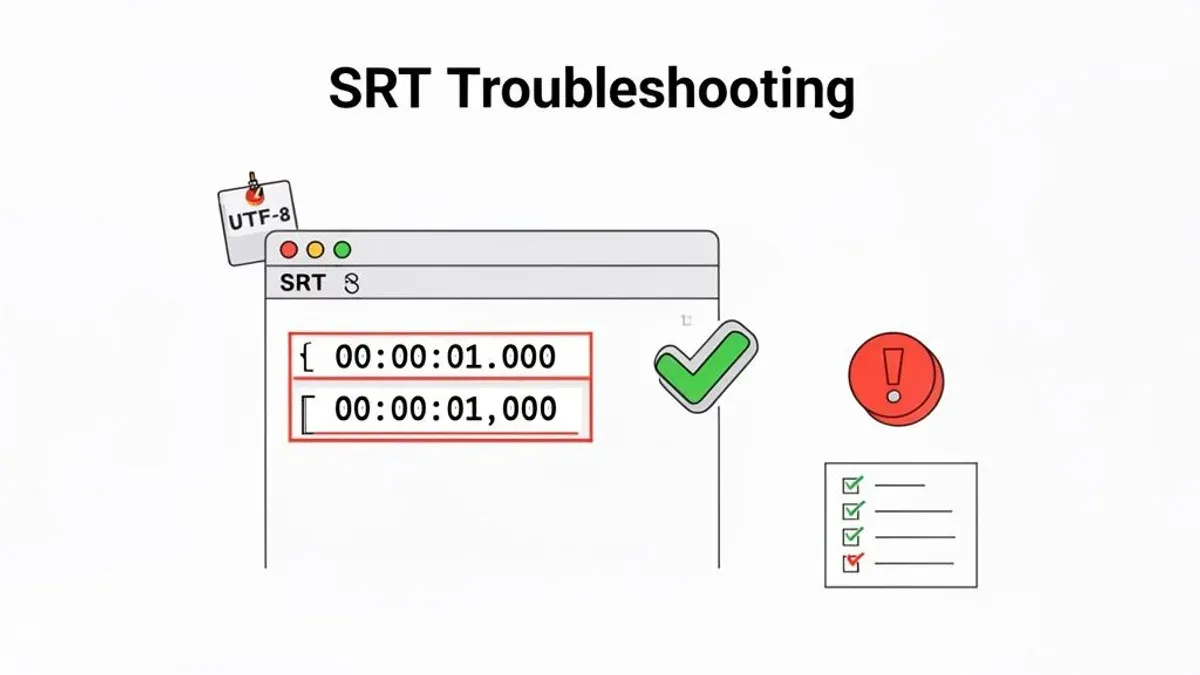
Unreadable characters usually indicate encoding problems. Open the.srt file in a text editor like TextEdit, then use the Format > Make Plain Text option and save the file with UTF-8 encoding. In TextEdit preferences, verify the default encoding is set to UTF-8 to prevent future issues.
macOS may not associate.srt files with your preferred player by default. To fix this, right-click the.srt file, select Get Info, expand Open with, choose your media player, then click Change All. This ensures double-clicking opens subtitles properly.
- Open your video in VLC and add the.srt subtitle via Subtitle > Add Subtitle File. You should see subtitles synchronized during playback.
- If subtitles lag, press G or H to adjust sync until subtitles match audio.
- Open the.srt in TextEdit, select Format > Make Plain Text, save with UTF-8 encoding. Reload subtitles to see correct characters.
- Right-click the.srt file, choose Get Info, set your player in Open with, click Change All. Double-click the file to confirm it opens with the chosen app.
- If issues persist, consider converting the.srt file to another subtitle format (like.ass) using tools like Subtitle Edit or try a different player with robust subtitle support.
- How to Install Safari Extensions in Safari on Mac and iPhone
- Mute Noisy Safari Tabs Quickly on Your Mac
Frequently asked questions
What program opens.srt files?
.srt files can be opened by various programs including VLC Media Player, QuickTime Player with additional steps, and text editors like TextEdit or Sublime Text. VLC is often preferred as it supports subtitle integration directly without extra configuration.
How to open srt file on mac?
To open an.srt file on a Mac, you can use VLC Media Player by loading the video and then selecting the subtitle file via the Subtitle menu. Alternatively, open it as a text file in an editor like TextEdit to view or edit the subtitle text.
How to run srt file?
.srt files are not executable but are used as subtitle files alongside video files. To use them, open your video in a compatible player like VLC, then load the.srt file so subtitles display while the video plays.
What app opens srt files?
Many apps open.srt files including VLC Media Player, IINA, and Elmedia Player on Mac. For editing, simple text editors such as TextEdit or third-party apps like Subtitle Edit can be used.
How to open a.srt file?
Open a.srt file by either loading it as subtitles in a media player like VLC or opening it in a text editor to view or edit the subtitle text. In VLC, use the Subtitle menu to add the.srt file while playing your video.
What this advice does not cover and who should do something else
This article does not cover professional subtitle creation software or advanced subtitle editing beyond basic text editing. If you need to create subtitles from scratch, synchronize multiple subtitle tracks, or work with complex styling and timing adjustments, dedicated subtitle software like Subtitle Edit or Aegisub on Windows, or more advanced Mac apps such as Jubler, may be more appropriate.
Some apps mentioned here may not support all subtitle features, including styling options, positioning, or multiple language tracks. Also, online tools for opening or editing.srt files can pose privacy risks since your files are uploaded to external servers, so avoid them if your content is sensitive or confidential.
The single most useful next step is to choose the video player or text editor that fits your immediate needs and test loading your.srt file with a sample video. This hands-on approach will help you identify any compatibility issues early and decide whether you need to explore alternative software or tools for your subtitle tasks.