
Mute Noisy Safari Tabs Quickly on Your Mac
This guide shows how to mute a noisy tab in Safari efficiently on Mac using built-in features and shortcuts to manage audio.
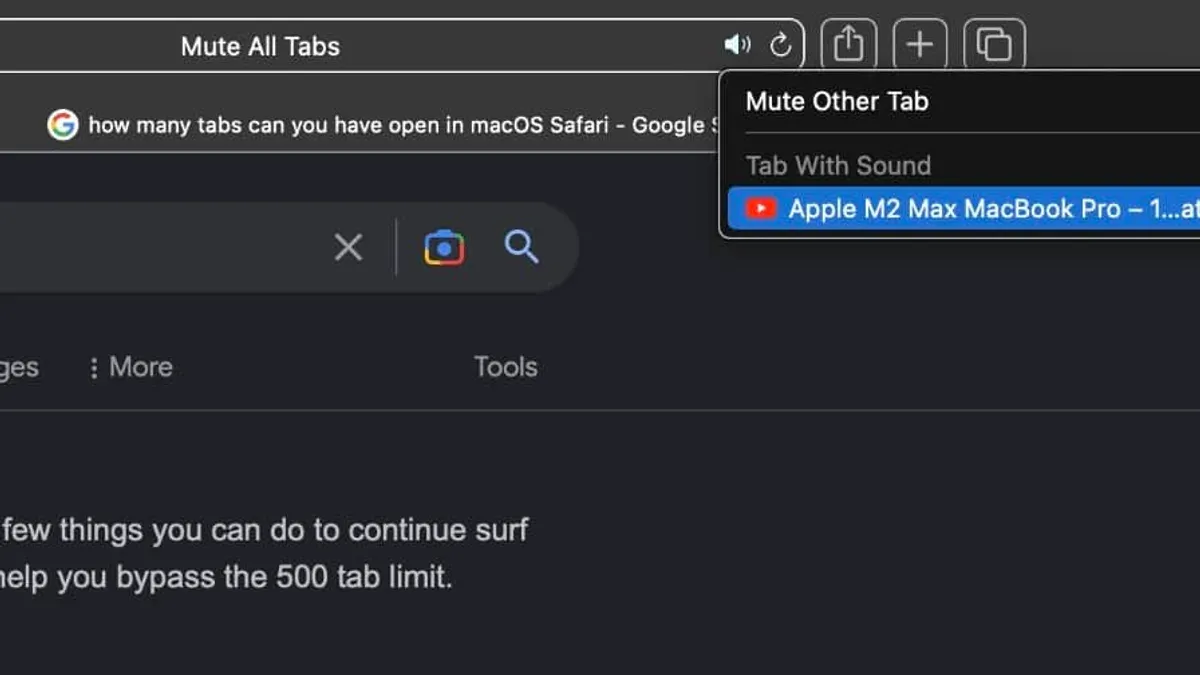
Dealing with noisy tabs in Safari can disrupt your focus and workflow. This guide explains how to mute a noisy tab in Safari efficiently, using built-in features and troubleshooting tips for Mac users running macOS Ventura or later.
Understanding Why Tabs Make Noise in Safari
Safari tabs produce audio for several reasons, including videos playing automatically, sound in advertisements, and other auto-play media embedded on websites. Identifying the source helps determine when and how to mute tabs.
- Types of content triggering sound: Videos on streaming sites, audio ads, and auto-play media elements often start playing sound without user interaction.
- Safari’s audio handling: Since macOS Ventura, Safari isolates audio per tab. Each tab controls its own sound independently, allowing selective muting.
- Visual indicators: Safari displays a small speaker icon on tabs currently producing sound. This icon appears in the tab bar, making it easier to spot noisy tabs quickly.
For example, if multiple tabs are open and one plays a video with sound, the tab displays a speaker icon. Before macOS Ventura, Safari’s audio indicators were less prominent, making identifying noisy tabs slower.
Step-by-Step Guide to Muting Noisy Tabs in Safari
Muting tabs in Safari is straightforward but varies depending on whether you want to mute a single tab or all tabs at once. Follow these steps:
- Mute a single tab: Click the speaker icon that appears in the tab title. This toggles mute on or off immediately. Note that sometimes the icon may not appear if the tab is not currently producing sound.
- Mute all tabs: In Safari, select Settings > Websites > Auto-Play. Here, you can set preferences to limit media auto-play with sound per website. Additionally, use the Mute All Tabs option under the Window menu to silence all tabs at once.
- Keyboard shortcuts: Press
Option + Command + Mto mute or unmute all tabs quickly. This shortcut is useful when multiple tabs are noisy. - Using Tab Overview: Open Tab Overview by clicking the tab overview button or pinching with three fingers on the trackpad. Tabs playing sound show the speaker icon here, helping locate noisy tabs efficiently.
Combining these methods lets you silence unwanted audio without closing tabs or affecting system-wide sound settings.
Advanced Tips: Managing Persistent Noisy Tabs and Troubleshooting
Occasionally, muting via the speaker icon may not stop sound, or tabs may repeatedly auto-play media. Consider these approaches:
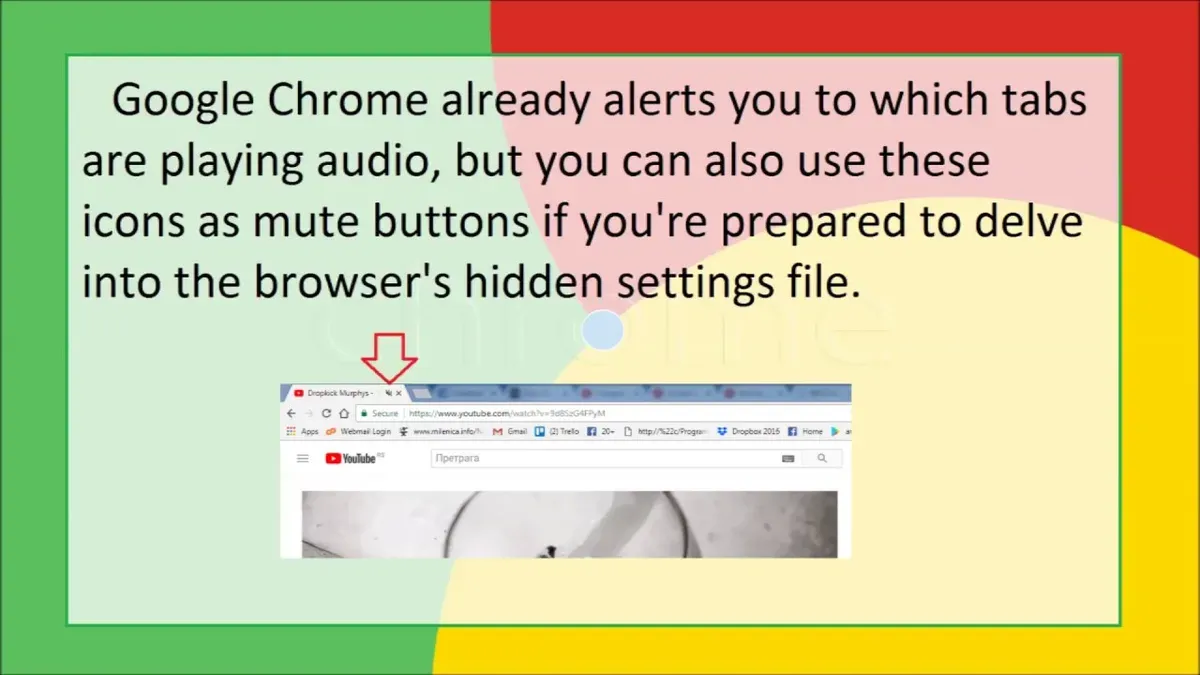
- Use Content Blockers: Safari supports content blockers that can prevent auto-play media and ads from producing sound. Enable or configure blockers in Safari’s Settings under Extensions. Keep in mind some blockers may block content you want.
- Disable audio per website: In Safari’s Settings > Websites > Auto-Play, you can set specific websites to never auto-play media with sound. This setting is site-specific and must be configured per domain.
- Unresponsive mute button: Extensions or scripts may interfere with muting. Temporarily disable extensions to check if they cause issues.
- Identify rogue audio processes: Enable Safari’s Develop menu (in Preferences > Advanced) to inspect tabs or use Activity Monitor to find processes consuming audio resources. Closing or reloading problematic tabs can resolve persistent sound.
For example, if a video ad keeps playing sound despite muting, try disabling extensions or blocking auto-play for that site.
Comparing Safari’s Tab Muting Features to Other Browsers
Safari’s tab muting features compare well with other browsers but have unique strengths and some limitations.
| Feature | Safari | Chrome | Firefox | Edge |
|---|---|---|---|---|
| Per-tab audio mute | Yes, via speaker icon | Yes, speaker icon | Yes, speaker icon | Yes, speaker icon |
| Mute all tabs shortcut | Option + Command + M | Not default | Not default | Not default |
| Integration with macOS sound | System-level interaction | Limited | Limited | Limited |
| Performance impact when muting | Minimal | Minimal | Moderate | Minimal |
Safari benefits from deep macOS integration, allowing better control over audio and minimal performance impact when muting tabs. Other browsers offer similar muting controls but generally lack system sound integration.
When Muting Tabs Isn’t Enough: Other Ways to Manage Browser Noise
If muting tabs does not fully address your needs, consider these alternatives:
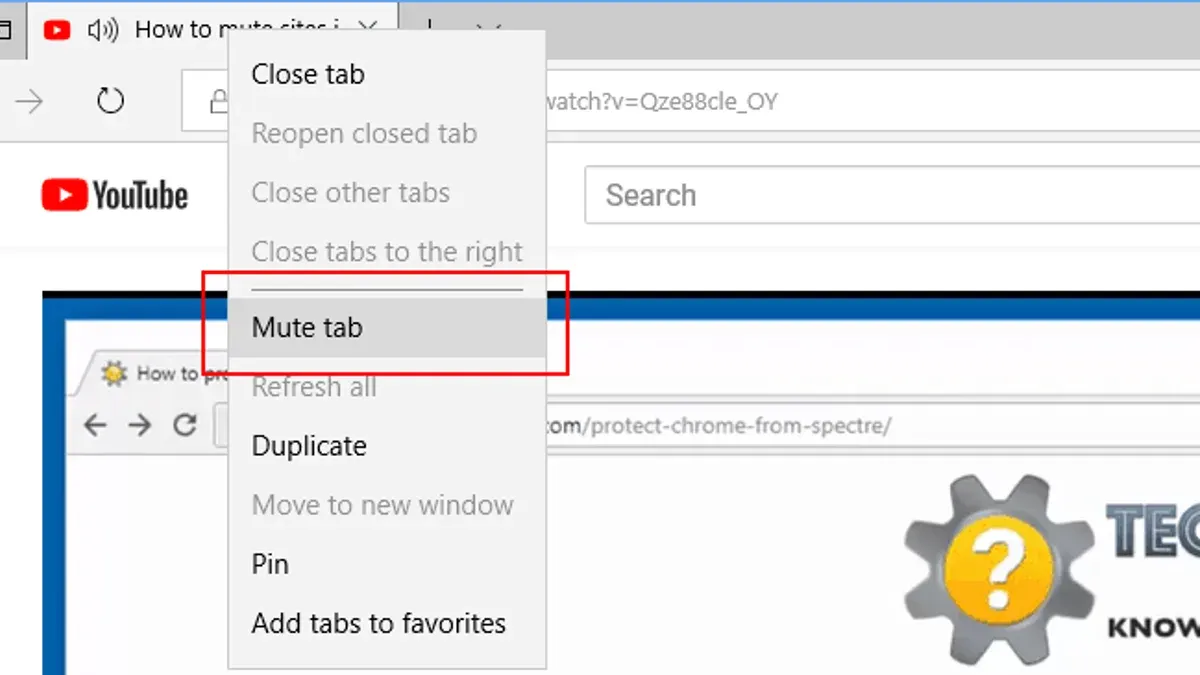
- macOS sound settings: Use Sound preferences to adjust volume per app. Safari does not support per-tab volume control natively, so controlling overall Safari volume can help.
- Third-party apps and extensions: Apps like BackgroundMusic allow per-app sound control, complementing Safari’s muting. Some Safari extensions offer advanced tab audio management but may affect browser performance.
- Best practices: Restrict auto-play permissions in Safari’s website settings to prevent unwanted media from starting automatically. Regularly review open tabs and close those prone to loud ads or auto-play.
Using these methods together helps maintain a quieter browsing environment without sacrificing convenience.
Caveats and Limits of Safari’s Tab Muting
- This guide applies to Safari on macOS Ventura and later; muting features differ on iOS devices and older macOS versions.
- Muting tabs silences audio but does not stop video playback or reduce data usage.
- Some websites or browser extensions can override Safari’s muting controls, requiring manual troubleshooting.
Frequently Asked Questions
Can I mute tabs automatically when they start playing sound in Safari?
Safari does not currently offer automatic muting of tabs upon sound playback. Adjusting auto-play settings per website can reduce unexpected audio but does not fully automate muting.
How do I mute Safari tabs on iPhone or iPad?
On iOS and iPadOS, Safari’s interface differs. You can tap the speaker icon in the tab bar to mute a tab, but full tab muting controls like those on macOS are limited.
Does muting a tab stop the media from playing or just silence the audio?
Muting silences only the audio; video and other media continue running in the background, which may still consume data and processing resources.
Why does a muted tab sometimes still produce sound?
This can happen if extensions interfere or if the website uses unconventional audio methods. Disabling extensions or reloading the tab often resolves this issue.



