How to Use Reader Mode in Safari for Cleaner Reading
Safari's Reader Mode removes clutter and distractions for a cleaner, more accessible reading experience on Mac and iPhone.
Safari's Reader Mode simplifies web pages for easier reading by removing distractions and clutter. This guide explains how to use and customize Reader Mode on Mac and iPhone to improve accessibility, reduce distractions, and boost productivity.
What is Reader Mode in Safari and Why Use It?
Reader Mode in Safari extracts the main article content from a webpage, removing ads, sidebars, navigation menus, and other non-essential elements. It presents the text and key images in a clean, streamlined format, making reading easier on content-heavy or cluttered sites.
By decluttering pages, Reader Mode helps users focus solely on the text, which can improve reading speed and comprehension by eliminating distractions. It is especially useful for students researching online, casual readers consuming news or stories, and individuals with dyslexia or visual impairments who benefit from simplified layouts.
Users who prefer a distraction-free environment or require accessibility adjustments often find Reader Mode invaluable. Simplified pages also reduce cognitive load and eye strain.
How to Activate Reader Mode on Mac and iPhone
Activating Reader Mode differs slightly between Mac and iPhone but is straightforward.
On Mac (macOS Ventura and later)
- Open Safari and navigate to a compatible article or text-heavy page.
- Look for the Reader button on the left side of the address bar. It appears as four horizontal lines.
- Click this icon to enable Reader Mode, transforming the page into a simplified layout.
- To exit Reader Mode, click the same button again.
On iPhone (iOS 20 and later)
- Open Safari and load an article.
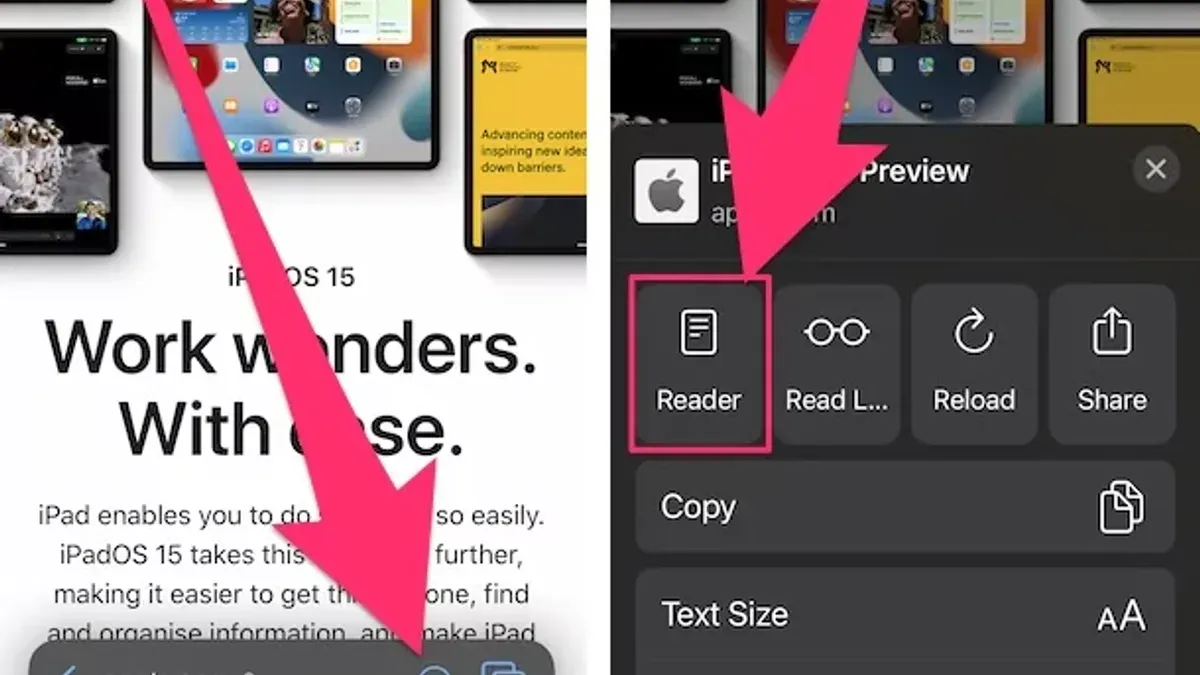
- Tap the 'AA' icon in the address bar.
- Select "Show Reader" from the dropdown menu.
- To turn off Reader Mode, tap the 'AA' icon again and choose "Hide Reader."
Keyboard Shortcuts and Gestures
- Mac: Press
Shift + Command + Rto toggle Reader Mode on or off quickly. Note that this shortcut only works when the page supports Reader Mode. - iPhone: No default gesture exists, but enabling Reader Mode through the 'AA' menu is fast and accessible.
Customizing Reader Mode: Fonts, Themes, and Text Size
Reader Mode lets users tailor the reading experience for comfort and accessibility.

- Changing Font Styles and Sizes: After enabling Reader Mode, click or tap the 'AA' icon. You can select from several fonts including serif and sans-serif, and adjust text size by increasing or decreasing it. Note that font availability may vary slightly between macOS and iOS versions.
- Switching Themes: Choose between light, dark, and sepia themes to suit different lighting conditions or reduce eye strain. The theme applies only within Reader Mode and does not affect the rest of Safari.
- Saving Preferences: Safari remembers your Reader Mode settings per device, providing a consistent reading experience across sessions. However, preferences do not sync across devices automatically.
Customizing fonts and colors can improve readability. For example, some users find serif fonts easier for long-form reading, while others prefer sans-serif for clarity. Dark or sepia themes reduce glare in low-light environments.
Advanced Tips: Using Reader Mode for Productivity and Accessibility
Reader Mode offers more than just clean reading; it supports productivity and accessibility in various ways.
- Printing and Saving Clean Articles: Use Reader Mode to print articles without ads or save them as PDFs. This produces cleaner documents free from clutter and extraneous elements.
- Reading List and Offline Access: Articles opened in Reader Mode integrate with Safari’s Reading List. This allows offline reading with the simplified layout intact, although some dynamic content may not be available offline.
- Accessibility Integration: Reader Mode works well with VoiceOver and other assistive technologies by providing a straightforward text structure. This helps screen readers navigate content more effectively.
- Limitations: Reader Mode does not support interactive elements like videos, forms, or dynamic content. Paywalled articles may also restrict Reader Mode usage or display limited content.
For example, a user can save a news article in Reader Mode to their Reading List for offline study, ensuring an uncluttered view even without internet connectivity.
Troubleshooting and When Not to Use Reader Mode
Reader Mode is not always available or appropriate. Understanding its limits helps avoid frustration.
- Unavailable Pages: Reader Mode may not activate on sites where content is heavily interactive, behind paywalls, or formatted unusually. The Reader button will not appear if the page is incompatible.
- Unsupported Content: Videos, audio, forms, comment sections, and dynamic widgets are stripped out. If these are vital to your experience, Reader Mode is not suitable.
- Alternatives: For complex pages, consider using Safari’s Reader Extensions or third-party apps designed for advanced content parsing and customization.
For instance, if you need to fill out a form on a webpage, Reader Mode will not display it, so viewing the original page is necessary.
Reader Mode Limitations
Reader Mode does not support interactive or multimedia content. Users who need to engage with videos, forms, or other dynamic elements should not rely on it exclusively.
Frequently asked questions
Can I customize Reader Mode settings for different websites?
Safari saves your Reader Mode preferences globally per device, not per website. Customizing settings per site is not currently supported.
Does Reader Mode save my reading progress across devices?
While Reader Mode works with Safari’s Reading List, which syncs across devices, progress tracking within Reader Mode itself is limited. Users can resume articles via Reading List but detailed scroll position syncing is not automatic.
Will Reader Mode remove all ads and trackers from a webpage?
Reader Mode removes visible ads and page clutter but does not block trackers or background scripts. Use Safari’s Privacy features for tracking protection.
How does Reader Mode affect webpage loading speed and data usage?
Loading pages in Reader Mode can reduce data usage as it skips ads and extra content, resulting in faster page render times. However, the initial page load still downloads the full page content before Reader Mode cleans it up.