
How to Open.pages Files on Mac and Windows: A Step-by-Step Guide
Discover practical methods to open.pages files on Mac and Windows, including using the Pages app, iCloud, and file conversion options.
You receive a.pages file attached to an email or downloaded from a cloud service and need to access its contents. If you're using a Mac, you might wonder how to open.pages file on Mac seamlessly without losing formatting or data.
This guide walks you through practical methods for opening.pages files on both Mac and Windows devices. You'll learn how to use the native Pages app on Mac, access files via iCloud on Windows, convert.pages files to Word or PDF formats, and explore alternatives when Pages or iCloud aren't available. Each approach highlights its benefits and limitations to help you choose the best workflow for your setup.
Key takeaways
- The Pages app on Mac opens.pages files natively with full editing capabilities.
- Windows users can access.pages files by uploading them to iCloud and exporting as Word or PDF.
- Converting.pages files to Word or PDF is a reliable fallback for cross-platform sharing.
- Opening.pages files on Mac without Pages requires exporting through iCloud or converting externally.
- Some methods may lose original formatting or features, so choose based on your editing needs.
Before you start: What you need to open.pages files
The.pages file format is native to Apple’s Pages app, used primarily on macOS and iOS devices. These files contain rich text, images, and formatting specific to Pages, which means they are not directly compatible with many other programs, especially on Windows.
To open.pages files on a Mac, the simplest method is to use the Pages app itself, which comes preinstalled on most Macs or is available for free from the Mac App Store. This app fully supports all features of.pages files and ensures the best editing experience.
On Windows devices, there is no native support for.pages files. You must rely on alternative methods such as accessing the file via iCloud’s web version of Pages, converting the file to Word or PDF formats, or using third-party tools. Many of these options require a stable internet connection and a compatible browser.
Compatibility between file versions can affect how well a.pages file opens. Newer versions of Pages may use features unsupported by older software or online converters, potentially causing formatting issues.
To clarify these differences, the following table compares software compatibility and file format support:
| Platform | Software/Method | Supports Native.pages Files? | Requires Internet? | File Conversion Needed? |
|---|---|---|---|---|
| Mac | Pages app | Yes | No | No |
| Windows | iCloud Pages (web) | Yes (via browser) | Yes | No |
| Windows | Third-party converters | No | Varies | Yes (to Word, PDF, etc.) |
| Mac | Microsoft Word (indirect) | No | No | Yes (converted file) |
Understanding these requirements helps you choose the right approach based on your device and access to software or internet connectivity.
How to open.pages files on Mac using the Pages app
- Locate the.pages file on your Mac using Finder. It is often saved in the Documents folder or on your Desktop.
- Double-click the.pages file. If Pages is installed, the file will open automatically in the Pages app, displaying the document content.
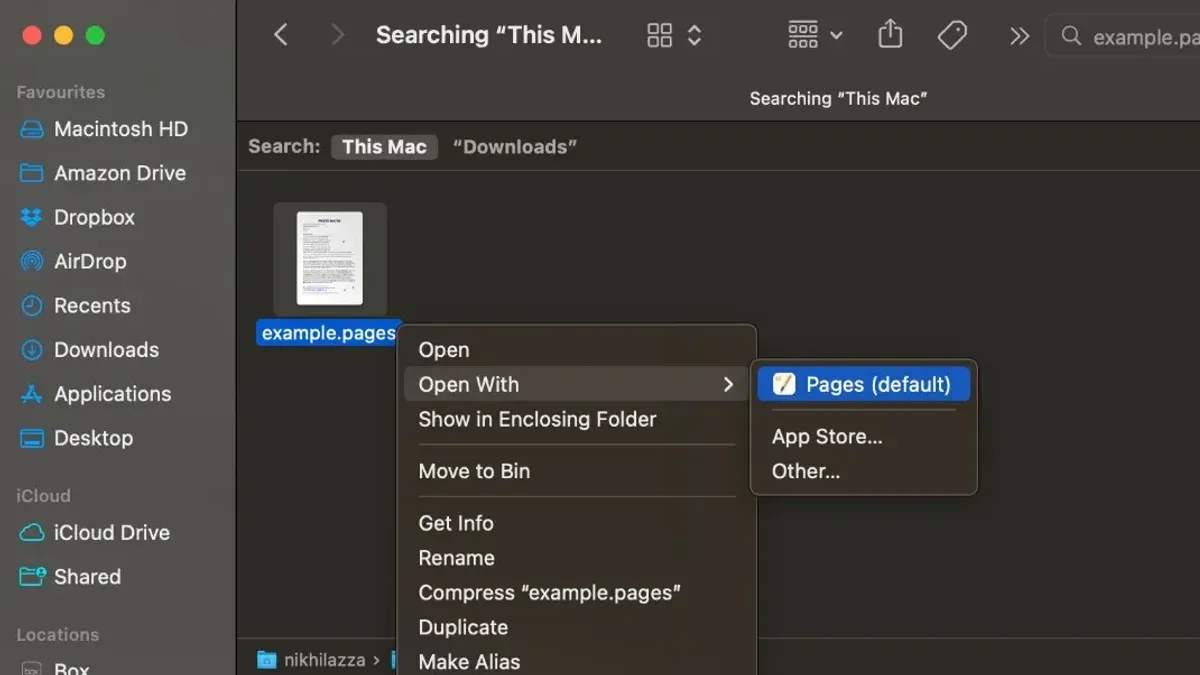
- If the file does not open with Pages by default, right-click (or Control-click) the.pages file, select Open With, and then choose Pages from the list of applications. The document will open in Pages.
- Once open, you can view and edit the document directly within the Pages app. Use the toolbar at the top to add text, images, or make formatting changes.
- To save your changes, click File in the menu bar and choose Save. This updates the original.pages file with your edits.
- To export the document to other formats, click File > Export To and select a format such as PDF, Word, or Plain Text. Follow the prompts to choose export options and save the new file.
This native method provides full editing capabilities and straightforward file management for.pages documents on Mac.
How to open Mac Pages files on Windows using iCloud
You can access and edit.pages files on a Windows PC by using the iCloud web version of Pages, which requires an Apple ID. This method avoids installing additional software and provides a straightforward way to work with these files online.
- Go to icloud.com in your web browser. You should see a login screen for Apple ID.
- If you do not have an Apple ID, click "Create Apple ID" and follow the prompts to set up a free account. Upon logging in, you will land on the iCloud dashboard showing various apps.
- Click on the "Pages" icon to open the web-based Pages app. You will see an interface similar to the Pages app on Mac.
- In Pages, click the gear icon in the upper right corner and select "Upload Document." Choose your.pages file from your Windows PC. Once uploaded, the document will appear in your Pages document list.
- Click the uploaded.pages file to open it. You can now view and edit the document directly within this web interface, albeit with some limitations compared to the desktop app.
- To export the file, click the wrench icon in the toolbar, select "Download a Copy," then choose either "Word" or "PDF." The file will be converted and saved to your Windows device in the chosen format.
This process offers a reliable way to open and work with.pages files on Windows without needing the Pages app itself. The main trade-off is a dependency on internet connectivity and Apple’s iCloud service availability.
How to open.pages files on Windows by converting to Word or PDF
To access.pages files on Windows without the Pages app or iCloud editing, you can convert the files into Word or PDF formats. This method provides greater compatibility across Windows devices but may affect the original formatting.
- Open a web browser and go to iCloud.com. Log in with your Apple ID.
- Click on the Pages app icon, then upload your.pages file by clicking the upload button.
- Once the file opens, click the Tools icon (a wrench) in the toolbar, then select Download a Copy.
- Choose either Word or PDF as the export format. The file will download to your Windows device.
- Open the downloaded file in Microsoft Word or a PDF reader. Check the document carefully for any formatting changes such as altered fonts, misplaced images, or layout shifts.
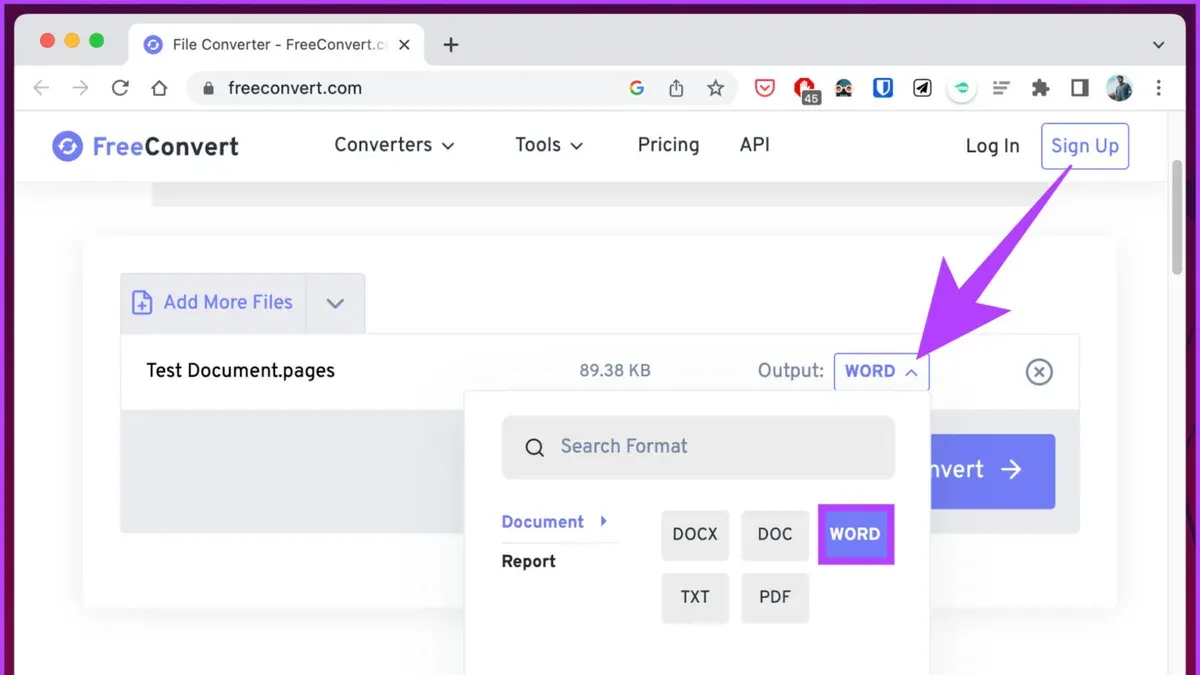
Alternatively, you can use third-party online conversion tools like CloudConvert or Zamzar by uploading the.pages file and selecting Word or PDF output. These tools often work without an Apple ID but may have file size limits, privacy concerns, or inconsistent conversion quality.
Comparisons show that iCloud export generally preserves formatting better than many online converters, especially with complex layouts or embedded media. User feedback often highlights occasional missing elements or font substitutions with free converters. Always review the converted document thoroughly before sharing or editing.
How to open.pages files on MacBook without the Pages app
If you don’t have the Pages app installed, you can still access.pages files using a few alternative methods, though each has limitations in editing and formatting.
Previewing.pages files with Quick Look
Select the.pages file in Finder and press the spacebar to activate Quick Look. You will see a preview of the document's content, including text and some images, but you cannot edit or copy from this view.
Extracting content by renaming the.pages file as a ZIP archive
- Locate the.pages file in Finder.
- Right-click the file and select Rename. Change the extension from .pages to .zip.
- Double-click the renamed ZIP file to extract its contents into a folder.
- Open the extracted folder and navigate to QuickLook.
- Inside QuickLook, find the Preview.pdf or Thumbnail.jpg files and open them to view the document content.
This method provides a readable PDF or image preview of the document but does not allow editing the original.pages content.
Using alternative apps like TextEdit
Open the.pages file with TextEdit by right-clicking the file, selecting Open With, then choosing TextEdit. You will see some raw XML and text data, which can include parts of the document's text but is not formatted or easily readable.
These methods offer basic access to.pages file content without Pages but do not support editing or preserve the original formatting and layout.
How to open Mac Pages files in Word on Mac
If you prefer using Microsoft Word on your Mac or do not have the Pages app installed, you can convert your.pages files to Word format before opening them. This process helps preserve most of the formatting, though some complex layouts or fonts may shift slightly.
- Open the.pages file in the Pages app if available. You should see the document displayed with its original formatting.
- Click File in the menu bar, then select Export To > Word. A dialog box titled "Export Your Document" will appear.
- Choose to include a password if desired, then click Next. You will be prompted to select a save location.
- Save the exported.docx file to your preferred folder. You should see the.docx file appear in Finder.
- Open Microsoft Word on your Mac, then open the newly exported.docx file. The document will load with most original text formatting, styles, and images intact.
Formatting differences may include slight changes in font rendering, spacing, or alignment, especially with tables, text boxes, or custom fonts. It is advisable to review the document carefully and adjust styles manually if needed.
If you do not have Pages installed, you can use iCloud’s Pages app by uploading the.pages file to iCloud.com, exporting it as a Word document, and downloading it to your Mac. This alternative also maintains reasonable formatting fidelity.
For documents with complex layouts, converting to PDF might preserve appearance better, but it will not be editable in Word.
Troubleshooting common issues opening.pages files
If your.pages file won’t open, the file might be corrupted or incompatible with your software version. Common error messages include “The file is damaged and can’t be opened” or “The document was created in a newer version of Pages.”
Fixing damaged or corrupted files
- Try opening the file on another Mac with the latest Pages version. If it opens, save a new copy to replace the corrupted one.
- Rename the.pages file extension to.zip, then unzip it. Extract the "QuickLook" folder and open the preview.pdf inside to recover readable content.
- Use a third-party file recovery tool designed for Pages documents, but note recovery success varies and formatting may be lost.
Handling version compatibility issues
If you see messages about newer Pages versions, update your Pages app to the latest available version via the App Store. Older versions may not support files created with newer features.
Dealing with password-protected or encrypted.pages files
To open encrypted files, you must enter the correct password when prompted. If you forget the password, there is no official way to bypass it, so keep backups of unencrypted versions.
For persistent issues, ensure your device meets minimum system requirements for Pages and that file extensions have not been altered incorrectly. If problems continue, consider exporting the document to a compatible format using iCloud or another Mac.
How to open.pages files on PC without iCloud or Pages
If you cannot or prefer not to use iCloud or the Pages app, there are alternative methods to access.pages files on a Windows PC. These options range from manual extraction to third-party software, each with limitations to consider.
Extracting content from.pages files
.pages files are essentially ZIP archives containing document data. You can rename the file extension from.pages to.zip and extract its contents with a standard decompression tool like 7-Zip or WinRAR.
- Locate the.pages file on your PC.
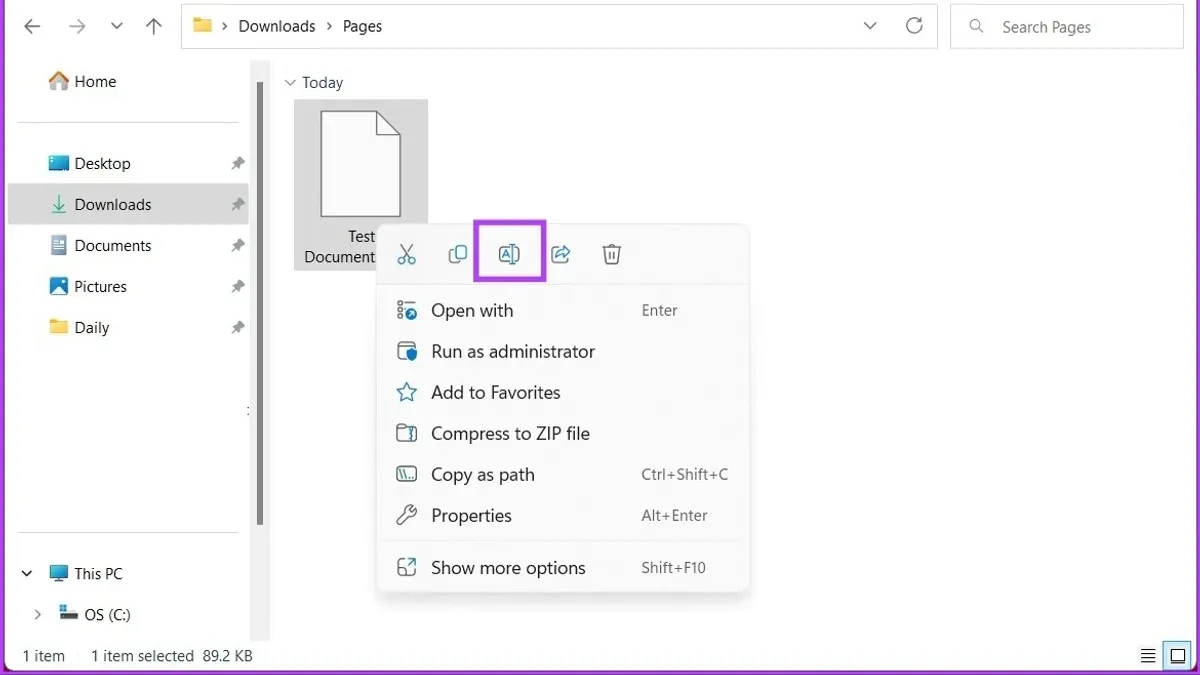
- Right-click the file and select "Rename." Change the extension from.pages to.zip and confirm.
- Use a decompression program to open the.zip file.
- Inside, navigate to the "QuickLook" folder and open the PDF preview file.
This method allows you to view the document content as a PDF but does not permit editing. If the PDF preview is missing, the file may not contain an embedded preview.
Using third-party software
Several third-party programs claim to open or convert.pages files on Windows. Popular options include File Viewer Plus, Zamzar, and CloudConvert. User ratings vary, and some tools may have limited formatting support or impose file size limits.
| Tool | User Rating | Security Considerations | Limitations |
|---|---|---|---|
| File Viewer Plus | Generally positive | Reputable, installs locally | Paid software, limited editing |
| Zamzar (online) | Mixed | Uploads files to server, privacy risk | File size limits, conversion quality varies |
| CloudConvert (online) | Positive | Uploads files to server, encryption used | Limited free conversions, requires internet |
Manual workarounds
If these methods are unsuitable, ask the sender to resave the document in a more accessible format like PDF or Word (.docx). This avoids compatibility issues and preserves formatting better.
Be cautious with untrusted converters or software, as they might expose your files to security risks or deliver poor conversion results.
- How to Open.numbers Files on Mac and Other Devices
- How to Open.ics Files on Mac: A Clear Step-by-Step Guide
- How to Open a.vcf File on Mac: Step-by-Step Practical Guide
- How to Open.torrent Files on Mac: Step-by-Step Guide
Frequently asked questions
How to open mac pages on windows?
You can open Mac Pages files on Windows by uploading the.pages file to iCloud.com and using the Pages web app to view or export the document. Alternatively, rename the.pages file extension to.zip, extract its contents, and open the Preview folder's PDF file if available. Converting the file to Word or PDF via iCloud or third-party tools is another practical method.
How to open mac pages in word?
To open a Mac Pages file in Word, first export the document as a Word file (.docx) from the Pages app on Mac or via iCloud's Pages web app. After exporting, open the resulting.docx file directly in Microsoft Word. This preserves most formatting and is the recommended approach for editing Pages documents in Word.
How to open.pages file on pc?
On a PC, you can open.pages files by logging into iCloud.com, uploading the file to the Pages app, and then exporting it to a Word or PDF format. Without iCloud, renaming the.pages file to.zip and extracting the PDF inside is a workaround. Native Windows apps do not support.pages files directly.
How to open pages file on macbook?
Open.pages files on your MacBook using the native Pages app, which is preinstalled or available from the App Store. Simply double-click the file or open it via Pages by choosing File > Open. If you don’t have Pages installed, you can download it for free from the Mac App Store.
How to open a.pages file?
To open a.pages file, use the Pages app on Mac or the Pages web app via iCloud.com on any device. If you cannot access Pages, convert the file by exporting it from iCloud or by extracting the PDF inside the zipped.pages file. Choosing the method depends on your device and available software.
What this advice does not cover and who should do something else
This article does not cover editing advanced Pages features on Windows, as full fidelity editing requires the native Pages app on macOS or iCloud web. Users needing to work with complex layouts, interactive elements, or specific Pages-only functions should use Apple devices or the iCloud web interface to ensure accuracy and avoid formatting loss.
For those who frequently collaborate on.pages files with Windows users or require seamless editing across platforms, investing in Apple hardware or relying on iCloud’s online Pages app remains the most reliable solution.
For a straightforward start, use iCloud to open and convert.pages files on Windows. This method preserves most formatting and allows basic edits without additional software installations.



