
How to Open.numbers Files on Mac and Other Devices
Discover practical methods to open.numbers files on Mac and other devices, including using Apple Numbers and converting files for compatibility.
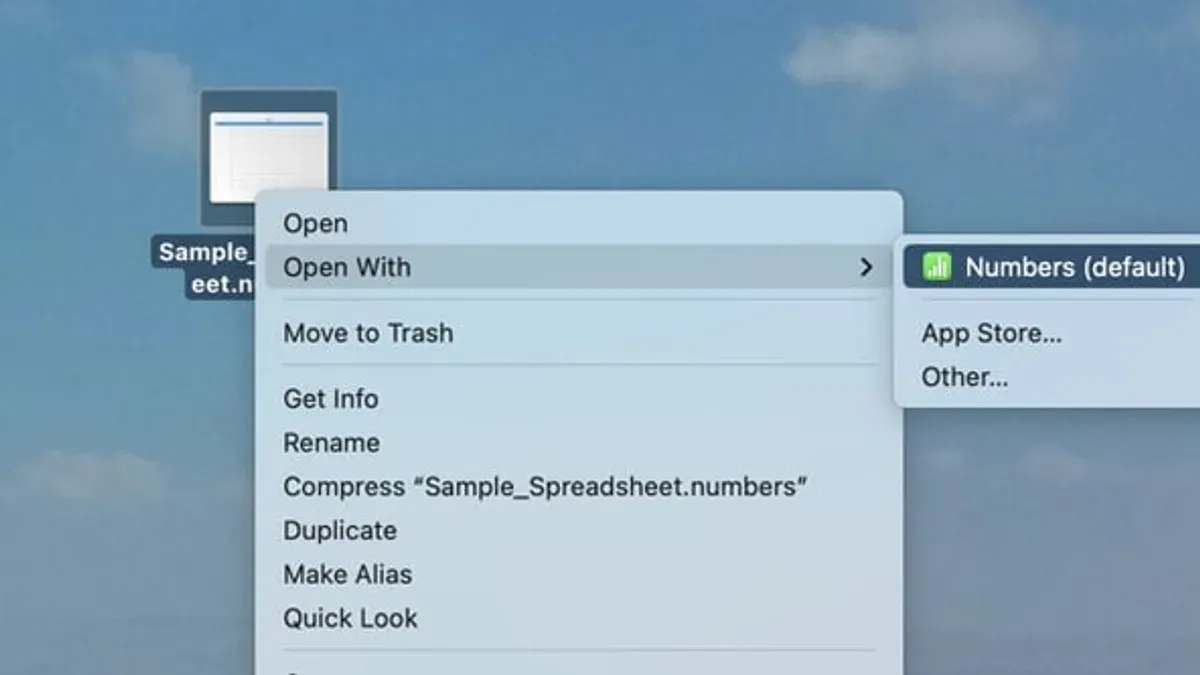
You just received a.numbers file via email or downloaded one from iCloud, and now you need to access its contents. Maybe you're wondering how to open.numbers file on Mac or whether it's possible to manage it on a Windows PC or Excel.
This article walks you through practical methods to open.numbers files across different platforms. You'll learn how to use Apple Numbers on a Mac, view.numbers files without the app on a PC, open them in Excel, and convert files for sharing or long-term compatibility. We’ll also cover common issues you might encounter and how to resolve them, helping you decide the best workflow based on your device and software.
Key takeaways
- Use Apple Numbers on Mac for the simplest, full-featured way to open and edit.numbers files.
- Windows users can view.numbers files by exporting them as Excel or PDF via iCloud.com.
- Excel can open.numbers files only after converting them to.xlsx format, usually by exporting from Numbers or iCloud.
- Apple Numbers on Mac lets you export files in multiple formats including Excel, CSV, and PDF for sharing.
- Common issues include unsupported features and formatting loss when converting between formats.
Before you start: What you need to open a.numbers file
The .numbers file format is proprietary to Apple Numbers, Apple's spreadsheet application included in the iWork suite. These files contain spreadsheet data, formulas, charts, and formatting specific to Numbers.
To open a.numbers file natively on a Mac, you need the Apple Numbers app installed. Numbers is available for free from the Mac App Store and requires macOS 10.15 or later for recent versions. Opening a.numbers file without Numbers on Mac is not feasible without converting or exporting it.
If you use a Windows PC or want to open.numbers files without installing Numbers, your options include using iCloud.com to access the Numbers web app or converting the file into a compatible format like Excel (.xlsx) or PDF. Note that iCloud access requires an Apple ID and internet connection.
File version compatibility can affect your ability to open or convert.numbers files, especially if the file was created with a newer version of Numbers than you have installed or accessed online. Files saved in older formats may open more smoothly across platforms.
| Method | Required Software | Supported Platform | Notes |
|---|---|---|---|
| Native opening | Apple Numbers app | Mac | Best compatibility and editing features |
| iCloud Numbers web app | Apple ID, web browser | Mac, Windows, Linux | Internet connection needed, limited offline access |
| File conversion | Numbers app or third-party converter | Mac, Windows | Exports to Excel (.xlsx), PDF, or CSV for broader compatibility |
- Ensure you have Apple Numbers installed on your Mac from the Mac App Store. When successful, you will be able to double-click a.numbers file and open it directly.
- If using Windows or without Numbers on Mac, sign in to iCloud.com with your Apple ID. After logging in, launch the Numbers web app. You should see an interface allowing you to upload and view.numbers files.
- To convert a.numbers file, open it in Numbers on Mac, then use the File > Export To menu to select Excel (.xlsx) or PDF. The exported file should open in compatible applications on your device.
How to open a.numbers file on MacBook using Apple Numbers
Opening a.numbers file on your MacBook is straightforward using the native Apple Numbers app. You can either open the file directly or launch Numbers first and access the file from within the app.
- Locate the.numbers file in Finder. Double-click it to open automatically in Apple Numbers. You should see your spreadsheet open for viewing and editing.
- If double-clicking doesn’t work or you prefer to open Numbers first, launch the Numbers app from your Applications folder or Dock.
- Once Numbers is open, click File in the menu bar and select Open…. Navigate to the folder containing your.numbers file, select it, and click Open. The file will load into Numbers.
- If the file does not open and you receive an error about incompatible versions, check for updates by opening the App Store, clicking Updates, and installing any available updates for Numbers. The app version must support the file’s format.
- After updating, repeat the steps to open the file. Compatibility is generally seamless when using the latest version of Numbers on macOS.
Using Numbers natively ensures full access to all spreadsheet features and formatting without conversion loss. This method is the most reliable for Mac users working with.numbers files.
How to view a.numbers file on a PC without Apple Numbers
Windows PCs do not natively support.numbers files, but you can still access and view them using Apple's iCloud web service. This method requires an Apple ID and a stable internet connection.

- Go to iCloud.com and sign in with your Apple ID. After logging in, you should see the iCloud web apps dashboard.
- Click on the Numbers app icon to open Numbers for iCloud. This web-based version of Numbers allows you to open and edit.numbers files online.
- Upload your.numbers file by clicking the upload button (cloud with an upward arrow) in the Numbers interface, then select your file from your PC. Once uploaded, the file will appear in your Numbers for iCloud documents list.
- Click the uploaded.numbers file to open it. You will see the spreadsheet rendered in the browser, allowing you to view and make basic edits.
- If you want to download the file in a more widely compatible format, select the wrench icon in the toolbar, then choose Download a Copy. You can export the file as Excel (.xlsx), PDF, or CSV. Choose the format that suits your needs and save it to your PC.
Numbers for iCloud provides a close representation of the original file but lacks some advanced desktop app features like complex scripting, detailed formatting, and certain chart types. File fidelity is generally good for standard spreadsheets, but performance can be slower depending on your internet speed.
Using iCloud.com is the most straightforward way for Windows users to view and convert.numbers files without additional software, though full editing capabilities are best on a Mac with the desktop Numbers app.
How to open Mac Numbers in Excel on Mac and Windows
To open a.numbers file in Microsoft Excel on Mac or Windows, you first need to convert the file to Excel's.xlsx format using Apple Numbers or iCloud Numbers. This process preserves most data but may cause formatting differences and some data loss, especially with complex spreadsheets.
- Open the.numbers file in Apple Numbers on your Mac. You should see the full spreadsheet with tables, charts, and formulas.
- Go to the menu bar and select File > Export To > Excel…. A dialog box will appear with export options.
- Choose the desired Excel format (usually .xlsx) and set any export preferences such as password protection or compatibility.
- Click Next, then select a destination folder and filename for the exported file. Click Export.
- Locate the exported.xlsx file in Finder. Double-click it to open in Microsoft Excel on your Mac. You should see your spreadsheet with most data intact.
- If you do not have Apple Numbers installed, log in to Numbers for iCloud in a web browser.
- Upload your.numbers file to iCloud Numbers. Once opened, click the wrench icon, then select Download a Copy > Excel. Save the file locally.
- Open the downloaded.xlsx file in Microsoft Excel on Windows or Mac.
Notes on formatting and data loss: Complex formulas, charts, and custom styles may not export perfectly. Some cell formatting like gradients or conditional formatting might be simplified or lost. Verify critical data after conversion, especially if you rely on macros or advanced functions, which Excel and Numbers handle differently.
| Step | Expected Result | Common Issues |
|---|---|---|
| Export from Numbers to Excel | File saved as.xlsx, ready for Excel | Export dialog may not show if Numbers is outdated |
| Open.xlsx in Excel | Spreadsheet loads with most data visible | Charts may appear distorted, formulas may need adjustment |
| Use iCloud Numbers to export | Excel file downloaded without installing Numbers app | Limited editing before export, slower upload/download |
Following these steps allows you to open and work with.numbers files in Excel on both Mac and Windows, balancing ease of access with awareness of potential formatting trade-offs.
How to use Apple Numbers on Mac for editing and exporting.numbers files
Apple Numbers on Mac offers a user-friendly interface to edit spreadsheets and manage.numbers files efficiently. When you open a.numbers file, the toolbar at the top provides access to common actions such as adding tables, charts, and text boxes. The sidebar on the right lets you customize formatting, cell data types, and sheet organization.
- Open your.numbers file in the Numbers app. You should see the spreadsheet displayed with tabs for each sheet at the top if multiple sheets exist.
- Click any cell to edit its contents directly. Use the formula bar at the top for entering or modifying formulas; changes update in real time.
- Use the + button in the toolbar to insert new tables or charts; drag and resize elements as needed on the sheet.
- To save changes, click File > Save or press Command+S. The file remains in.numbers format with all edits preserved.
- To export the file, go to File > Export To and select your preferred format: Excel (.xlsx), PDF, CSV, or Numbers ’09 format. A dialog will appear with options specific to the chosen format.
- Choose export options as needed (for example, for Excel, decide whether to include the table of contents or comments), then click Next.
- Select a destination folder and click Export. You should see a confirmation that the file was saved in the new format.
Numbers also supports collaboration through iCloud. When your.numbers file is saved in iCloud Drive, you can click the Collaborate button (a person icon with a +) in the toolbar to invite others via email or link. Changes sync automatically for all collaborators with editing permissions.
This seamless integration with iCloud enables real-time editing across Mac and iOS devices, making it easier to work on spreadsheets with others.
Troubleshooting common issues when opening.numbers files
If your.numbers file won’t open or appears corrupted, start by verifying the file size and extension. A file size of zero or an incorrect extension can cause failure to open. Try opening the file directly in Apple Numbers or via iCloud.com to check if the issue persists.
Handling version incompatibility errors
When you encounter error messages like “The file cannot be opened because it was created with a newer version of Numbers”, update Apple Numbers on your Mac or refresh your browser session in iCloud. If updating is not possible, ask the sender to export the file to an earlier Numbers version or to a compatible format like Excel (.xlsx).
Problems opening.numbers files on Windows or Excel
Windows users often see errors such as “Unsupported file format” when trying to open.numbers files directly. Since Numbers is not available natively on Windows, use Numbers for iCloud to open and export the file. Alternatively, request the sender to export the file as.xlsx or.csv for easier access in Excel.
Tips for recovering unsaved or damaged files
- Open Apple Numbers and check the File > Open Recent menu for autosaved versions. If found, open and save immediately.
- If the file is corrupted, try duplicating it and changing the extension to.zip, then unzip to extract raw data for manual recovery.
- Use Time Machine or other backup tools on Mac to restore previous versions of the file.
- For online files, check iCloud Drive’s Recently Deleted folder to recover deleted or lost documents.
Following these steps can resolve common.numbers file issues and help you regain access or recover lost content efficiently.
Converting.numbers files for long-term compatibility and sharing
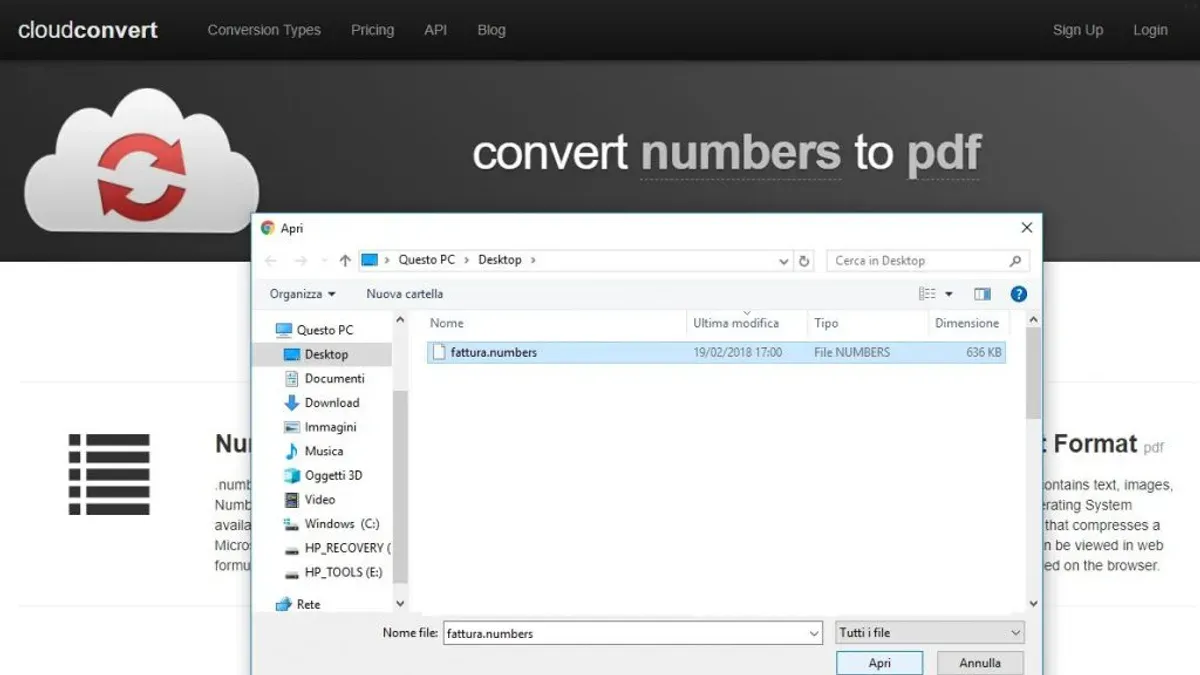
When sharing.numbers files with users on non-Mac platforms, converting them to more widely supported formats ensures accessibility and preserves data integrity. Common export options include Excel (.xlsx), PDF, and CSV, each with distinct advantages and limitations.
| Format | File Size | Compatibility | Feature Support |
|---|---|---|---|
| Excel (.xlsx) | Medium | High (Windows, Mac Excel, Google Sheets) | Good for formulas, charts; may alter advanced Numbers features |
| Small to Medium | Universal (View-only) | Preserves layout; no editing or formulas | |
| CSV | Small | High (Any spreadsheet) | Supports raw data only; no formatting, formulas, or charts |
| .numbers | Varies | Limited (Mac, iCloud) | Full functionality; best for ongoing editing on Apple devices |
Batch converting multiple.numbers files
Apple Numbers does not offer native batch exporting, but you can speed up conversion by using the iCloud web interface or automating with AppleScript on Mac. Alternatively, third-party tools may batch convert files but often lack full fidelity and can risk data loss.
- Open each.numbers file in Apple Numbers or via iCloud Numbers.
- Go to File > Export To and select your desired format (Excel, PDF, or CSV).
- Choose export options (e.g., including tables, charts) and confirm to save the converted file.
- Repeat for each file or use AppleScript automation if comfortable with scripting.
Third-party tools and their limitations
Some online converters and third-party apps claim to convert.numbers files, but they often do not fully support complex formulas, charts, or formatting. Use these tools cautiously and verify output files carefully to avoid data loss.
When to keep files in.numbers format: Retain the original.numbers files for ongoing editing on Apple devices to maintain full feature access, including formulas, styles, and collaboration features. Convert only for sharing or archiving with non-Apple users.
- How to Open.sqlite Files on Mac: A Clear Step-by-Step Guide
- How to Open.ics Files on Mac: A Clear Step-by-Step Guide
- How to Open a.vcf File on Mac: Step-by-Step Practical Guide
Frequently asked questions
How to use mac numbers?
To use Mac Numbers, open the app from your Applications folder or Launchpad. You can create a new spreadsheet by clicking the 2B22 button and selecting a template or a blank sheet. Enter data directly into cells and use the toolbar to format text, add charts, tables, and formulas. Save your work regularly by choosing File > Save or using Command + S.
How to open.numbers file on pc?
Since Apple Numbers is not available for Windows, you can open a.numbers file on a PC by first converting it. One method is to use iCloud.com: sign in with an Apple ID, upload the.numbers file to the Numbers web app, then export it as Excel or PDF. Alternatively, ask the sender to export the file to Excel or CSV before sending.
How to open.numbers file?
To open a.numbers file, the easiest way on a Mac is to double-click it if you have Apple Numbers installed. On other devices, upload the file to iCloud.com and open it with the Numbers web app. You can also convert it to Excel or PDF from the web app for use elsewhere.
How to open file.numbers?
Opening a.numbers file requires Apple Numbers on a Mac or access to iCloud.com for other devices. If you don’t have a Mac, upload the file to iCloud’s Numbers app using your Apple ID, then view or export it. Without these options, request the file in Excel or another compatible format.
How to open numbers file on macbook?
On a MacBook, open a Numbers file by locating it in Finder and double-clicking it, which launches Apple Numbers automatically. If the file doesn’t open, ensure you have the latest version of Numbers installed via the App Store. You can also open Numbers first, then use File > Open to browse and select your file.
What this advice does not cover
This article does not cover advanced data recovery for severely corrupted.numbers files or alternatives beyond official Apple and Microsoft tools. If your file is damaged or you need to work with.numbers files in bulk using automation or third-party software, specialized recovery services or developer tools may be necessary.
For users requiring professional-grade spreadsheet features not supported by Numbers or Excel, consider dedicated applications designed for complex data analysis and compatibility.
The most useful next step is to familiarize yourself with Apple Numbers’ export options. Export your.numbers files as Excel (.xlsx) or CSV formats directly from Numbers using the File > Export To menu. This ensures better compatibility when sharing files with Windows users or when you want to open them in other spreadsheet programs.



