
How to Open.sqlite Files on Mac: A Clear Step-by-Step Guide
Discover simple steps to open.sqlite files on Mac using both command-line and graphical tools for easy database management.
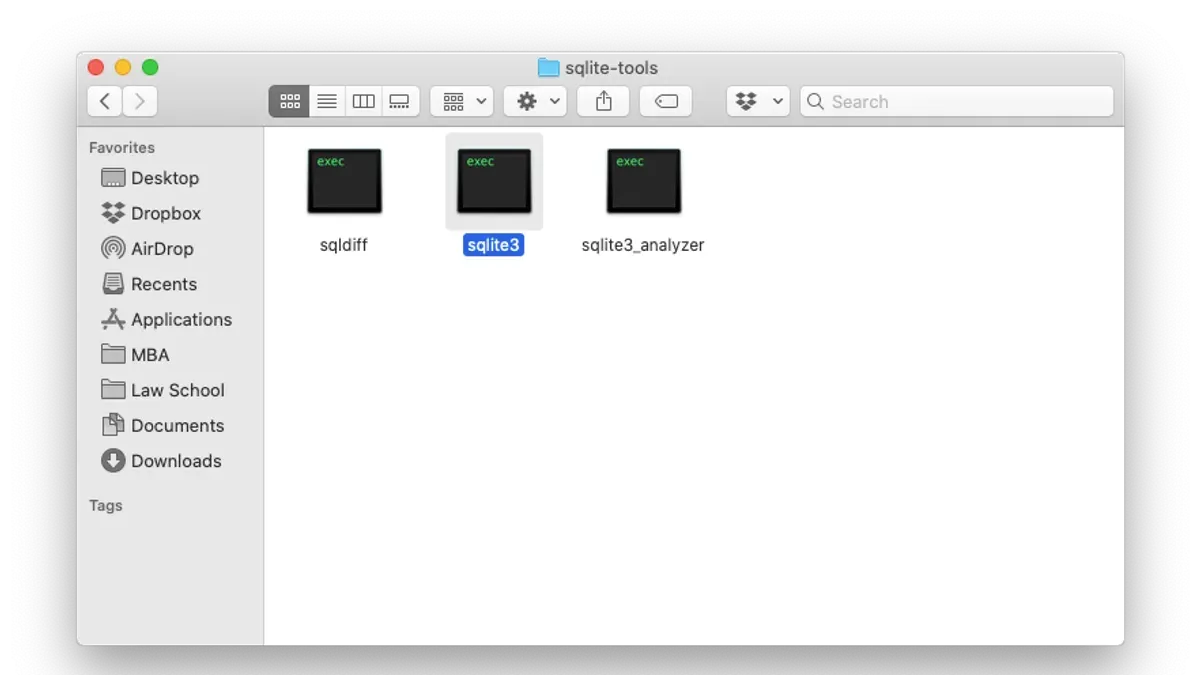
You have a.sqlite file on your Mac and need to access its contents but aren’t sure where to start. Whether it’s a database from an app backup or a project data file, knowing how to open.sqlite file on Mac efficiently is key to managing and analyzing the data inside.
This guide walks you through both command-line and graphical methods to open.sqlite files on Mac. It compares native tools like SQLite3 with third-party graphical browsers and explains how to handle these files across platforms. You’ll learn how to install necessary tools, open and query databases, and troubleshoot common issues—all tailored to different comfort levels and use cases.
Key takeaways
- Use Homebrew to install SQLite3 for command-line access to.sqlite files.
- Graphical SQLite browsers like DB Browser for SQLite provide a user-friendly way to explore databases without commands.
- Excel can open.sqlite files only after exporting data to a compatible format like CSV.
- SQLite tools are cross-platform but some graphical apps differ between Mac and Windows.
- Common issues include file permission errors and corrupted databases, often fixable with basic troubleshooting steps.
Before you start: What you need to open a.sqlite file on Mac
.sqlite files are database files commonly used by apps to store structured data locally. These files contain tables, indexes, and queries that organize information efficiently. To access and manage them on a Mac, you need tools that can read and manipulate SQLite databases.
macOS includes native tools such as the Terminal app with the sqlite3 command-line utility. This method is powerful but requires familiarity with command-line interfaces and SQL syntax. Alternatively, you can use graphical user interface (GUI) applications designed for SQLite databases, which offer more visual and user-friendly ways to browse and edit data.
Make sure your Mac is running a relatively recent version of macOS (such as macOS Mojave or later) to ensure compatibility with common SQLite tools. You may need appropriate permissions to access the directory where the.sqlite file is stored; check file permissions if you encounter errors opening the file.
Third-party apps, both free and paid, can extend functionality with features like query builders and export options. These require downloading and installing software from trusted sources.
| Tool Type | Ease of Use | Features |
|---|---|---|
| Native (sqlite3 via Terminal) | Moderate to advanced | Basic querying, lightweight, no install needed |
| Third-party GUI apps | Easy to moderate | Visual browsing, editing, export/import options |
How to install SQLite on Mac using Homebrew
Homebrew is a popular package manager for Mac that simplifies the installation of software like SQLite. It handles dependencies and keeps tools up to date, making it the preferred method for many Mac users.
- Open the Terminal app on your Mac.
- Check if Homebrew is installed by typing brew --version and pressing Enter. If you see a version number, Homebrew is installed. If the command is not found, proceed to the next step.
- To install Homebrew, paste the following command into Terminal and press Enter:
/bin/bash -c "$(curl -fsSL https://raw.githubusercontent.com/Homebrew/install/HEAD/install.sh)"
You will be prompted to enter your Mac password. Wait for the installation to complete. - Once Homebrew is installed, update it by running brew update.
- Install SQLite by typing brew install sqlite and pressing Enter. Homebrew will download and install SQLite and its dependencies.
- Verify the installation by typing sqlite3 --version. You should see a version number indicating SQLite is ready to use, for example, 3.43.1 2023-08-21 14:00:00.
Using Homebrew ensures you have a recent, maintained version of SQLite without manual configuration.
How to open a.sqlite file using the SQLite3 command-line tool on Mac
Using the Terminal to open a.sqlite file allows you to interact directly with the database through SQLite's command-line interface. This method suits users comfortable with command lines who want quick access without installing additional software.
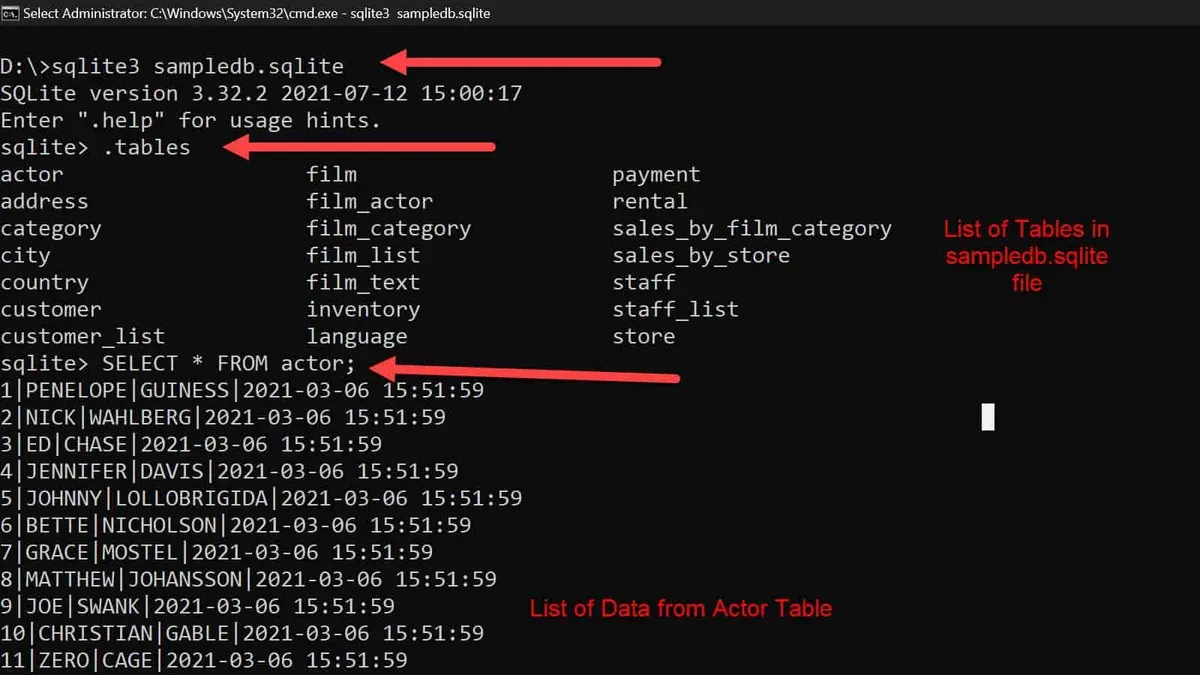
- Open Terminal: Use Spotlight (Cmd + Space) and type "Terminal," then press Enter to launch it.
- Navigate to the folder containing your.sqlite file: Use the
cdcommand followed by the file path. For example, if your file is in Documents, entercd ~/Documentsand press Enter. Successful navigation shows no error. - Open the.sqlite file with sqlite3: Type
sqlite3 yourfile.sqlitereplacing yourfile.sqlite with your actual file name, then press Enter. You will enter the sqlite3 shell, indicated by the promptsqlite>. - List all tables in the database: At the prompt, enter
.tablesand press Enter. The output lists all available tables. - Run a basic query: For example, to see the first 5 rows of a table named
users, enterSELECT * FROM users LIMIT 5;and press Enter. Query results display below. - Exit sqlite3 shell: Type
.exitor press Ctrl + D to exit and return to the Terminal prompt safely.
Example session:
cd ~/Documents
(No error, prompt returns)sqlite3 example.sqlite
sqlite>.tables
users orders productsSELECT * FROM users LIMIT 2;
1|Alice|[email protected]
2|Bob|[email protected].exit
How to open.sqlite files on Mac with a graphical SQLite browser
Graphical SQLite browsers provide a user-friendly way to view, edit, and manage.sqlite database files without using the command line. These apps are ideal if you prefer a visual interface or need to perform tasks like exporting data or running queries with a point-and-click approach.
One popular choice is DB Browser for SQLite, which is free, open-source, and compatible with Mac. Another option is SQLiteStudio, known for its extensive features and ease of use.
- Download DB Browser for SQLite from its official website (sqlitebrowser.org). You will see a Mac installer (.dmg file). Double-click the downloaded file to open it.
- Drag the DB Browser app icon into your Applications folder to install it. Once installed, launch the app from Applications. You should see the main interface with options like "Open Database" and "New Database".
- Click "Open Database" and navigate to your.sqlite file. Select it and click "Open." The database structure will appear in the left sidebar, showing tables and views.
- Use the tabs at the top to browse data (Browse Data), execute SQL queries visually (Execute SQL), or modify table structures (Database Structure). When you select a table, its contents display in a spreadsheet-like grid.
- To export data, go to the "File" menu and choose "Export". You can export tables or entire databases in formats such as CSV, SQL, or JSON. This is useful for sharing or analyzing data outside the app.
- Run queries visually by typing SQL statements in the "Execute SQL" tab and clicking the "Play" button. Results will display below the editor, allowing you to verify or manipulate data quickly.
- Editing tables is straightforward: double-click cells in the data grid to modify values, or use the "Modify Table" option to change schema elements like columns and indexes.
Graphical browsers like DB Browser for SQLite balance accessibility and functionality, making them a practical choice for users who want more than just viewing data but less complexity than command-line tools.
Note: Screenshots of the DB Browser interface with highlighted buttons and tabs can be found on the official website to guide your navigation visually.
How to open a.sqlite file in Excel on Mac
Excel does not support opening.sqlite database files directly because it is designed for spreadsheet data rather than relational database formats. To work with SQLite data in Excel, you must first export the data from the.sqlite file into a CSV format, which Excel can import easily.
You can export SQLite tables to CSV using the command line or graphical tools. For example, using the Terminal with the SQLite3 tool, run:
sqlite3 yourdatabase.sqlite "\.headers on" "\.mode csv" "SELECT * FROM tablename;" > output.csv
This command exports the entire table named tablename to a CSV file called output.csv with headers included.
Once you have the CSV file, follow these steps to import it into Excel on your Mac:
- Open Excel and go to File > Open.
- Navigate to the folder containing the CSV file and select it.
- Excel will launch the Text Import Wizard if the CSV is not detected automatically. Choose Delimited and click Next.
- Select the delimiter used in your CSV, typically Comma, then click Next.
- Set the data format for each column if needed, then click Finish.
- The SQLite table data will now appear in Excel as a spreadsheet.
Note that this approach loses relational database features such as multiple tables, indexes, and relationships. It is suitable for simple data analysis but not for maintaining database integrity or complex queries.
How to open.sqlite files on Windows and cross-platform considerations
SQLite database files (.sqlite) are compatible across operating systems, making it easy to work with the same file on both Mac and Windows. However, the tools available and workflows may differ between platforms.
Windows users commonly use tools like DB Browser for SQLite, SQLiteStudio, and SQLite Expert Personal, all of which have Mac counterparts or similar alternatives. DB Browser for SQLite is a popular open-source graphical tool available on both Mac and Windows, offering a consistent interface for browsing and querying databases. SQLiteStudio is another cross-platform GUI that supports both systems with feature parity.
| Tool | Mac Availability | Windows Availability | Interface Type | Notes |
|---|---|---|---|---|
| DB Browser for SQLite | Yes | Yes | GUI | Free, widely used, user-friendly |
| SQLiteStudio | Yes | Yes | GUI | Free, supports plugins and scripting |
| SQLite Expert Personal | No native Mac version | Yes | GUI | Feature-rich, Windows only |
| sqlite3 command-line | Yes | Yes | CLI | Native on Mac, installable on Windows via binaries or WSL |
To open a.sqlite file on Windows, you can download and install DB Browser for SQLite or SQLiteStudio, then open the file directly through the application’s File > Open Database menu. The database structure and data will display similarly to Mac versions, allowing seamless work across systems.
When transferring.sqlite files between Mac and Windows, ensure the file is not open or locked on one system to avoid corruption. Use cloud storage or USB drives for reliable file transfer. Because SQLite databases are platform-independent, no file conversion is necessary.
Online SQLite browser tools offer a quick way to view and query.sqlite databases without installing software. However, uploading sensitive databases to web services raises privacy and security concerns. Use online tools only with non-confidential data and trustable providers.
How to run a.sqlite file: executing SQL queries on Mac
Running a.sqlite file means executing SQL queries to retrieve, update, or manipulate the data stored within the database. Opening the file simply loads it, while running queries interacts with the data it contains.
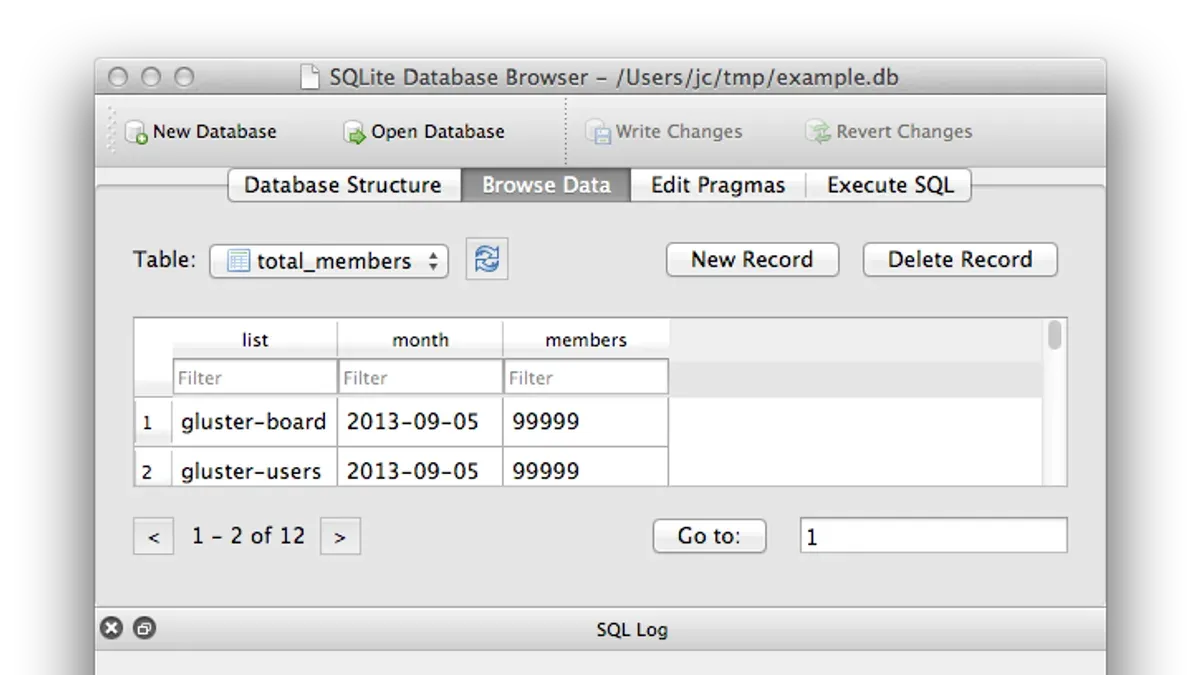
You can execute SQL statements using the sqlite3 command-line tool or graphical SQLite browsers. Both methods allow direct query input and display results dynamically.
- Launch Terminal and navigate to the folder containing your.sqlite file using cd /path/to/folder. You should see no errors if the directory exists.
- Start sqlite3 with your database by typing sqlite3 yourfile.sqlite. The prompt changes to sqlite>, indicating readiness to run queries.
- Run a simple query like SELECT name FROM sqlite_master WHERE type='table'; to list all tables. You should see a list of table names if the database has tables.
- Query data from a table, for example: SELECT * FROM users LIMIT 5; retrieves the first five rows from the "users" table. Results appear in a tabular format.
- To modify data, use statements such as UPDATE users SET active = 1 WHERE last_login < '2025-01-01';. On success, sqlite3 outputs sqlite> without errors.
- Save changes by typing .save newfilename.sqlite or simply exit with .exit to keep modifications in the original file.
- In graphical browsers, use the "Execute SQL" tab or similar interface to input queries and view results instantly. Export options are typically available to save query results as CSV or SQL dump files.
Using SQL queries lets you selectively access or update data, offering powerful control beyond just opening the file.
Troubleshooting common issues when opening.sqlite files on Mac
When working with.sqlite files on Mac, you may encounter several typical issues. Understanding common error messages and their solutions can help you resolve problems efficiently.
File permissions errors
If you see errors like "Permission denied" or "SQLite3: unable to open database file", it means you lack the necessary read/write access to the file or its folder.
- Right-click the.sqlite file in Finder and select Get Info. Check the Sharing & Permissions section at the bottom.
- If your user account does not have Read & Write access, click the lock icon, enter your password, and change the permissions accordingly.
- Close the Info window and retry opening the file. Successful permission changes remove these errors.
Corrupted database files
Errors such as "database disk image is malformed" indicate file corruption. Basic recovery steps include:
- Make a backup copy of the corrupted.sqlite file.
- Open Terminal and run sqlite3 corrupted_file.sqlite.
- Inside the sqlite3 shell, execute .dump to export the database schema and data.
- Create a new database file and import the dump output to restore data.
If corruption persists, consider using specialized SQLite recovery tools or restoring from backups.
Missing SQLite tools or PATH issues
If the command sqlite3 is not found, you might see "command not found". This often means SQLite is not installed or your PATH environment variable is misconfigured.
- Verify installation by running which sqlite3 in Terminal.
- If no path is returned, install SQLite via Homebrew with brew install sqlite.
- Ensure /usr/local/bin or the appropriate Homebrew path is included in your PATH variable. Add export PATH=/usr/local/bin:$PATH to your shell profile if needed.
- Restart Terminal and confirm sqlite3 launches without errors.
Handling large SQLite files
Very large.sqlite files may cause slowdowns or crashes in graphical apps.
- Try opening the file using the command-line sqlite3 tool, which is more memory efficient.
- Use SQL queries to export smaller data subsets or individual tables to CSV files.
- Consider increasing your Mac’s available memory or closing other applications to free resources.
- How to Open.db Files on Mac: Step-by-Step Guide for Any Type
- How to Open and Run.sql Files on Mac: A Step-by-Step Guide
- How to Open a.json File on Mac: Step-by-Step Guide
- How to Open.dmg Files on Mac: A Clear Step-by-Step Guide
Frequently asked questions
How to open sqlite file in windows?
To open a.sqlite file on Windows, you can use tools like DB Browser for SQLite, which offers a graphical interface for browsing and editing database files. Alternatively, you can install the SQLite command-line shell and open the file using the sqlite3 command followed by the filename. Both methods require downloading the relevant software from their official sites.
How to open sqlite database file?
Opening a SQLite database file involves using either command-line tools like sqlite3 or graphical applications such as DB Browser for SQLite or SQLiteStudio. These tools allow you to browse tables, run queries, and export data. Choose a method based on your comfort with command-line interfaces or preference for visual tools.
How to open sqlite3 file?
A.sqlite3 file is essentially a SQLite database file with a different extension. You open it the same way as a.sqlite file, using the SQLite command-line tool with sqlite3 filename.sqlite3 or a graphical SQLite browser. The file extension does not affect the method of access.
How to open sqlite file in excel?
Excel does not natively support opening.sqlite files. To view SQLite data in Excel, export the database tables to CSV format using a SQLite browser or command-line tool, then import the CSV file into Excel via File > Import or Data > Get External Data. This indirect method requires exporting and importing steps.
Does sqlite work on mac?
Yes, SQLite works natively on Mac. macOS includes the SQLite command-line tool pre-installed, accessible via Terminal. Additionally, numerous third-party graphical SQLite browsers are available for Mac, providing various interfaces to manage.sqlite files efficiently.
What this guide does not cover
This article does not cover advanced SQLite database design, programming integration, or complex database recovery beyond basic troubleshooting. If you need to embed SQLite into software projects, perform extensive database migrations, or recover corrupted databases, consider specialized resources or professional database administrators. This guide focuses on practical methods for opening and viewing.sqlite files on Mac, suitable for users with varying technical comfort.
The most useful next step is to try opening your.sqlite file with a graphical SQLite browser, such as DB Browser for SQLite. It provides an intuitive interface for browsing tables and running queries without requiring command-line knowledge, making it a balanced choice for most Mac users starting to work with SQLite files.



