How to Open.torrent Files on Mac: Step-by-Step Guide
This guide shows how to open.torrent files on Mac by selecting the right client, managing downloads, and troubleshooting common problems.
You have just downloaded a.torrent file on your Mac and are unsure how to proceed. Opening this small file correctly is essential to start downloading the content it links to, but Mac users often find the process unclear or encounter compatibility issues.
This article explains how to open.torrent file on Mac by guiding you through choosing the right torrent client, managing your downloads effectively, and ensuring safe and legal torrenting practices. It also addresses common problems so you can troubleshoot without hassle.
Key takeaways
- Use a compatible torrent client like qBittorrent or Transmission for smooth.torrent file opening on Mac.
- Configure download folders and bandwidth limits to manage torrent downloads efficiently.
- Verify the source of.torrent files to avoid malware and legal issues.
- Regularly update your torrent client to benefit from the latest security patches.
- If a.torrent file won’t open, check file associations and client settings before reinstalling.
Before you start: What you need to open a.torrent file on Mac
A.torrent file is a small metadata file that contains information about the files you want to download and the tracker servers that coordinate peer-to-peer sharing. It does not contain the content itself but acts as a roadmap for your computer to connect with other users sharing the data.
To open and use a.torrent file on your Mac, you need a torrent client – a specialized application designed to interpret these metadata files and manage the download process. Without a torrent client, your Mac cannot process.torrent files.
Popular torrent clients for Mac include Transmission, which has a straightforward interface and is widely rated for its ease of use; qBittorrent, known for its balance of features and simplicity; and Deluge, which is favored for customization options. These clients have millions of downloads worldwide and strong user communities, reflecting their reliability.
Ensure you have a stable internet connection and sufficient storage space before starting a torrent download, as files can vary greatly in size. Also, consider legal and security implications: only download content you have the right to access and use trusted sources to avoid malware risks.
- Download and install a torrent client like Transmission from its official website. Once installed, you should see its icon in your Applications folder.
- Locate the.torrent file you want to open. If the torrent client is properly installed, double-clicking the file should open it with the client and prompt you to choose a download location.
- Confirm the download location and start the torrent. The client should begin connecting to peers and show progress details.
How to open a.torrent file on Mac using a torrent client
- Download a reputable torrent client like qBittorrent or Transmission from their official websites. After downloading, open the installer package and follow the on-screen instructions to complete the installation. You should see the torrent client icon appear in your Applications folder once installed.
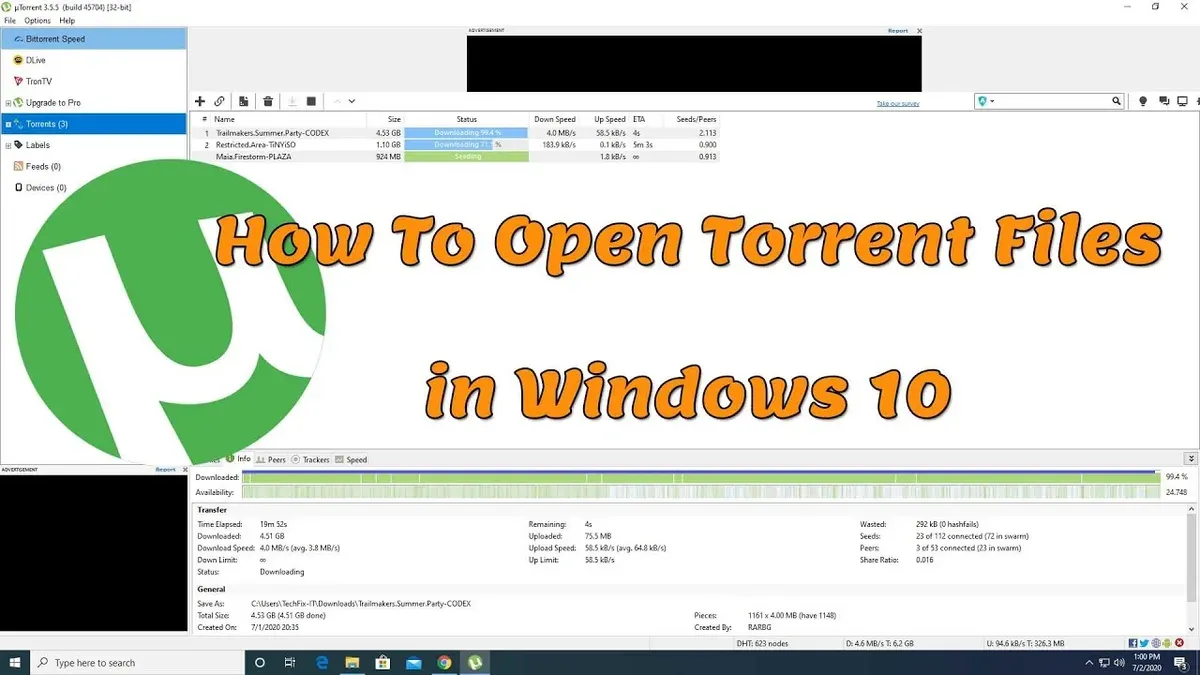
- Launch the torrent client from the Applications folder or Dock. The interface typically displays a toolbar with options such as Add Torrent, Start, Pause, and Remove, along with a list area for active downloads.
- To open your.torrent file, click the 'Add Torrent' button or choose File > Open Torrent File from the menu. A file dialog will appear; navigate to your.torrent file and select it. The client will load the torrent metadata and ask where to save the downloaded files.
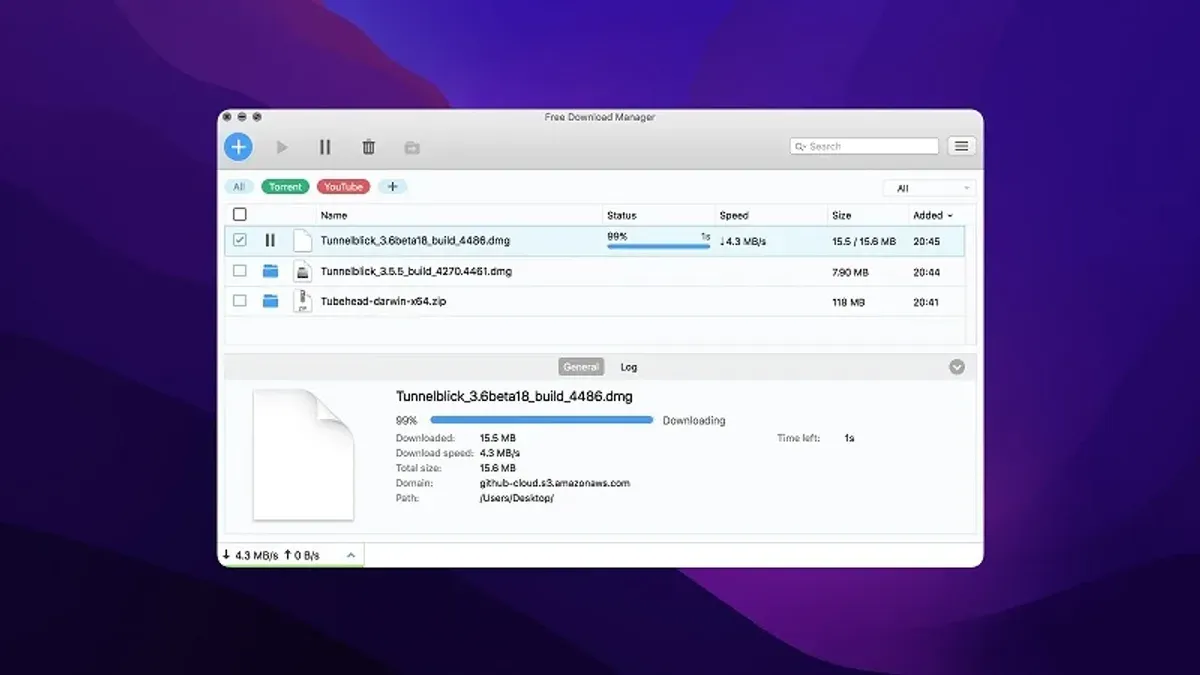
- Confirm the download location or choose a new folder, then start the download by clicking the appropriate button, usually labeled 'OK' or 'Start'. The torrent will appear in the main window with details like file names, size, download speed, and progress percentage.
- Monitor the download progress in the client interface. You can pause, resume, or remove torrents using toolbar buttons. Once complete, the files will be saved in the chosen location, ready to open with the appropriate application.
How to torrent download on Mac: managing downloads and settings
Optimizing your torrent downloads involves balancing performance and security to keep your Mac running smoothly while protecting your privacy.
- Open your torrent client and navigate to the Preferences or Settings menu. You should see various tabs or sections related to speed, directories, and privacy.
- Adjust the download and upload speed limits. For example, set download limits to around 80% of your maximum internet speed to avoid system slowdowns and upload limits to about 50% to maintain network responsiveness. When done correctly, your Mac should not feel sluggish during downloads.
- Choose a dedicated download location by selecting a specific folder under the Directories or Files tab. This keeps your torrents organized and easy to find. After setting, new downloads should automatically save to that folder.
- Configure privacy settings such as enabling encryption (typically found under Bandwidth or Privacy settings) and activating IP filtering to block suspicious peers. Successful configuration will reduce the risk of unwanted connections and enhance anonymity.
- Manage active torrents by using pause, resume, or stop controls accessible from the client’s main window. Pausing temporarily halts transfer without losing progress; stopping fully cancels the download. You should see status changes reflecting these actions immediately.
Before adjusting, unrestricted speeds can cause high CPU and network usage, slowing your Mac. Proper limits reduce resource strain while maintaining efficient download rates. Privacy options add a layer of security often missing in default setups.
How to torrent on Mac safely and legally
Torrenting involves legal and security risks, especially when downloading copyrighted content without permission. Copyright laws vary by country, but unauthorized downloads can lead to fines or legal action. To stay within legal boundaries, only download content that is explicitly allowed by the copyright holder or is in the public domain.
Malware is a common threat in torrent files, with a significant portion of torrents containing harmful software. To reduce risk, verify torrent sources by using well-known, reputable sites such as Public Domain Torrents or Internet Archive. Avoid torrents with suspicious comments, very low seeders, or incomplete information.
Enhance your privacy and security by using a reliable VPN service, which encrypts your internet traffic and masks your IP address. Additionally, keep antivirus software active and updated to detect and block malicious files before they can harm your Mac.
- Choose torrents from verified and trusted sources. When successful, you should see active seeders and positive user feedback.
- Enable your VPN before starting any torrent download. Confirm your IP address is masked by visiting a site like whatismyipaddress.com.
- Scan downloaded files with your antivirus program before opening. The scan report should show no threats detected.
- Regularly update your torrent client and antivirus software to ensure protection against new vulnerabilities. Check for updates in the client’s menu or antivirus settings.
Troubleshooting common issues opening.torrent files on Mac
If a.torrent file won’t open or appears corrupted, start by redownloading the file from a trusted source. A corrupted file often triggers errors like "Failed to load torrent" or "Invalid torrent file."
If you encounter errors related to the torrent client installation, such as the app not launching or crashing, try reinstalling the client. Delete the app from the Applications folder, empty the Trash, then download the latest version from the official website and install it again.
Slow download speeds or stalled torrents often result from network or tracker issues. To address this:
- Check your internet connection stability; you should see consistent browsing or streaming performance.
- Ensure the torrent client’s connection settings allow incoming connections. In most clients, this is under Preferences > Connections > Port Settings. You should enable "Start port forwarding on launch" or manually forward the port on your router.
- Switch to a different torrent with multiple seeders to verify if the problem is torrent-specific.
Firewall or network restrictions can block torrent traffic. If your Mac’s firewall is on, add your torrent client as an exception in System Preferences > Security & Privacy > Firewall > Firewall Options. For network restrictions, such as those on public or work Wi-Fi, try using a VPN that supports P2P traffic and verify that the client can connect to peers.
- How to Open.dmg Files on Mac: A Clear Step-by-Step Guide
- How to Open and Use.ISO Files on Mac: A Clear Step-by-Step Guide
- How to Open.bin Files on Mac: Step-by-Step Guide
- How to Open.apk Files on Mac: Step-by-Step Guide
Frequently asked questions
How to open torrent files windows?
On Windows, you need a torrent client like qBittorrent, uTorrent, or BitTorrent to open.torrent files. After installing the client, double-click the.torrent file or use the client’s File menu to open it. The client will then connect to peers and begin downloading the content.
Can download torrent files on mac?
Yes, you can download torrent files on Mac by using compatible torrent clients such as qBittorrent, Transmission, or Folx. These applications handle.torrent files and manage the download process on your Mac efficiently.
How to open torrent file in pc?
Opening a torrent file on a PC requires a torrent client installed beforehand. Once installed, you can open the.torrent file by double-clicking it or selecting Open from the client’s menu. This starts the download from connected peers.
How to open.torrent file?
To open a.torrent file, install a torrent client on your device. Open the client, then either double-click the.torrent file or use the client’s interface to load it. The client will handle connecting to the network and downloading the files referenced.
Can I download torrent files on Mac without a torrent client?
Downloading torrent files without a torrent client is generally not possible because the client manages peer connections and file assembly. Some online services offer cloud torrent downloading, which then allows you to download files directly via a browser, but this method involves third-party servers and potential security risks.
What this guide does not cover and who should seek other resources
This guide does not cover the legality of specific torrent content; users should ensure all downloads comply with local laws. Torrenting can expose your device to security risks; following safety advice reduces risk but does not guarantee protection from malware or data breaches. If you require advanced security setups like VPN configurations or want detailed legal information, consult specialized resources.
The single most useful next step is to install a reputable torrent client such as qBittorrent or Transmission. These clients offer user-friendly interfaces and essential security settings like encryption and IP filtering. After installation, open your.torrent file through the client, configure your download folder via Preferences > Downloads, and monitor download progress from the main window. Proper setup here ensures a smoother, safer torrenting experience on your Mac.