
How to Open.apk Files on Mac: Step-by-Step Guide
Discover practical ways to open and use.apk files on Mac, including running them with emulators or extracting their contents.
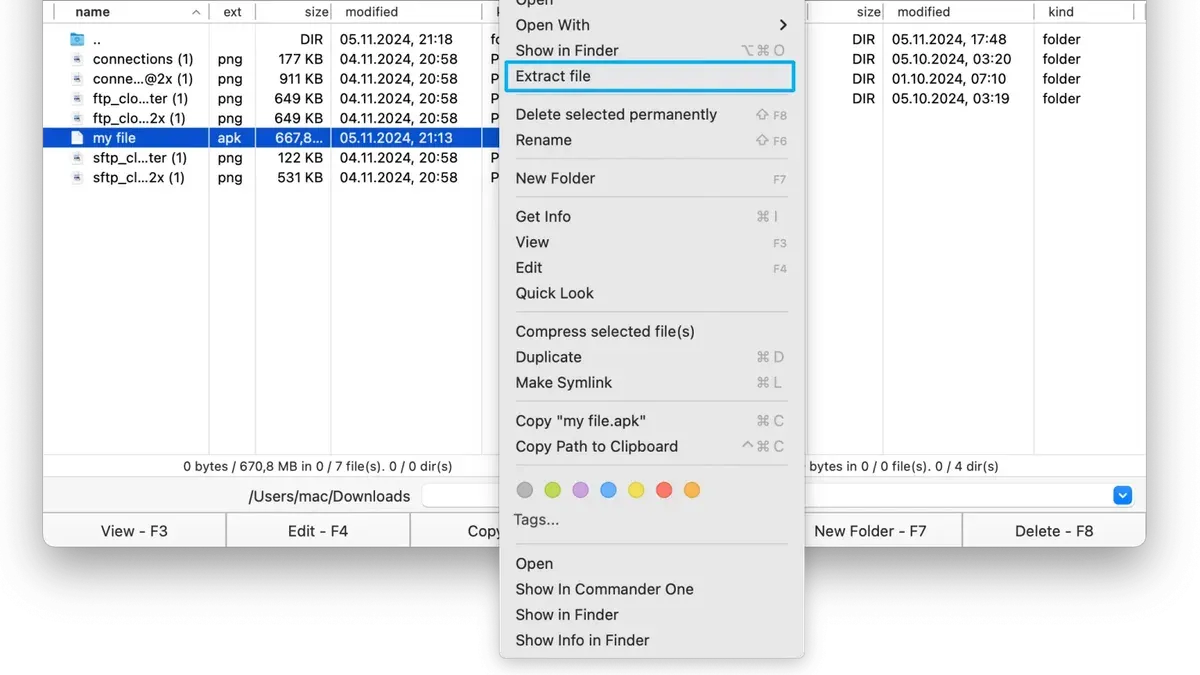
You’ve downloaded an Android app in.apk format and want to open it on your Mac. Whether you need to install the app via an emulator or just inspect the file’s contents, figuring out how to open.apk file on Mac can be confusing without clear guidance.
This article walks you through practical methods to open and use.apk files on Mac. You’ll learn how to run.apk files using popular Android emulators, extract the files without running them, and understand the differences between.apk and Mac-native.app files. We also compare options briefly with Windows and Chromebook setups and cover common troubleshooting tips.
Key takeaways
- Use Android emulators like BlueStacks or NoxPlayer to install and run.apk files on Mac.
- You can extract.apk files with archive tools like The Unarchiver to view contents without running them.
- .apk files are Android-specific; they don’t run natively on Mac or iOS devices.
- Opening.app files on Mac differs fundamentally from opening.apk files.
- Common issues include emulator setup errors and file permission problems.
Before you start: What you need to open.apk files on Mac
An.apk file is the package format used by Android to distribute and install apps. Since macOS is a different operating system, it does not natively support running or installing.apk files. To open or use these files on a Mac, you will need specific software tools or methods that bridge this platform gap.
There are three main approaches to handling.apk files on Mac: running them through an Android emulator, extracting their contents with file extractors, or using conversion tools to adapt the app for another environment. Android emulators simulate the Android operating system on your Mac, allowing you to run apps as if on a phone. Popular emulators like BlueStacks and NoxPlayer have large user communities, each with millions of users worldwide, offering tested and updated environments for app compatibility.
Before proceeding, ensure your Mac meets hardware and software requirements. Most emulators recommend at least 4GB of RAM and a recent macOS version, generally Catalina or later, for stable performance. Older Macs or versions may experience sluggishness or incompatibility.
Be cautious when handling.apk files from unknown sources. Sideloading apps outside official stores carries security risks, including malware and data breaches. Reports indicate a notable portion of Android malware originates from unofficial app packages, which can compromise your Mac if the emulator or extraction tool interacts with them.
- Choose and download a reputable Android emulator or file extractor compatible with your macOS version. You should see the installer file ready to launch.
- Install the chosen software following on-screen instructions. When completed, the app should open without errors.
- Locate the.apk file you want to open on your Mac. The file should be accessible in Finder.
- Open the.apk file using your emulator or extractor. The emulator should launch the app, while an extractor will display the contents.
How to open a.apk file on MacBook using an Android emulator
To run.apk files as apps on your Mac, using an Android emulator is the most straightforward method. Popular emulators compatible with Mac include BlueStacks and NoxPlayer, each offering different performance profiles and features.
BlueStacks is widely used for its user-friendly interface and broad app compatibility, though it may consume more system resources. NoxPlayer is lighter and offers advanced controls, making it suitable for users with mid-range hardware.
- Download the emulator installer from the official website (e.g., BlueStacks or NoxPlayer).
- Open the downloaded file and follow the on-screen instructions to install the emulator. You should see the emulator icon added to your Applications folder once installation completes.
- Launch the emulator. On first run, it may prompt you to sign in with a Google account to access the Google Play Store; this step is optional if you only want to load.apk files directly.
- Locate the option to install.apk files—usually an "Install APK" button or drag-and-drop area on the emulator interface.
- Select your.apk file from Finder. The app should begin installing inside the emulator, and its icon will appear in the emulator’s app drawer once complete.
- Click the app icon within the emulator to open and run the.apk file as an Android app.
Performance varies by emulator and your Mac’s hardware; BlueStacks tends to use more CPU and RAM, which can slow older Macs. NoxPlayer is generally lighter but may have occasional compatibility issues with some apps. Both support keyboard and mouse input, but touch gestures require trackpad or mouse simulation.
| Emulator | CPU Usage | RAM Usage | User Rating (out of 5) |
|---|---|---|---|
| BlueStacks | High | High (2-4 GB) | 4.2 |
| NoxPlayer | Medium | Medium (1-2 GB) | 3.8 |
Choose the emulator that balances performance and app compatibility based on your Mac’s specifications and your usage needs.
How to open apk files on Mac by extracting contents without running them
You can access the contents of an.apk file on your Mac without using an emulator by treating it like a ZIP archive. This method allows you to inspect or modify resources such as images, XML files, and compiled code without running the app.
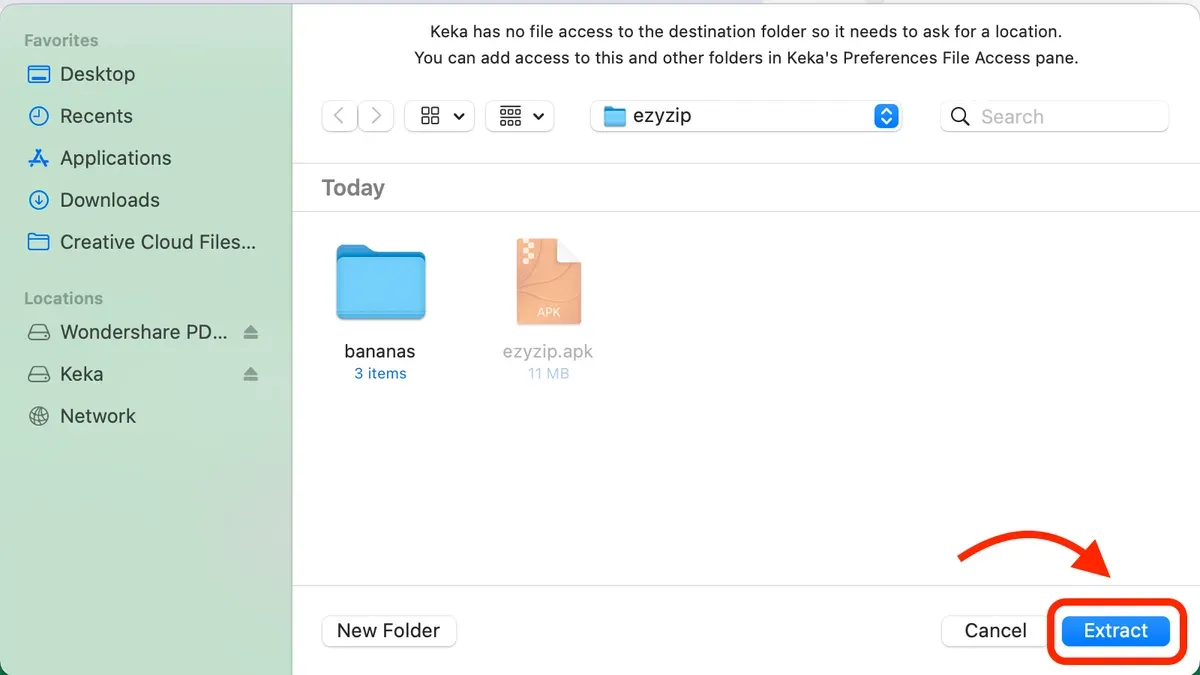
Most.apk files are ZIP-compressed packages, so archive utilities like The Unarchiver or Keka work well for extraction. These tools are reliable and free, and they preserve the original file structure.
- Download and install an archive utility such as The Unarchiver from the Mac App Store or official website.
- Locate the.apk file in Finder.
- Right-click the.apk file and select Open With > The Unarchiver (or your chosen archive tool).
- The utility will extract the contents into a new folder in the same directory. You should see folders like
res,lib, and files likeAndroidManifest.xml. - Open the extracted folder to browse the app's resources and code files. For example,
rescontains images and layout XMLs, whilelibholds native libraries. - You can now inspect or edit these files with appropriate tools — text editors for XML and Java/Kotlin code, image editors for graphics.
Keep in mind this method does not allow you to run or test the app on your Mac. It’s purely for accessing the package contents. File sizes after extraction typically increase by 20-30% due to decompression.
This approach is useful if you want to analyze app structure, extract resources, or prepare files for development or debugging without the overhead of an emulator.
How to open apk files on iOS and why it differs from Mac
iOS devices cannot natively open or run.apk files because Apple's operating system uses a different app packaging format. iOS apps are distributed as.ipa files, which follow Apple’s strict guidelines outlined in the official Apple Developer documentation. These guidelines enforce app signing and sandboxing, making the Android.apk format incompatible with iOS.
Running an.apk file on iOS typically requires jailbreaking the device, a process that removes Apple's security restrictions. Jailbreaking can expose your device to security vulnerabilities, void warranties, and cause instability, so it is generally discouraged.
If you want to use an Android app on an iOS device, a safer alternative is to look for the app's iOS version in the App Store, as many popular apps are available cross-platform. Another option is to use cloud-based Android emulators accessible through a browser, which allow running Android apps remotely without installing them on your iOS device.
How to open a.app file on Mac and how it differs from.apk files
.app files are native application bundles designed specifically for macOS. Unlike.apk files, which are Android app packages,.app files contain all the necessary resources and executable code for macOS apps and are structured as folders presented as single files in Finder.
Opening a.app file on Mac is straightforward and does not require any emulation or extraction tools. You simply locate the.app file in Finder and double-click it. The application should launch directly, provided it is compatible with your Mac's architecture (Intel or Apple Silicon) and macOS version.
Here is how to open a.app file on your Mac:
- Open Finder and navigate to the folder containing the.app file. You should see the app icon and name.
- Double-click the.app file. If it is a valid macOS application and properly signed, it will launch, showing its main window or welcome screen.
- If prompted with a security warning (e.g., "unidentified developer"), open System Preferences, go to Security & Privacy > General tab, and click "Open Anyway" to allow the app to run.
- Once opened, the app behaves like any standard Mac application, integrating with the system menus and Dock.
In contrast,.apk files are meant for Android’s Dalvik/ART runtime and cannot be executed natively on macOS. You must use an Android emulator or extract the contents to inspect them, which is a different process from opening.app files.
Confusion often arises because both.app and.apk use similar three-letter extensions, but they serve fundamentally different platforms and purposes. macOS associates.app files automatically with its application launcher, whereas.apk files require separate tools to access their content or functionality.
How to open apk files on Windows and Chromebook: brief comparison
On Windows, opening.apk files requires an Android emulator such as BlueStacks, which is one of the most popular options with millions of users worldwide. BlueStacks allows you to install and run Android apps by creating a virtual Android environment on your PC. Without an emulator, Windows cannot natively open or run.apk files.
On Chromebook, the process is more streamlined due to built-in support for Android apps through the Google Play Store. Many Chromebooks support running Android apps directly, and you can sideload.apk files by enabling Developer Mode and using ADB commands, although this is intended for advanced users and carries some security risks.
The user experience differs significantly between these platforms and Mac. Windows users rely heavily on emulators to simulate Android, which can impact performance and usability depending on the system resources. Chromebook users benefit from native Android app support, making.apk usage smoother and more integrated compared to Mac, where emulators or extractors are necessary for every.apk interaction.
- On Windows, download and install BlueStacks from the official website. Once installed, launch BlueStacks to see the Android home screen.
- Within BlueStacks, locate the option to install an.apk file, usually via a menu labeled “Install APK” or by dragging the file into the emulator window. Successful installation shows the app icon on the emulator home screen.
- On Chromebook, enable Developer Mode by following your device’s specific instructions (usually involving a reboot and key combination). You will see a warning screen when Developer Mode is active.
- Use the Chrome OS Terminal or connect via ADB from another machine to run the command adb install path/to/app.apk. If successful, the app will appear in your app drawer.
Windows requires an emulator for any.apk use, while Chromebooks offer native support with optional sideloading. This results in different performance and integration levels compared to Mac systems.
Troubleshooting common issues when opening.apk files on Mac
When using Android emulators or extraction tools on Mac, you might encounter several common problems. Knowing how to identify and fix these issues helps ensure smoother access to your.apk files.
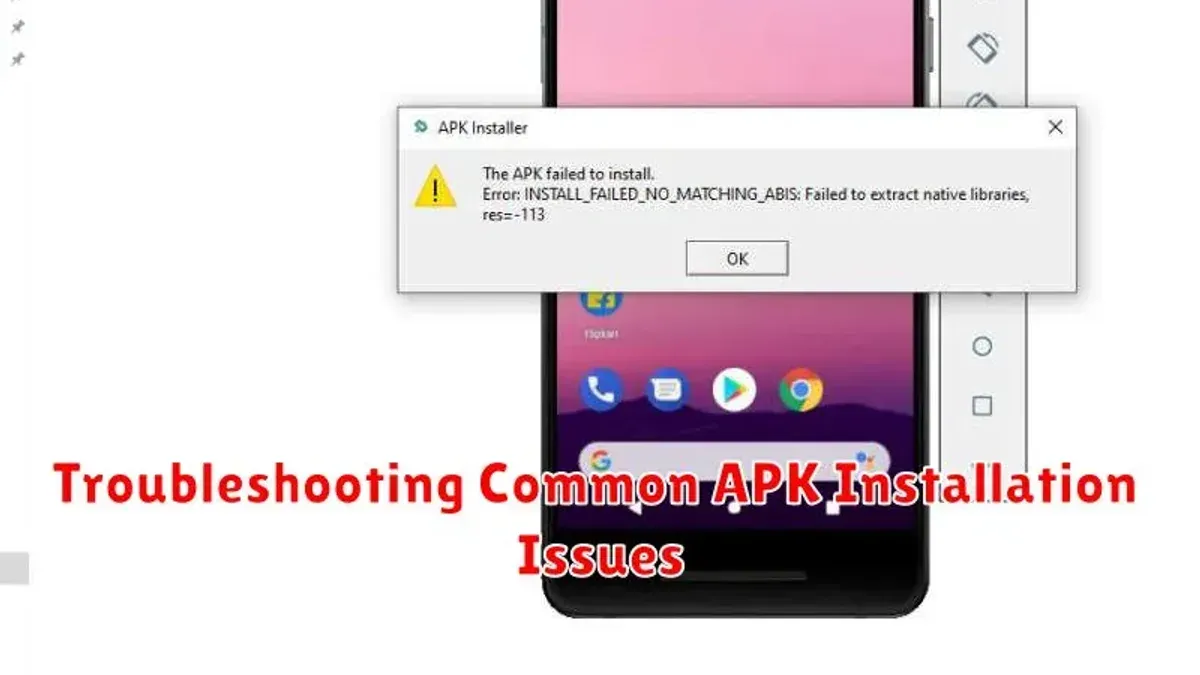
Emulator installation errors and fixes
Installation errors often stem from macOS security settings blocking the emulator installer. You might see messages like "App cannot be opened because it is from an unidentified developer." To resolve this, go to System Preferences > Security & Privacy > General, and click Open Anyway beside the blocked app notification. Another cause is insufficient disk space or incompatible macOS versions, so verify your system meets the emulator’s requirements before installation.
.apk files not installing or crashing inside emulator
If an.apk fails to install or crashes upon launch, the file might be corrupted or incompatible with the emulator’s Android version. Error messages such as "App not installed" or "Unfortunately, app has stopped" are common. Try downloading the.apk from a trusted source and ensure the emulator runs an Android version compatible with the app. Clearing the emulator’s cache or reinstalling it can also help.
Security warnings and safe handling
macOS may show warnings about opening apps from unknown developers or suspicious.apk files. Always download.apk files from reputable sources to minimize risks. Use antivirus tools to scan.apk files before opening. If you encounter a "Potentially harmful software" alert, do not bypass it without verifying the source.
Extraction tools failing to open corrupted.apk files
Extraction utilities like The Unarchiver may fail on corrupted.apk files, showing errors like "Cannot open file" or incomplete extraction results. To troubleshoot, try alternative extraction tools such as Keka or command-line utilities like unzip. If the file remains unreadable, the.apk is likely damaged and needs to be replaced.
Following these steps based on the exact error messages often resolves the most frequent challenges when opening.apk files on Mac.
- How to Open.dmg Files on Mac: A Clear Step-by-Step Guide
- How to Open and Use.ISO Files on Mac: A Clear Step-by-Step Guide
- How to Open and Run.jar Files on Mac: A Clear Step-by-Step Guide
- How to Open and Run.msi Files on Mac: A Clear Step-by-Step Guide
Frequently asked questions
How to open apk file on macbook?
You can open an APK file on a MacBook primarily by using an Android emulator like BlueStacks or Nox Player. Install the emulator, then drag and drop the APK file into it to run or install the app. Alternatively, you can extract the APK contents with file archivers like The Unarchiver if you only want to inspect the files.
How to open apk file on mac?
To open an APK file on a Mac, use an Android emulator that supports macOS, such as BlueStacks. After installing the emulator, load the APK within it to run Android apps. If you need to view the file structure without running the app, use extraction tools like Keka or The Unarchiver.
How to open.app files on mac?
.app files are native Mac application bundles. You open them by double-clicking in Finder, which launches the program. Unlike APKs,.app files are designed for macOS and don’t require emulators or extraction tools.
How to use apk files on mac?
Using APK files on Mac involves running them inside an Android emulator designed for macOS. Install the emulator, then open or install the APK through its interface. This lets you use Android apps on your Mac, though performance depends on your Mac’s hardware and the emulator’s compatibility.
How do i open an apk file on mac?
Open an APK file on Mac by first installing an Android emulator like BlueStacks. Within the emulator, use the 'Install APK' option or drag the APK file into the emulator window. For simply accessing contents without running the app, extract the APK with a tool like The Unarchiver.
What this advice does not cover and who should look elsewhere
This article does not cover running.apk files natively on macOS as it is unsupported by Apple’s operating system architecture. If your primary goal is to run Android apps seamlessly on your Mac without third-party tools, you will need to consider alternative hardware or operating systems designed for Android compatibility.
Users should avoid installing.apk files from untrusted sources due to security risks such as malware or data breaches. Always verify the origin of the.apk and use antivirus software when handling files from outside official app stores.
The single most useful next step is to decide which method suits your needs: if you want to run Android apps fully on your Mac, set up a respected Android emulator like BlueStacks or Nox Player and follow its installation guide carefully. For inspecting contents without installation, use a reliable archive extractor such as The Unarchiver. Choosing the right tool based on your comfort with technical setups will save time and prevent frustration.



