How to Open.bin Files on Mac: Step-by-Step Guide
Discover how to open.bin files on Mac using Disk Utility, third-party apps, and hex editors to access various file types.
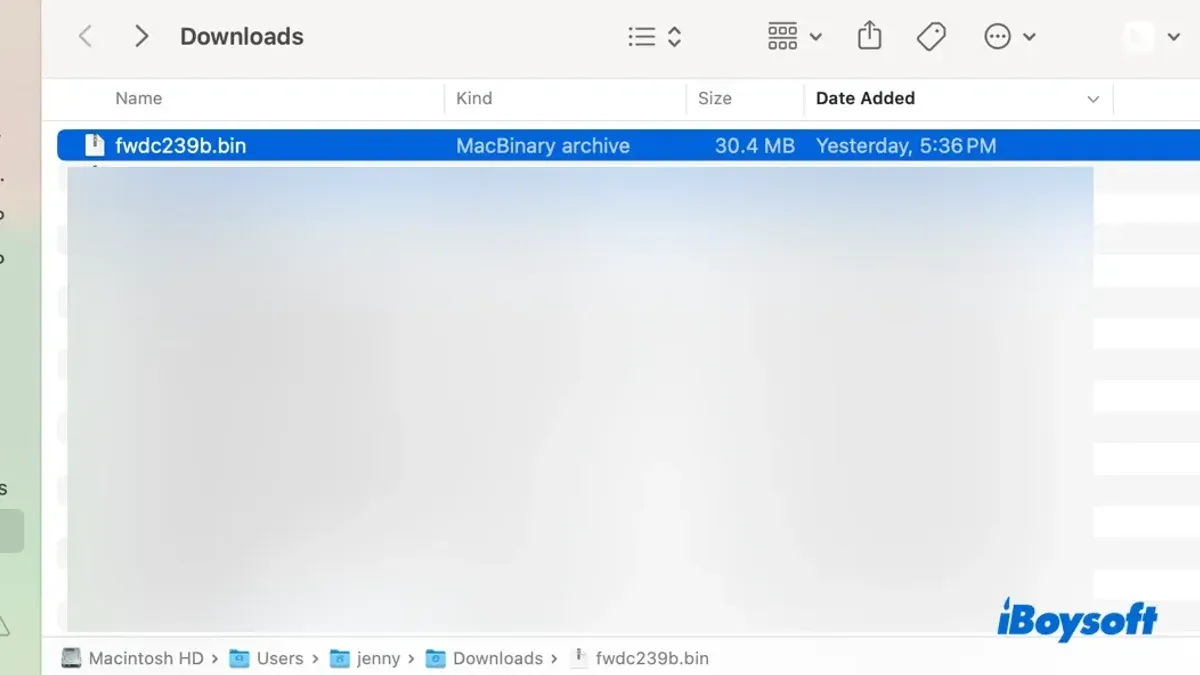
You’ve downloaded a.bin file on your Mac and aren’t sure how to open it. Maybe it’s an old disk image, a firmware update, or a data file from another device.
This article explains how to open.bin file on Mac by identifying the type of.bin file you have and choosing the right method to access its contents. You’ll learn how to use built-in tools like Disk Utility, third-party software for unzipping, and hex or text editors for binary data. The guide also highlights differences in handling.bin files on Windows and other devices such as Samsung phones, Chromebooks, and Kindles.
Key takeaways
- .bin files vary widely; knowing the file type helps determine the right opening method.
- Disk Utility can mount some.bin disk images directly on Mac.
- Third-party apps like The Unarchiver or Keka can extract compressed.bin files.
- Hex editors reveal the binary contents if the.bin file holds raw data.
- Opening.bin files on Mac differs from Windows and other devices due to format and software compatibility.
Before you start: What you need to know about.bin files
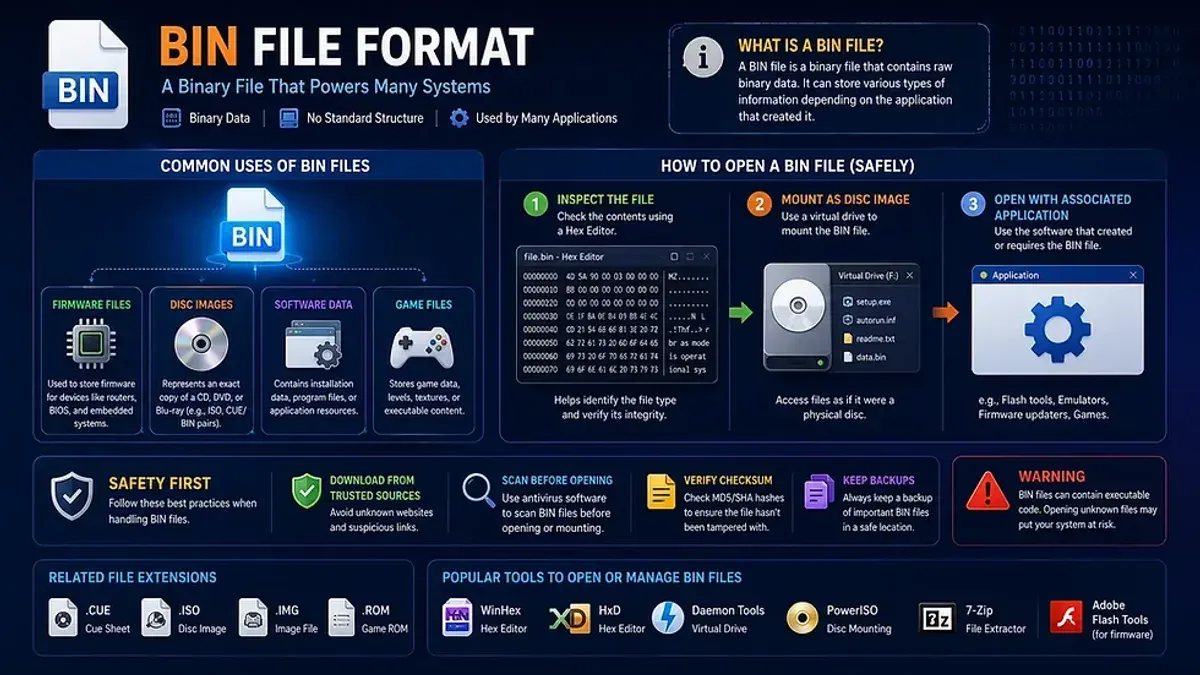
.bin files are generic binary files that do not conform to a single format or use. They can represent disk images, firmware updates, game data, or compressed archives. Because.bin files serve various purposes, the way you open or extract them depends heavily on their origin and intended use.
Common examples include:
- Disk images from CDs or DVDs, which can be mounted or burned.
- Firmware update files for devices, often requiring specific flashing software.
- Game data files used by emulators or games themselves.
- Compressed archives sometimes packed into.bin format alongside.cue files.
File sizes vary widely, from a few kilobytes for firmware patches to several gigabytes for full disk images or game data.
To handle.bin files on a Mac, you may need different tools such as disk image mounters (like Disk Utility), archive extractors (such as The Unarchiver or Keka), or emulators for game-related files. Identifying the source of the.bin file is crucial since opening a firmware update with an archive tool or mounting a game data file as a disk image might not work and could cause errors.
Before you proceed, make sure you know where the.bin file came from and what it contains. This knowledge will guide you in selecting the right software and method to open or extract it effectively and safely.
How to open.bin file on MacBook using Disk Utility
Disk Utility is Mac’s built-in tool for managing disk images, and it can mount.bin files that are formatted as disk images. Not all.bin files are mountable this way, so first ensure your.bin file is indeed a disk image by checking its source or file details.
- Open Finder and locate the.bin file you want to mount.
- Double-click the.bin file. If it is a mountable disk image, Disk Utility will attempt to open it automatically, and a virtual drive icon should appear on your desktop or Finder sidebar.
- If double-clicking does not work, open Disk Utility manually from Applications > Utilities.
- In Disk Utility, go to the menu bar and select File > Open Disk Image.
- Navigate to your.bin file and select it, then click Open. Disk Utility will try to mount the image.
- Once mounted, the.bin file appears as a virtual drive. You can open it like any external drive to access its contents.
If the.bin file mounts successfully, you’ll see the virtual disk in Finder with its contents accessible for copying or running files.
However, Disk Utility only supports.bin files that are disk images (e.g., backup images or OS installers). It cannot open.bin files that contain raw binary data or are part of software packages.
When mounting fails, you’ll receive an error message indicating the file format is unsupported. In those cases, other tools or methods are necessary.
How to unzip.bin file on Mac with third-party software
Some.bin files are compressed archives rather than disk images. To extract these, you need third-party software designed for unpacking various archive formats. Popular options include The Unarchiver, Keka, and StuffIt Expander, each supporting.bin extraction with varying interfaces and features.
Here is a comparison of these tools:
| App | Installation | Interface | Formats Supported | Extraction Success |
|---|---|---|---|---|
| The Unarchiver | Available free on Mac App Store | Simple drag-and-drop | ZIP, RAR, BIN, ISO, and more | High success on archive.bin files |
| Keka | Download from official website or Mac App Store | Drag-and-drop, context menu integration | 7z, ZIP, TAR, BIN, and others | Reliable extraction, supports password-protected archives |
| StuffIt Expander | Free download from official site | Drag-and-drop with progress indicator | ZIP, SIT, BIN, and legacy formats | Good for older.bin archives |
To extract your.bin file using The Unarchiver, follow these steps:
- Download and install The Unarchiver from the Mac App Store. You should see the app icon in your Applications folder.
- Open The Unarchiver and set it to associate with.bin files via the "Archive Formats" tab.
- Drag your.bin file onto The Unarchiver icon or right-click the.bin file, choose "Open With," and select The Unarchiver.
- The app will extract the contents to the same folder as your.bin file. Check for a newly created folder or extracted files.
Note that archive.bin files differ from disk image.bin files; the former contain compressed data, while the latter mimic physical disks. If extraction fails or the files appear corrupted, verify the source of the.bin file and consider downloading it again. Some.bin files might require specific software not covered by general extractors.
How to open binary file on Mac using a hex editor or text editor
Sometimes you need to view the raw binary data inside a.bin file to analyze its structure or check its contents. This is common when dealing with firmware, ROM images, or files where you suspect a specific header or data pattern.

Hex editors display the binary content as hexadecimal values alongside ASCII characters, helping you identify file headers and data segments. Recommended Mac apps include Hex Fiend, 0xED, and BBEdit. Hex Fiend and 0xED specialize in hex editing, while BBEdit is a powerful text editor that can open binary files in a raw view.
- Download and install a hex editor such as Hex Fiend from its official website or the Mac App Store.
- Launch the hex editor and open your.bin file via File > Open. You should see the file’s binary data displayed in hexadecimal format with an ASCII view on the side.
- Look for file signatures or headers. For example, a common ISO disk image starts with the ASCII string "CD001" at offset 0x8000 in hex editors, indicating a standard ISO 9660 file system.
- Use the search or find function to locate specific byte sequences or text within the file to verify its type or contents.
- Be cautious when editing binary files; even small changes can corrupt the file unless you fully understand the format.
Keep in mind that hex editors allow you to view and edit, but editing is risky without proper knowledge. For safe analysis, viewing is usually sufficient. Recognizing common headers can help you decide how to further process or convert the file.
How to open.bin file on Windows and differences from Mac
Windows users commonly open.bin files with dedicated disc image tools like PowerISO, MagicISO, or WinRAR. These programs can mount, extract, or convert.bin files, especially when they contain disc images such as CD or DVD backups. This approach contrasts with Mac, where native tools like Disk Utility have limited support, and third-party software often focuses on archive extraction.
Here is a comparison of software compatibility between Windows and Mac for.bin files:
| Software | Platform | Common Use | Notes |
|---|---|---|---|
| PowerISO | Windows | Mounting and converting disc image.bin files | Supports many disc image formats, includes burning options |
| MagicISO | Windows | Editing and mounting.bin disc images | Specialized in disc image manipulation |
| WinRAR | Windows | Extracting archive-type.bin files | Handles many compressed formats including.bin archives |
| The Unarchiver | Mac | Extracting archive.bin files | Does not support mounting disc image.bin files |
| Disk Utility | Mac | Mounting disc image.bin files | Limited to certain image formats, no archive extraction |
| Keka | Mac | Extracting compressed.bin archives | Does not open disc images |
If you receive a.bin file primarily created for Windows disc image software, you may need to convert it or use Windows directly to access its contents. For example, PowerISO can convert.bin files to ISO format, which is more universally supported.
To open a Windows.bin file on Windows:
- Download and install PowerISO from the official website.
- Launch PowerISO and click "Open" to select your.bin file.
- Choose to mount the.bin file as a virtual drive or extract its contents via the "Extract" option.
- If mounting is successful, the.bin file appears as a new drive in File Explorer, allowing you to browse files.
- Alternatively, convert the.bin file to an ISO by selecting "Tools" > "Convert", then open the ISO with other software or on Mac.
Windows may be necessary when.bin files contain proprietary disc formats or encrypted data that Mac tools cannot handle. Understanding these differences helps you select the best workflow across devices.
How to open.bin files on other devices: Samsung, Chromebook, and Kindle
Opening.bin files directly on Samsung devices and Chromebooks can be challenging due to limited native support. Samsung’s Android-based system lacks built-in tools to handle most.bin files, but you can try using file viewer apps like "File Viewer for Android" or utilities such as "ZArchiver" for archive-type.bin files. These apps may not support every.bin format, so results vary depending on the file’s nature.
Chromebooks, running Chrome OS, do not natively support.bin files either. However, if your Chromebook supports Linux (Beta), you can install Linux apps like "AcetoneISO" or "Furius ISO Mount" to mount or extract some.bin disk images. Alternatively, you can use Android apps available through the Google Play Store, though compatibility is limited and may not cover all.bin types.
Kindle devices have very restricted file format support, primarily for eBooks and a few media types. They do not support.bin files and offer no apps or workarounds to open them. Attempting to open.bin files on a Kindle will typically fail.
Because of these limitations, it is often best to transfer.bin files from Samsung, Chromebook, or Kindle back to a Mac or Windows PC. There, you can use more robust tools to open, mount, or extract the.bin files effectively.
Troubleshooting common problems when opening.bin files on Mac
If your.bin file won’t mount or extract, first check the error message. Common messages include “The disk image could not be opened” or “Extraction failed: unsupported archive format.” These indicate either file corruption or incompatible file type.
To verify file integrity, compare the file’s checksum (MD5 or SHA-256) with the source if available. You can use Terminal commands like shasum -a 256 /path/to/file.bin to generate a checksum. A mismatch suggests a corrupted or incomplete download. Re-downloading the file from a trusted source is recommended.
If the file type is unsupported or unknown, try opening it with a hex editor like Hex Fiend to inspect the header. This can help determine if it’s a disk image, archive, or raw binary. Avoid forcing unknown.bin files open with random apps to prevent errors or data loss.
Security is critical:.bin files from unverified sources can contain malware. Before opening, scan the file using Mac’s built-in Malware Removal Tool or third-party antivirus software. Never run executables embedded within.bin files unless you trust the source completely.
Steps to fix mounting or extraction issues
- Check the exact error message when you try to open the.bin file; note it for troubleshooting.
- Verify the file’s checksum using Terminal; it should match the source’s published hash.
- If corrupted, redownload the file from the original, trusted website.
- Attempt to open the file with a hex editor to identify its format.
- Use appropriate software based on file type—Disk Utility for disk images, The Unarchiver for archives.
- Run an antivirus scan on the.bin file before opening to rule out malware.
How to identify the type of.bin file you have
Determining the type of your.bin file is essential to choosing the correct method to open or extract it on your Mac. Several clues can help you identify its nature.
- Check the file size and source: Large.bin files (hundreds of megabytes or more) often represent disk images or firmware, while smaller ones might be archives or raw data. Knowing where the file came from—such as a software download, a game backup, or a device update—can hint at its format.
- Look for accompanying files: If your.bin file is paired with a.cue file, it is likely a disc image. The.cue file contains track layout information needed to properly use the disk image.
- Use the Terminal’s file command: Open Terminal and type
filefollowed by a space and drag the.bin file into the window to insert its path, then press Enter. The output will describe the file type. For example, "data" suggests generic binary, while "ISO 9660 CD-ROM filesystem data" indicates a disc image. - When to seek expert help or specialized software: If the file type remains unclear or opening attempts fail, consider consulting forums related to the source or using specialized tools designed for firmware, game files, or proprietary formats.
Sample Terminal output:
example.bin: ISO 9660 CD-ROM filesystem data
example.bin: data
example.bin: x86 boot sector
This helps decide whether to mount, extract, or analyze the file.
Following this process reduces guesswork and ensures you apply the most effective method to access your.bin file’s contents.
- How to Open.dmg Files on Mac: A Clear Step-by-Step Guide
- How to Open.rar Files on Mac: A Clear Step-by-Step Guide
- How to Open and Install.pkg Files on Mac: A Clear Step-by-Step Guide
Frequently asked questions
How to open.bin file in pc?
On a PC, you can open.bin files using disc image software like PowerISO, Daemon Tools, or WinCDEmu. These programs allow you to mount the.bin file as a virtual drive or convert it to an ISO format. For.bin files that are archives, tools like 7-Zip can extract their contents.
How to open bin file on macbook?
On a MacBook, open.bin files by using Disk Utility to mount disc images if the file is a disk image. Alternatively, third-party apps like The Unarchiver or Keka can extract compressed.bin files. For binary data files, a hex editor or text editor can be used to view their contents.
How to open bin file on macos?
macOS supports opening some.bin files natively through Disk Utility for disk images. If that fails, try third-party extraction tools such as The Unarchiver. For binary files not related to discs or archives, text editors like TextEdit or hex editors are suitable for viewing the data.
How to unzip bin file on mac?
To unzip a.bin file on Mac, use extraction utilities like The Unarchiver or Keka. These apps support various compressed formats and can unpack many.bin archives. Simply install one, right-click the.bin file, and choose to open or extract it with the installed program.
How to open bin zip file on mac?
A.bin zip file typically means a zipped archive containing a.bin file. Use native macOS Archive Utility or third-party apps like The Unarchiver to unzip it. After extraction, open or mount the resulting.bin file using Disk Utility or the appropriate app based on its type.
What this advice does not cover
This article does not cover how to modify or create.bin files, nor how to use.bin files for firmware flashing or programming devices, which require specialized knowledge and tools. If you need to update device firmware or perform advanced programming tasks, consult the device manufacturer’s official instructions or a professional technician.
For typical users who just need to open, extract, or view the contents of a.bin file on a Mac, following the steps outlined here should be sufficient. However, if your.bin file is part of a software installation or encrypted archive, additional or different software might be necessary.
The single most useful next step is to first identify the specific type of.bin file you have. Knowing whether it’s a disk image, archive, binary data file, or something else will guide you to the appropriate method to open or extract it. Use file information tools or try opening it with a hex editor to look for recognizable headers or metadata before proceeding.