How to Open.ogg Files on Mac: Clear Step-by-Step Guide
Discover easy methods to open, play, and convert.ogg files on your Mac using free and reliable software.
You have an.ogg audio file on your Mac, but it won’t open with the default apps. Or perhaps you want to create or convert files to the.ogg format but aren’t sure which tools to use. Understanding how to open.ogg file on Mac can be confusing because macOS does not natively support this format.
This article explains practical, straightforward methods to open, play, convert, and create.ogg files on your Mac. It also covers handling related file types like.war files, clarifies software limitations, and guides you through troubleshooting common issues.
Key takeaways
- VLC Media Player is a reliable free option to open and play.ogg files on Mac.
- Use free tools like Audacity or FFmpeg to convert audio files to and from.ogg format.
- Creating.ogg files on Mac often involves audio editing apps that support export options or command-line utilities.
- .war files are unrelated to.ogg and require different software, mostly for Java applications.
- Common problems opening.ogg files usually stem from missing codecs or corrupted files; reinstalling or converting can help.
Before you start: What you need to open.ogg files on Mac
.ogg files are audio containers that often use the open-source Vorbis codec, popular for streaming and storing high-quality audio without licensing fees. However, macOS does not natively support.ogg files across all its default apps like QuickTime Player, meaning you cannot always open or play these files directly without additional software.
To reliably open and work with.ogg files on your Mac, you need compatible software. VLC Media Player is a free, versatile option that plays.ogg files smoothly without extra setup. Audacity lets you edit and convert.ogg audio but requires installation. Native QuickTime Player can sometimes handle.ogg if you install specific plugins, though this approach is less straightforward. Most modern web browsers also support playing.ogg files directly from the web.
Hardware or macOS version typically does not limit.ogg playback, but older macOS versions might lack support for some playback apps. Overall, choosing a proper player or editor is key.
| Software | Play.ogg | Edit.ogg | Convert.ogg | Notes |
|---|---|---|---|---|
| VLC Media Player | Yes | No | Limited (via transcoding) | Free, open-source, widely compatible |
| Audacity | Yes | Yes | Yes | Requires LAME/FFmpeg plugins for full features |
| QuickTime Player + Plugin | Sometimes | No | No | Needs third-party plugin, less reliable |
| Web Browsers (Safari, Chrome, Firefox) | Yes | No | No | Playback only, no file management |
How to open.ogg files on Mac using VLC and other free players
VLC Media Player is one of the easiest ways to open.ogg files on your Mac. It is free, open-source, and supports a wide range of audio formats including.ogg.
- Visit the official VideoLAN website at https://www.videolan.org/vlc/download-macosx.html and download the latest VLC version for macOS.
- Open the downloaded.dmg file and drag the VLC app icon to your Applications folder.
- Launch VLC from Applications; the player opens with a simple interface.
- Drag your.ogg file into the VLC window or use File > Open File… from the menu to select the.ogg file. The file should start playing immediately, showing track progress and controls.
Alternative free players include IINA and Audacity. IINA offers a modern, lightweight interface designed for macOS, supporting drag-and-drop to open.ogg files quickly, with faster startup than VLC but fewer advanced streaming features. Audacity is primarily an audio editor rather than a player; it opens.ogg files for editing but not seamless playback.
Overall, VLC balances stability and feature set, with reliable playback and support for subtitles and streaming. IINA is more lightweight and integrates well with Mac aesthetics but may lack some advanced options, while Audacity is best for editing rather than casual listening.
How to convert files to.ogg on Mac
Converting audio files to.ogg format on Mac can be done using several tools, each suited to different user needs. The.ogg format is popular for its open-source nature and efficient compression, making it a suitable choice when you want smaller file sizes without sacrificing too much quality.
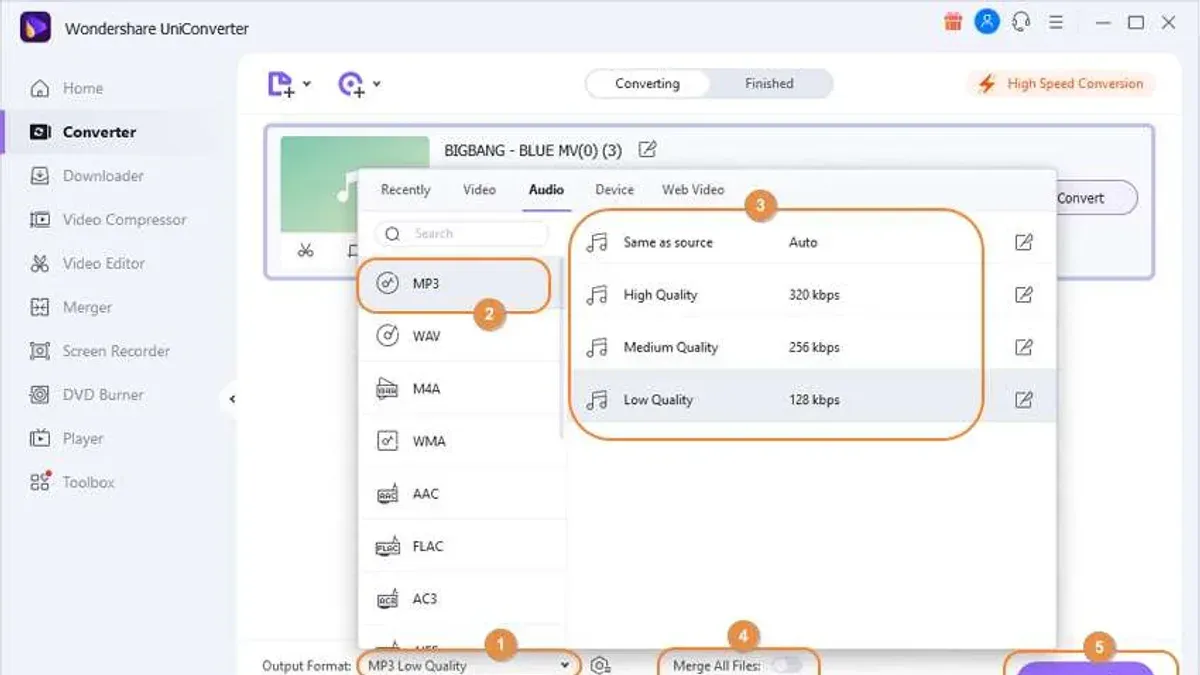
Using Audacity to convert audio to.ogg
- Open Audacity and go to File > Import > Audio... to select your source file (for example, an MP3). You should see the audio waveform displayed once the file loads.
- Optionally, edit the audio if needed—trimming or adjusting volume—then proceed to export.
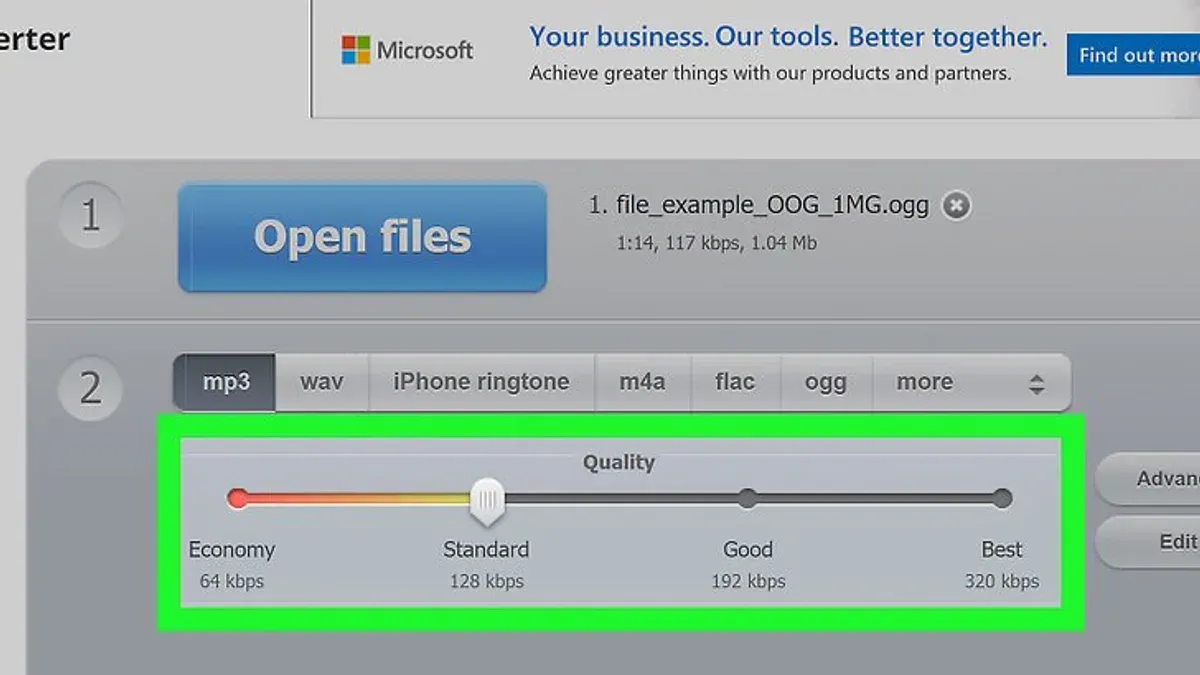
- Click File > Export > Export as OGG. In the dialog, choose your destination folder and filename.
- Adjust the quality slider to balance file size and audio fidelity. A good starting point is around 5 (on a scale from 0 to 10).
- Click Save. Audacity will encode and save the file in.ogg format. You can compare file sizes by checking the original MP3 and the new.ogg file in Finder.
Using online converters
Online converters offer a quick way to convert files without installing software. However, they often have file size limits, may reduce audio quality, and raise privacy concerns since you upload your files to third-party servers.
Using ffmpeg on the command line
For advanced users, ffmpeg is a powerful tool to convert audio via Terminal. Installing it through Homebrew (brew install ffmpeg) enables commands like ffmpeg -i input.mp3 output.ogg, offering precise control over encoding options.
How to make a.ogg file on Mac
You can create a.ogg file on Mac by recording audio in Audacity or GarageBand, then exporting or converting the recording to the.ogg format. Audacity directly supports exporting to.ogg, while GarageBand requires a workaround since it does not natively export.ogg files.
- Open Audacity and start a new project. Use the red record button to capture your audio. Once finished, stop recording; you should see the waveform displayed.
- Go to File > Export > Export as OGG. In the export dialog, choose your desired quality by adjusting the "Quality" slider—higher settings improve audio fidelity but increase file size. Click Save to create your.ogg file.
- To use GarageBand, record or import your audio as usual. Then export your project by selecting Share > Export Song to Disk. GarageBand only supports exporting to formats like AAC or AIFF by default.
- Convert your GarageBand export to.ogg using a tool like Audacity or an online converter. Import the exported file, then export it as.ogg following the steps above.
- When naming your.ogg files, use clear, descriptive titles without special characters to avoid compatibility issues. Organize files in dedicated folders to keep track of your projects efficiently.
Because GarageBand does not directly support.ogg export, the two-step process is necessary. Audacity provides a more direct and flexible method for creating and exporting.ogg files with customizable settings.
How to download.ogg files safely and legally
To obtain.ogg files safely and legally, use reputable sources that offer free or open-license audio. Popular sites include FreeSound (freesound.org), which hosts a vast library of sound effects and clips under Creative Commons licenses, Internet Archive (archive.org), providing open music and audio collections, and Jamendo (jamendo.com), focusing on independent music with free streaming and downloads.
Avoid downloading files from unfamiliar sites to reduce risks of malware or pirated content. Use the browser’s built-in download manager or trusted extensions to handle downloads reliably, avoiding suspicious pop-ups or download prompts.
After downloading, verify the file type on your Mac by selecting the file and pressing Command + I to open the Info window; the file type should display as "OGG audio" or similar. Alternatively, open Terminal and enter file [path/to/file.ogg] to confirm the file format.
- Navigate to a trusted site like freesound.org and search for your desired.ogg audio. You should see a clear download button or link.
- Click the download link and wait for your browser to complete the download; the file will appear in your Downloads folder.
- Locate the downloaded file, select it, and press Command + I to open the Info window; check that the "Kind" field indicates an OGG audio file.
- Optionally, open Terminal and type file ~/Downloads/filename.ogg to verify the audio format. The response should confirm it is an OGG file.
How to open.war file on Mac (and why it’s unrelated to.ogg)
A.war file is a Web Application Archive used to package Java-based web applications for deployment on servers. Unlike.ogg files, which are audio files,.war files contain code, libraries, and resources for Java web environments and cannot be opened as audio on your Mac.
To open or explore a.war file on your Mac, you can use Java tools or archive utilities. Since a.war file is essentially a ZIP archive, apps like The Unarchiver work well for extracting its contents.
- Download and install The Unarchiver from the Mac App Store if you don’t have it already.
- Right-click the.war file and select "Open With" > "The Unarchiver."
- The Unarchiver will extract the.war file contents to a folder in the same location.
- Open the extracted folder to view files such as.jsp,.class, and WEB-INF directory, which make up the web application.
This method lets you inspect the files inside the.war archive but does not run the web application. Running it requires a Java application server like Apache Tomcat.
Troubleshooting common problems opening.ogg files on Mac
If your.ogg file won’t open or plays no sound, the file may be corrupted or the codec unsupported by your player. For example, VLC might show “Unsupported codec” or play silence. Try opening the file in another app like Audacity to verify if the issue is player-specific.
If your player crashes or freezes, this can be caused by software conflicts or outdated versions. Make sure you are running the latest VLC or Audacity release by checking the app’s “Check for Updates” option under the main menu. Closing other heavy apps can also reduce conflicts.
Errors during.ogg conversion often result from incorrect export settings or incompatible source files. Verify your export format matches.ogg with the correct bitrate (usually 128-192 kbps). If you see messages like “Conversion failed” in Audacity, try re-importing the source file or converting with ffmpeg command line tools.
To check file integrity, use tools like VLC’s Codec Information to inspect streams. For repairing damaged.ogg files, MP3Repair or MediaInfo can help diagnose and sometimes fix issues.
- Open your.ogg file in VLC. If it doesn’t play or shows an error, proceed to step 2.
- Try opening the same file in Audacity. If it opens and plays, update or reinstall VLC.
- If playback fails in both, check the file size and source. A zero-byte or unusually small file is likely corrupted.
- Use MediaInfo to analyze the file. Look for missing streams or errors reported.
- If corrupted, try repairing with MP3Repair or re-download the file from a trusted source.
- For conversion errors, confirm export settings: choose File > Export > Export as OGG Vorbis in Audacity, set bitrate around 160 kbps, and select a valid output folder.
- How to Open.WMA Files on Mac: Clear Step-by-Step Guide
- How to Open and Play.flac Files on Mac: Step-by-Step Guide
- How to Open and Play WMV Files on Mac: Practical Step-by-Step Guide
- How to Open MKV Files on Mac: Practical Step-by-Step Methods
Frequently asked questions
How to get a.ogg file?
You can obtain a.ogg file by downloading it from websites that offer free or licensed audio in that format, such as certain music archives or open-source media repositories. Alternatively, you can convert existing audio files to.ogg format using conversion software like VLC or dedicated audio converters available for Mac.
How to play.ogg file?
To play a.ogg file on your Mac, use media players that support the format natively, such as VLC Media Player or IINA. These applications can open.ogg files directly without additional plugins, providing reliable playback.
How to download ogg files?
Downloading.ogg files safely involves visiting reputable websites that legally distribute audio in.ogg format. Avoid downloading from untrusted sources to reduce the risk of corrupted files or malware. Always check the site's policies and confirm the file type before downloading.
How to open ogg files on mac?
Open.ogg files on Mac by installing a compatible media player like VLC, which supports.ogg playback without extra steps. After installation, you can right-click the file, select 'Open With,' and choose VLC or another supported app to listen to your audio.
How to open war file in mac?
A.war file is a web application archive used for Java-based applications and is unrelated to.ogg audio files. To open a.war file on Mac, use archive utilities like The Unarchiver or command-line tools such as jar, or deploy it within a Java servlet container like Apache Tomcat.
What this advice does not cover and who should look elsewhere
This article does not cover professional-grade audio editing or batch processing of.ogg files, which require specialized software beyond the scope of casual Mac users. If you need advanced mixing, mastering, or automation features, consider dedicated digital audio workstations (DAWs) like Logic Pro or Ableton Live. Similarly, if you handle large volumes of.ogg files regularly, command-line tools or professional converters might better suit your workflow.
The single most useful next step is to download and install VLC Media Player if you haven’t already. VLC reliably opens.ogg files without additional configuration and supports playback of many related formats. Once installed, right-click your.ogg file, choose Open With, select VLC, and optionally set it as the default app for.ogg files in Finder’s Get Info panel under Open with. This straightforward step unlocks immediate access to your.ogg files on Mac with minimal hassle.