
How to Open MKV Files on Mac: Practical Step-by-Step Methods
Discover practical methods to open MKV files on Mac, including using VLC, IINA, and file conversion for smooth playback.
You’ve downloaded a video in MKV format and want to watch it on your Mac, but double-clicking the file doesn’t open it in your default media player. Or maybe you encounter choppy playback or no sound when you try to play MKV files directly. Understanding how to open.mkv file on Mac can save you frustration and help you enjoy your videos smoothly.
This article guides you through practical methods to open MKV files on Mac, balancing ease of use with technical options. You’ll learn how to use popular media players like VLC and IINA, when to convert files to more compatible formats, and alternative workflows for iPhone and iPad. Each method includes step-by-step instructions so you can pick the best solution based on your preferences and technical comfort level.
Key takeaways
- VLC Media Player plays MKV files natively without extra codecs or plugins.
- IINA offers a modern interface and macOS integration for MKV playback.
- Converting MKV files to MP4 or MOV improves compatibility but takes extra time.
- Third-party apps are needed to open MKV on iPhone or iPad directly.
- Troubleshoot common issues by checking file integrity and updating software.
Before you start: What you need to open MKV files on Mac
MKV (Matroska Video) is a versatile container format that can hold video, audio, subtitles, and metadata in a single file. Its flexibility and support for multiple codecs have made it popular for high-quality video distribution. However, macOS does not natively support MKV files well, which means you can’t simply double-click to play them with the default QuickTime Player.
This lack of native support is because MKV is an open standard container that can include codecs not built into macOS. As a result, you might encounter playback errors, missing audio, or unsupported subtitles if you try to open MKV files without the right tools.
To work with MKV files on your Mac, you need compatible software that supports the format’s complexity. Common challenges include codec incompatibility, subtitle rendering issues, and sometimes large file sizes requiring sufficient hardware performance.
Before playing MKV files, make sure your Mac meets these basic requirements:
- Check your macOS version is up to date—newer versions often improve media support and hardware acceleration. You should see the latest macOS update available in System Preferences > Software Update.
- Ensure you have enough free disk space and RAM to handle large video files smoothly. MKV videos can be several gigabytes in size depending on resolution and length.
- Install a reliable MKV-compatible media player or converter, such as VLC or IINA, since these handle a wide range of codecs and subtitles.
Understanding these prerequisites will help you avoid common frustrations and choose the best method to open MKV files on your Mac.
How to open MKV file on Mac using VLC Media Player
VLC Media Player is a popular, free, and open-source app widely recognized for its ability to play MKV files on Mac without additional codecs. To ensure safety and authenticity, download VLC from the official VideoLAN website at videolan.org/vlc.
- Visit the VLC official website and click the "Download VLC" button. A disk image (.dmg) file will download to your Mac.
- Open the downloaded.dmg file. A window will appear showing the VLC application icon and the Applications folder shortcut.
- Drag and drop the VLC icon into the Applications folder. This installs VLC on your Mac.
- Go to your Applications folder and double-click VLC to launch the player. You may be prompted to confirm opening an app downloaded from the internet; click "Open".
- To open an MKV file, click "File" in the menu bar, then select "Open File..." Navigate to your MKV file and click "Open." The video should start playing immediately.
VLC supports a wide range of codecs inside the MKV container, allowing smooth playback without converting files. Users appreciate VLC's straightforward interface and frequent updates that improve stability on macOS. However, some users note that VLC's performance on Mac can be slightly less efficient compared to native players on other platforms, occasionally leading to higher CPU usage during playback of high-resolution MKV files.
Overall, VLC offers a reliable balance of ease and capability, making it a top choice if you want to play MKV files directly on your Mac without extra steps.
How to play MKV files on Mac with IINA player
IINA is a modern media player designed specifically for macOS, offering a native interface and tighter system integration than some alternatives. It supports MKV files with a clean, customizable layout and advanced playback features tailored to Mac users.
- Visit the official IINA website at https://iina.io and download the latest version of the player.
After downloading, you should see the IINA.dmg file in your Downloads folder. - Open the IINA.dmg file and drag the IINA app icon into your Applications folder.
This installs IINA on your Mac, making it accessible via Launchpad or Finder. - Launch IINA from your Applications folder or Launchpad.
The player window with a minimalistic macOS-style interface will appear. - Open your MKV file by clicking File > Open or dragging the file directly onto the IINA window.
Your video will start playing smoothly with playback controls visible. - Explore advanced features like subtitle integration, picture-in-picture mode, and frame-by-frame playback via the Controls menu.
These options enhance your viewing experience beyond basic playback.
IINA is often preferred over VLC by Mac users who value its native macOS design, support for trackpad gestures, and support for the Touch Bar on compatible MacBooks. Performance benchmarks generally show IINA using system resources efficiently while maintaining smooth playback, especially for high-definition MKV videos.
Screenshots of IINA’s interface reveal a clean toolbar, dark mode support, and an intuitive timeline slider, making it easier to navigate long videos than some cross-platform players.
How to convert MKV files to Mac-friendly formats
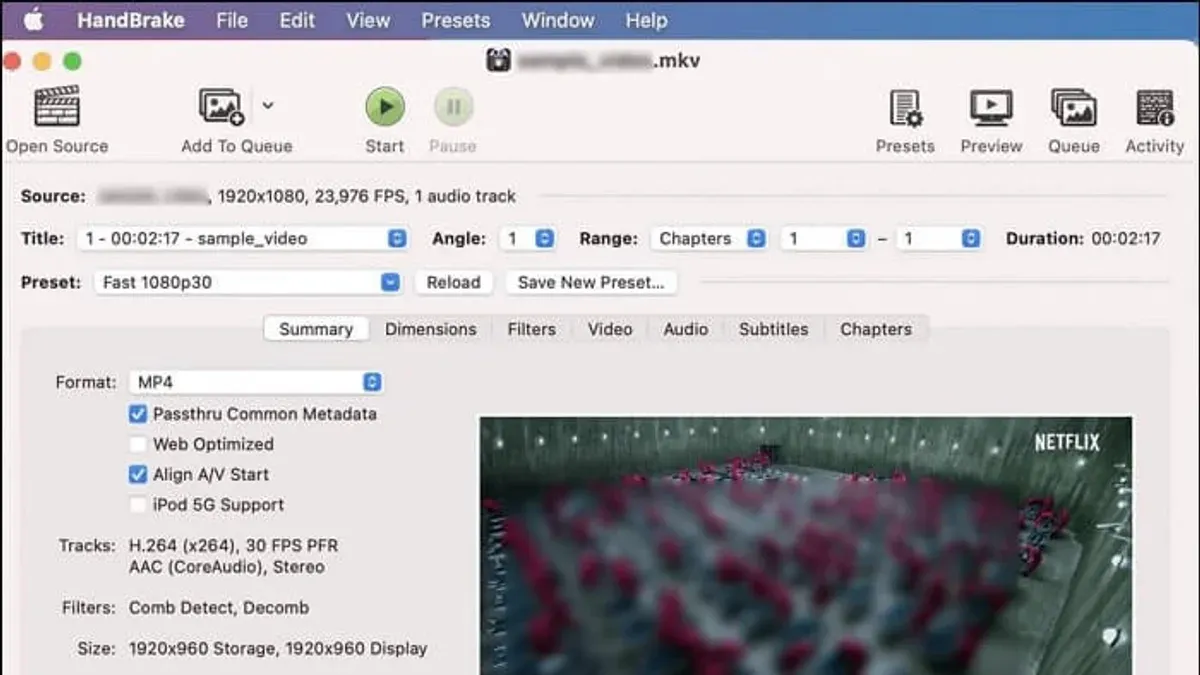
Converting MKV files to formats like MP4 or MOV improves compatibility across Mac apps and devices, especially for editing or iPhone and iPad playback. Popular free converters include HandBrake and Adapter, while paid options like Wondershare UniConverter offer faster conversion and extra features.

To convert an MKV using HandBrake:
- Download and install HandBrake from its official site. Launch the app and click "Open Source" to select your MKV file. You should see the video loaded in the preview window.
- Under "Preset," choose a profile like "Fast 1080p30" for balanced quality and speed. This preset outputs MP4 files compatible with most Mac apps.
- In the "Summary" tab, confirm the format is set to MP4. Adjust video or audio settings if needed for your purpose.
- Click "Browse" to select a destination folder and name for the converted file.
- Press "Start Encode" to begin the conversion. A progress bar appears, and completion time varies with file size and Mac performance.
- After conversion, locate the new MP4 file and test playback in QuickTime or your preferred player.
Conversion typically reduces file size slightly but may take several minutes depending on the tool and hardware. Paid converters often provide faster processing and higher bitrate options.
Direct playback apps avoid conversion time but can struggle with certain MKV codecs or when editing is required. Conversion becomes necessary when your workflow demands native Mac-friendly formats or when transferring videos to iOS devices.
How to open MKV file on iPhone and iPad
iOS devices do not natively support MKV files, so you cannot open them directly in the default Videos or Photos apps. To play MKV videos on your iPhone or iPad, you need to use third-party apps that support the format or convert the files into compatible formats.
Several highly rated iOS apps can handle MKV playback smoothly. VLC for Mobile is a popular choice, offering free MKV support with a user-friendly interface. Infuse is another well-regarded app known for its polished design and wide codec support, though it may have premium features locked behind a subscription. PlayerXtreme Media Player also supports MKV playback and offers useful organization features.
To get MKV files onto your iPhone or iPad, you can transfer them from your Mac using Finder or iTunes file sharing if the app supports it. Alternatively, upload your MKV files to cloud storage services like iCloud Drive, Dropbox, or Google Drive, then open them within the MKV-compatible app.
- Download and install VLC for Mobile or Infuse from the App Store.
- Connect your iPhone or iPad to your Mac and open Finder.
- Select your device under Locations, then go to the Files tab.
- Drag your MKV files into the VLC or Infuse app folder; you should see the files appear in the app on your device.
- Open the app on your iPhone or iPad, navigate to the transferred file, and tap to play. The video should start without conversion.
If you prefer not to install apps, convert MKV files on your Mac into MP4 or MOV using HandBrake, then sync them to your device via Finder or iTunes. This guarantees native playback but requires time and storage for conversion.
For seamless playback, ensure your MKV files use compatible codecs (H.264 video, AAC audio) to avoid glitches. Regularly update your chosen app to benefit from codec improvements and bug fixes.
How to open MKV file on Windows and other platforms
If you also use Windows or Android devices, knowing how to open MKV files beyond Mac can streamline your media experience across platforms.
Playing MKV files on Windows
Windows does not natively support MKV playback in older versions, but modern versions of Windows 10 and 11 include the Movies & TV app, which can play many MKV files. For broader codec support and fewer compatibility issues, VLC Media Player remains the most popular choice.
- Download and install VLC Media Player from videolan.org.
- Open VLC, then go to Media > Open File.
- Select your MKV file and click Open.
- The video should start playing without error; if not, check for codec or file corruption issues.
Playing MKV files on Android devices
Most Android devices do not have built-in support for MKV, but apps like VLC for Android or MX Player can play these files without conversion.
- Install VLC or MX Player from the Google Play Store.
- Open the app and navigate to your MKV file.
- Tap the file to play; the app should handle most codecs embedded in MKV containers.
Understanding these options helps when sharing MKV files across devices, ensuring you choose compatible apps or convert files when needed to avoid playback issues.
| Platform | Native MKV Support | Recommended Player | Common Issues |
|---|---|---|---|
| Windows 10/11 | Partial (Movies & TV app) | VLC Media Player | Older Windows versions lack support; codec mismatches |
| Android | No | VLC, MX Player | Some codecs may require additional plugins |
| Mac | No | VLC, IINA | Requires third-party apps; no native support |
Troubleshooting common issues when opening MKV files on Mac
If your MKV file won’t play or you experience no sound, app crashes, or error messages like "Unsupported codec" or "File cannot be opened," follow these steps to diagnose and resolve common problems.
- Check the file integrity: Try playing the MKV file in another player such as VLC. If it fails there too, the file may be corrupted. You should see an error about file corruption or playback failure.
- Verify codec compatibility: Use media info tools like "MediaInfo" to identify the video and audio codecs inside the MKV container. If codecs are uncommon, your player might not support them, causing issues such as no sound or video.
- Update your media player and macOS: Ensure VLC, IINA, or any other player is updated to the latest version via their official websites or the Mac App Store. Also, update macOS via System Preferences > Software Update. Updates often fix codec and compatibility bugs.
- Try alternative playback options: If one app fails, switch to another MKV-compatible player. For example, use IINA if VLC crashes, or vice versa. If playback still fails, converting the file using HandBrake to MP4 may resolve codec or container conflicts.
- Consider advanced tools or professional repair: If multiple players fail and the file is important, specialized repair software like Stellar Repair for Video can fix corrupted files. Alternatively, seek professional data recovery if the file is severely damaged.
Following these steps helps isolate whether the issue is with the file, codecs, software, or system configuration, guiding you to the best solution for smooth MKV playback on your Mac.
Tips for choosing the best MKV player or converter for your needs
Choosing the right MKV player or converter depends on your technical comfort, device ecosystem, and how you plan to use the files. Free options like VLC and HandBrake offer broad compatibility and strong features but may have less polished interfaces compared to some paid alternatives.

Consider the user interface carefully. Applications with clear menus, drag-and-drop support, and preset profiles simplify tasks, especially if you prefer a straightforward experience. Conversely, apps with advanced customization are better suited to users comfortable with technical settings.
Performance on older Macs can vary. Lightweight players such as IINA tend to consume fewer resources, while some converters may slow down your system during processing. Checking user reviews can reveal how well software performs on different hardware configurations.
Security and privacy are crucial when downloading software. Opt for well-known sources and avoid apps that request unnecessary permissions. Reading recent user feedback helps identify any concerns about malware or intrusive data collection.
| Feature | VLC (Free) | IINA (Free) | Paid Alternatives |
|---|---|---|---|
| Ease of Use | Moderate | User-friendly | Varies, often polished |
| Performance on Older Macs | Good | Better | Depends on software |
| Conversion Capabilities | Limited | No | Comprehensive |
| Security | Trusted | Trusted | Varies |
Review summaries emphasize that VLC and IINA are reliable for playback without cost, while paid converters often add batch processing and format variety. Evaluate your priorities: if you want simplicity and no cost, stick with free players; for extensive format support and professional features, consider investing in paid apps.
- How to Open and Use.ISO Files on Mac: A Clear Step-by-Step Guide
- How to Open.webp Files on Mac: Practical Step-by-Step Methods
- How to Open.heic Files on Mac: Clear Step-by-Step Methods
- How to Open SVG Files on Mac: Step-by-Step Practical Guide
Frequently asked questions
How to open.mkv files?
You can open.mkv files on Mac by using media players like VLC or IINA, both of which support MKV playback without extra codecs. Alternatively, converting the MKV file to a Mac-friendly format like MP4 using software such as HandBrake allows you to use native players like QuickTime. Choose the method based on your comfort with installing apps or converting files.
How to open mkv file in laptop?
On a laptop, including Macs and Windows PCs, the easiest way to open MKV files is with VLC Media Player, which supports MKV natively. You can download VLC from its official website, install it, then open the MKV file directly. If you prefer, converting the file to a more common format is another option.
Can mac play mkv files?
Macs cannot play MKV files with the built-in QuickTime Player by default, as it does not support the MKV container. However, third-party apps like VLC and IINA enable smooth playback of MKV videos on Mac without conversion. Installing one of these players is the most straightforward way to play MKV files on your Mac.
How to open mkv file on ipad?
To open MKV files on an iPad, you need a compatible app like VLC for iOS or Infuse, which supports MKV playback. Transfer the MKV file to your iPad using iTunes, Finder, or cloud services, then open it within the supported app. Direct playback through the default Videos app is not possible due to format restrictions.
How to open mkv video file?
Opening an MKV video file involves choosing the right player or converting the file. On Mac, use VLC or IINA for direct playback. If you prefer native apps, convert the MKV to MP4 using tools like HandBrake. On mobile devices, install apps supporting MKV playback to handle these files effectively.
What this advice does not cover
This article does not cover professional video editing workflows involving MKV files, which may require specialized software beyond playback and basic conversion. If you need to edit MKV files with precision, color grading, or multi-track audio management, consider professional video editing suites like Adobe Premiere Pro or Final Cut Pro, which support more advanced features but often require importing or transcoding MKV files first.
For casual viewing or basic format conversion, the methods described here are sufficient. However, if you encounter persistent playback issues or require lossless conversion, you might need dedicated tools tailored for those purposes.
To get started with playing MKV files on your Mac, the most straightforward approach is to download and install VLC Media Player. It handles MKV files natively without additional codecs or plugins, making it the quickest way to open and watch your videos with minimal setup.



