
How to Open SVG Files on Mac: Step-by-Step Practical Guide
Discover practical steps to open and edit.svg files on Mac using Preview, Quick Look, and popular vector editors.
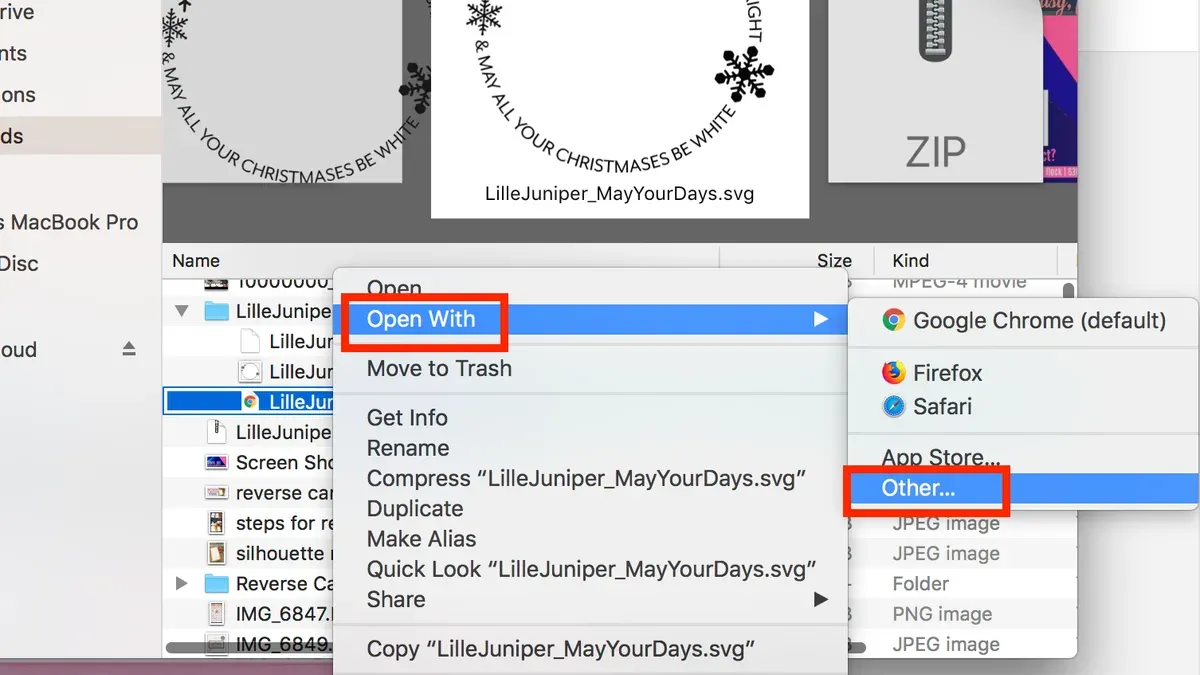
You’ve just received an SVG file on your Mac, but double-clicking it doesn't open as expected. Whether it’s a graphic for a website or a logo you need to edit, knowing how to open.svg file on Mac can save time and frustration.
This guide walks you through practical steps for viewing SVG files using built-in tools like Preview and Quick Look, and explores free and professional editors for more advanced handling. It also highlights the key differences when opening SVGs on Mac versus Windows and offers troubleshooting tips for common issues.
Key takeaways
- You can quickly view SVG files on Mac using Preview or Quick Look without extra software.
- Free vector editors like Inkscape provide basic editing capabilities suitable for most users.
- Professional apps such as Adobe Illustrator offer full SVG editing with advanced features.
- SVG files may behave differently on Mac and Windows due to system handling and default apps.
- Common problems opening SVGs often relate to file associations or corrupted files and have straightforward fixes.
Before you start: What you need to open an SVG file on Mac
SVG (Scalable Vector Graphics) files are vector-based images that use XML to describe shapes, lines, and colors. They are commonly used for logos, icons, and illustrations because they scale without losing quality, unlike raster images such as JPEGs or PNGs. Typical SVG file sizes range from a few kilobytes to several megabytes depending on complexity.
To open or edit SVG files on a Mac, you need compatible software or apps that can interpret the vector data. Unlike standard image viewers designed primarily for raster formats, Mac's built-in Preview app supports basic SVG viewing but offers limited editing capabilities. More advanced editing requires dedicated vector graphic editors.
System requirements generally include macOS versions that support the chosen app and proper permissions for file access. SVG files are often received via email, downloaded from the web, or exported from design software, which can affect how you open them—for instance, some files might be compressed or embedded in archives.
Understanding these basics helps you choose the right tools and avoid common issues when handling SVG files on your Mac.
How to open.svg file on Mac using Preview and Quick Look
Mac offers built-in tools to quickly view SVG files without installing extra software. These methods let you check the content of SVG files conveniently, but they do not support editing.
- Open Finder and locate your SVG file.
- Select the SVG file by clicking it once.
- Press the spacebar to activate Quick Look. You should see a preview window showing the SVG image rendering.
- To close Quick Look, press the spacebar again or click the close button.
- Alternatively, right-click the SVG file, choose "Open With," then select "Preview." The file will open in the Preview app, displaying the vector graphic.
While Preview and Quick Look render SVG files for basic viewing, they may not display complex SVG features accurately, such as filters or animations. These tools do not allow editing or saving changes to SVG content.
For instance, gradients or shadows might appear differently than intended, and some SVGs with interactive elements will show only a static image. These limitations make Preview and Quick Look suitable primarily for quick checks rather than detailed inspections or modifications.
How to open SVG file on MacBook with free vector graphic editors
Free vector graphic editors like Inkscape and Vectornator offer more robust SVG viewing and editing than built-in Mac tools. These apps allow you to modify paths, colors, and layers, giving greater control over SVG files.

To use Inkscape, visit inkscape.org, download the macOS version, and install it. Open the app, then go to File > Open and select your SVG file. Inkscape supports detailed editing but has a steeper learning curve and may run slower on older Macs.
Vectornator is another free option available on the Mac App Store. After installing, launch Vectornator, click File > Open, and choose your SVG. Vectornator offers an intuitive interface with real-time editing and supports touch gestures on compatible devices. It is generally faster and more user-friendly than Inkscape but may lack some advanced features.
- Download and install Inkscape or Vectornator from their official sources. You should see the app icon in your Applications folder once installed.
- Open the app and select File > Open. Navigate to your SVG file and open it. The SVG should display with editable paths and layers.
- Use the selection and editing tools to modify shapes, colors, or text. Changes will be visible immediately, confirming the file is editable.
| Feature | Inkscape | Vectornator |
|---|---|---|
| Editing capabilities | Comprehensive vector editing, node editing, filters | Basic to intermediate vector editing, touch support |
| Performance | Can be slow on older Macs | Generally fast and responsive |
| Interface complexity | Steep learning curve | User-friendly, modern UI |
| File compatibility | Supports many vector formats | Primarily SVG and common raster formats |
For example, opening the same SVG file in Inkscape reveals detailed node control and extensive menu options, suitable for precise editing. In Vectornator, the file loads quickly with smooth zooming and simple shape adjustments, making it ideal for users needing straightforward edits.
How to open SVG file on Mac with professional design software
If you require advanced editing capabilities and seamless integration into professional workflows, Adobe Illustrator and Affinity Designer are the leading choices for opening SVG files on Mac. These applications fully support SVG layers, effects, and complex vector paths, offering precise control over every element.
Adobe Illustrator allows you to open SVG files directly via File > Open. It preserves layer hierarchy and effects, enabling detailed edits and exporting in multiple formats. Illustrator requires a subscription through Adobe Creative Cloud, which may be costly but includes regular updates and cloud storage.
Affinity Designer also opens SVG files with full layer support and advanced vector editing tools. It offers a one-time purchase model without a subscription, making it a cost-effective alternative for professionals.
Choose professional software when you need high fidelity in editing, precise export options, or integration with other design projects. Both apps provide extensive toolsets beyond what free or built-in options offer.
- Launch Adobe Illustrator or Affinity Designer on your Mac.
- Go to File > Open and select the SVG file you want to edit.
- Wait for the file to load; you should see the SVG with all layers and effects intact in the workspace.
- Use the vector editing tools to modify paths, colors, or add effects as needed.
- Save or export your work using File > Save As or Export, choosing the desired format and settings.
Using screenshots from these apps typically shows the SVG structure in layers panels, the toolbar for vector manipulation, and export dialogs that confirm format options. This visual feedback ensures you are working with a professional-grade toolset tailored to complex SVG projects.
How to open SVG file on Windows and why it differs from Mac
Windows offers native support for SVG files primarily through its Edge browser, which renders SVGs accurately and interactively. Unlike Mac's Preview, which only provides basic static viewing, Edge displays SVG files with full support for animations and interactivity embedded in the file.
To open an SVG file in Windows Edge:
- Right-click the SVG file and select Open with > Microsoft Edge. The file opens in a new browser tab displaying the SVG image as intended.
- Verify the image loads fully, including any animation or interactive elements. If it appears broken, the file may have compatibility issues.
For editing on Windows, free tools like Inkscape offer cross-platform consistency similar to Mac versions, allowing you to open and modify SVG files with layer and path editing.
This cross-platform difference means when sharing SVG files between Mac and Windows users, you should consider how the recipient will view or edit the file. Mac's basic viewers may not support advanced SVG features that Windows browsers or editors handle natively. Testing the SVG in Windows Edge or Inkscape can help ensure compatibility.
Troubleshooting: Why won’t my Mac open an SVG file and how to fix it
Sometimes your Mac may not open an SVG file due to file association errors, corrupt files, or rendering issues. Here’s how to diagnose and fix these common problems.
Resetting file associations
- Right-click the SVG file and select Get Info. The Info window appears.
- Locate the Open with: section and choose a compatible app from the dropdown, like Preview or Vectornator.
- Click Change All… to apply this setting to all SVG files. Confirm when prompted.
- Double-click the SVG file to check if it opens in the chosen app. If it does, the association reset worked correctly.
Checking for corrupt or incomplete SVG files
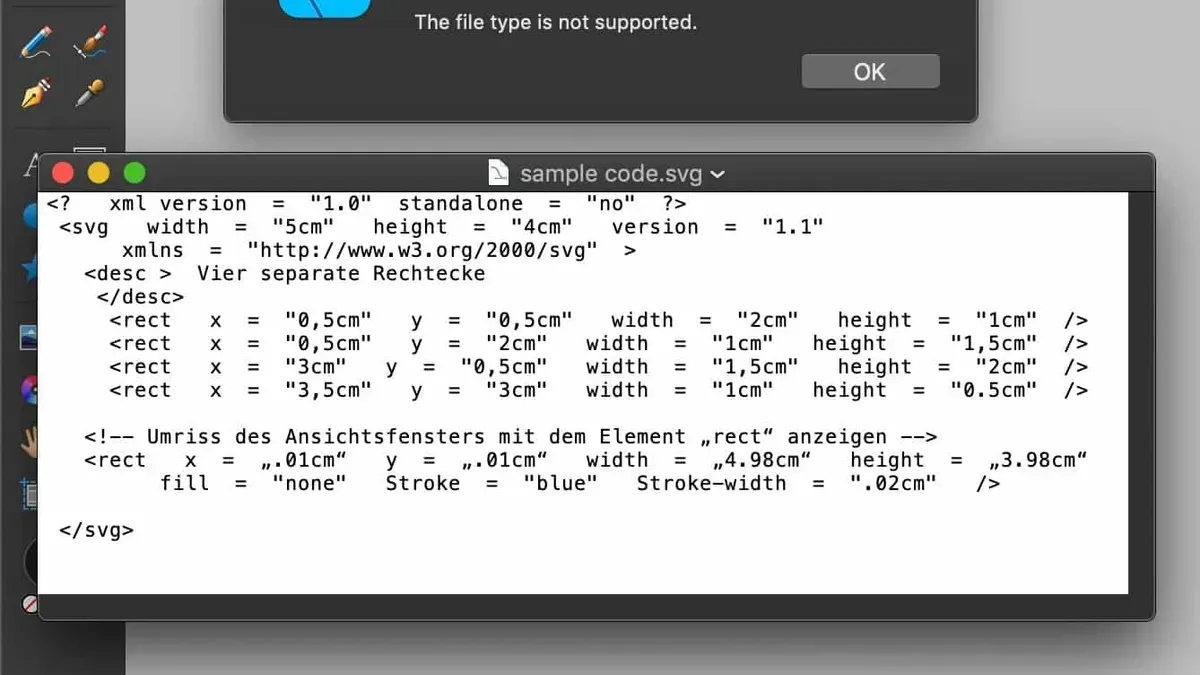
If the file fails to open or displays blank, the SVG may be corrupt or incomplete. Open the file in a plain text editor (like TextEdit) to verify it contains XML code starting with <?xml or <svg tags.
Alternatively, upload the SVG to an online validator such as W3C Markup Validation Service. Validation errors usually indicate corruption or formatting issues.
Handling rendering errors or blank files
Some SVG features may not render properly in simpler viewers. If your file opens but appears blank or incomplete, try opening it with a more robust app like Inkscape or Adobe Illustrator.
Using alternative apps if one fails
If your default app cannot open the SVG, try a different one to rule out compatibility problems. For example, if Preview shows a blank screen, open the file in Vectornator or Affinity Designer instead.
These steps usually resolve common SVG opening issues on Mac. If problems persist, the file itself might be damaged or require re-exporting from the original source.
- How to Open.EPS Files on Mac: Step-by-Step Methods
- How to Open.cdr Files on Mac: Step-by-Step Methods
- How to Open a.PSD File on Mac: Step-by-Step Methods
- How to Open.xd Files on Mac: Clear, Practical Methods
Frequently asked questions
How to open svg file in mac?
On Mac, you can open an SVG file by selecting it in Finder and pressing the spacebar to use Quick Look for a quick preview. For more detailed viewing, right-click the file and choose Open With > Preview. To edit SVG files, free apps like Inkscape or professional software such as Adobe Illustrator provide full support.
How to open.svg file on windows?
Windows users can open SVG files using built-in apps like Microsoft Edge or Photos for viewing. For editing, programs like Inkscape or Adobe Illustrator are common choices. Right-click the SVG file, select Open With, and pick your preferred app.
How to open a.svg file?
Opening an SVG file depends on your device and needs. For simple viewing, use built-in viewers like Preview on Mac or Edge on Windows. If you want to edit, download vector graphic editors like Inkscape (free) or Adobe Illustrator (paid) and open the file through their File menu.
How to open svg file in macbook?
On a MacBook, the process is the same as on any Mac: use Quick Look with the spacebar or open the file in Preview for viewing. For editing, install software like Inkscape or Adobe Illustrator and open the SVG file from within the app. This approach balances convenience and functionality.
How to open svg file in mac
To open an SVG file on Mac, use Quick Look by selecting the file and pressing spacebar for a preview. For full viewing, open it with the Preview app. Editing requires vector graphic software such as Inkscape or Adobe Illustrator, which offer extensive tools for manipulating SVG content.
What this advice does not cover
This article does not cover converting SVG files to other formats in depth or advanced SVG coding and scripting techniques, which require specialized software and knowledge. If you need to perform detailed animations, manipulate SVG code directly, or convert SVGs into complex formats like EPS or DXF for professional printing or CAD applications, consider dedicated vector graphic tools or coding environments.
For developers working with SVGs in web projects or interactive applications, using specialized editors like Adobe Illustrator with scripting support or code editors alongside SVG libraries is recommended.
The most useful next step is to try opening your SVG file with the built-in Preview app or Quick Look feature first, as these provide immediate visual access without installing extra software. From there, you can decide if your needs require free editors like Inkscape or professional tools such as Adobe Illustrator based on your editing requirements and technical comfort.



