How to Open and Play WMV Files on Mac: Practical Step-by-Step Guide
Discover practical ways to open and play WMV files on Mac using VLC, converters, and alternative players with clear instructions.
You’ve just received a WMV video file but your Mac won’t open it by default. The familiar QuickTime player can’t handle this Microsoft format, leaving you wondering what to do next.
This article covers how to open.wmv file on Mac by exploring practical tools like VLC Media Player, alternatives to QuickTime, and methods for converting or editing WMV files. You’ll get clear, step-by-step instructions along with honest pros and cons of each option, helping you decide the best approach based on your needs.
Key takeaways
- VLC Media Player is a free, reliable way to play WMV files on Mac without extra plugins.
- QuickTime doesn’t natively support WMV but some third-party alternatives can add this functionality.
- Converting WMV files to MP4 or MOV makes them easier to edit and play on Apple devices.
- Editing WMV files may require conversion or specialized software compatible with Mac.
- Common issues include codec errors and incomplete playback, often resolved by using updated software.
Before you start: What you need to open WMV files on Mac
Windows Media Video (WMV) files are a Microsoft-developed format commonly used for video playback on Windows PCs. Macs do not natively support WMV files well because macOS primarily supports formats like MOV, MP4, and M4V, which use different codecs. This lack of native support means you cannot simply double-click a WMV file and expect it to play flawlessly on your Mac.
To open WMV files, you need compatible software and hardware that meets specific requirements. Most modern Macs with Intel or Apple Silicon processors and at least 4GB of RAM can handle WMV playback, but older models might struggle, especially with high-definition or variable bitrate WMV files.
Many native Mac apps, including QuickTime Player, do not support WMV without additional codecs or plugins. For example, QuickTime alone cannot open WMV files unless you install third-party software such as Perian (no longer updated) or utilize alternative media players.
WMV files come in several variations, including standard WMV, WMV HD, and WMV with DRM protection. Some variations may require specific codecs or may not play if the file is protected.
| Format | Codec | Native Mac Support |
|---|---|---|
| WMV Standard | WMV7, WMV8 | No |
| WMV HD | VC-1 | No |
| MP4 (H.264) | H.264 | Yes |
- Check your Mac’s specifications: Go to Apple menu > About This Mac and verify that your Mac has at least 4GB of RAM and a modern processor. You should see these details clearly.
- Confirm the WMV file type: Right-click the file and select Get Info to verify the file extension is.wmv and note any DRM information in the details. The file extension should say.wmv.
- Prepare software tools: Download and install a reliable media player like VLC Media Player, which supports WMV files natively on Mac. After installation, you should be able to open WMV files directly in VLC.
- Understand native app limitations: Recognize that QuickTime Player and similar apps won’t open WMV files unless augmented with third-party codecs, which are often outdated or unsupported.
How to play WMV files on Mac using VLC Media Player
VLC Media Player is a free, open-source application well known for its broad format support, including WMV files. It works efficiently on Mac without ads or hidden costs, making it a reliable choice for playing WMV videos.
- Go to the official VLC website at https://www.videolan.org/vlc/ and click the "Download VLC" button for Mac.
- Open the downloaded.dmg file and drag the VLC icon into the Applications folder as prompted. This installs VLC on your Mac.
- Launch VLC from the Applications folder. The first window you see is the media player interface ready to open files.
- To open a WMV file, click "File" in the menu bar, then select "Open File…". Navigate to your WMV file and click "Open".
- The WMV video should start playing smoothly. VLC handles most WMV codecs without additional plugins.
For example, opening a 300MB WMV video from your Downloads folder will show the video in VLC’s window with playback controls visible. You can pause, seek, and adjust volume within the same interface.
VLC’s advantages include its no-cost nature, lack of advertisements, and ability to play nearly all multimedia formats. It also supports subtitle tracks and streaming features. While VLC performs well for playback, it does not offer editing or converting tools, so additional software is needed for those tasks.
How to open WMV files on Mac with QuickTime and Perian alternatives
QuickTime Player, the native macOS media player, has limited support for WMV files due to Apple's focus on formats like MOV and MP4. It cannot decode many WMV files without additional software, which restricts its usefulness for this format.
Historically, the Perian plugin extended QuickTime’s capabilities by adding support for WMV and other Windows-centric formats. However, Perian has not been updated since 2012 and is incompatible with modern macOS versions, making it unreliable and unsafe to use today.
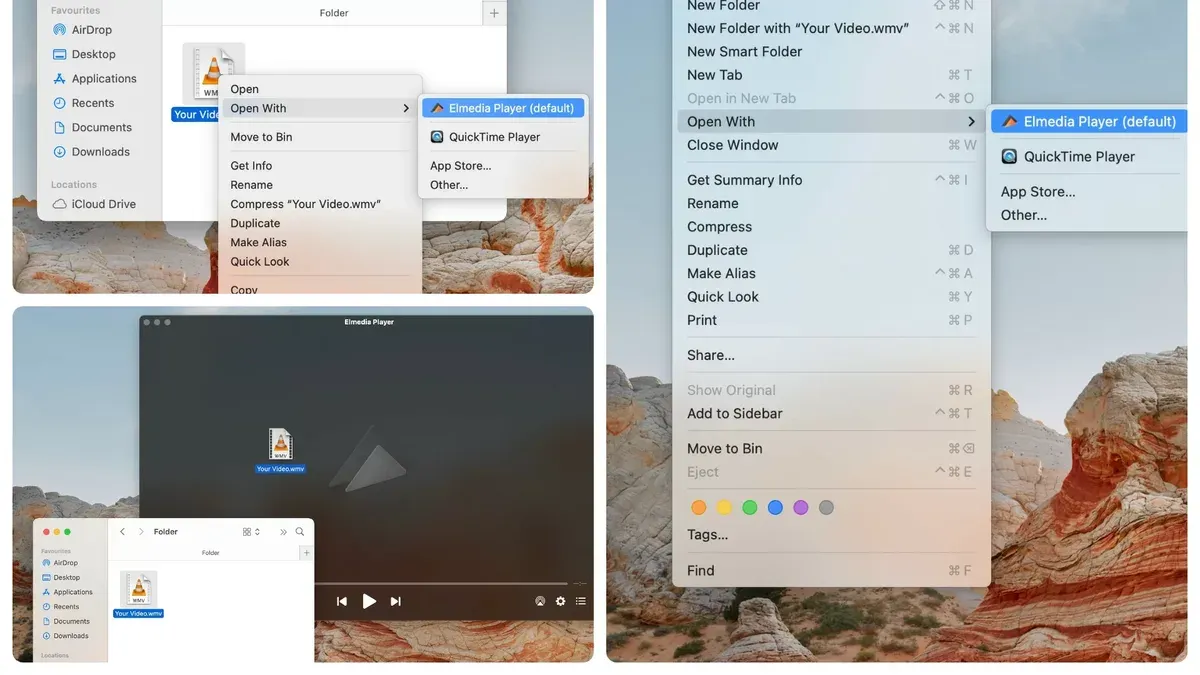
For better integration with QuickTime-like functionality, consider alternatives such as IINA and Elmedia Player. Both apps support WMV files natively and provide modern interfaces with features resembling QuickTime. They handle WMV playback smoothly without the need for outdated plugins.
Here is a comparison of QuickTime and these plugin-based players for WMV support:
| Player | Native WMV Support | Plugin Required | macOS Compatibility | Additional Features |
|---|---|---|---|---|
| QuickTime Player | Limited | Yes, Perian (outdated) | Full but limited WMV support | Basic playback |
| IINA | Full | No | Full modern macOS support | Subtitle support, customization |
| Elmedia Player | Full | No | Full modern macOS support | Streaming, playlist management |
To open WMV files using IINA or Elmedia Player, follow these steps:
- Download and install IINA from https://iina.io or Elmedia Player from https://elmedia-player.com.
- Launch the installed player.
- Go to the File menu and select "Open File..." or drag your WMV file into the player window.
- The WMV video should start playing immediately with full audio and video.
- Use the player's controls to pause, seek, or adjust playback settings as needed.
How to convert WMV files to Mac-friendly formats
Converting WMV files to formats like MP4 enhances compatibility and editing ease on Mac. Popular free converters include HandBrake, which offers detailed control over output settings, and Movavi Video Converter, a paid option with a user-friendly interface and faster processing.
- Download and install HandBrake or Movavi Video Converter. When installed, launch the application.
- Open your WMV file by selecting File > Open Source in HandBrake or using the Add Media button in Movavi. The video will load into the program.
- Choose MP4 as the output format. In HandBrake, select Format: MP4 under the Summary tab. In Movavi, pick MP4 from the list of supported formats.
- Adjust video settings if needed. For minimal quality loss, keep the resolution and bitrate close to the original. HandBrake allows you to set the video codec to H.264 for good balance of quality and size; Movavi offers presets optimized for Mac devices.
- Set the destination folder for the converted file.
- Start the conversion by clicking Start Encode in HandBrake or Convert in Movavi. You will see a progress bar indicating conversion status.
- When finished, locate the MP4 file in your chosen folder and test playback using your preferred Mac media player.
Converting can reduce file size significantly—often by 20-50%—while maintaining near-original quality if settings are optimized. Conversion speed depends on file size and computer power, typically ranging from a few seconds to several minutes per video. Keep in mind that lowering bitrate too much causes noticeable quality loss; balancing size and quality is key.
How to edit WMV files on Mac
Native Mac video editors like iMovie do not support WMV files directly, so you usually need to convert WMV videos to a compatible format such as MP4 before editing. Professional editors like Final Cut Pro and Adobe Premiere Pro offer better format support, but even they perform best with standard Mac-friendly formats.
Here is a practical workflow to edit a WMV file using iMovie after conversion:
- Convert your WMV file to MP4 using a reliable converter like HandBrake. Once conversion completes, locate the MP4 file in Finder.
- Open iMovie and create a new project by clicking File > New Movie. The project workspace will appear.
- Import the converted MP4 by selecting File > Import Media and navigating to the MP4 file. The video will show up in the media library pane.
- Drag the imported MP4 onto the timeline at the bottom of the screen. You should see the video clip appear in the timeline, ready for editing.
- Edit your video using iMovie’s tools—cut clips, add transitions, apply effects, or adjust audio. Edits will appear in the timeline and preview window as you apply them.
- When finished, export your edited video via File > Share > File to save it in a Mac-compatible format.
If you prefer to avoid conversion, consider using Final Cut Pro or Adobe Premiere Pro, which can import WMV files more reliably. However, converting to MP4 often ensures smoother performance and compatibility during editing.
How to open WMV files on MacBook and iPhone
MacBook users generally have access to the same software options as desktop Macs, but performance can vary depending on the hardware model. Lightweight players like IINA and Elmedia Player run smoothly on most MacBooks, providing reliable WMV playback without taxing system resources. However, older MacBook models may experience slower performance with resource-intensive apps.
Playing WMV files on an iPhone involves additional considerations because iOS’s native video player does not support WMV format. To play WMV files directly on an iPhone, you need third-party apps designed for this purpose. Popular iOS apps supporting WMV playback include VLC for Mobile, PlayerXtreme Media Player, and Infuse. These apps allow you to open WMV files locally or stream them from cloud storage.
To get WMV files onto an iPhone, you typically must convert them first to a compatible format like MP4, then sync via iTunes or Finder. Alternatively, you can transfer WMV files directly into supported apps using the Files app, AirDrop, or cloud services linked to these players.
- Convert your WMV file to MP4 using a Mac app like HandBrake. When conversion completes, you should see the new MP4 file ready for transfer.
- Connect your iPhone to your Mac and open Finder (macOS Catalina and later) or iTunes (older macOS versions). You should see your device listed.
- Select your iPhone, navigate to the Files tab or Apps section, and drag the MP4 file into a compatible video app’s documents area. The file will appear within the app on your iPhone.
- Open the video app on your iPhone and locate the transferred video. Playback should start smoothly if the format is supported.
- If you prefer direct WMV playback without conversion, install VLC for Mobile from the App Store, then use AirDrop or cloud sync to transfer WMV files to the app. The WMV file should open and play within VLC.
Keep in mind that third-party iOS apps vary in codec support and may not handle all WMV variants flawlessly. Performance and battery use may also differ compared to native formats.
Troubleshooting common issues opening WMV files on Mac
Opening WMV files on Mac can sometimes lead to errors caused by file corruption, missing codecs, software crashes, or hardware limitations. Identifying the root cause helps you apply the right fix efficiently.

Identifying file corruption
A corrupted WMV file often fails to open or shows error messages like “The file is damaged and cannot be repaired” or “Playback error.” To check, try playing the file on another device or media player. If it still fails, the file is likely corrupted. Recovering corrupted files usually requires specialized repair tools, but re-downloading or obtaining a new copy of the file is often the simplest solution.
Resolving codec errors
Messages such as “Unsupported codec” or “Missing codec” indicate that your player lacks the necessary codec to decode the WMV file. Installing a comprehensive media player like VLC or IINA, which includes built-in codecs, typically resolves this. If you prefer QuickTime or other players, ensure you have updated codec packs or consider converting the WMV file to a more compatible format using converters like HandBrake.
Fixing software crashes and playback glitches
- Close all other applications to free system resources. You should see smoother playback or stable app behavior.
- Update your media player to the latest version via the app’s Help > Check for Updates menu; successful updates typically fix known bugs.
- If crashes persist, uninstall and reinstall the player, then attempt playback again. The player should open WMV files without freezing.
Addressing performance and hardware issues
Lagging or stuttering during playback can stem from insufficient RAM or CPU capacity, especially with high-resolution WMV files. Close background apps and reduce playback resolution if your player supports it. For persistent issues, consider upgrading hardware or converting the WMV file to a lighter format to ease processing demands.
- How to Open AVI Files on Mac: Step-by-Step Practical Guide
- How to Open MKV Files on Mac: Practical Step-by-Step Methods
- How to Open.webp Files on Mac: Practical Step-by-Step Methods
- How to Open and Run.exe Files on Mac: Step-by-Step Guide
Frequently asked questions
How to watch wmv files on mac?
You can watch WMV files on Mac by using VLC Media Player, which supports WMV playback natively. Download and install VLC, then open your WMV file through the File menu or by dragging it into the VLC window. Alternatively, converting the WMV file to a Mac-friendly format like MP4 can simplify playback in QuickTime.
How to open wmv file on windows?
On Windows, WMV files usually open by default with Windows Media Player. Simply double-click the WMV file, and it should start playing. If it doesn't, right-click the file, select "Open with," and choose Windows Media Player or another compatible player like VLC.
How to play wmv on mac?
Playing WMV files on Mac is straightforward with VLC Media Player, which is free and widely compatible. After installing VLC, open the app and select "File" > "Open File…" to choose your WMV video. This method supports most WMV codecs without additional plugins.
How to open wmv file on mac?
To open WMV files on Mac, use VLC Media Player for direct playback or convert the files to formats like MP4 using software such as HandBrake. QuickTime alone cannot open WMV files without third-party plugins, which are less common now, making VLC a more reliable choice.
How to open a wmv file?
Opening a WMV file depends on your device. On Windows, use Windows Media Player by default. On Mac, install VLC Media Player for direct playback or convert the file to a compatible format. Many video editors and converters also support WMV files if you want to edit or change the format.
What this advice does not cover and who should do something else
This article does not cover professional-level video production workflows that require specialized WMV codecs or handling DRM-protected WMV files. If you work with DRM-locked content or need advanced codec support for broadcast or commercial editing, consider dedicated professional software or services tailored for those purposes.
For most Mac users looking to open, play, convert, or perform basic edits on WMV files, the outlined tools and steps offer reliable options. However, if your WMV files fail to open despite following these instructions, the files may be corrupted or use uncommon encoding that basic tools cannot handle.
The best next step is to install VLC Media Player if you haven’t already. It provides the widest WMV compatibility on Mac without extra configuration and supports playback of nearly all WMV variations. From there, you can explore converting files to Mac-friendly formats or editing them using apps that suit your workflow.