
How to Open AVI Files on Mac: Step-by-Step Practical Guide
Discover practical methods to open and play AVI files on Mac using native players, third-party apps, and file conversion tools.
You have an AVI video file on your Mac, but when you try to open it, nothing happens or you see an error message. AVI files are common but not always fully compatible with Mac's native software, leaving you wondering how to open.avi file on Mac efficiently.
This article explains practical methods to play and open AVI files on Mac. It covers using native QuickTime Player with plugins, popular third-party media players like VLC, alternative software options, and converting AVI files to Mac-friendly formats. You’ll also find tips on free online tools and troubleshooting common issues unique to AVI files on Mac.
Key takeaways
- QuickTime Player requires additional codecs or plugins to play AVI files correctly.
- VLC Media Player is a reliable free option that supports most AVI formats out of the box.
- Converting AVI files to MP4 or MOV formats improves compatibility with native Mac apps.
- Alternative media players offer varying features; choose based on your playback needs.
- Online converters are convenient but consider file size and privacy before uploading.
Before you start: what you need to open AVI files on Mac
AVI (Audio Video Interleave) is a multimedia container format developed by Microsoft. It can hold video and audio encoded with various codecs, such as DivX, Xvid, or uncompressed formats. This diversity means that not all AVI files play natively on Mac because macOS's built-in QuickTime Player supports only a limited range of codecs, primarily those based on MPEG-4 and H.264.
To open AVI files on your Mac, you need to understand that simply having the file is not enough—your system must support the codecs used inside the AVI container. Mac OS lacks native support for many common AVI codecs, causing playback issues or errors.
Here is what you need to prepare before trying to open an AVI file:
- Check your Mac's system version and hardware to ensure compatibility with video player software and converters. Most modern macOS versions support popular third-party players.
- Choose a video player app that supports a wide range of AVI codecs, such as VLC Media Player, or install codec plugins for QuickTime to extend its capabilities.
- Decide if you want to only play the AVI files or also edit or convert them. Playing requires less processing power and simpler software, while editing or converting AVI files needs more advanced tools.
Understanding these prerequisites helps you avoid common pitfalls and select the right software for your needs.
How to play AVI file on Mac using native QuickTime Player with plugins
QuickTime Player, the default video player on Mac, does not natively support many AVI files due to codec incompatibilities. However, you can extend its functionality by installing codec plugins like Perian, which was a popular solution to enable QuickTime to open AVI files directly.
Note that Perian has reached end-of-life and is no longer actively maintained, which may cause compatibility issues with newer macOS versions or certain AVI codecs.
- Download the Perian plugin from a trusted archive site.
- Open the downloaded Perian.dmg file and run the installer by double-clicking the Perian.prefPane file.
- Follow the on-screen prompts to install Perian; you may need to enter your administrator password.
- Restart your Mac to ensure the plugin is fully integrated with QuickTime Player.
- After restarting, right-click your AVI file and choose "Open With" > "QuickTime Player." The video should now open and play if the AVI codec is supported by Perian.
This method works for many standard AVI files, but some AVI files encoded with uncommon or newer codecs may still fail to play. Users often report successful playback with older AVI files but encounter errors or no video display with newer or high-compression files.
Because Perian is outdated, relying on this method can be unreliable on recent macOS releases, and it may not support all AVI variants. If playback fails, consider alternative players or conversion methods.
How to open AVI files on Mac using VLC Media Player
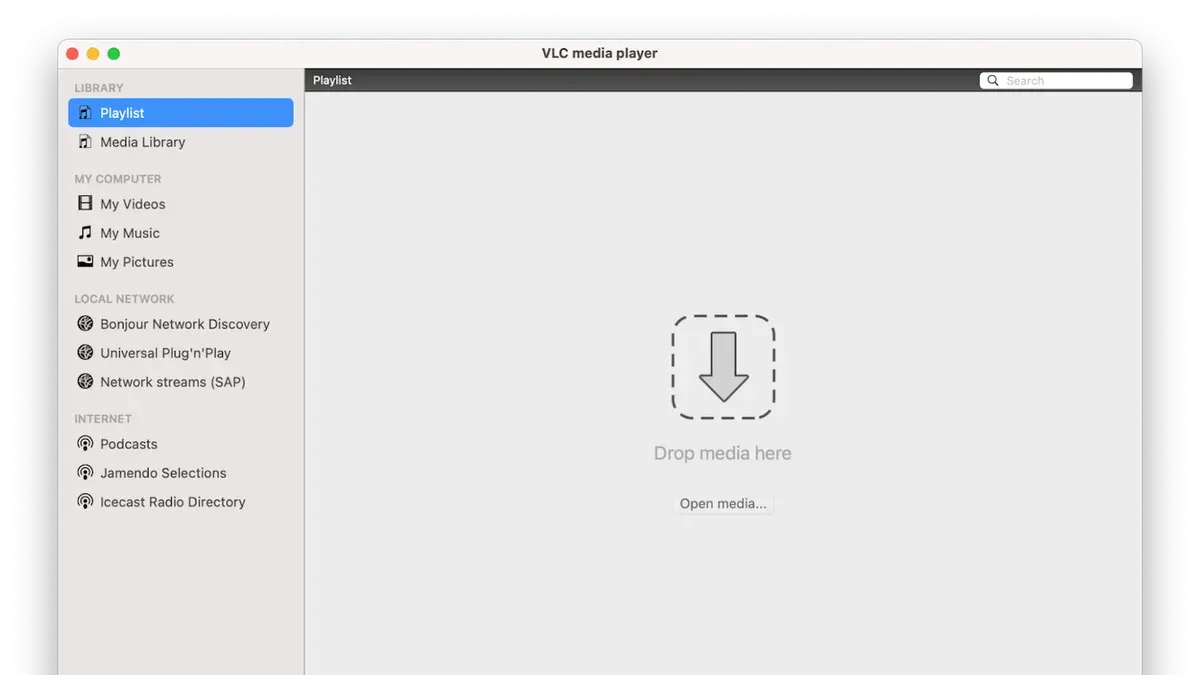
VLC Media Player is a popular free, open-source application known for its extensive codec support, allowing it to play most AVI files without additional plugins or setup. Compared to QuickTime, which often requires extra codecs, VLC natively handles a broader range of video and audio formats.
- Go to the official VLC website at videolan.org and download the Mac version of VLC Media Player. Once downloaded, open the installer and drag the VLC icon to your Applications folder. You should see VLC appear in your Applications list.
- Launch VLC from your Applications folder. The interface will display a simple menu bar with options like "File," "Playback," and "Video."
- Click on "File" in the menu bar and select "Open File..." Navigate to the AVI file you want to play and select it. VLC will begin playing the video immediately if the file is supported.
- Use the playback controls at the bottom of the VLC window to pause, rewind, or adjust volume. If the AVI file uses uncommon codecs, VLC will usually still play it without error.
VLC’s advantages include no cost, regular updates, cross-format compatibility, and the ability to handle damaged or incomplete AVI files. However, its user interface can be less intuitive for new users, and on older Mac models VLC may use more system resources than simpler players.
How to open AVI files on MacBook Pro or MacBook using alternative media players
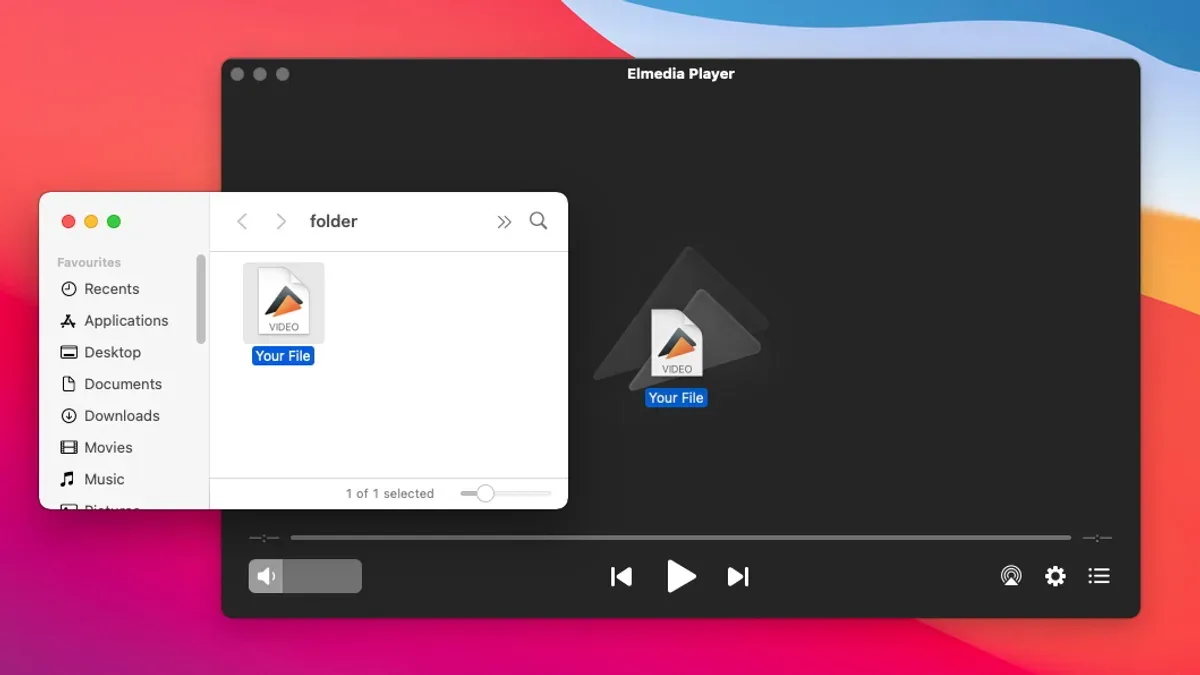
If you want an alternative to VLC with different features or interfaces, consider players like Elmedia Player, MPlayerX, and 5KPlayer. These offer varied user experiences and additional functionalities.
- Go to the official website of the player you want:You should see a clear download button.
- Elmedia Player: elmedia-player.com
- MPlayerX: mplayerx.org
- 5KPlayer: 5kplayer.com
- Download the macOS version of the player. When complete, open the downloaded file to start installation.
- Follow the on-screen instructions to install the player. After installation, launch the app; the main interface will appear.
- Open your AVI file by dragging it into the player window or using File > Open from the menu. The video should start playing.
Comparison of features and performance:
| Player | Free Version | Paid Features | User Interface | Stability | Additional Features |
|---|---|---|---|---|---|
| Elmedia Player | Yes | Advanced playback controls, streaming options | Modern, customizable | Generally stable | Video streaming, subtitle support, playlist management |
| MPlayerX | Yes | Limited; mainly free | Minimalist, simple | Occasional crashes reported | Gesture controls, supports many formats |
| 5KPlayer | Yes | Some advanced settings require upgrade | Clean, straightforward | Stable with minor bugs | AirPlay support, 4K playback, radio streaming |
Choosing the right player: If you prioritize a customizable interface and streaming, Elmedia Player is a strong choice. For a lightweight, simple player, MPlayerX fits well but may be less stable. 5KPlayer offers added features like AirPlay and 4K support, good for multimedia enthusiasts. Consider your needs for stability, interface, and extra functions when selecting.
How to open AVI files on Mac by converting to a Mac-friendly format
Converting AVI files to formats like MP4 can resolve compatibility issues by producing files that macOS and most media players handle smoothly. Popular converters include HandBrake (free), Movavi Video Converter (paid), and various online converters that require no installation.
- Open your chosen converter and import the AVI file. You should see the file added to the conversion queue or interface.
- Select MP4 as the output format, often listed as "MP4", "H.264", or "MPEG-4" in the format options. The converter should display this choice clearly.
- Adjust quality settings if available. For example, HandBrake lets you set the video codec to H.264 and quality as "RF 20" for a good balance between size and quality. After setting this, the converter will show or estimate file size.
- Choose the output folder where you want the converted file saved. Confirm this path is accessible to you.
- Start the conversion process by clicking "Start" or "Convert." Once finished, the converter will notify you or show a completed status.
- Locate the new MP4 file in the output folder and open it with QuickTime or another Mac-friendly player to confirm playback works.
Conversion advantages include improved compatibility across devices and generally smaller file sizes compared to AVI, which often uses less efficient codecs. However, conversion takes time, especially for large files, and some quality loss can occur depending on settings; for example, a 700 MB AVI might convert to a 500 MB MP4 with visually similar quality using moderate compression.
How to open AVI files on Mac free with online tools
If you want a quick way to open AVI files on Mac without installing software, online players and converters can help. Popular options include Online-Convert.com, Convertio.co, and Clideo.com, which let you upload AVI files to play or convert them directly in your browser.
To use these tools, follow these steps:
- Go to the chosen online AVI player or converter website; the homepage usually features a clear upload button.
- Click the upload or drag-and-drop area and select your AVI file from your Mac; the site will show a progress bar during upload.
- For players, the video should begin playing automatically after upload; for converters, select the desired output format (like MP4) and start the conversion.
- Once conversion finishes, download the new file to your Mac, where you can open it with native or other compatible players.
Keep in mind that online tools often have file size limits (commonly under 500MB or 1GB) and depend on your internet speed, which can slow the process. Privacy is another consideration; uploading sensitive videos to third-party servers might not be suitable. User feedback generally praises these tools for ease of use but notes occasional slowdowns with large files.
Online solutions are best for small, non-sensitive AVI files or when you need a fast fix without installing anything. For larger files, complex codecs, or frequent use, dedicated apps remain more reliable and secure.
How to open AVI file video on Windows and differences from Mac
Windows Media Player (WMP) natively supports AVI files, making playback straightforward for most users. This is because AVI, developed by Microsoft, is a container format that Windows handles efficiently with built-in codec support.
Common codecs used in Windows AVI files include DivX, XviD, and Microsoft’s own codecs like Cinepak and Indeo. These codecs are typically pre-installed or integrated into Windows systems, so most AVI files play without additional software.
However, AVI files may still fail to play on Windows if they use uncommon or proprietary codecs not included in WMP. In such cases, users often need to install third-party codecs or switch to players like VLC that support a broader range.
Understanding Windows’ native support helps Mac users recognize why AVI files often open easily on Windows but require extra steps on Mac. This knowledge aids cross-platform workflow, ensuring you choose compatible formats or software when sharing AVI videos between systems.
Troubleshooting common problems when opening AVI files on Mac
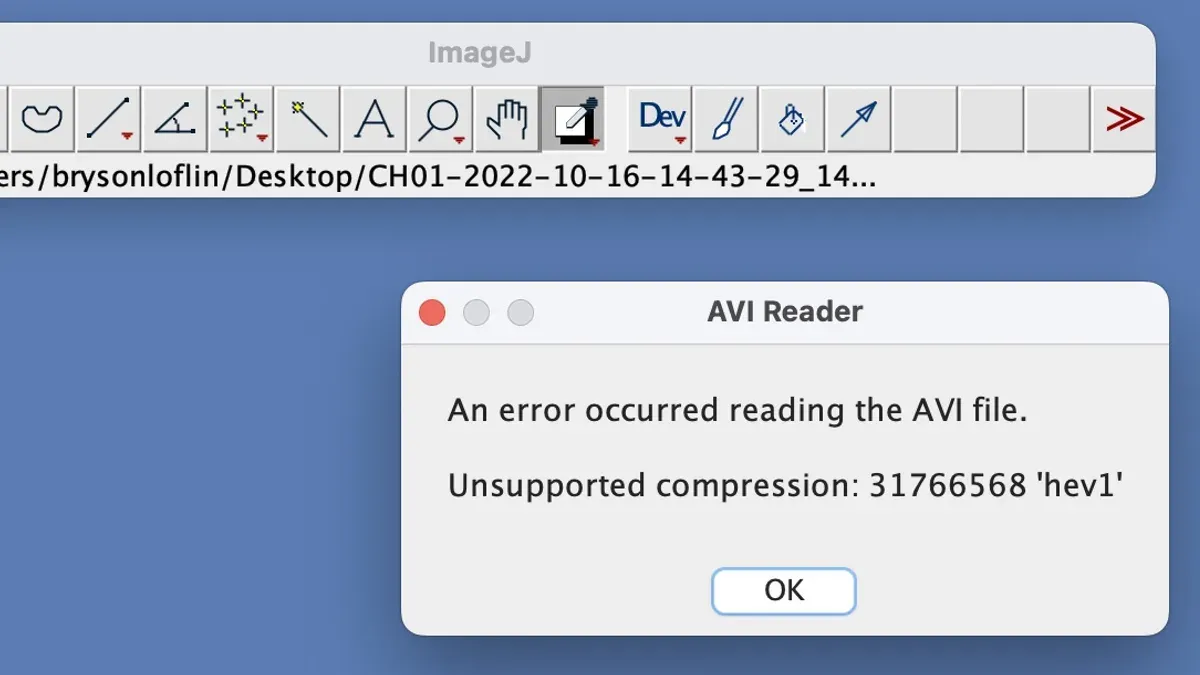
If your AVI file won’t open or shows an error like "The file could not be opened" or "Unsupported format," the issue often lies with codec incompatibility or file corruption. First, try opening the file with VLC Media Player, which supports most codecs. If the file still won’t open, test it on another device to confirm if it’s corrupted.
If audio plays but no video appears, or video plays without sound, this usually indicates a codec mismatch. For example, some AVI files use audio codecs like AC3 or DTS not supported by default players. Switching to VLC or installing comprehensive codec packs can resolve this.
Slow or choppy playback often results from hardware limitations or disabled hardware acceleration. To improve performance, enable hardware-accelerated decoding in VLC via Preferences > Input / Codecs > Hardware-accelerated decoding (choose "Automatic"). Close other applications to free system resources.
If the file plays but shows poor video quality, check the resolution and bitrate of the original file. Low bitrate or highly compressed AVI files will look grainy or pixelated. Converting to a higher-quality format or obtaining a better source file may be necessary.
- Open the AVI file in VLC Media Player. If it fails, note any error messages.
- Test the file on another device to check for corruption. If corrupt, obtain a new copy.
- If audio or video is missing, enable hardware acceleration in VLC Preferences > Input / Codecs.
- Close other apps to improve playback smoothness.
- For poor quality, check file details using VLC's Media Information (Window > Media Information) to assess bitrate and resolution.
- If needed, convert the AVI file to MP4 using a trusted converter for better compatibility and quality.
Programs to open AVI files: choosing the right tool for your needs
When selecting a program to open AVI files on Mac, consider factors like cost, ease of use, features, and stability. Free options such as VLC Media Player offer broad codec support and reliability without extra setup, making them ideal for most users seeking a hassle-free experience.
For users who want enhanced features like subtitle management, streaming support, or an intuitive interface, paid or alternative players like Elmedia Player provide added value but may require purchase or subscription.
If you prioritize file compatibility and storage efficiency, converting AVI files to MP4 using dedicated converters is a practical choice, though it involves additional steps and potential quality trade-offs.
Testing multiple solutions helps identify which tool fits your workflow best. Refer to earlier sections for detailed setup and usage instructions.
| Criteria | Best Choice | Why |
|---|---|---|
| Free and simple | VLC Media Player | Broad codec support, no plugins needed, stable |
| Feature-rich player | Elmedia Player | Advanced playback options, user-friendly interface |
| Convert for compatibility | Dedicated converter tools | Improves playback on restricted players, reduces file size |
| Quick online access | Online conversion tools | No install needed, limited by file size and privacy |
- Identify your priority: playback simplicity, advanced features, or file conversion. You should clearly know what you need to avoid unnecessary software.
- Download or access the chosen tool. For VLC or Elmedia Player, visit their official websites. Online tools require no download.
- Open or convert your AVI file following the respective tool’s instructions. Successful playback or conversion indicates the tool meets your needs.
- If you encounter issues, try an alternative solution to compare performance and ease of use.
- Keep your preferred tool updated to maintain codec compatibility and stability over time.
- How to Open MKV Files on Mac: Practical Step-by-Step Methods
- How to Open and Use.ISO Files on Mac: A Clear Step-by-Step Guide
Frequently asked questions
How to open avi file on windows?
To open an AVI file on Windows, you can use the built-in Windows Media Player, which supports AVI playback by default. Alternatively, installing third-party media players like VLC or Media Player Classic can handle AVI files smoothly, especially if the file uses uncommon codecs. If the AVI file won't open, consider installing codec packs such as K-Lite to ensure compatibility.
How to play avi on mac?
Playing AVI files on a Mac can be done using VLC Media Player, which supports AVI formats without additional plugins. Alternatively, you can add Perian, a QuickTime plugin that extends support to AVI files, though it may not work with all AVI codecs. Converting AVI files to a Mac-friendly format like MP4 is another effective option if playback issues persist.
How to open.avi file?
You can open a.avi file using compatible media players such as VLC on both Mac and Windows platforms. On Mac, native support may require plugins or conversion, while Windows often plays AVI files natively. If you face difficulties, converting the file or using alternative players like Elmedia Player or MPlayerX can help.
How to open avi video files?
Opening AVI video files involves using a media player that supports the AVI container format and its codecs. VLC Media Player is a widely recommended free option available on multiple platforms. If you prefer native tools, QuickTime with additional codecs or plugins might work, or you can convert the file to a more compatible format for your device.
How to open avi file on macbook?
On a MacBook, you can open AVI files by installing VLC Media Player, which handles AVI without extra configuration. Alternatively, QuickTime Player with Perian plugin can sometimes play AVI files, though this method has limitations. If those options fail, converting the AVI file to MP4 or MOV formats using HandBrake or similar converters is a practical solution.
What this advice does not cover
This article does not cover professional video editing of AVI files or AVI files with uncommon or proprietary codecs which may require specialized software tailored for those formats.
If you need to work extensively with AVI files in a professional capacity or face files that won’t open even with popular players and converters, consider dedicated video editing suites or codec packs designed for advanced use.
The single most useful next step is to try VLC Media Player if you have not already. It supports nearly all AVI file variations without additional plugins and offers a straightforward way to play your videos immediately. Download it from the official VideoLAN website, install it, and open your AVI file via File > Open File. This often resolves compatibility issues quickly and without cost.



