
How to Open.WMA Files on Mac: Clear Step-by-Step Guide
Discover simple methods to open.wma files on Mac using compatible players or converting files for seamless playback and management.
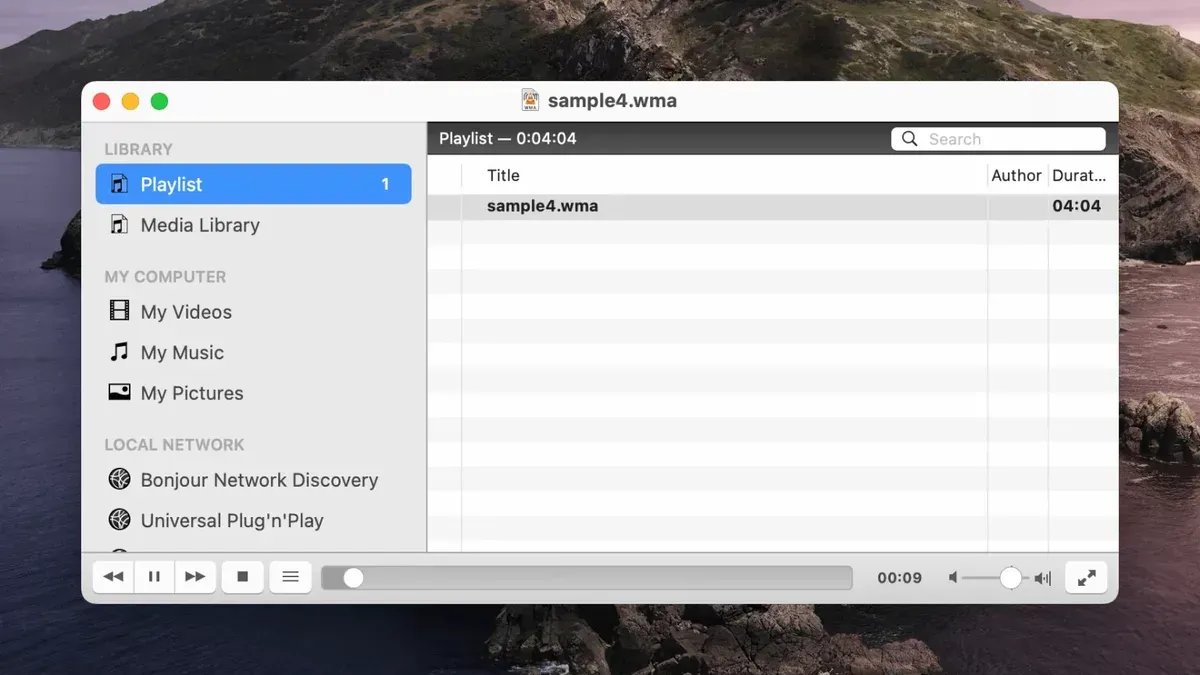
You’ve just received a.wma audio file via email or downloaded it from the web, but when you try to open it on your Mac, nothing happens. macOS doesn’t natively support Windows Media Audio (WMA) files, which can make playback confusing.
This guide explains how to open.wma file on Mac using both free media players that play WMA directly and through converting WMA files to more compatible formats like MP3 or AAC. You’ll also learn how to import converted files into Apple’s Music app, understand differences from Windows playback, and get tips for playing WMA files on iPhone and Android devices.
Key takeaways
- macOS does not natively support WMA files, so special media players or conversion is needed.
- Free players like VLC and Elmedia Player can play WMA files directly on Mac without conversion.
- Converting WMA files to MP3 or AAC improves compatibility with Apple Music and other apps.
- Import converted files via Music app’s File > Import option for easy library management.
- WMA playback on Mac differs from Windows, requiring different software or conversion steps.
Before you start: what you need to open WMA files on Mac
WMA (Windows Media Audio) is a Microsoft proprietary audio format that macOS does not support natively. This means you cannot play WMA files directly with Apple’s built-in Music app or QuickTime Player. To open WMA files on your Mac, you must either use third-party media players compatible with WMA or convert the files into Mac-friendly formats like MP3 or AAC.
Before proceeding, check your macOS version under Apple menu > About This Mac to ensure compatibility with the software you plan to use. Also, verify you have sufficient storage space for any new apps or converted files, especially if working with large audio libraries.
Decide upfront whether you prefer to play WMA files directly or convert them. Direct playback requires installing a compatible media player, while conversion involves software that changes WMA files into more universal formats.
- Check your macOS version in Apple menu > About This Mac. The WMA-compatible players listed usually require macOS 10.12 or later. You should see your macOS version displayed clearly.
- Verify available disk space by clicking Storage in the same window. Aim for at least a few hundred megabytes free, depending on file sizes.
- Choose your approach: for direct playback, consider VLC Media Player or Elmedia Player, which support WMA without conversion. For conversion, apps like Audacity or online converters can create MP3 or AAC files. After installation, you should be able to open your WMA files accordingly.
Knowing these requirements before starting will save time and prevent compatibility issues when handling WMA files on your Mac.
How to play WMA files on Mac using free media players
Playing WMA files directly on Mac is possible with several reliable free media players, eliminating the need for conversion. Among these, VLC Media Player stands out for its broad codec support and straightforward interface.
Using VLC Media Player
VLC can open WMA files directly without extra codecs. To use VLC:
- Download VLC from the official website (videolan.org/vlc) and install it on your Mac.
- Launch VLC, then click File > Open File...
- Navigate to your WMA file, select it, and click Open. The file should start playing immediately.
- Use the playback controls at the bottom of the window to pause, rewind, or adjust volume.
If playback does not start, it may be due to a rare codec issue. Updating VLC to the latest version usually resolves this.
Other free media players: Elmedia Player and IINA
Elmedia Player offers a clean interface and supports many audio formats, including WMA. It integrates well with macOS features but some advanced options require the paid version. IINA is a modern macOS-native player with intuitive controls and subtitle support. It also plays WMA files but occasionally encounters minor glitches with less common codecs.
| Player | WMA Support | Pros | Cons |
|---|---|---|---|
| VLC Media Player | Full | Wide codec support, free, open source | Interface less native to macOS |
| Elmedia Player | Good | macOS-friendly UI, playlist support | Some features behind paywall |
| IINA | Good | Modern design, native macOS look | Occasional codec glitches |
How to convert WMA files to MP3 or AAC for Mac playback
Converting WMA files to MP3 or AAC ensures compatibility with macOS and iTunes. You can use free tools like Audacity combined with the FFmpeg plugin or online converters. Audacity allows offline batch conversion while online converters offer convenience without installations.
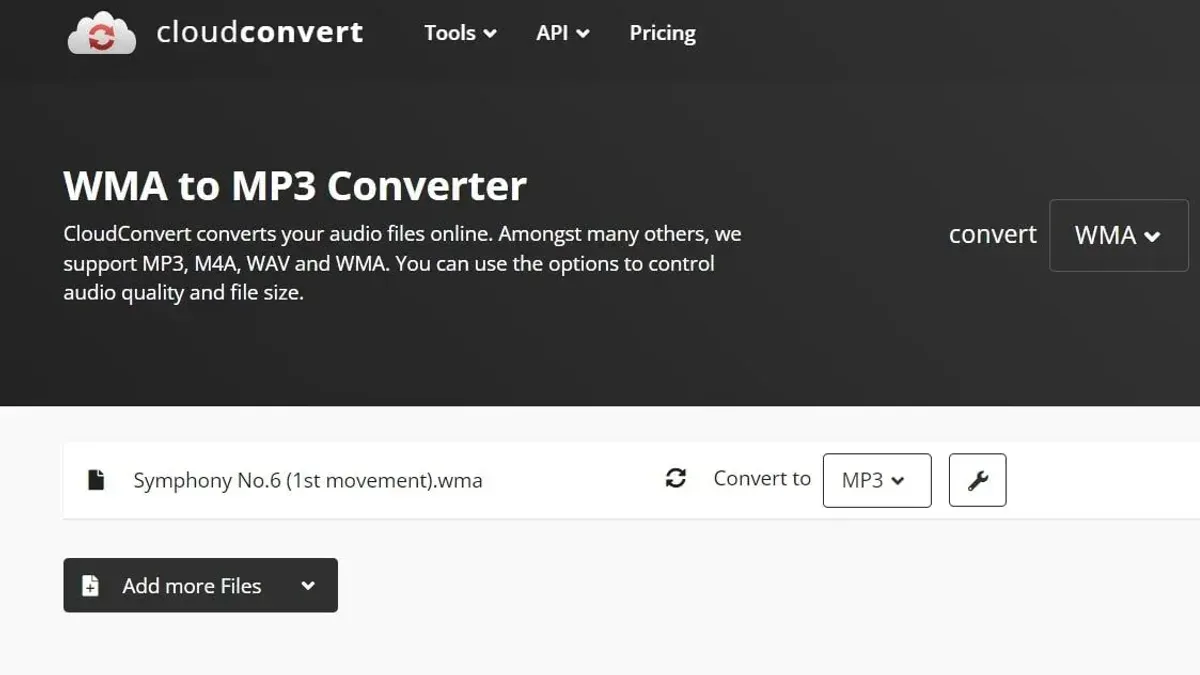
- Download and install Audacity from its official site. Once installed, add the FFmpeg library following Audacity's instructions so it can import WMA files. After setup, open Audacity.
- Click File > Import > Audio and select one or multiple WMA files. Imported files will appear as tracks in Audacity.
- To convert a single track, select it. For batch conversion, export all tracks one by one or use a macro (via Tools > Macros) to automate exporting multiple files.
- Choose File > Export > Export as MP3 or Export as AAC (M4A). Set the desired bitrate (e.g., 192 kbps for a balance of quality and file size). Click Save.
- Specify metadata tags if desired, then confirm. Audacity will export the file in the chosen format. Check the exported file size and audio quality compared to the original WMA to ensure acceptable results.
Converting files provides better integration with Apple apps and devices, avoiding the need for third-party players. However, conversion takes time, may slightly reduce audio quality depending on compression settings, and requires extra storage for new files. Direct playback keeps the original file intact but depends on having compatible software installed.
How to import converted WMA files into iTunes or Music app
After converting your WMA files to MP3 or AAC, you can easily add them to the iTunes or Music app library on your Mac. This enables smooth playback and syncing with your Apple devices.
- Open the Music app (or iTunes if on an older macOS version). You should see your existing music library.
- In the menu bar, click File > Add to Library (or Import in some versions).
- Navigate to the folder containing your converted MP3 or AAC files, select them, and click Open. The files will appear in your library under Recently Added or Songs.
- To sync these files to your iPhone or iPad, connect the device to your Mac using a USB cable or Wi-Fi sync.
- In the Music app or iTunes, select your device icon, then go to the Music tab under Settings.
- Check Sync Music, choose either Entire library or Selected playlists, artists, albums, and genres, then ensure your newly imported files are included.
- Click Apply or Sync to start transferring the audio files to your device. You should see a progress bar indicating the sync status.
iTunes and the Music app do not support importing WMA files directly, which is why conversion is necessary. This approach improves compatibility and avoids playback issues on Apple devices.
If syncing fails, try re-encoding the files at a different bitrate or format (AAC is generally preferred for Apple devices). Alternatively, use cloud services like iCloud Music Library or third-party apps such as WALTR to transfer files without iTunes.
How to open WMA files on Windows and how that differs from Mac
Windows Media Player, the default media player on Windows, natively supports WMA files. This is because the Windows Media Audio (WMA) format was developed by Microsoft specifically for Windows platforms to provide efficient audio compression and digital rights management.
According to official Windows documentation, Windows Media Player can open, play, and organize WMA files without any additional software installation, making playback straightforward on Windows devices. This contrasts with macOS, which lacks built-in support for WMA, necessitating third-party players or file conversion.
The design focus of WMA on Windows means that when users share audio files across platforms, especially from Windows to Mac, compatibility issues arise. Mac users receiving WMA files from Windows users must use extra steps to access the audio content, either by installing compatible media players or converting the files to Mac-friendly formats such as MP3 or AAC.
To manage WMA files received from Windows users efficiently, Mac users should communicate their format preferences or prepare to convert files for seamless playback and syncing within the Apple ecosystem. This cross-platform sharing challenge highlights the importance of choosing widely supported formats for audio distribution.
| Operating System | Default WMA Support |
|---|---|
| Windows | Native support via Windows Media Player |
| macOS | No native support; requires third-party player or conversion |
How to play WMA files on iPhone and Android devices
iPhones do not natively support WMA playback, which means you cannot open these files directly in the default Music app. To play WMA files on iOS, you need a third-party app like VLC Mobile. VLC Mobile supports a wide range of audio formats including WMA and has strong user ratings on the App Store for reliability and ease of use.
On Android devices, support for WMA files is generally more flexible, with many built-in media players able to handle WMA playback. However, for consistent performance across different Android models, apps such as VLC for Android or Poweramp are recommended due to their broad codec support and customizable playback features.
If you prefer using native apps or want to save storage space, converting WMA files to MP3 or AAC before transferring them to your mobile device is advisable. This ensures compatibility with default music players and smoother integration with device libraries.
- Transfer your WMA or converted MP3/AAC files to your mobile device via USB, cloud storage, or AirDrop (for iPhone). When the transfer completes, open the file manager or the chosen app to locate your audio files.
- Open VLC Mobile on iPhone or VLC/Poweramp on Android and navigate to the audio file. Successful playback will start immediately without errors or freezes.
- If you converted files, open the default Music app on your iPhone or Android device to see the imported tracks. They should appear in your library and be playable without additional software.
Using dedicated apps offers the most reliable WMA playback on mobile, while conversion ensures compatibility with native players but adds an extra step.
Troubleshooting when WMA files won’t play on Mac
If your WMA file fails to play or convert on Mac, start by checking if the file is corrupted. Try opening it with multiple media players such as VLC or Elmedia Player; if none can play it, the file may be damaged. A common error message like "Cannot open file" or "Unsupported format" often points to corruption.
Next, ensure your media player and any codec packs are up to date. Outdated software can cause playback errors or crashes. For example, VLC regularly releases updates that fix compatibility issues with audio formats.
Digital Rights Management (DRM) protection can prevent playback or conversion, affecting a minority of WMA files, especially those purchased from online stores before DRM policies changed. If you see errors such as "File is DRM protected" or "Playback restricted," legal restrictions prevent unauthorized access. Removing DRM requires authorized software or permission from the rights holder.
If standard players and converters don’t work, consider professional tools like Wondershare UniConverter or Switch Audio File Converter, which handle a wider range of DRM and corrupted files. These often provide trial versions so you can test functionality before purchase.
- Open the WMA file in VLC; if it plays, the file is intact and the problem lies elsewhere.
- If VLC fails, try playing in Elmedia Player to check for player-specific issues.
- Check for error messages; note exact wording to search for specific fixes.
- Update VLC or your chosen player via the app’s menu: Help > Check for Updates.
- If DRM errors appear, confirm the file source and check if it is marked as protected.
- Try converting the file using a professional converter; successful conversion indicates previous tool limitations.
- If all steps fail, obtain a new copy of the file or contact the sender for an unprotected version.
- How to Open and Play WMV Files on Mac: Practical Step-by-Step Guide
- How to Open and Play.flac Files on Mac: Step-by-Step Guide
- How to Open.webm Files on Mac: Clear Step-by-Step Methods
Frequently asked questions
How to open wma file on windows?
On Windows, you can open WMA files using the built-in Windows Media Player. Simply double-click the file, and it should launch automatically in the player. If Windows Media Player is unavailable, third-party applications like VLC Media Player also support WMA playback without additional codecs.
How to play a wma file?
To play a WMA file, use a compatible media player such as Windows Media Player on Windows or third-party apps like VLC or Elmedia Player on Mac. If your device does not support WMA natively, converting the file to a more common format like MP3 or AAC can ensure smooth playback.
How to play wma files on pc?
Playing WMA files on a PC is straightforward with Windows Media Player, which supports the format natively. Alternatively, you can install VLC Media Player or another versatile audio player that handles WMA files, avoiding codec installation hassles.
What is wma file format?
The WMA file format stands for Windows Media Audio. It is a proprietary audio compression format developed by Microsoft designed to store high-quality audio with efficient file sizes, primarily for use on Windows systems and compatible devices.
What is a.wma file?
A.wma file is an audio file saved in the Windows Media Audio format. These files typically contain compressed audio data and may include DRM protection, which can restrict playback on non-Windows devices or require specific software for access.
What this guide does not cover
This article does not cover playback or conversion of DRM-protected WMA files, which may require authorized software or licenses. If your.wma files are copy-protected, standard media players and converters may not work, and you will need to use software authorized by the content provider.
Additionally, this guide does not address advanced audio editing or professional-grade transcoding workflows. Users seeking those capabilities should consider dedicated audio editing software tailored to their specific needs.
The best next step is to try opening your WMA files with a free player like VLC or convert them using a reputable converter app. This will quickly reveal whether your files are standard or protected and help you decide if you need more specialized software.



