
How to Open.ape File on Mac: Clear Step-by-Step Guide
Discover how to open.ape files on Mac with simple steps using VLC Media Player or converting to compatible formats like MP3.
You have an audio file with the.ape extension but can't open it on your Mac. Standard media players might not support this format directly, leaving you wondering how to access the content.
This article explains how to open.ape file on Mac by describing the APE file format and providing practical, step-by-step methods tailored for Mac users. You will learn how to use VLC Media Player for playback and how to convert.ape files to more compatible formats like MP3. The guide also clarifies common confusions, such as mixing up.ape files with APK files or Windows executables, and offers troubleshooting tips for common issues.
Key takeaways
- APE files are lossless audio files created by Monkey's Audio compression.
- VLC Media Player can play.ape files directly on Mac without extra plugins.
- Converting.ape to MP3 increases compatibility with most Mac audio apps.
- APK files are Android apps and cannot open on Mac;.exe files are Windows executables.
- Common issues include missing codecs or corrupted files, which require specific fixes.
What is an ape file and what is ape file format
An APE file is an audio file encoded with Monkey's Audio, a lossless compression format developed in the early 2000s. Unlike lossy formats such as MP3, APE files compress audio data without any loss in quality, preserving the original sound exactly.
Monkey's Audio is favored for archiving and listening to music where maintaining sound fidelity is critical. However, APE files typically have larger file sizes compared to other lossless formats like FLAC, and their support across devices and software is less widespread.
| Format | Compression Type | Typical File Size | Audio Quality |
|---|---|---|---|
| APE | Lossless | Moderate to Large | Original quality, exact reproduction |
| FLAC | Lossless | Moderate | Original quality, exact reproduction |
| MP3 | Lossy | Small | Reduced quality, perceptible loss |
APE files are commonly used by audiophiles and collectors who prioritize audio quality over file size. They are less common for casual listening due to compatibility and space considerations.
Before you start: what you need to open.ape files on Mac
Mac systems do not support.ape files natively, so QuickTime and many default music players will not open these files. To access.ape audio on your Mac, you'll need third-party applications or converters designed to handle this lossless format.
Recommended software includes:
- VLC Media Player: Free, open-source, supports macOS 10.10 and later, capable of playing.ape files directly without additional codecs.
- Foobar2000 with Wine: Foobar2000 is Windows-only but can run on Mac via Wine; requires knowledge of Wine installation and configuration. This option is free but more complex.
- Specialized Converters: Paid apps like XLD (X Lossless Decoder) support converting.ape files to more compatible formats like MP3 or FLAC. XLD is donationware and works on macOS 10.7 or later.
Hardware-wise, most modern Macs running recent macOS versions (10.10 and above) can handle.ape files with these tools smoothly. Older Macs might experience performance delays during conversion due to processor limitations.
- Download and install VLC Media Player from the official website.
You should be able to open.ape files directly in VLC and hear the audio play. - If you prefer converting, install XLD.
Upon conversion, the output file should play in default Mac music apps like Music or QuickTime. - If interested in Foobar2000, install Wine first, then Foobar2000.
This method requires technical setup, but offers advanced playback options.
How to open ape file on Mac using VLC media player
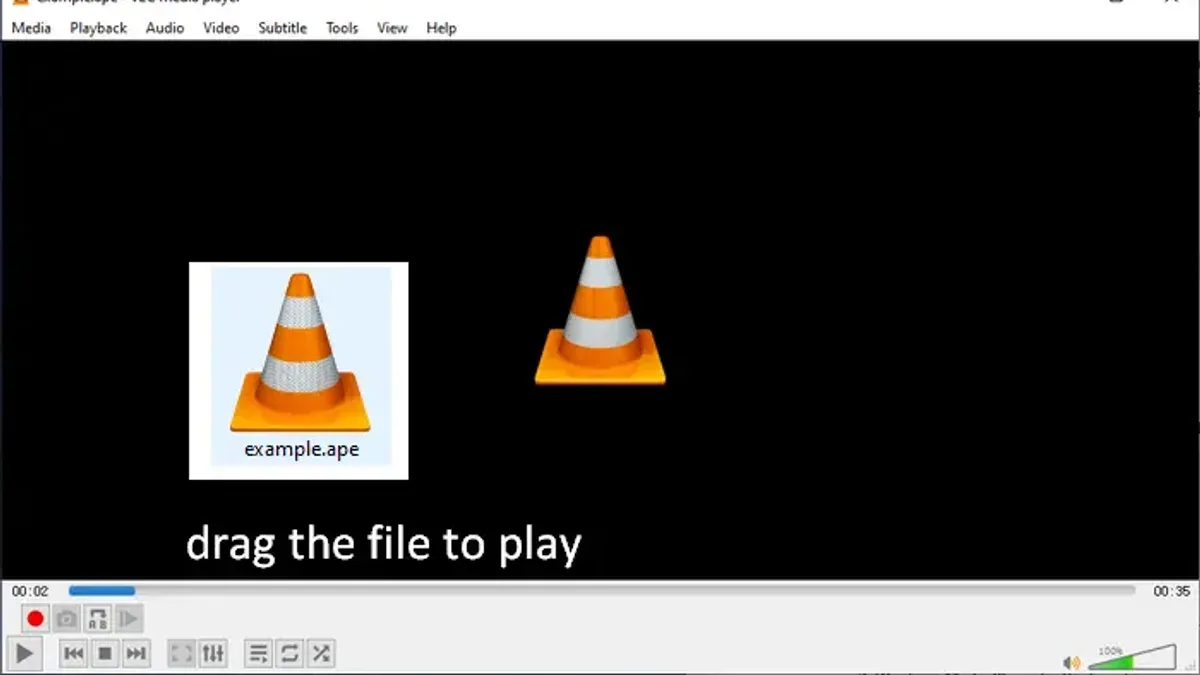
VLC media player is a versatile app that supports playback of.ape files directly, allowing you to listen without converting. Follow these steps to install and use VLC on your Mac.
- Download VLC from the official website (videolan.org/vlc) and open the.dmg file after it finishes downloading.
- Drag the VLC icon into your Applications folder to install it. You should see VLC appear in your Applications list.
- Open VLC from the Applications folder. The main VLC window will appear.
- From the menu bar, select File > Open File….
- Navigate to your.ape file, select it, and click Open. The file will begin playing in VLC’s interface.
- Use the playback controls at the bottom of the window to pause, stop, or seek through the audio.
VLC supports APE files without additional plugins, but playback can sometimes be less smooth compared to more common formats, especially with very large files. If you encounter stuttering or lag, consider converting the file to a more Mac-friendly format.
Screenshot note: When playing a.ape file, VLC’s interface shows the filename and playback progress bar at the bottom.
How to convert ape file to mp3 on Mac for broader compatibility
Converting.ape files to MP3 format can simplify playback across various devices and apps, as MP3 enjoys universal support. This process also reduces file size, making sharing and storage easier, though with some loss in audio quality compared to the original APE file.
One reliable tool for conversion on Mac is XLD (X Lossless Decoder), which supports batch conversion and offers control over output quality. Another option is All2MP3, a straightforward app focusing on MP3 encoding.
- Download and install XLD from its official site.
- Open XLD and go to Preferences > Output Format, then select MP3 (LAME) and set the bitrate to 256 kbps or higher to maintain good audio quality.
- Drag your.ape files into the XLD window. The files will appear in the conversion list.
- Click Open or Convert to start the process. You will see a progress bar indicating the conversion status.
- Once complete, check the output folder for your new MP3 files. Compare file sizes: MP3s are typically smaller, often by 50-70%, with a slight but usually acceptable drop in clarity.
Using All2MP3 follows a similar drag-and-drop approach but offers fewer customization options for bitrate. Both apps preserve metadata such as track titles if available.
After conversion, test playback on your preferred device to confirm compatibility and acceptable audio quality.
What to do if you encounter ape.exe or APK files instead
Sometimes, users confuse.ape audio files with similarly named.exe or APK files, which are entirely different formats and require different handling on a Mac.
Handling ape.exe files
The ape.exe file is a Windows executable, typically the Monkey's Audio software installer or player for Windows. This file cannot run natively on a Mac because macOS does not support Windows executables.
If you need to run ape.exe on a Mac, you can use a virtualization tool like Parallels Desktop or VMware Fusion to create a Windows environment. Alternatively, Wine or CrossOver can run some Windows applications directly, but compatibility varies.
Once running Windows on your Mac, you can execute ape.exe as intended. However, this approach requires a valid Windows license and some setup.
Handling APK files
APK files are Android application packages, unrelated to audio files. You cannot open or run APK files directly on macOS.
To use APKs on a Mac, install an Android emulator such as BlueStacks or Android Studio's emulator. These allow you to run Android apps within a virtual device on your Mac.
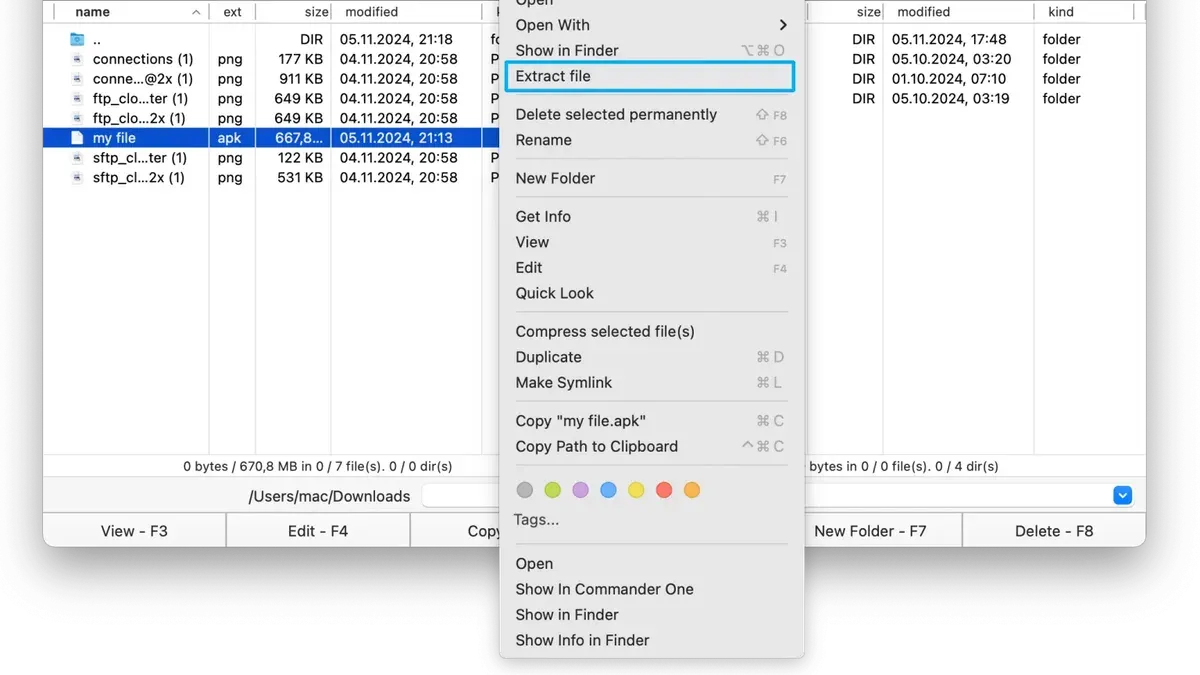
If you only want to extract content from an APK, tools like APK Extractor or archive utilities that support ZIP formats can open APK files as they are compressed archives.
In all cases, avoid downloading or opening suspicious.exe or APK files from untrusted sources to protect your Mac from malware.
Troubleshooting common issues when opening.ape files on Mac
When.ape files fail to play or produce errors, identifying the cause helps resolve issues efficiently. Common error messages include "Unsupported format," indicating the app lacks codec support, and "File corrupted," meaning the file may be incomplete or damaged.
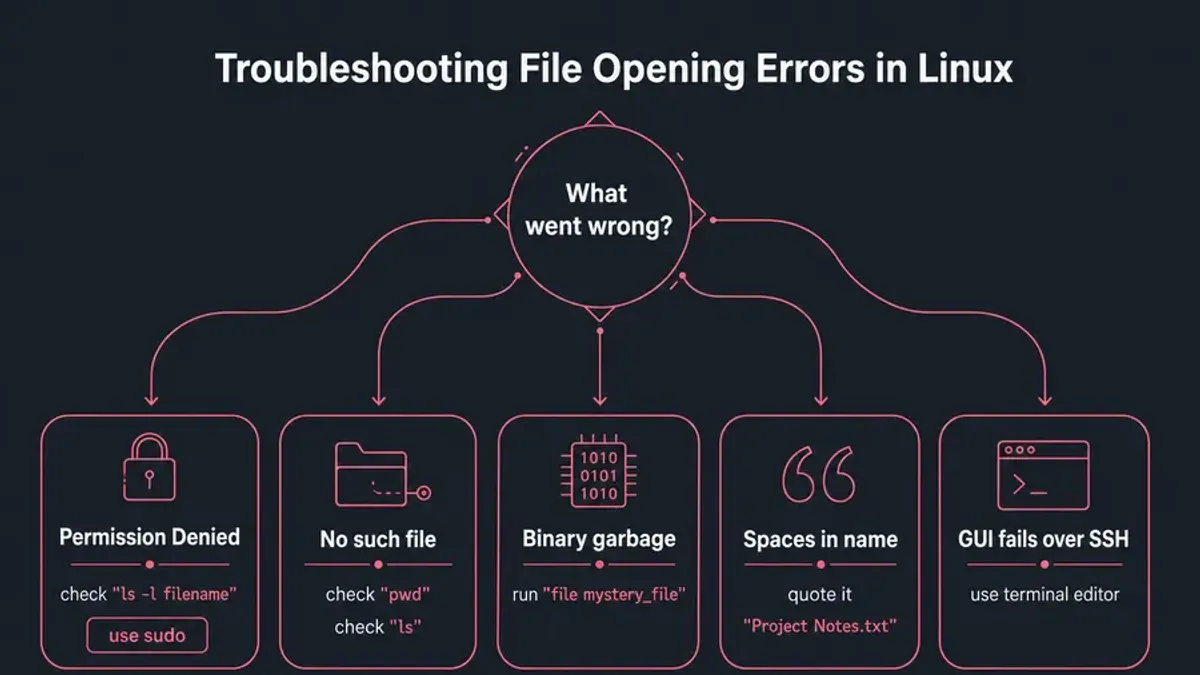
To verify file integrity, try opening the.ape file in another player like Cog or convert it with a different tool such as FFmpeg. If the file fails consistently, it may be corrupted and require re-downloading or obtaining a different copy.
If software fails to open the file, consider these steps:
- Confirm the file extension is.ape and not mistyped (e.g.,.apk or.exe); incorrect extensions prevent recognition.
- Try alternative apps like Cog or use command-line converters to change the file format.
- Check macOS security by opening System Preferences > Security & Privacy > Privacy > Files and Folders and ensuring your media player or converter has permission to access files.
- Adjust file permissions by selecting the file, pressing Command + I, and setting "Sharing & Permissions" to allow read access for your user.
Following these steps should resolve most playback or conversion problems with.ape files on Mac.
- How to Open.opus Files on Mac: Clear Step-by-Step Guide
- How to Open.ogg Files on Mac: Clear Step-by-Step Guide
- How to Open.WMA Files on Mac: Clear Step-by-Step Guide
- How to Open and Play WMV Files on Mac: Practical Step-by-Step Guide
Frequently asked questions
How to open apk files on mac?
APK files are Android application packages and cannot be opened natively on a Mac. To run APK files, you need an Android emulator like BlueStacks or Nox Player installed on your Mac. These emulators create a virtual Android environment allowing you to open and use APK apps.
What is an ape file used for?
APE files are Monkey's Audio files, a lossless audio format used for compressing digital music without quality loss. They are mainly used to store high-quality music collections while saving storage space compared to uncompressed formats like WAV.
Can I open APK files on Mac?
Directly opening APK files is not possible on a Mac as they are designed for Android devices. Using an Android emulator or converting the APK contents are necessary steps if you want to access or run APK files on a Mac.
How do I convert ape files to MP3 on Mac?
You can convert APE files to MP3 using audio converters like XLD or All2MP3 on Mac. Typically, you open the APE file in the converter, choose MP3 as the output format, adjust settings such as bitrate, and start the conversion process for broader playback compatibility.
Is ape.exe usable on Mac?
No, ape.exe is a Windows executable file related to Monkey's Audio and cannot run on Mac OS. Mac users must use compatible applications that support APE files or convert the files to Mac-friendly formats instead.
Limits of this guide
This guide does not cover professional audio editing or batch processing of large.ape file collections, which may require specialized software beyond basic playback or conversion. If you need to perform detailed editing, apply advanced effects, or manage extensive libraries of.ape files, consider dedicated audio editing tools such as Audacity with plugins, or professional digital audio workstations. Likewise, automation of bulk conversions may call for command-line utilities or specialized batch conversion software not covered here.
The next step is to try opening your.ape file with VLC Media Player, as it supports direct playback without conversion and is free to download. This approach helps you quickly verify the file’s integrity and decide if you need to convert it for compatibility with other apps or devices.



