
Fix 'zsh: command not found' on Mac: Step-by-Step Solutions
Learn how to fix the zsh command not found on Mac error by configuring your shell and PATH environment correctly.
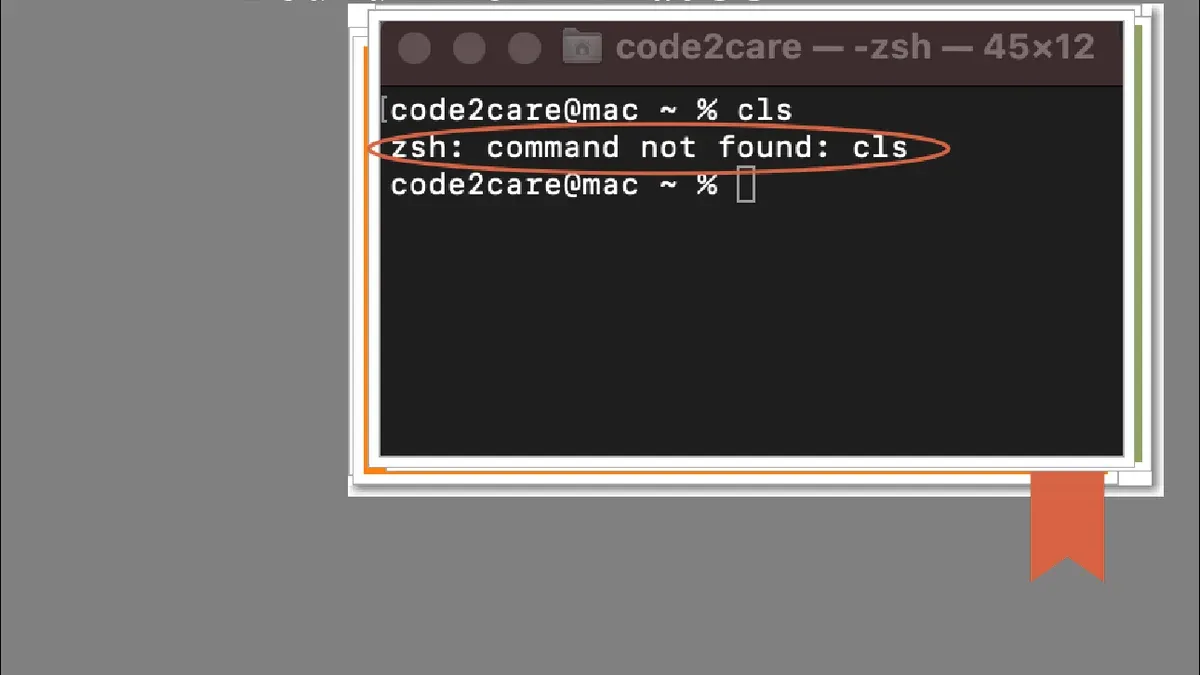
Mac users encountering the 'zsh: command not found' error often face issues stemming from how macOS manages shell environments and command paths. Since macOS switched its default shell to Zsh starting with Catalina, the shell’s configuration and environment variables have become critical to locating executable commands correctly. The most common cause is a misconfigured PATH environment variable, which lists directories where Zsh searches for commands. A solid zsh command not found on Mac fix starts by confirming Zsh is the active shell and ensuring the PATH includes directories where essential tools like Homebrew reside.
Apple Silicon and Intel Macs have distinct Homebrew installation paths, requiring tailored adjustments. Without these, Zsh fails to find commands installed via Homebrew, triggering the error.
Last verified November 2026 against EaseUS, Mac Install Guide, NSF Technology (full list at the end).
Check if Zsh is installed and set as the default shell
Start by confirming that Zsh is installed on the Mac. Run which zsh in Terminal. If Zsh is installed, this command returns its path, such as /bin/zsh. If it returns nothing or an error, Zsh is missing and must be installed before proceeding.
To install Zsh when it is missing, use Homebrew with the command brew install zsh. This adds Zsh to the system so it can be used as a shell. Installation must precede any configuration changes; trying to set the default shell to Zsh before installation leads to errors because the shell binary does not exist.
Next, check the current default shell by running echo $SHELL. If the output is not /bin/zsh, the shell needs to be changed. Use chsh -s /bin/zsh to set Zsh as the default shell. This command updates the user’s login shell setting but does not take effect immediately.
The proper sequence is to install Zsh if absent, then set it as the default shell, and finally restart Terminal. Reversing this order causes failures either in shell invocation or command availability.
Example outputs illustrate this process:
- Running
which zshwhen Zsh is installed returns/bin/zsh. - If Zsh is missing,
which zshreturns no path. echo $SHELLshows the current shell path, for example/bin/bashor/bin/zsh.- After
chsh -s /bin/zshand Terminal restart,echo $SHELLoutputs/bin/zsh.
Fix the PATH environment variable to locate commands correctly
The PATH environment variable defines the directories where the shell searches for executable commands. When a directory containing a required command is missing from PATH, the shell reports a 'command not found' error. Checking the current PATH with echo $PATH helps identify absent directories that may cause these errors.
Homebrew installs its binaries in different locations depending on the Mac's architecture. Apple Silicon Macs (such as M1, M2, M3) use /opt/homebrew/bin, while Intel Macs use /usr/local/bin. This distinction requires adjusting the PATH accordingly to ensure Homebrew commands are found.
| Mac Architecture | Homebrew Binary Path | Example PATH Setup in ~/.zshrc |
|---|---|---|
| Apple Silicon | /opt/homebrew/bin | eval "$($(brew --prefix)/bin/brew shellenv)" |
| Intel | /usr/local/bin | eval "$($(brew --prefix)/bin/brew shellenv)" |
To fix PATH issues for Homebrew, add the line eval "$($(brew --prefix)/bin/brew shellenv)" to the ~/.zshrc file. This command dynamically configures the PATH based on the installed Homebrew location. After editing ~/.zshrc, reload the shell configuration using source ~/.zshrc or restart the Terminal to apply the changes. This ensures the shell can locate Homebrew executables correctly and prevents 'command not found' errors related to missing PATH entries.
- Run
echo $PATHto check current PATH directories; confirm if Homebrew paths (/opt/homebrew/binor/usr/local/bin) are present. A correct PATH includes these depending on Mac architecture. - Edit the
~/.zshrcfile to addeval "$($(brew --prefix)/bin/brew shellenv)". This step sets the PATH properly for Homebrew binaries. - Reload the shell configuration by running
source ~/.zshrcor restarting Terminal. The shell now recognizes Homebrew commands without errors.
Install missing packages when commands are not found
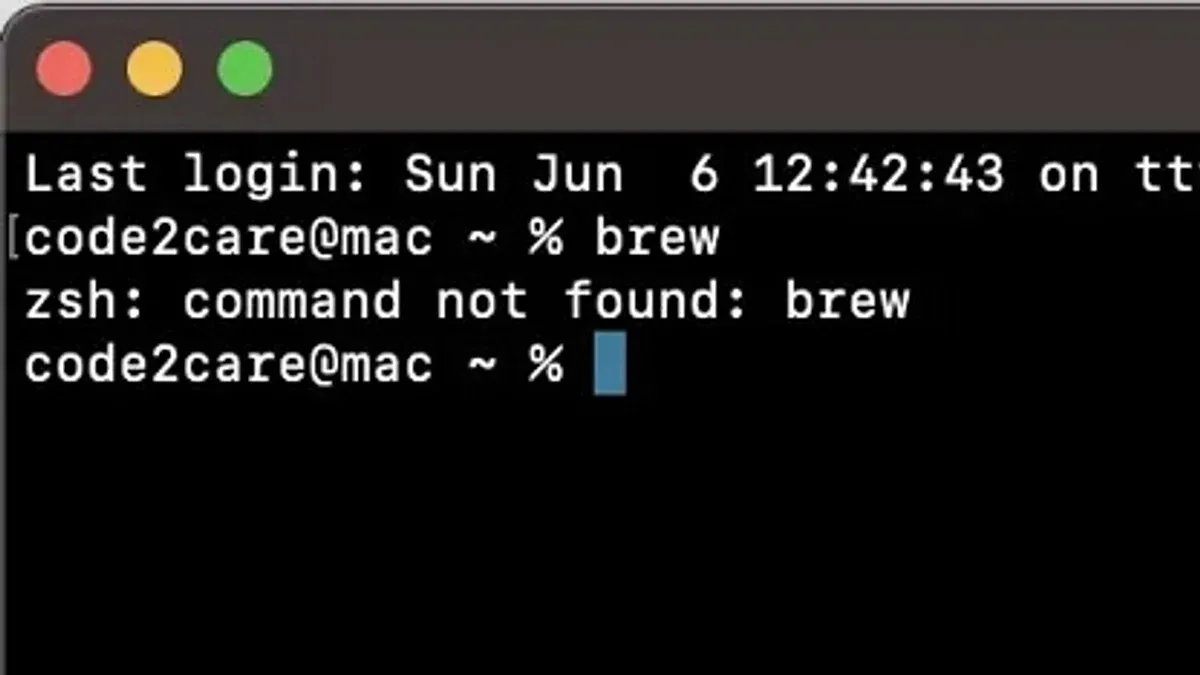
The error zsh: command not found often indicates that the command executable is missing from the system. This means the software package providing the command has not been installed yet. Installing the required package is necessary before addressing any PATH-related issues.
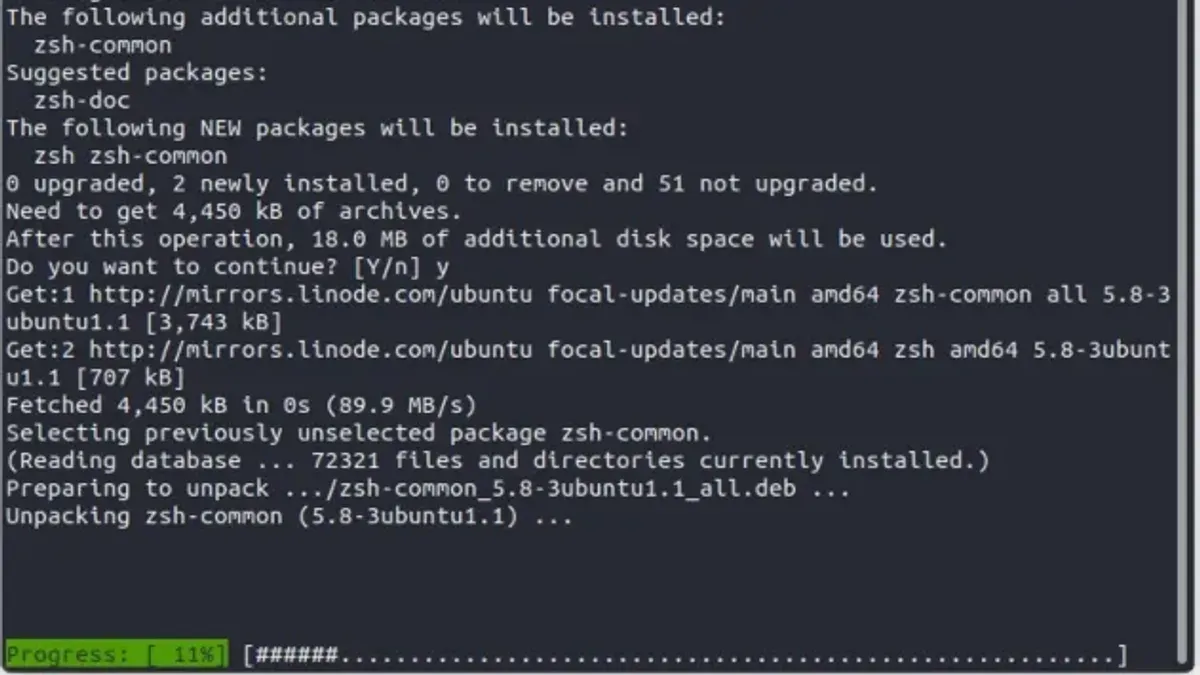
Many common command-line tools and programming languages can be installed using Homebrew, a package manager for macOS. For example, if npm is missing, running brew install npm installs the Node.js package manager. Similarly, brew install python installs the Python interpreter and its associated binaries. These commands download the software and place executables in a directory Homebrew manages.
Some essential Unix commands are included with the Xcode Command Line Tools. If these tools are missing, many commands may fail with the “command not found” message. To install the Xcode Command Line Tools, run xcode-select --install. This command triggers the installation process for developer tools including compilers and shell utilities.
If the command executes successfully, the installation resolved the issue. If it still fails, the problem might require adjusting the PATH environment variable or other troubleshooting steps.
- Identify the missing command by noting the exact
zsh: command not founderror message.
Successful step: The missing command name is clear for installation. - For common packages like
npmorpython, runbrew install <package-name>.
Successful step: Homebrew downloads and installs the package. - If the missing command is part of developer tools, run
xcode-select --installto install Xcode Command Line Tools.
Successful step: The installation prompt appears and completes, adding essential Unix commands. - Rerun the previously missing command to confirm it now works.
Successful step: The command executes without the "command not found" error.
Avoid common pitfalls with shell configuration files
When using Zsh on a Mac, relying on Bash configuration files like .bash_profile or .bashrc for PATH or environment variable settings causes problems, as Zsh ignores these files by default. Instead, use .zshrc for interactive shell settings and .zprofile for environment variables needed in login shells. This distinction ensures changes are read at the appropriate time and avoids silent failures where PATH modifications never take effect.
A frequent error is overwriting the PATH variable without appending the existing PATH. For example, setting export PATH="/some/dir" discards all previously set directories, removing access to essential commands and triggering 'command not found' errors. The correct approach appends or prepends new paths, such as export PATH="/some/dir:$PATH", preserving existing directories.
After editing .zshrc or .zprofile, it is mandatory to reload the configuration using source ~/.zshrc or source ~/.zprofile. Without this step, changes remain inactive until a new terminal session starts, which can confuse troubleshooting.
Apple Silicon Macs require special attention because Homebrew installs to /opt/homebrew/bin, unlike Intel Macs that use /usr/local/bin. Following installation guides meant for Intel Macs without adjusting these paths leads to incorrect PATH settings and persistent command errors. Always confirm the Homebrew binary path matches the Mac’s architecture before exporting PATH.
- Edit
~/.zshrcfor interactive shell PATH changes or~/.zprofilefor login shell environment variables. - Ensure any PATH export appends
:$PATHto keep previously defined directories accessible. - Reload the shell configuration with
source ~/.zshrcorsource ~/.zprofileto activate changes immediately.
Restore system files if command errors persist despite fixes
When all attempts to fix missing or misconfigured commands have failed, the issue may lie with damaged or missing system files. In such cases, reinstalling macOS without formatting the drive is a reliable solution. This process replaces corrupted or deleted shell and command binaries while preserving user data and installed applications.
Reinstalling macOS without erasing the disk restores the core system files to their original state. It avoids data loss by keeping personal files intact. This approach is appropriate when configuration fixes, package installations, and PATH adjustments cannot resolve persistent zsh: command not found errors caused by system file problems.
To carry out the reinstall:
- Restart the Mac and enter macOS Recovery mode by holding the designated keys during boot (typically Command + R). The Recovery screen appears when successful.
- Choose the option to reinstall macOS without erasing the disk. This preserves all user data and settings while repairing system files.
- Follow the on-screen prompts to complete installation. The Mac will reboot into the restored system.
- After reboot, open Terminal and verify the availability of previously missing commands by running them without error.
This reinstall method is the last resort after exhausting other fixes for command not found errors. It ensures that the shell environment and system binaries are restored to a working state without data loss. Regular backups remain recommended before initiating this process to safeguard against unexpected issues.
Finish Troubleshooting and Choose the Best Fix
After following the steps to verify Zsh’s installation, adjust the PATH variable, and install any missing packages, most command not found errors resolve. If issues persist despite these fixes, restoring system files can address deeper corruption or misconfigurations. This typically involves reinstallation of core macOS components or resetting shell defaults.
For users with an Apple Silicon Mac, ensuring the PATH includes /opt/homebrew/bin is crucial, while Intel Mac users must confirm /usr/local/bin is prioritized. Those who encounter errors immediately after switching shells should check the order of setting the default shell before modifying configuration files to avoid conflicts.
When commands are missing, the decision matrix helps select whether to install via Homebrew, Mac App Store, or manual download, based on the command’s source and system architecture. Misconfigured shell files often cause errors like "command not found" or unexpected prompts; consulting the failure map guides targeted fixes. Choosing the right approach depends on the user’s setup and the error’s context.
References
- 5 Proven Ways to Fix Zsh Command Not Found Error on macOS [Bash & Zsh] — EaseUS
- How to fix 'command not found' · Mac Install Guide — Mac Install Guide
- How to Fix "zsh: command not found" Errors on macOS — NSF Technology
- How to Fix Zsh Command Not Found Error on macOS — SYSGEEKER
- How to Fix Zsh Command Not Found Error on macOS — TechWorm
See also: How to Fix Scanner Not Detected on Mac: Step-by-Step Solutions · How to Fix Printer Offline on Mac: Step-by-Step Solutions · How to Fix Rosetta Not Installing or Working on Mac · Fix WindowServer High CPU on Mac: Step-by-Step Solutions


