
How to Fix Python Command Not Found on Mac: Step-by-Step Guide
Learn how to fix the Python command not found error on Mac and get your terminal set up to run Python scripts smoothly.
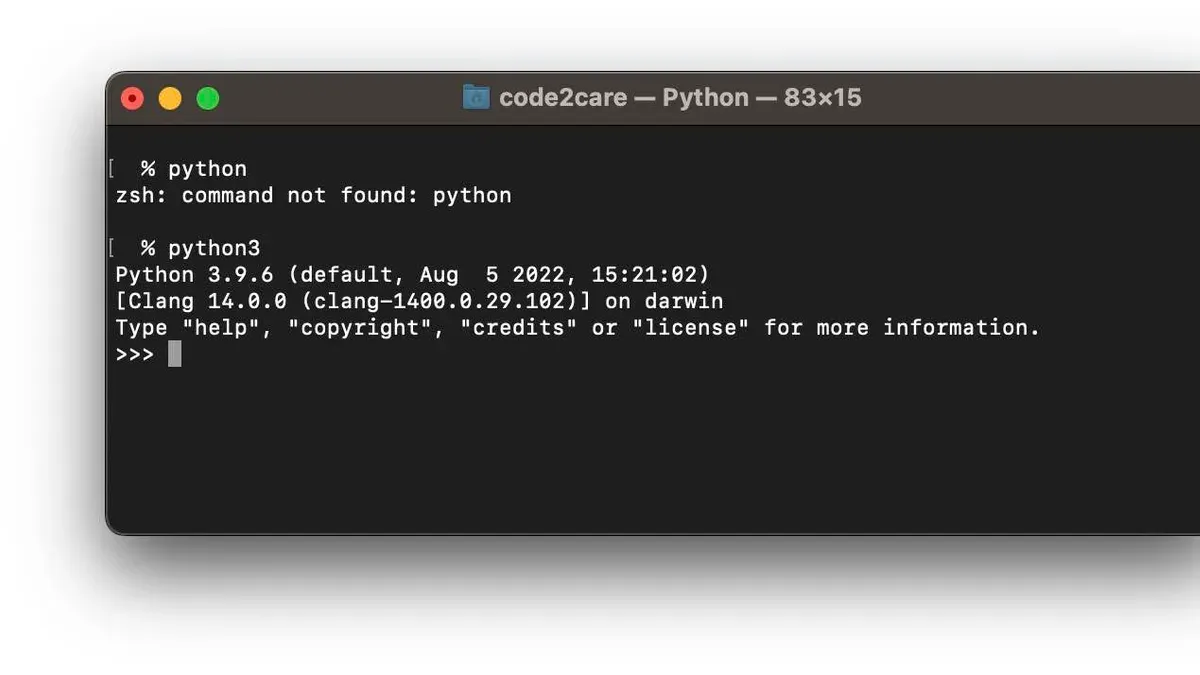
Encountering a 'python command not found' error on a Mac can halt development work unexpectedly. This issue often arises because macOS does not include Python 3 by default, and the terminal may not recognize the 'python' command without proper setup.
This installer configures the system so the 'python3' command is available in the terminal, which is the recommended method to run Python scripts on macOS.
Many misunderstandings occur around the difference between 'python' and 'python3' commands and how the PATH environment variable affects command recognition.
Settings, menu paths and limits here were checked against Python.org, Wikipedia in November 2026.
Check if Python is Already Installed and Recognized in Terminal
To begin, open the Terminal app on the Mac. This command line interface allows running Python commands and checking if Python is installed. The next step is to check for Python 3 by entering python3 --version. If Python 3 is installed and recognized, the Terminal will display its version, such as Python 3.X.X. If the command returns command not found, then Python 3 is either not installed or its directory is not included in the PATH environment variable.
Similarly, check the classic python --version command. On recent macOS versions, this command may not be linked to Python 3 and can return command not found or show Python 2, which is deprecated. Not finding python does not guarantee the absence of Python 3, so also run python3 --version. This helps clarify whether the system recognizes Python and under which command.
- Open the Terminal app.
- Type
python3 --versionand press Enter. Expect a version number like Python 3.11.0 if installed, or an error message if missing. - Type
python --versionand press Enter. This may show an older Python version, a version not linked to Python 3, or an error.
These checks reveal whether Python is installed and which commands the terminal recognizes. If both commands return command not found, Python is likely not installed or not properly configured. macOS does not include Python 3 by default, so installation and environment setup are usually required for Python use. Understanding this distinction avoids confusion when the python command is not found.
Tip: Use python3 explicitly to run Python scripts unless a manual alias is created linking python to Python 3.
Download and Install the Latest Official Python for macOS
- Visit the official Python downloads page at https://www.python.org/downloads/ and locate the latest stable Python 3 installer for macOS, currently version 3.15.2. This ensures obtaining a version that macOS will recognize properly.
- Download the macOS installer package for Python 3.15.2. The installer includes the Python interpreter and sets up the necessary system links.
- Run the downloaded installer and follow the on-screen prompts to complete the installation. This step configures the environment so that the
python3command is available and recognized in the Terminal. - After installation finishes, close and reopen the Terminal application. Restarting Terminal refreshes environment variables and ensures the new Python command is recognized immediately.
Tip: Installing Python before configuring environment variables is critical; skipping or reversing these steps can cause the python3 command to remain unrecognized.
Set Up the PATH Environment Variable to Include Python's Installation Directory
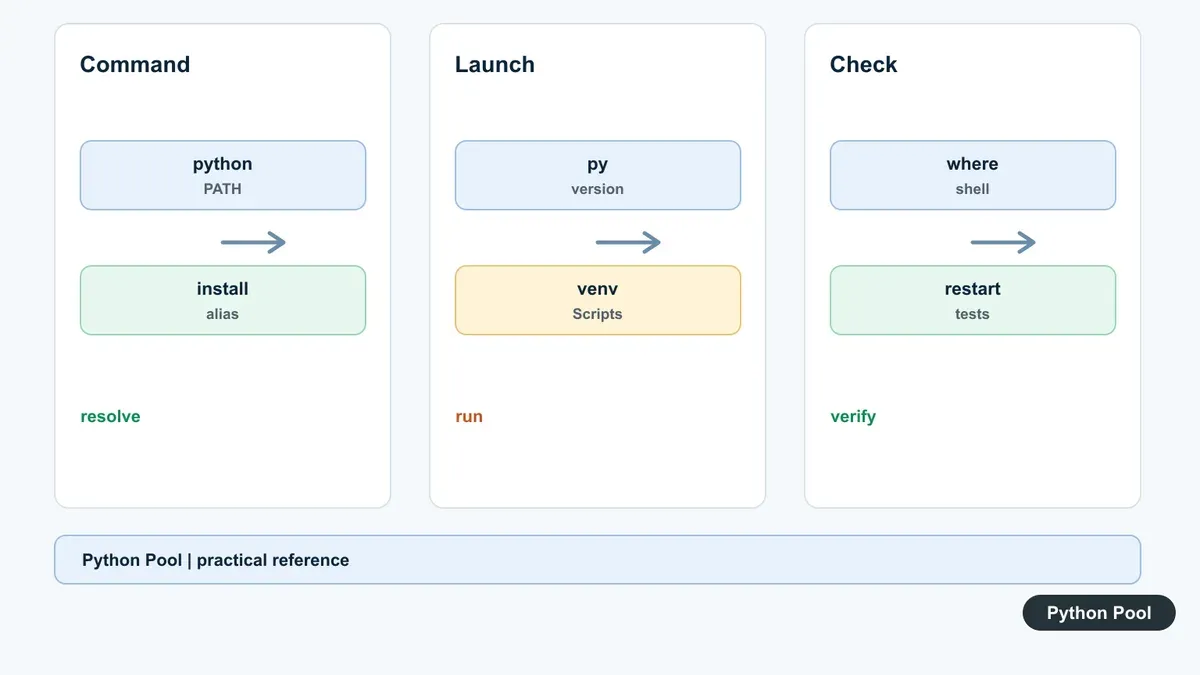
The 'python' or 'python3' command fails if the Terminal cannot locate the Python executable. This often happens because the PATH environment variable does not include the directory where Python is installed. Typically, the Python installer places executables in /usr/local/bin or a similar location, but this path must be explicitly added to the shell's configuration file.
- Open the Terminal app.
- Check the current PATH variable by running
echo $PATH. The output lists directories separated by colons. Confirm if/usr/local/binor the Python install path appears. - If missing, edit the shell configuration file: for Zsh, open
~/.zshrc; for Bash, open~/.bash_profilein a text editor. - Add the following line at the end of the file:
export PATH="/usr/local/bin:$PATH"
This prepends the Python directory to the existing PATH, ensuring the Terminal searches it first. - Save the file and reload the configuration by running
source ~/.zshrcorsource ~/.bash_profile, or restart the Terminal. - Verify the change by running
python3 --version. The command should now return the installed Python version, confirming the PATH is set correctly.
Use the 'python3' Command or Create an Alias to Use 'python'
macOS does not link the python command to Python 3 by default, which often results in a “command not found” error when running python. After installing Python 3, it is recommended to use the python3 command to run Python scripts. This ensures the correct Python version executes without ambiguity.
If preferring to use python instead of python3, a manual configuration is necessary. One option is to create a shell alias that maps python to python3. This can be done by adding the following line to the shell profile file (such as ~/.zshrc or ~/.bash_profile):
alias python='python3'After saving the file, reload the shell profile with source ~/.zshrc (or the equivalent for the shell in use). When successful, running python --version will show the Python 3 version.
Another method is creating a symbolic link in a directory that appears earlier in the PATH. For example, running this command in Terminal creates a python link pointing to python3:
sudo ln -s $(which python3) /usr/local/bin/pythonThis requires administrator privileges and places the link in /usr/local/bin. After this, invoking python runs Python 3. Note this link might need to be recreated after system or Python updates.
Both aliasing and symbolic linking are manual steps and require maintenance if Python versions change or the installation path updates. Using python3 directly avoids these issues.
Tip: Confirm which command runs by executing which python or which python3 to ensure the alias or link is active.
How Does the Python Command Behavior Differ Across macOS Versions and Setups?
macOS versions vary significantly in how they handle the Python command. Older releases included Python 2 by default and linked the python command to it. This meant users could run python and access Python 2 without additional setup. However, newer macOS versions have removed Python 2 and often do not include Python 3 preinstalled, leaving the python command unlinked and unavailable by default.
Package managers such as Homebrew also influence Python command behavior. Installing Python 3 through Homebrew or similar tools adds Python binaries to custom directories, which may not be in the default PATH. This setup requires updating environment variables to make commands like python3 or aliased python work seamlessly. Without this, the terminal will report command not found errors.
| macOS Version | Python 2 Installed | Python 3 Installed | python Command Linked To |
Notes |
|---|---|---|---|---|
| Before macOS 12 Monterey | Yes | Optional | Python 2 | Python 2 is default; python works out of the box |
| macOS 12 Monterey and Later | No | No (by default) | Not linked or missing | Python must be installed manually; python command missing |
| Any Version with Homebrew Python | Depends on system | Yes (installed via Homebrew) | Usually python3 only |
PATH must include Homebrew bin; python not linked unless manually aliased |
Because of these differences, it is important to verify which Python version a command points to on the current system. Running python --version and python3 --version confirms the actual executable linked to each command. This check guides environment configuration and ensures the correct interpreter is used.
Tip: Confirming the Python version linked to python helps avoid confusion and command not found errors when switching macOS versions or using different Python installation methods.
Common Pitfalls That Cause Python Command Not Found Errors and How to Avoid Them
Several frequent mistakes prevent the python or python3 commands from working correctly on macOS. One common error is using the python command when Python 2 is not installed or aliased to Python 3. Since macOS does not link python to Python 3 by default, this results in a "command not found" message. The fix is to use python3 explicitly or create a shell alias that points python to python3.
Another typical cause is neglecting to add Python’s installation directory to the PATH environment variable. Without this, the terminal cannot locate the Python executable, leading to errors like "command not found: python3."
Failing to restart the terminal after installing Python or modifying PATH also blocks recognition of Python commands.
Conflicts arise when multiple Python installations or package managers coexist without clear priority in PATH, causing ambiguity or invalid command references. Ensuring the correct Python installation directory appears first in PATH prevents this.
Lastly, not verifying the Python command after setup leaves problems undiscovered. Running python3 --version confirms successful installation and PATH configuration.
| Error Message | Cause | Fix |
|---|---|---|
| "command not found: python" | Using python without Python 2 installed or alias | Use python3 or create alias for python to python3 |
| "command not found: python3" | Python installation directory missing from PATH | Add Python’s bin directory to PATH environment variable |
| "command not found" after install | Terminal not restarted after installation or PATH change | Restart Terminal to refresh environment variables |
| Unexpected Python version or command failure | Multiple Python installations with PATH conflicts | Adjust PATH to prioritize desired Python installation |
What This Guide Does Not Cover and When to Consider Alternative Approaches
It does not delve into managing multiple Python versions or advanced environment setups like pyenv or virtual environments.
Additionally, this guide excludes Python installation or command issues on Linux, Windows, or within integrated development environments such as VS Code or PyCharm. Those environments may require different procedures or settings beyond terminal command fixes.
These options offer a more visual and guided experience without direct Terminal interaction.
- Identify if the goal involves running Python scripts in macOS Terminal; if so, follow this guide’s steps.
- If managing multiple Python versions or isolated environments, research tools like pyenv or virtualenv to meet those needs.
- For problems within IDEs or other platforms, consult their specific documentation or community support.
- Choose GUI-based Python installers or IDEs if Terminal commands feel complex or unfamiliar.
Key Steps to Fix the Python Command Not Found Issue on Mac
References
- Download Python — Python.org
- Python (programming language) - Wikipedia — Wikipedia
- Welcome to Python.org — Python.org
See also: How to Fix Scanner Not Detected on Mac: Step-by-Step Solutions · How to Fix SD Card Not Showing on Mac: Step-by-Step Guide · Fix 'xcrun: invalid active developer path' Error on Mac Step-by-Step


