
How to Fix Keyboard Repeating Keys on Mac: Step-by-Step Solutions
Resolve keyboard repeating keys on Mac using cleaning, software adjustments, or hardware repair to keep your typing smooth and accurate.
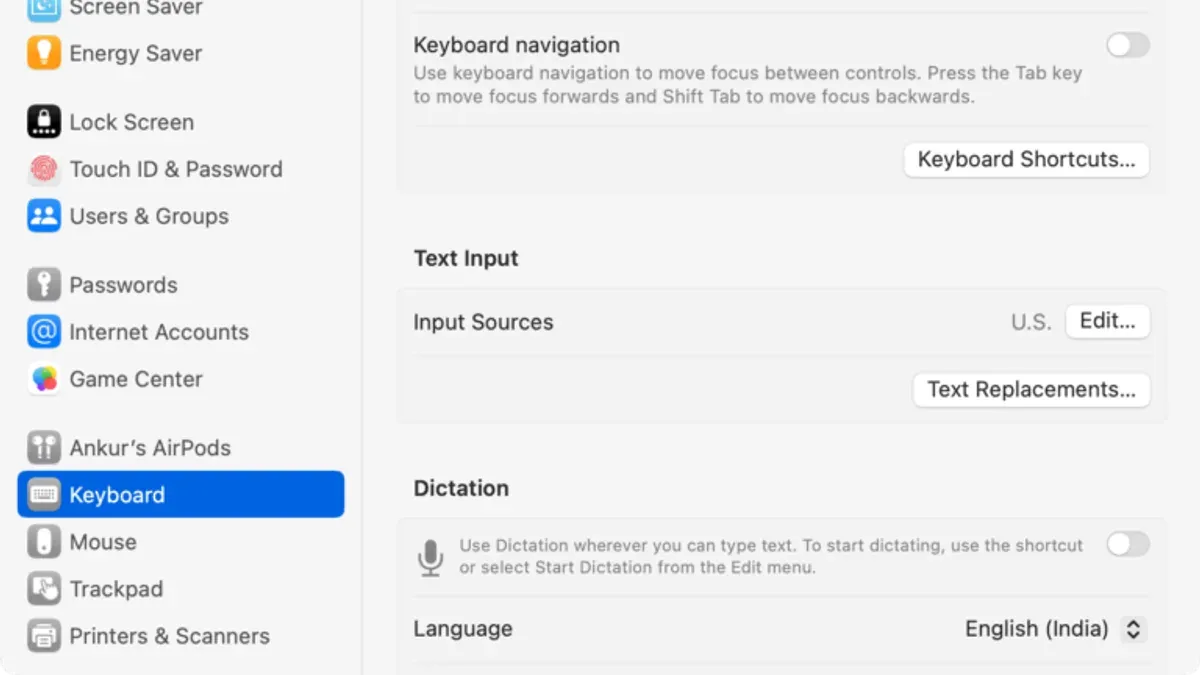
Repeating key issues commonly stem from either software configurations or physical debris beneath the keys. Butterfly-era MacBooks (2015–2019) are especially vulnerable due to their thin key design, which traps dust and causes chatter. However, repairs for these models can be costly, sometimes exceeding the device’s resale value.
Checked in November 2026 against Apple Support, LuxuriousComputers, GearTrouble.com (full list at the end); details like these change, so the date matters.
Which method fits your Mac and keyboard issue
Newer Mac models use different keyboards less prone to these issues.
If many or all keys repeat or double type, the cause may be software-related or a hardware fault affecting the entire keyboard.
If so, avoid powering on or charging your Mac for 48 hours to prevent corrosion and seek professional repair or replacement immediately.
For single-key issues, compressed air cleaning at a 75° angle, spraying left-to-right and right-to-left, often resolves the problem. Butterfly keyboards with persistent faults may require costly hardware repair, sometimes exceeding the Mac’s resale value.
| Symptom | Mac Model | Recommended Action | Key Fact |
|---|---|---|---|
| Only one key repeats or double types | Any | Use compressed air cleaning at 75° angle; if persists on butterfly keyboard, consider repair or replacement | Cleaning recommended; hardware often needed if butterfly keyboard |
| All keys repeat or double type | Any | Adjust Key Repeat Rate to Off or slower and Delay Until Repeat to Long; restart Mac; if problem stops, it was software | Software settings can resolve widespread key repeating |
| Issue started after liquid spill | Any | Shut down immediately; do not power on or charge for 48 hours; seek professional repair or replacement | Prevent corrosion by avoiding power; urgent repair needed |
| Butterfly keyboard with confirmed hardware fault; repair > 50% resale value | Butterfly (2015–2019) | Sell Mac as-is; invest in newer Apple Silicon Mac | Repair costs often exceed resale value for butterfly Macs |
Adjust key repeat settings to rule out software causes
These settings control how quickly keys repeat when held down and how long you must hold a key before it starts repeating.
| macOS Version | Menu Path | Key Repeat Setting | Delay Until Repeat Setting |
|---|---|---|---|
| Ventura and later | Apple menu > System Settings > Keyboard | Adjust slider for 'Key Repeat Rate' (can be set to Off) | Adjust slider for 'Delay Until Repeat' (set to Long) |
| Monterey | Apple menu > System Preferences > Keyboard > Keyboard tab | Adjust slider for 'Key Repeat' (slide fully left to Off) | Adjust slider for 'Delay Until Repeat' (set to Long) |
This also disables special accents triggered by holding certain letters.
- Open the appropriate menu path for your macOS version based on the table above.
- Set the Key Repeat Rate slider fully to the left (Off) or to a slower setting.
- Set the Delay Until Repeat slider to Long to increase the delay before repeating starts.
- Restart your Mac to clear any stuck input buffers that might cause repeated input.
- Test typing to see if keys still repeat unexpectedly.
If the repeating keys stop after these adjustments and a restart, the cause was software-related rather than hardware. This quick software test rules out system preferences as the source of the problem before proceeding to other fixes.
Use compressed air cleaning to fix stuck or debris-affected keys
If you notice a single key repeating or double typing, debris beneath the key may be the cause. Using compressed air is a safe and effective way to clear dust and particles without risking damage to your Mac's keyboard.
Follow these steps carefully to clean your keyboard:
- Hold your Mac at a 75° angle to allow airflow to reach beneath the keys.
- Spray compressed air across the affected key(s) from left to right, then from right to left. This directional spraying helps dislodge particles trapped under the keycap.
- Avoid removing keycaps, especially on butterfly keyboards, as their fragile design can break or become difficult to reattach.
- Do not use high-pressure air or liquids, which can damage delicate keyboard components.
- After cleaning, test the keys to see if the repeating issue persists.
If the problem continues on a butterfly keyboard after compressed air cleaning, hardware repair or replacement might be necessary, as debris may have caused internal damage.
Reset SMC and NVRAM to fix timing and hardware glitches
Resetting the System Management Controller (SMC) and Non-Volatile Random Access Memory (NVRAM) can resolve timing glitches that cause your Mac's keyboard keys to repeat unexpectedly. These resets address hardware-level settings and timing issues, but they do not fix physical damage or debris-related problems.
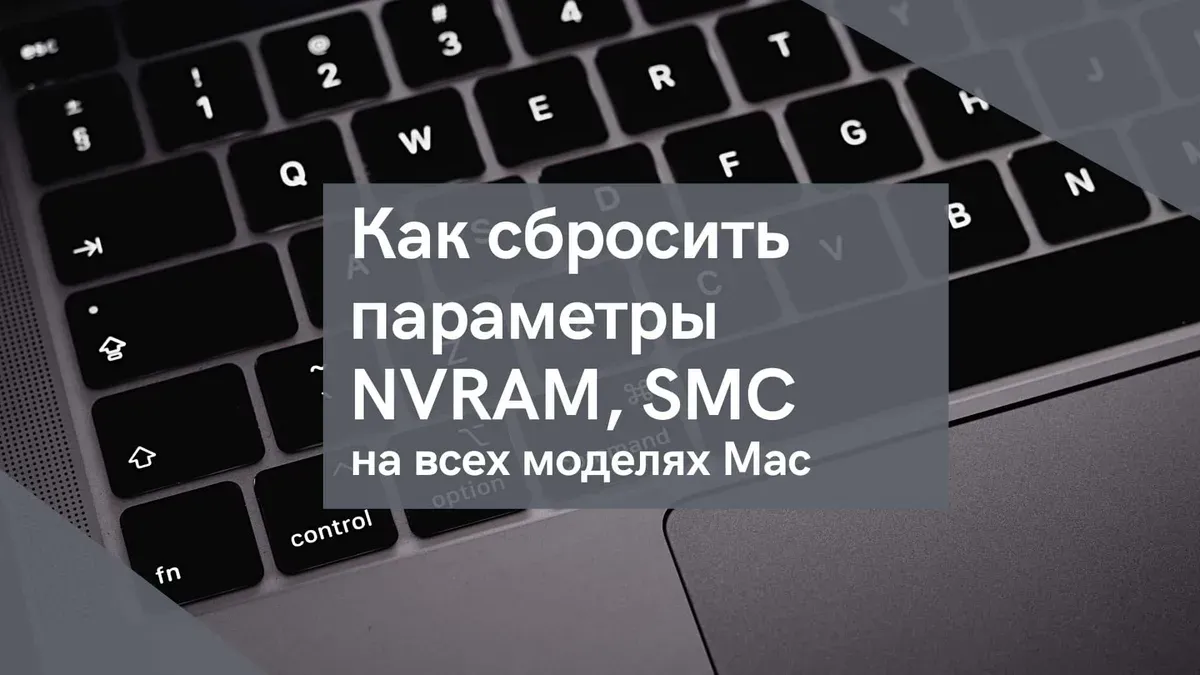
Resetting SMC on Intel Macs
- Shut down your Mac completely.
- Press and hold the Shift + Control + Option keys on the left side of the keyboard and the Power button simultaneously for 10 seconds.
- Release all keys and wait for 5 seconds.
- Press the Power button again to turn on your Mac.
This procedure recalibrates power and hardware controllers, which can clear timing glitches affecting your keyboard.
Resetting SMC on Apple Silicon Macs
To reset the SMC, simply shut down your Mac fully and then restart it. The SMC reset happens automatically during this process.
Resetting NVRAM on all Macs
- Restart your Mac.
- Immediately press and hold the Command + Option + P + R keys simultaneously as the Mac starts up.
- Keep holding the keys until you hear the startup chime twice (Intel Macs) or see the Apple logo appear and disappear twice (Apple Silicon Macs).
- Release the keys and allow your Mac to continue starting up normally.
Use cleaning or repair methods if the problem persists after these resets.
- Shut down Intel Mac before resetting SMC.
- Hold Shift+Control+Option+Power for 10 seconds on Intel Mac for SMC reset.
- Restart Mac and hold Command+Option+P+R until the second chime or logo flash for NVRAM reset.
- For Apple Silicon Macs, shut down and restart to reset SMC automatically.
Use software debounce tools for persistent double typing
When repeated keypresses persist despite cleaning and hardware checks, software debounce tools can help filter out rapid duplicate inputs caused by key chatter. These tools act as a buffer, ignoring multiple signals generated by a single physical key press.
It achieves about a 60% success rate in mitigating this issue, making it a useful workaround when hardware repair or replacement is not feasible.
This solution does not repair the keyboard itself but improves typing accuracy by managing how the system interprets key signals. Installing and configuring Unshaky is straightforward and can provide immediate relief from persistent double typing.
- Download Unshaky from its official source and open the app installer. When installation completes, you should see the Unshaky icon appear in the menu bar.
- Open Unshaky’s preferences to enable the key filtering feature. Once enabled, the utility will start intercepting key events and filter rapid repeats.
- Test typing in any text field to confirm the reduction in double typing. If the issue improves noticeably, the app is working as intended.
Unshaky works only on macOS and does not fix the underlying hardware problem. It is most effective for intermittent double typing due to key chatter but will not help with stuck or physically damaged keys.
- Download and install Unshaky on your Mac
- Enable filtering in Unshaky preferences
- Test typing to verify reduced double keypresses
Identify hardware causes and when to consider repair or replacement
Repeating keys on your Mac can stem from several hardware issues. Common causes include dust trapped beneath keys, worn contact pads, failing keyboard flex cables, liquid damage, and hardware debounce failures. Each of these faults disrupts the keyboard’s ability to register keypresses correctly, leading to repeated or stuck keys.
This design flaw often results in key chatter and other typing irregularities.
These repair expenses frequently exceed the resale value of the affected Mac, making repair less economical.
Because of this, selling a Mac with confirmed butterfly keyboard hardware faults may be a better option than paying for expensive repairs. Investing in a newer Apple Silicon Mac with an improved keyboard design often provides better value and reliability.
- Confirm your Mac model uses a butterfly keyboard (2015–2019 models). Once confirmed, assess if the repeating key issue persists despite software troubleshooting.
- Obtain a repair estimate for a top-case replacement from Apple or authorized service providers. If the quote exceeds half your Mac’s resale value, consider alternative options.
- Decide whether to sell your Mac as-is, acknowledging hardware faults, and allocate budget toward a newer Mac with a modern keyboard design.
Check for software conflicts and external keyboard to isolate issues
Testing your Mac in Safe Mode helps determine if third-party software or keyboard remapping apps cause repeating key problems. Safe Mode disables all third-party apps and non-essential macOS extensions, allowing you to see if the keyboard behaves normally without interference.
Use the Keyboard Viewer to confirm if your Mac registers key presses correctly. This tool displays an on-screen keyboard showing real-time input, helping you verify whether the built-in keyboard sends correct signals or repeats keys unexpectedly.
Connecting an external keyboard can further isolate the issue. If the external keyboard does not repeat keys while your built-in keyboard does, the problem is likely hardware-related. Conversely, if both keyboards repeat keys, software conflicts are more probable.
- Restart your Mac and immediately hold the Shift key to start in Safe Mode. You should see “Safe Boot” appear on the login screen or menu bar, confirming Safe Mode is active.
- Open System Settings and navigate to Keyboard > Input Sources, then enable Show Keyboard Viewer. Press keys on your built-in keyboard and watch for accurate, single key signals on the viewer.
- Connect an external keyboard and test typing in a text editor or the Keyboard Viewer. Note if repeating keys persist with the external device.
- If repeating keys do not occur in Safe Mode or with the external keyboard, identify and uninstall any recently added keyboard remapping or input-enhancing apps.
Also, ensure that accessibility features like Sticky Keys or Slow Keys are disabled via Accessibility > Keyboard, as these can interfere with key input.
Avoid common pitfalls that worsen keyboard issues
Do not assume your repeating key problem is hardware-related without first checking software settings. Many issues stem from configurations like Key Repeat rate or temporary glitches fixed by a restart or adjustment.
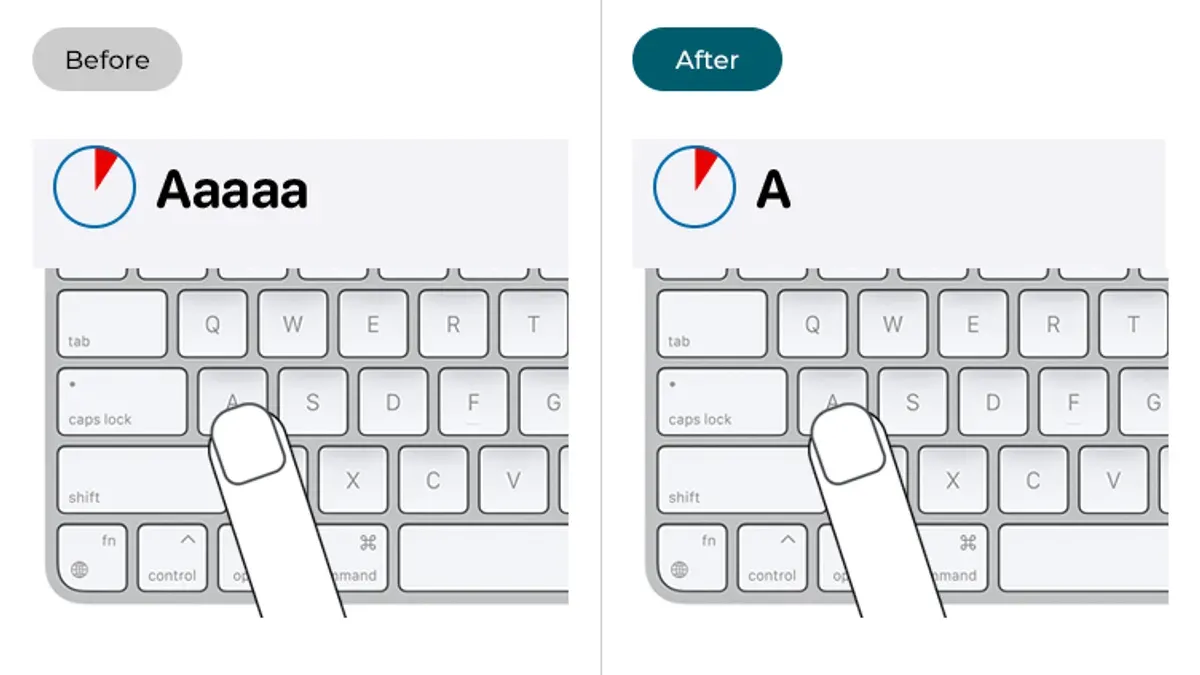
Avoid removing keycaps on butterfly keyboards. These keys are fragile and difficult to reattach, and improper removal can cause permanent damage.
Use only manufacturer-approved cleaning methods. High-pressure air or liquids used improperly can harm delicate keyboard components, especially in butterfly keyboards.
Before paying for costly repairs on older Macs with butterfly keyboards, consider the cost versus the device’s resale value. Repair expenses often exceed what the Mac is worth; upgrading might be more economical.
Always test your Mac with an external keyboard or the Keyboard Viewer app. This isolates whether the issue is hardware-based or caused by software conflicts, preventing unnecessary repairs.
- Test your software settings and restart your Mac to see if the repeating keys persist; if fixed, no hardware action is needed.
- Try typing with an external keyboard or use Keyboard Viewer; if repeating keys do not appear there, your built-in keyboard hardware may need attention.
- If cleaning is necessary, follow the exact manufacturer-approved method using compressed air at a 75° angle, spraying left-to-right and right-to-left. Do not use high-pressure air or liquids.
- Do not remove butterfly keycaps yourself; seek professional help or consider replacement options instead.
- Compare repair costs for your Mac model before investing; if repairs approach or exceed resale value, selling and upgrading is often better.
How to confirm your keyboard repeating keys fix worked
After applying your chosen fix, verifying that the keyboard no longer repeats keys improperly is essential. Begin by typing in several different applications that you commonly use, such as text editors, browsers, and messaging apps. Hold down various keys briefly to observe if they repeat according to your intended settings, ensuring the behavior matches your preferences.
- Open System Settings and navigate to Keyboard > Input Sources, then enable Show Keyboard Viewer. Use the Keyboard Viewer to tap each key and watch for irregular repeated inputs. If the keys respond normally without unexpected repeats, this indicates the keyboard input signals are registering correctly.
- Restart your Mac in Safe Mode by holding the Shift key during startup. Test the keyboard again in this environment. If the repeating keys issue disappears, it suggests a software conflict is the cause. If the problem persists, hardware faults are more likely.
- If you still experience repeating keys after these tests, try connecting an external keyboard or using the Keyboard Viewer to isolate the problem. Consistent repeats on the built-in keyboard but not on an external one confirm a hardware issue.
- For butterfly-era Mac models with confirmed hardware faults, compare repair costs to your Mac’s resale value. If repairs cost more than half that value, selling the Mac as-is and investing in a newer Apple Silicon model with an improved keyboard is often more economical.
Follow these steps to ensure your fix is effective and to decide if professional repair or replacement is necessary based on your findings and previously outlined decision criteria.
After applying your chosen fix, test your keyboard by typing in different apps over several days to ensure the repeating keys issue does not recur. Pay attention to whether keys repeat accurately according to your adjusted Key Repeat Rate and Delay settings.
Maintain your keyboard by periodically using compressed air cleaning at a 75° angle to prevent debris buildup. If the problem returns, recheck software settings and consider hardware diagnostics.
If the issue persists despite software and cleaning efforts, you may need to arrange for hardware repair or replacement, especially if your Mac has an out-of-warranty butterfly keyboard, as free repairs are no longer available.
References
- Set how quickly a key repeats on Mac — Apple Support
- MacBook Keys Repeating or Double-Typing? Every Fix in Order — LuxuriousComputers
- MacBook Keyboard Double Typing (Common Causes and How to Fix It) - GearTrouble.com — GearTrouble.com
- How to stop repeating keyboard characters accidentally in macOS 12 Monterey | My Computer My Way — My Computer My Way
- Stuck or repeating keyboard key: distinguish repeat from chatter — Web Device Test



