
How to Use Mac Keyboard Shortcuts for Home and End Keys
Discover how to use Mac keyboard shortcuts to replicate Home and End keys for efficient text navigation and smoother workflow.
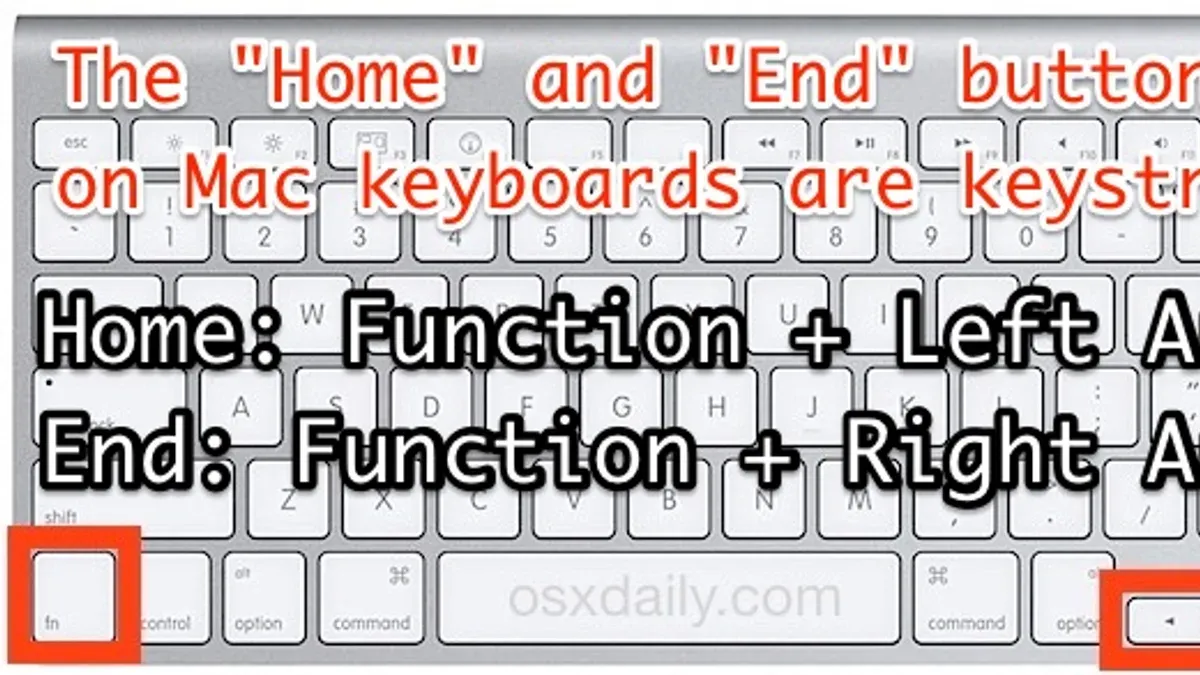
You switch from a Windows PC to a Mac and find that the Home and End keys either don't exist or behave differently on your Mac keyboard. Navigating quickly to the start or end of lines or documents feels less straightforward than before. Understanding the Mac keyboard shortcut to use Home and End keys can make your workflow smoother and reduce frustration.
This article explains why Mac keyboards lack dedicated Home and End keys, how macOS interprets these functions through keyboard shortcuts, and practical ways to use or customize these shortcuts in popular Mac applications. You will also learn about common pitfalls to avoid when using these navigation shortcuts on your Mac.
Key takeaways
- Mac keyboards typically omit dedicated Home and End keys due to compact design choices.
- macOS uses shortcuts like Command + Left/Right Arrow to replicate Home and End functions.
- Behavior of these shortcuts can vary by application, affecting how navigation works.
- You can customize or create your own shortcuts via System Settings > Keyboard > Shortcuts.
- Common mistakes include confusing Option and Command keys when trying to navigate text.
Why Mac Keyboards Don’t Have Dedicated Home and End Keys
Unlike typical Windows keyboards, which include distinct Home and End keys often positioned near arrow keys and navigation clusters, Mac keyboards omit these dedicated keys. Apple’s design philosophy prioritizes a compact, minimalist layout that emphasizes essential functions while saving space. This approach aims to reduce keyboard size and complexity, particularly on laptops like the MacBook, where physical space is limited.
For example, a standard Windows keyboard layout usually features a six-key navigation cluster including Insert, Delete, Home, End, Page Up, and Page Down. In contrast, Mac keyboards consolidate or reassign these navigational roles to other keys or key combinations, eliminating standalone Home and End keys altogether.
Apple documentation explains that macOS compensates for this absence by using modifier keys like Command and Fn combined with arrow keys to replicate Home and End functionality. This design encourages users to adapt to a streamlined keyboard, leveraging software shortcuts rather than relying on additional hardware keys.
| Windows Keyboard | Mac Keyboard |
|---|---|
| Dedicated Home key | No dedicated Home key; use Command + Left Arrow |
| Dedicated End key | No dedicated End key; use Command + Right Arrow |
| Navigation cluster keys | Consolidated or reassigned to combinations |
Imagine typing a long document on a MacBook keyboard: instead of pressing a single Home key to jump to the beginning of a line, you press Command + Left Arrow. This difference highlights Apple’s emphasis on integrating navigation into existing keys rather than increasing keyboard complexity.
How macOS Maps Home and End Functionality to Keyboard Shortcuts
On a Mac, the Home and End keys are not labeled explicitly, but their functions are accessible through keyboard shortcuts that vary depending on the application. The most common equivalents are Command + Left Arrow for Home and Command + Right Arrow for End. These shortcuts move the cursor to the beginning or end of a line of text in many text editors and word processors.
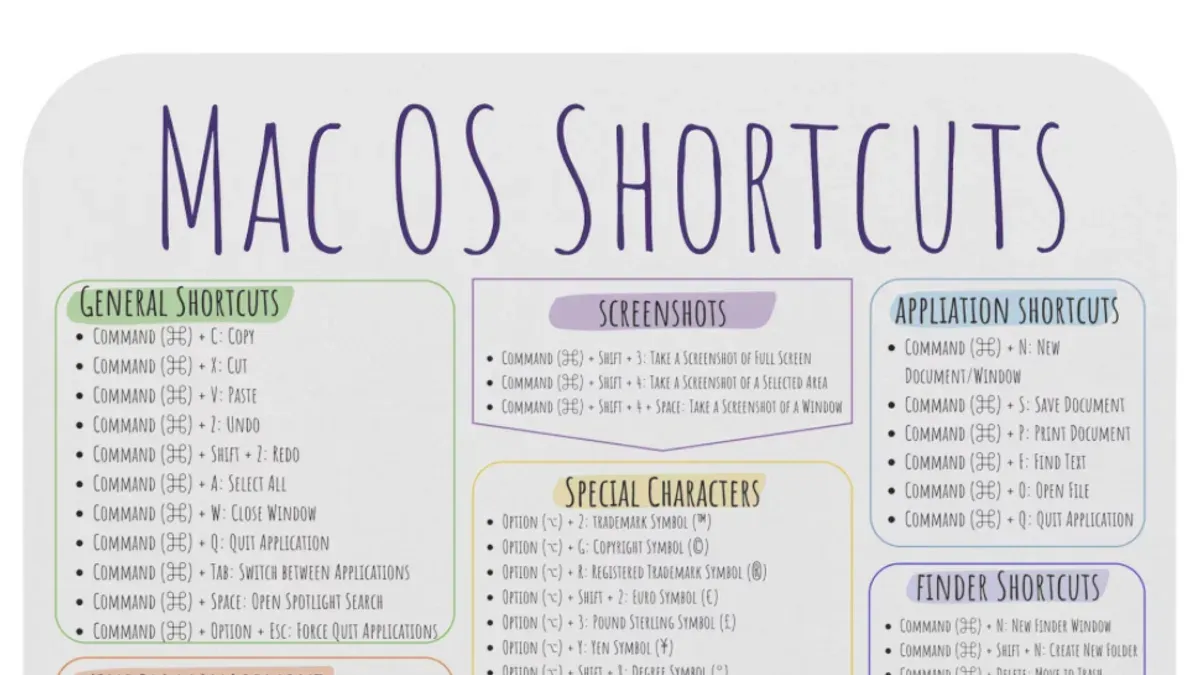
However, behavior differs in browsers and terminals. For example, in Safari or Chrome, Command + Left Arrow jumps to the start of the URL bar or page, while Command + Right Arrow jumps to the end of the line or page. In Terminal apps, these shortcuts can behave differently based on shell settings, sometimes moving by words or lines.
Another pair of useful shortcuts are Fn + Left Arrow and Fn + Right Arrow. These move the cursor to the beginning and end of a document or page, respectively, rather than just the current line. For instance, pressing Fn + Right Arrow in TextEdit jumps the cursor to the end of the entire document.
Here is a quick reference table:
| Shortcut | Typical Function in Text Editors | Typical Function in Browsers | Typical Function in Terminal |
|---|---|---|---|
| Command + Left Arrow | Move to start of line | Move to start of page or address bar | Varies; often start of line |
| Command + Right Arrow | Move to end of line | Move to end of page or address bar | Varies; often end of line |
| Fn + Left Arrow | Move to start of document | Page up | Scroll up or beginning |
| Fn + Right Arrow | Move to end of document | Page down | Scroll down or end |
For example, if you are editing a long email in Mail and want to quickly jump to the start of a paragraph, you would press Command + Left Arrow. If instead you want to jump to the very end of the email body, Fn + Right Arrow will take you there. Understanding these distinctions helps you navigate efficiently despite the absence of dedicated Home and End keys.
Using Home and End Shortcuts in Popular Mac Applications
In text editors like Pages and Microsoft Word for Mac, pressing Command + Left Arrow moves the cursor to the start of the current line, while Command + Right Arrow moves it to the line’s end. Holding Shift with these shortcuts selects the text between the original cursor position and the line boundary. For example, in Word, if you want to select from the cursor’s position to the beginning of the line, press Shift + Command + Left Arrow.
Google Docs in browsers responds similarly, but behavior may vary slightly depending on the browser. In Safari or Chrome, these shortcuts move the cursor within the document, but in the address bar, Command + Left/Right Arrow jumps to the start or end of the URL.
In Terminal and code editors like Visual Studio Code or Sublime Text, Control + A moves the cursor to the line’s start, and Control + E to the line’s end, emulating classic Unix shortcuts. For instance, when editing a command in Terminal, pressing Control + E quickly jumps to the end of the line, speeding up command editing.
Note that in Visual Studio Code, Command + Left/Right Arrow also jumps to line start or end, but Fn + Left/Right Arrow scrolls to the beginning or end of the entire document. This distinction helps when navigating large files.
Customizing and Creating Your Own Home and End Shortcuts
If you prefer a Windows-like experience or specific shortcut behavior for Home and End keys on your Mac, customization is possible through both built-in settings and third-party tools.
Using System Settings to Remap Keys
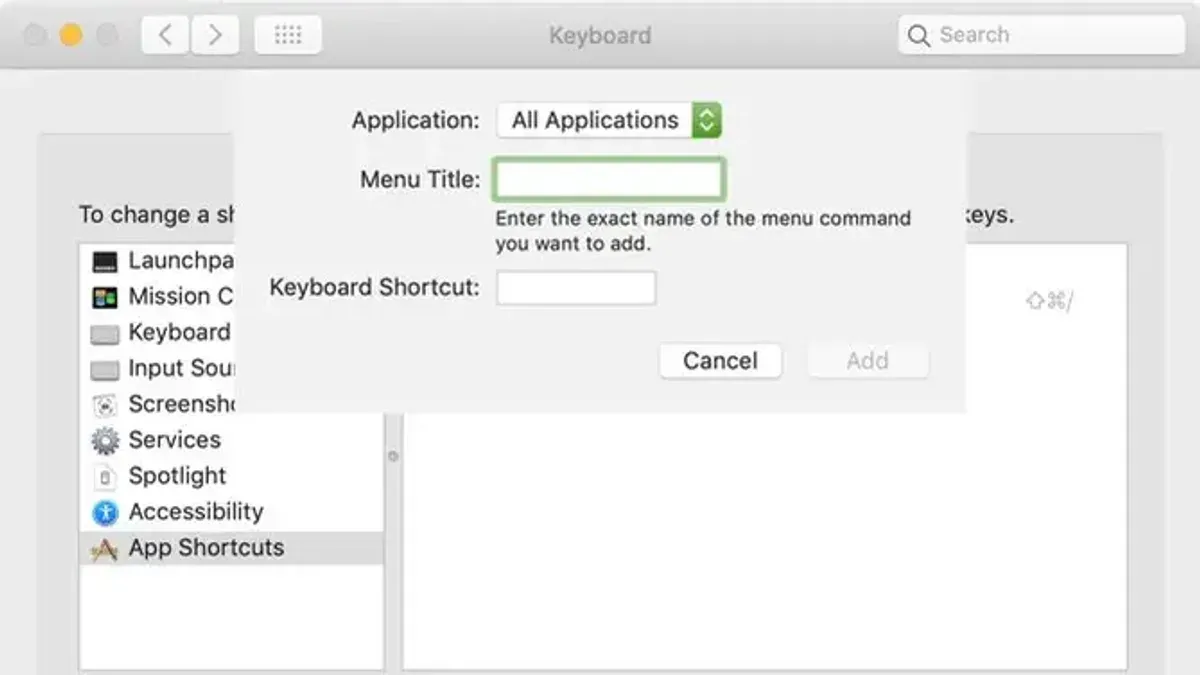
macOS allows you to create custom keyboard shortcuts via System Settings. Navigate to System Settings > Keyboard > Keyboard Shortcuts > App Shortcuts. Here, you can add a new shortcut by clicking the plus button, selecting an app or all applications, typing the exact menu command (e.g., “Beginning of Document” or “End of Document” if available), and assigning your preferred key combination. Note that not all apps expose Home/End functions as menu commands, limiting this method’s scope.
For a more concrete example, to map Control + H as Home, you would enter the menu command for moving to the start of a document if the app supports it. This method requires precise menu naming and may not work consistently across all software.
Using Third-Party Tools Like Karabiner-Elements
Karabiner-Elements is a popular free utility that enables deep keyboard remapping on macOS. You can define complex rules to map your physical keys to Home and End key equivalents or create new shortcut combinations. For instance, you might remap the Caps Lock key to act as a Home key when pressed alone, or combine it with arrow keys for End functionality.
Setting this up involves installing Karabiner-Elements, opening its Simple Modifications tab, and adding your desired key remaps. You can also write custom JSON configuration files for advanced behavior. While powerful, this approach requires more initial effort and some familiarity with configuration files.
Trade-offs of Remapping Keys
Remapping keys can make your Mac keyboard behave more like Windows, which helps muscle memory when switching platforms. However, it may lead to conflicts with macOS shortcuts or apps that use those keys differently. Additionally, software updates can occasionally disrupt third-party tool functionality.
Alternatively, adapting to macOS’s default shortcuts avoids these risks and leverages system-wide consistency, though it demands relearning key combinations.
Common Mistakes and Misunderstandings When Using Home and End on Mac
One frequent misunderstanding is confusing the Home and End shortcuts with moving to the beginning or end of a line versus the entire document. For example, pressing Command + Left Arrow takes you to the start of a document, not just the start of the current line, which differs from some Windows behaviors. This can frustrate users expecting line-based navigation when instead the cursor jumps much farther.
Another common issue is expecting physical Home and End keys on Mac keyboards. Since Apple’s keyboards lack these keys, users sometimes search in vain or try to remap non-existent keys, leading to confusion. They must rely on the macOS shortcuts or customize their own mappings to replicate this functionality.
Keyboard layouts other than US English can also cause unexpected shortcut behavior. Some international layouts assign different functions to the arrow or modifier keys, which affects how Home and End shortcuts work or whether they register at all. For instance, a user with a non-standard layout may find Fn + Right Arrow does not move to the end of the document as expected, requiring adjustment in System Settings or third-party apps.
Support queries often highlight these points: users report that shortcuts skip entire sections unexpectedly or do nothing, reflecting a mismatch between macOS’s shortcut design and user expectations shaped by Windows or other systems.
Frequently asked questions
What is the equivalent of the Home key on a Mac keyboard?
On a Mac keyboard, the equivalent of the Home key is usually achieved by pressing Command (⌘) + Left Arrow. This moves the cursor to the beginning of the current line or document, depending on the app. Unlike Windows keyboards, Mac keyboards do not have a dedicated Home key, so this shortcut is the standard method.
How do I move the cursor to the beginning or end of a line on Mac?
To move the cursor to the beginning of a line, press Command (⌘) + Left Arrow. To move it to the end of a line, use Command (⌘) + Right Arrow. These shortcuts work across most macOS applications, providing quick navigation without needing dedicated Home or End keys.
Can I create custom shortcuts for Home and End functions on macOS?
Yes, macOS allows you to create custom keyboard shortcuts via System Settings > Keyboard > Keyboard Shortcuts. You can assign specific key combinations to menu commands in supported applications. However, these custom shortcuts depend on the app recognizing the Home or End command, so results may vary across software.
Why do Home and End shortcuts behave differently in some Mac applications?
Behavior varies because macOS does not enforce Home and End keys universally, leaving it to individual apps to interpret these inputs. For example, in some text editors, Command + Left/Right Arrow moves by lines, while in browsers, it might jump to the start or end of the page. This inconsistency arises from different app designs and how they map these shortcuts internally.
Limitations and when to seek other solutions
This guide does not cover remapping keys on non-Apple external keyboards extensively; some shortcuts may not work identically depending on keyboard hardware and macOS version. If you rely heavily on Windows-style Home and End behavior or use specialized keyboards, third-party utilities like Karabiner-Elements can offer more comprehensive remapping options. Additionally, apps with custom text editors may not support these shortcuts consistently, so checking app-specific support or preferences is advisable.
To get the most practical benefit from Mac's Home and End functionality, focus first on mastering the default macOS shortcuts such as Command + Left Arrow and Command + Right Arrow for line navigation. This step ensures reliable use across most native apps and maintains compatibility with system updates, providing a solid foundation before exploring custom shortcuts or external tools.



