Mac Keyboard Shortcut to Jump to End of Document Explained
Discover how to use the Mac keyboard shortcut to jump to the end of a document and improve your text navigation efficiency.
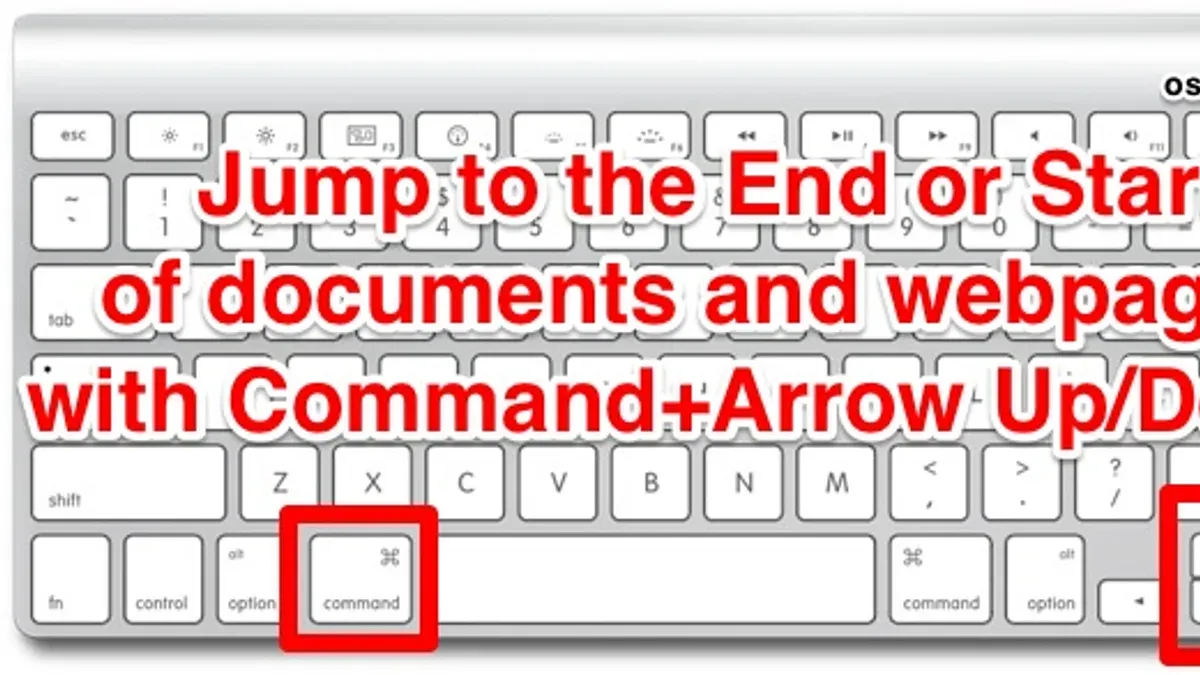
Scrolling through a lengthy document on your Mac can be time-consuming, especially when you want to jump straight to the end. You might expect a simple keyboard shortcut to take you there instantly, but the behavior can vary depending on the app you’re using.
This article breaks down the Mac keyboard shortcut to jump to end of document, explaining how it functions differently across common applications. You’ll also find alternative shortcuts, practical tips for efficient navigation, and reasons why the shortcut might not work as expected in certain contexts.
Key takeaways
- The standard shortcut to jump to the end of a document is Command + Down Arrow, but its behavior depends on the app.
- Some applications, like TextEdit and Microsoft Word, respond directly to this shortcut, while others may require different keys.
- Using Option or Fn keys in combination can offer alternative ways to navigate to the document’s end.
- Keyboard shortcuts might not work if the focus is on an element like a table or search field within the document.
- Understanding app-specific behaviors can help you avoid confusion and speed up your text editing process.
What the Mac keyboard shortcut to jump to end of document is
The primary keyboard shortcut to jump to the end of a document on a Mac is Command + Down Arrow. When you press this combination, the cursor immediately moves from its current position to the very bottom of the document, bypassing the need to scroll through pages manually. This shortcut is especially useful in lengthy documents where scrolling can be time-consuming and inefficient.
For example, imagine you are editing a 100-page report and your cursor is at the first line on page one. Instead of dragging the scroll bar or swiping repeatedly, pressing Command + Down Arrow instantly places the cursor at the last line on page 100. This allows you to quickly add notes, review the conclusion, or jump between sections without interruption.
Using this shortcut improves workflow by reducing physical effort and speeding up navigation, allowing you to focus more on content editing and less on page movement. It is a standard Mac shortcut applicable in many text-based applications, making it an essential tool for users who regularly handle large documents.
How the Mac keyboard shortcut to go to end of document works in different apps
The Command + Down Arrow shortcut generally moves the cursor to the end of a document, but its behavior can vary depending on the app you are using. In native macOS apps like TextEdit, Pages, and Mail, this shortcut consistently jumps to the absolute end of the entire document or message, making it reliable for fast navigation.
In third-party applications, the behavior can differ. For example, Microsoft Word treats Command + Down Arrow as a command to jump to the end of the current paragraph or document, depending on cursor position and view mode. In Google Docs accessed through a browser, this shortcut often moves the cursor to the bottom of the visible page or text field rather than the full document, due to browser and web app limitations.
Coding editors like Visual Studio Code or Sublime Text may interpret Command + Down Arrow differently, sometimes moving to the end of the current file or the visible window, depending on user settings and extensions installed.
| App | Shortcut Behavior |
|---|---|
| TextEdit | Moves cursor to the end of the entire document |
| Pages | Moves cursor to the end of the entire document |
| Moves cursor to the end of the email message | |
| Microsoft Word | Usually jumps to end of paragraph or document depending on context |
| Google Docs (browser) | Moves to bottom of visible text area, not full document |
For instance, if you are editing a long email in Mail, pressing Command + Down Arrow will place your cursor right at the message's end. However, if you switch to Google Docs in Safari and press the same shortcut, the cursor might only reach the bottom of the current viewport, requiring additional scrolling to reach the true document end.
In some web-based forms or text fields, the shortcut may move the cursor to the end of the input area rather than the full document, which can feel inconsistent. Understanding these differences helps you set realistic expectations and choose alternative navigation methods when necessary.
Keyboard shortcut to move to end of document on Mac with alternative keys
Besides Command + Down Arrow, you can use Fn + Right Arrow on some Mac keyboards to jump to the end of a line or document. On compact keyboards or MacBooks without dedicated Home or End keys, this combination often serves as a practical alternative to reach the end quickly.
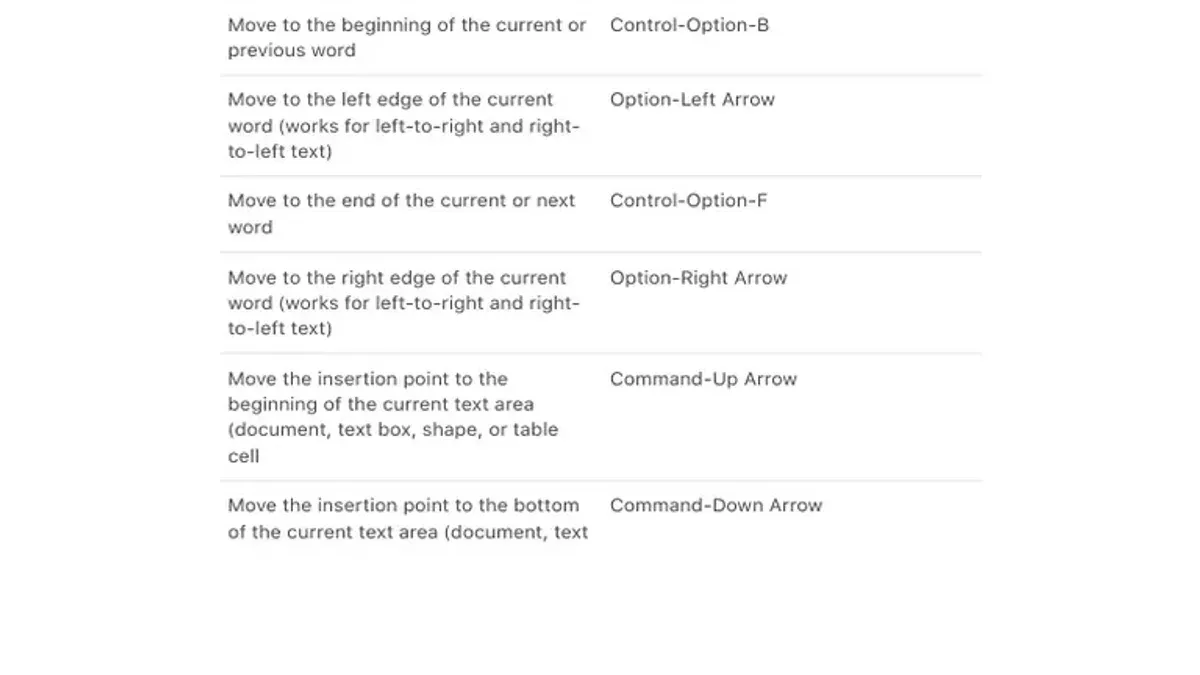
Adding modifier keys extends the functionality. For example, pressing Shift + Command + Down Arrow selects all text from the current cursor position down to the document's end. Similarly, Option + Command + Down Arrow can jump between paragraphs or larger sections in some apps.
Imagine you’re editing a long email: pressing Command + Down Arrow moves the cursor instantly to the bottom, but if you hold Shift while pressing it, you select all the text from where you are to the end. This is useful for copying or formatting large blocks without manual dragging.
When using external keyboards, especially non-Apple layouts, the equivalents may vary. Some external keyboards provide dedicated End keys that work like Command + Down Arrow, while others rely on Fn or Control modifiers. Knowing your keyboard’s layout and testing shortcuts in your favorite apps helps ensure smooth navigation.
Practical tips for using Mac keyboard shortcut to go to bottom of page effectively
To integrate the Command + Down Arrow shortcut smoothly into your workflow, start by practicing it in various apps you use regularly. This helps you recognize when it moves to the true document end versus just the visible section, allowing you to adjust your expectations accordingly.
Combining the shortcut with the Shift key lets you select all text from your current cursor position to the document's end. For example, when editing a lengthy report in Pages, place your cursor mid-section, press Shift + Command + Down Arrow, and instantly highlight the remainder of the document. This selection can then be deleted, copied, or formatted quickly, saving time compared to manual scrolling and mouse selection.
If you find the default shortcut conflicts with other app commands or doesn’t work as expected, macOS allows you to customize shortcuts via System Preferences > Keyboard > Shortcuts. You can assign a different key combination for "Move to End of Document" or create app-specific overrides. This flexibility ensures the shortcut fits your unique editing environment without disrupting other functions.
Common mistakes and why the Mac keyboard shortcut to jump to end of document may not work
One frequent misunderstanding is confusing the shortcut that jumps to the end of a line with the one that jumps to the end of a document. For example, pressing Command + Right Arrow moves the cursor to the end of the current line, not the entire document. Users expecting to reach the document's bottom may find themselves only at the line’s end, leading to confusion.
Another common issue is that some applications override or disable default macOS shortcuts. In apps like Adobe Photoshop or certain code editors, Command + Down Arrow might trigger a different function or be inactive. This can cause the shortcut to seem broken when, in fact, the app’s specific key bindings are responsible.
Browser-based editors and remote desktop environments also complicate shortcut behavior. For instance, in Google Docs accessed via a browser, Command + Down Arrow may scroll only through the visible portion of the document rather than jumping instantly to the end. Similarly, when using remote desktop software, the shortcut might be intercepted by the host or guest system, preventing it from working as expected.
Imagine you are editing a lengthy report in a web-based editor and press Command + Down Arrow expecting to reach the conclusion quickly. Instead, the cursor stops midway, as the shortcut only navigates within the visible screen area. Recognizing this distinction helps avoid frustration and prompts trying alternative navigation methods.
- Mac Keyboard Shortcut to Go to a Folder Path: A Practical Guide
- Mac Keyboard Shortcut to Open Spotlight: A Clear Guide
Frequently asked questions
What is the Mac keyboard shortcut to jump to end of document?
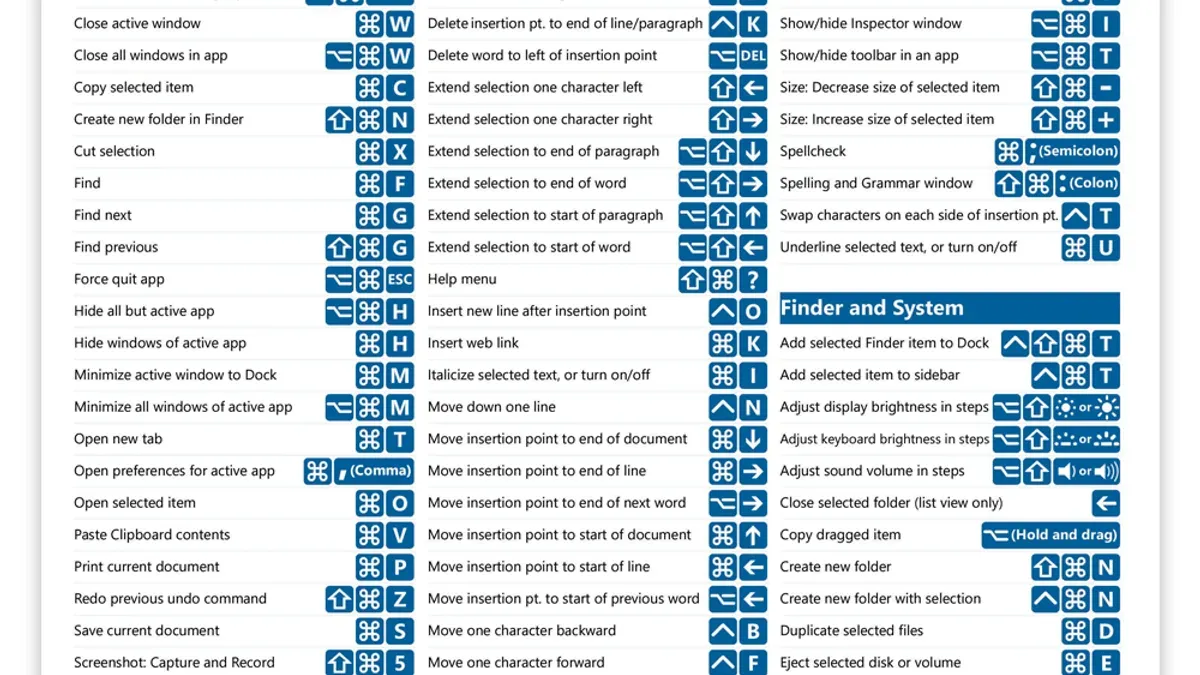
The standard shortcut to jump to the end of a document on a Mac is Command (⌘) + Down Arrow. This moves the cursor directly to the bottom of the document in most text editors and word processors.
Why doesn’t the Mac shortcut to go to end of document work in some apps?
Some applications override default keyboard shortcuts or use custom text fields that do not support the Command + Down Arrow combination. For example, web browsers or certain design apps may use different shortcuts or lack full text navigation support, causing the shortcut to seem unresponsive.
How do I select text while jumping to the end of a document on Mac?
To select text from your current cursor position to the end of the document, hold down Shift along with Command + Down Arrow (Shift + ⌘ + ↓). This highlights all the text between the current cursor and the document’s end.
Can I customize the Mac keyboard shortcut to go to the bottom of a page?
Yes, you can customize keyboard shortcuts for specific apps via System Settings under Keyboard > Keyboard Shortcuts > App Shortcuts. However, this customization depends on the app’s support for shortcut remapping and may not work universally across all applications.
What this advice does not cover and who should do something else
This article does not cover shortcuts for jumping to the start of a document or line, which have separate dedicated guides. Some specialized or legacy applications may not support standard Mac navigation shortcuts at all, so users working with those may need to consult app-specific documentation. Additionally, if you rely heavily on browser-based editors, you might experience inconsistent shortcut behavior due to browser or web app constraints.
The single most useful next step is to try the shortcut yourself in the specific applications you use most often. Observe how it behaves and whether alternative key combinations, like Command + Down Arrow or Fn + Command + Right Arrow, produce better results. Adjusting to each app’s nuances will help you navigate documents faster and avoid frustration from unexpected behaviors.