
How to Fix Speakers Crackling on Mac: Step-by-Step Guide
Resolve crackling sounds from Mac speakers by resetting coreaudiod and optimizing audio settings to restore clear sound without hardware repairs.
Mac users facing crackling sounds from built-in speakers can resolve the issue with a precise troubleshooting sequence. Addressing these settings before diving into hardware checks prevents unnecessary repairs and saves time.
Dust and debris trapped in speaker grilles frequently cause muffled or crackling sounds, especially at higher volumes, so physical cleaning is essential.
Quick overview of fixing crackling Mac speakers
- Reset the coreaudiod process via Activity Monitor to clear audio glitches without rebooting.
Every limit and setting name below comes from MacsWire, MacPaw, LuxuriousComputers (full list at the end), as of November 2026.
Reset the coreaudiod process to clear audio glitches
The coreaudiod process is the key system component managing all audio output on a Mac. It can sometimes enter an error state, especially after sleep and wake cycles or system updates, which causes crackling or distorted speaker sounds. Resetting this process is often the fastest way to restore clean audio without restarting the entire machine.
Follow these steps in order to reset coreaudiod via Activity Monitor:
- Open Activity Monitor from the Utilities folder inside Applications.
- In the search bar at the top right, type coreaudiod to locate the audio process.
- Select the coreaudiod process from the list to highlight it.
- Click the stop (X) button in the toolbar and choose Quit from the dialog.
- macOS will automatically restart coreaudiod within seconds, restoring audio functionality.
Attempting to quit other audio-related processes first or restarting the system before restarting coreaudiod will not clear the audio glitch as effectively. This targeted reset avoids interrupting other system functions and saves time.
Adjust the audio output sample rate and volume settings
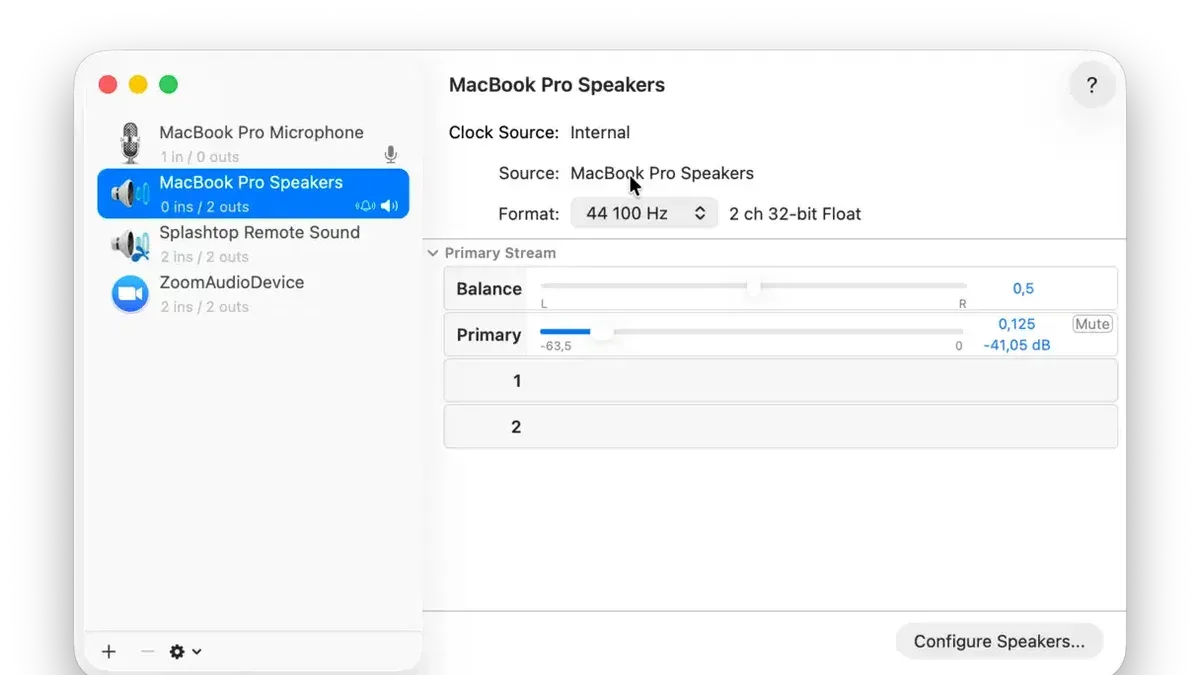
The built-in speakers typically operate best at a sample rate of 44.1 kHz or 48 kHz. Setting the sample rate higher than this can strain the processor and trigger crackling sounds.
To adjust the sample rate, open the Audio MIDI Setup app located in Applications > Utilities. Select the internal speakers in the left column, then set the Format sample rate to either 44.1 kHz or 48 kHz. Successful application of these values reduces CPU load and prevents audio glitches related to excessive processing demands.
Navigate to System Settings > Sound > Output. Here, ensure the output volume is below approximately 80%. Volumes above this threshold can cause speaker clipping, where the audio signal distorts due to overdriving the small speakers. Lowering the volume reduces distortion and eliminates crackling caused by dynamic processing.
Adjust the balance if audio feels uneven between speakers, as imbalanced output can mimic crackling symptoms. Correcting both sample rate and volume settings addresses common software-related causes of speaker crackling without hardware intervention.
Clean speaker grilles to remove dust or debris causing distortion
Crackling or muffled sounds from Mac speakers often result from dust, lint, or other debris trapped within the speaker grilles. These physical blockages interfere with sound waves and can mimic hardware faults, especially noticeable at higher volume levels. Before considering hardware repair, it is essential to inspect and clean the speaker grilles carefully.
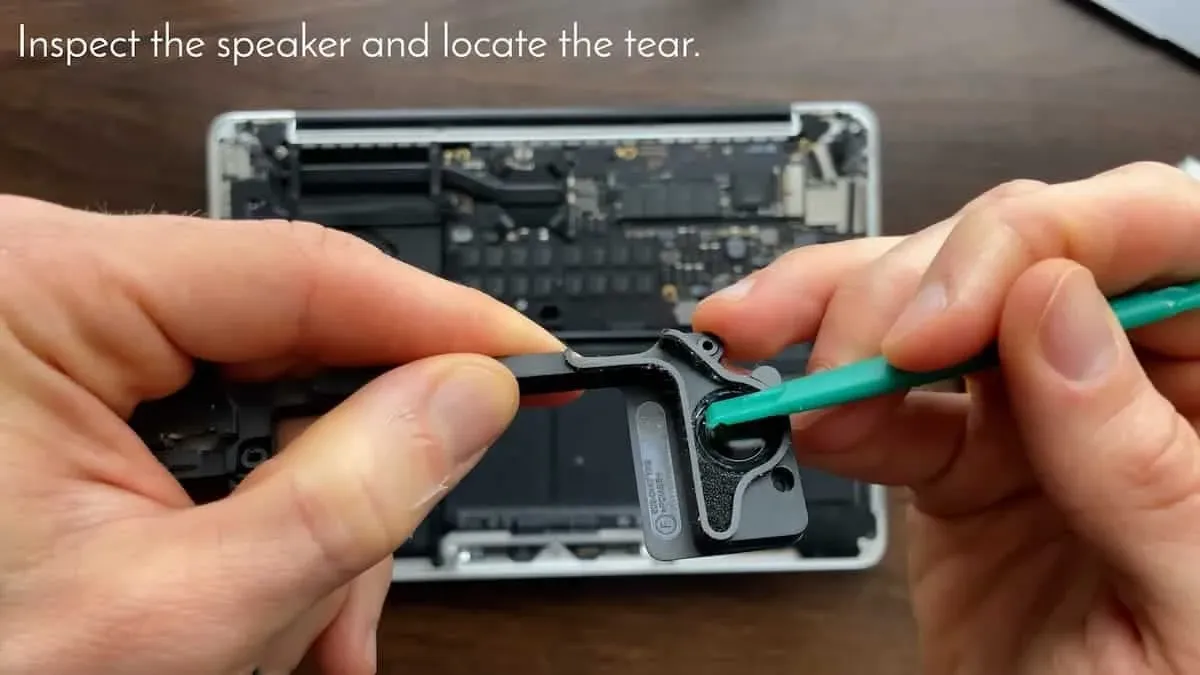
Use a soft brush or canned air to gently remove dust and debris. Avoid applying excessive pressure or using harsh tools that could damage the delicate speaker components. Cleaning should be done in a well-lit area to ensure all visible particles are cleared without pushing them further inside.
Follow these steps for effective cleaning:
- Power off the Mac and disconnect any power sources to prevent damage or injury.
- Hold the Mac so the speaker grilles face downward to allow dislodged debris to fall out easily.
- Use a soft-bristle brush to gently sweep across the speaker grilles, loosening trapped particles.
- Apply short bursts of canned air angled slightly to blow dust away from the grille openings, not directly into them, to avoid pushing debris deeper.
- Inspect the grilles under light to confirm all debris is removed; repeat brushing and air bursts if necessary.
If crackling persists after this careful cleaning, hardware diagnostics may be required.
Update macOS and uninstall problematic audio apps or drivers
Rapid Security Response updates are smaller, focused patches that fix critical audio and connectivity issues without requiring a full system upgrade, offering a quick remedy.
Next, identify any third-party apps causing crackling.
Disconnect all external microphones, audio interfaces, and speakers before troubleshooting further. Remove any third-party audio drivers, as these can conflict with macOS’s native audio system and cause persistent crackling. Uninstalling these drivers often eliminates the interference and restores clean sound output.
- Open System Settings and navigate to General > Software Update. Apply any available updates and confirm the system restarts if prompted.
- Launch CleanMyMac and use the Applications feature to locate and fully uninstall apps known or suspected to cause audio issues. Verify crackling stops after removal.
- Disconnect all external audio devices, then check for any installed third-party audio drivers. Remove these from the system to prevent driver conflicts.
- Monitor audio performance after these changes to confirm the crackling is resolved.
Isolate the problem by testing in Safe Mode and a new user account
Testing in Safe Mode helps determine whether speaker crackling arises from third-party software, user settings, or hardware faults. Safe Mode loads only essential macOS components, disabling extensions and startup items that could cause audio conflicts. To enter Safe Mode, restart the Mac and hold the Shift key immediately after the startup chime until the login screen appears, confirming Safe Mode is active.
Creating a new user account further isolates the issue by removing personalized settings and software that might interfere with audio output. Navigate to Users & Groups in System Settings, add a new standard user, then log out and into that account to test the speakers.
- Restart the Mac and hold Shift to boot into Safe Mode; confirm the login screen shows “Safe Boot” in the menu bar.
- Test speaker audio at moderate volume across multiple apps to check for crackling.
- Log out of Safe Mode, then create and log into a new user account via System Settings > Users & Groups.
- Play audio at moderate volume in the new user account to observe if crackling persists.
If crackling continues in both Safe Mode and the new user account across various apps, the cause is likely hardware-related, such as a speaker or amplifier fault. If crackling disappears in these environments, the problem is confined to user-specific settings or third-party software. This distinction directs whether to pursue hardware repair or further software troubleshooting.
Run Apple Diagnostics to identify hardware speaker or amplifier faults
When crackling persists despite software troubleshooting and is limited to the built-in speakers, the issue often lies within the internal speaker hardware or amplifier. Running Apple Diagnostics helps confirm such hardware faults, including damaged speakers or failed amplifier circuits. This tool provides specific error codes related to audio components, guiding the next steps in repair.
- Disconnect all external devices except keyboard, mouse, display, and connection to power.
- Shut down the Mac completely.
- Press the power button, then immediately hold down the Command (⌘) and D keys together.Keep holding until a screen with a progress bar or options appears, indicating Apple Diagnostics has started.
- Follow the on-screen prompts to run the diagnostics.Wait for the test to complete; it usually takes a few minutes.
- Review the results for audio-related error codes.If codes related to the speaker or amplifier appear, this confirms hardware faults.
Switch sound output devices and toggle Bluetooth to rule out interference
Begin by opening System Settings and navigating to Sound > Output. Select an alternative audio output device, such as external speakers or headphones, if available. This action helps determine whether the crackling is isolated to the built-in speakers or originates from external hardware. If the crackling disappears when switching devices, the issue likely involves the original output device or its connection.
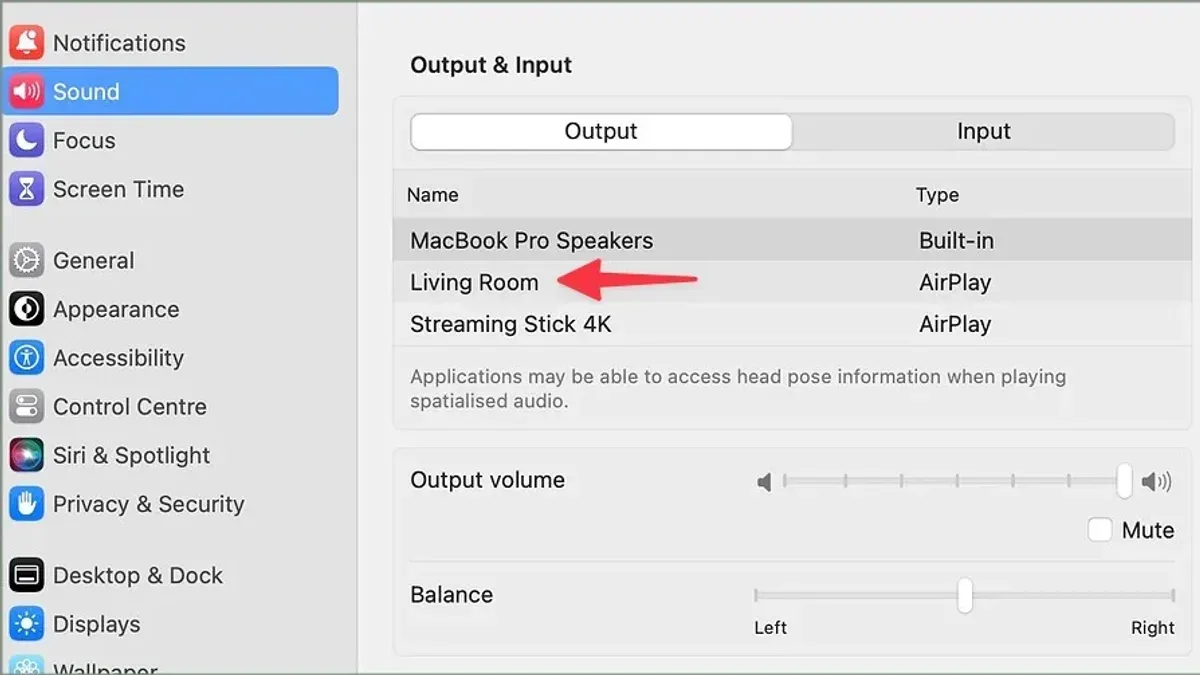
Next, disable Bluetooth temporarily. This can be done by toggling Bluetooth off in System Settings. Disconnect any active Bluetooth audio devices to eliminate interference or connection issues that often cause crackling. Observing whether the sound quality improves when Bluetooth is off helps isolate wireless device interference as the cause.
Finally, switch back to the Mac’s built-in speakers via Sound > Output. If crackling returns only on the built-in speakers and not on connected external devices, internal hardware or system settings may be responsible. If crackling persists across all outputs, consider software conflicts or hardware faults beyond Bluetooth or external audio gear. Disconnecting external audio devices and turning Bluetooth off are essential steps to isolate the source of crackling sound issues.
Avoid common mistakes that prolong crackling issues
Assuming hardware failure before isolating software causes is a critical error. Many crackling issues stem from software glitches or audio driver conflicts that uninstalling or updating can resolve. Ensure all third-party audio drivers are removed during troubleshooting to prevent unnecessary delays and confusion.
Keeping the output volume below 80% is essential. Pushing volume higher often causes speaker clipping and distortion, which mimics hardware faults but results from overdrive on small MacBook speakers. Recognizing this prevents misdiagnosis and improper attempts at hardware repair.
Physical debris in speaker grilles frequently causes crackling resembling hardware damage. Carefully inspecting and cleaning the grilles before concluding a hardware problem avoids needless repairs. Use a soft brush or canned air to clear dust and particles that interfere with sound quality.
- Confirm software and driver issues are ruled out by uninstalling third-party audio drivers; crackling should improve or stop.
- Test audio output volume levels, ensuring they stay at or below 80%; listen for reduced distortion.
- Inspect speaker grilles for dust or debris; clean gently and verify if crackling persists.
- Only after these steps consider hardware faults and professional repair if crackling continues.
Following this sequence leads to efficient, accurate diagnosis and avoids prolonging crackling problems caused by common missteps. More details on volume-induced distortion provide further context.
What to do after fixing crackling: maintenance and monitoring
After resolving speaker crackling, maintaining stable audio performance involves regular system updates and careful care of the hardware. Keep macOS up to date by visiting System Settings > General > Software Update to install any available patches. These updates often include fixes for audio drivers that can prevent future crackling issues.
Clean the speaker grilles periodically using a soft brush or canned air to remove dust and debris that cause distortion. This simple maintenance step helps preserve sound clarity and avoids recurring crackling caused by physical obstructions.
Monitor volume levels closely. Avoid raising the output above approximately 80%, since higher volumes commonly induce speaker clipping and distortion due to the small size of built-in MacBook speakers. Staying within this limit reduces wear on the speakers and maintains sound quality.
If crackling returns, repeat software and hardware diagnostics to determine if a new software conflict or hardware fault has developed. Early detection through these checks helps address problems before they worsen, ensuring continued audio reliability.
Following these steps supports clean audio performance and minimizes the chance of crackling reappearing over time. For details on updating macOS and cleaning methods, see this source.
Frequently asked questions
How to fix speakers crackling?
Resetting the coreaudiod process in Activity Monitor often resolves many audio glitches instantly without rebooting. Adjusting output sample rates and volume levels based on specific system conditions can further reduce crackling. Cleaning speaker grilles and ensuring macOS is up to date also help. Testing in Safe Mode or a new user account isolates software conflicts, while running Apple Diagnostics can reveal hardware issues requiring professional repair.
How to fix speaker crackling on laptop?
This guide’s steps apply directly to Mac laptops: starting with resetting the coreaudiod process, then adjusting audio output settings. Physical cleaning of speaker openings removes dust causing distortion. If crackling persists, booting in Safe Mode or creating a new user account helps identify software-related causes. Hardware faults can be diagnosed via Apple Diagnostics.
How to fix laptop speakers crackling?
Follow the precise order of troubleshooting to avoid misdiagnosis: first reset coreaudiod to clear audio glitches, then adjust sample rate and volume according to the device’s condition. Cleaning speaker grilles and updating macOS come next. If needed, isolate issues in Safe Mode or with a new user profile. Hardware issues require running diagnostics. Switching sound output devices and managing Bluetooth interference completes the process.
Key Steps to Resolve Speaker Crackling on Mac
Resetting the coreaudiod process often provides the quickest relief from crackling by clearing temporary audio glitches without restarting the Mac. This step should be done before adjusting settings or hardware cleaning to ensure accurate troubleshooting. Following this, tuning sample rate and volume settings precisely to the audio environment can prevent recurring distortion. Testing in Safe Mode and a new user context helps confirm whether software conflicts are the root cause. Hardware diagnostics pinpoint speaker or amplifier faults that require professional repair. After resolving the crackling, regular monitoring of audio performance and keeping software current are essential to maintain sound quality and avoid future issues.
References
- MacBook Speakers Crackling? 3 Complete Steps For Fix — MacsWire
- Fix Mac speakers crackling in 5 min [no tech skills needed] — MacPaw
- MacBook Speakers Crackling? Every Fix in Order — LuxuriousComputers
- Why Do My MacBook Speakers Crackle? Troubleshooting Steps - TechyConcepts — TechyConcepts
- How to fix crackling audio on your MacBook | Asurion — Asurion
See also: How to Fix a Forgotten Mac Login Password: Step-by-Step Guide · Finder Not Responding on Mac: How to Fix It Step-by-Step · How to Fix Microphone Not Picking Up on Mac · How to Fix Keyboard Repeating Keys on Mac: Step-by-Step Solutions



