
How to Fix a Forgotten Mac Login Password: Step-by-Step Guide
Learn how to fix a forgotten Mac login password using Apple ID, recovery keys, or admin accounts to regain access safely and easily.
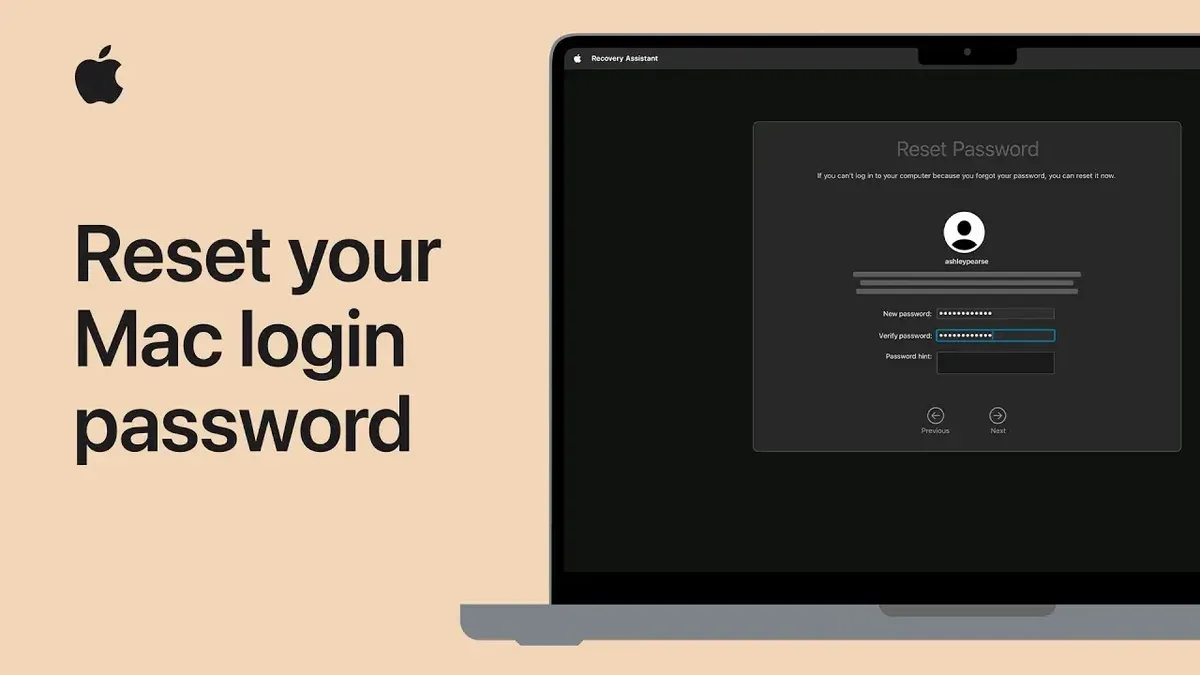
After three failed attempts, the system may offer options to reset it, but confusion over your Apple ID password or recovery key often stalls progress.
For example, if FileVault encryption is active, you’ll need a 24-character recovery key with uppercase letters and dashes, excluding I, S, 1, and 0.
Otherwise, repeated failed attempts can lock the account, forcing a wait or recovery mode access.
Settings, menu paths and limits here were checked against Apple Support, LuxuriousComputers, AppleMagazine (full list at the end) in November 2026.
Which password reset method fits your Mac and situation
Start by identifying your Mac’s processor type. If it uses an Intel chip, recovery mode opens by holding Command + R during startup. Apple silicon Macs require holding the power button until startup options appear. This difference affects how you access recovery tools.
Next, determine if your user account is linked to an Apple ID. After several failed login attempts, a prompt to reset your password using your Apple ID may appear. This method preserves your data and is the simplest if available.
This key, containing only uppercase letters and numbers but excluding I, S, 1, and 0, lets you reset your password without losing data when Apple ID reset is not an option.
Consider whether another administrator account exists on your Mac. If it does, you can log in with that account and reset the forgotten password through Users & Groups settings. This method requires access to the second administrator account but avoids data loss.
This deletes all data but restores device access.
| Mac Model | Account Type or Setup | Recommended Reset Method | Deciding Factor |
|---|---|---|---|
| Intel | Apple ID linked, reset option appears | Use Apple ID to reset password | Password reset prompt after failed attempts |
| Apple silicon | Apple ID linked, reset option appears | Use Apple ID to reset password | Password reset prompt after failed attempts |
| Intel | FileVault enabled with recovery key | Use FileVault recovery key to reset password | Have 24-character recovery key |
| Apple silicon | FileVault enabled with recovery key | Use FileVault recovery key to reset password | Have 24-character recovery key |
| Intel | Another administrator account available | Log into admin account and reset password in Users & Groups | Access to another admin account |
| Apple silicon | Another administrator account available | Log into admin account and reset password in Users & Groups | Access to another admin account |
| Intel or Apple silicon | No Apple ID reset, no recovery key, no admin account | Erase Mac and reinstall macOS | No recovery options available |
- Identify your Mac model’s processor: Intel or Apple silicon. You will use this information to access recovery mode correctly.
- Check if your user account is linked to an Apple ID and if a reset password option appears after failed login attempts.
- Verify if FileVault encryption is enabled and whether you have the 24-character recovery key available.
- Determine if another administrator account exists on your Mac that you can use to reset the password.
- If none of the above options apply, prepare to erase your Mac and reinstall macOS to regain access.
How to reset your password using Apple ID after failed login attempts
If you have linked your Mac user account to your Apple ID and enter the wrong login password three times consecutively, macOS offers a password reset option directly on the login screen. This feature helps you regain access without affecting your data.
- Enter your password incorrectly three times. After the third failed attempt, the login window will display a message offering to reset your password using your Apple ID.
- Click the option to reset using Apple ID. This will open a prompt requesting your Apple ID credentials.
- Enter your Apple ID and password carefully. Remember, your Apple ID password is different from your Mac login password; entering the Apple ID password incorrectly will prevent the reset from proceeding.
- Once authenticated, you will be prompted to create a new login password for your Mac account. Choose a strong password you can remember.
- After resetting your password, note that your old login keychain password does not update automatically. You will need to create a new keychain manually to maintain access to saved passwords and secure data.
If the reset prompt does not appear after three failed attempts, other recovery methods may be necessary.
How to use FileVault recovery key to reset your Mac password
If your Mac is encrypted with FileVault and you cannot reset your password using your Apple ID, the FileVault recovery key is your alternative. This key is a 24-character alphanumeric code created when FileVault was enabled. It includes dashes and uppercase letters but excludes the letters I, S and the numbers 1 and 0. For example, a recovery key might look like: ABCD-EFGH-JKLM-NPQR-TUVW-XYZ2.
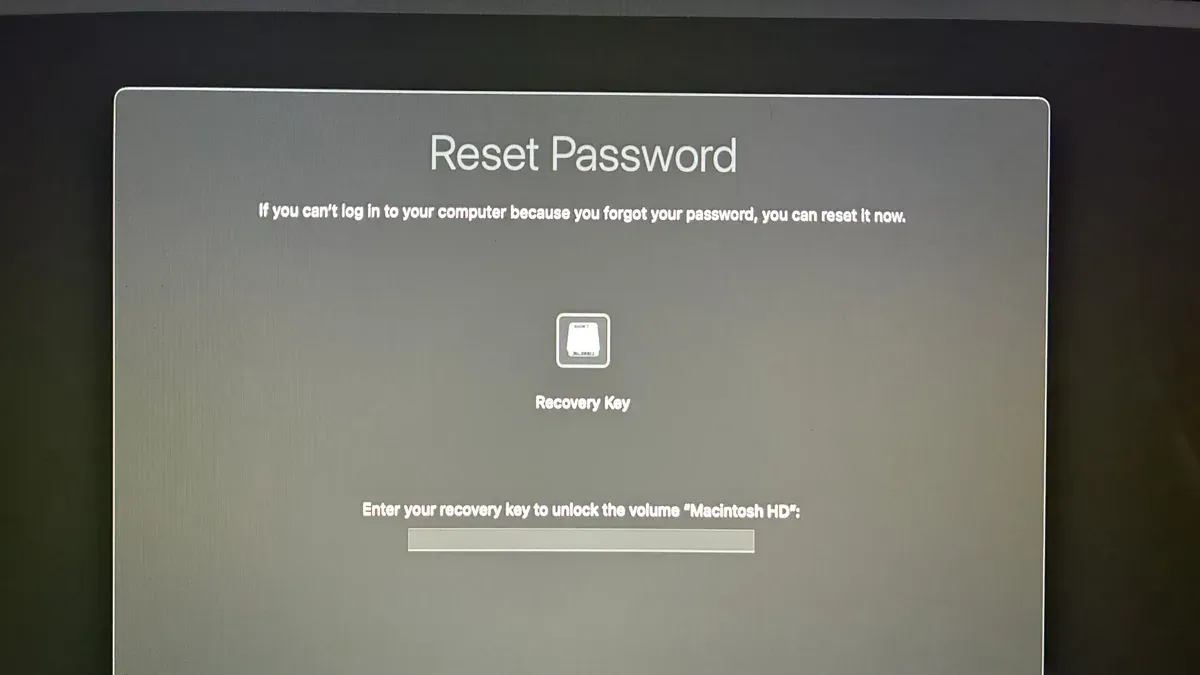
When you reach the login screen after multiple failed password attempts, your Mac may offer the option to reset the password using the FileVault recovery key. If this prompt appears, follow these steps carefully to regain access without risking data loss.
- Locate your FileVault recovery key exactly as it was recorded when you set up FileVault. Ensure you have it accessible and readable.
- At the login screen, after entering incorrect passwords several times, select the option to reset your password using the recovery key. You should see a prompt to enter the recovery key.
- Enter the 24-character recovery key precisely, including all dashes and uppercase letters. The key must be typed exactly to be accepted.
- Once authenticated, you will be prompted to create a new login password. Set a strong password you will remember.
- After resetting, your Mac will allow you to log in with the new password. Your data remains intact because the FileVault encryption is unlocked by the recovery key.
You will need to create a new keychain manually to avoid issues with saved passwords and credentials.
Without the FileVault recovery key, and if Apple ID reset is not an option, accessing your encrypted data may become impossible. Therefore, always keep your recovery key in a safe place and do not share it carelessly.
Using the FileVault recovery key is a reliable method to regain access to your Mac without data loss when other reset options fail, but it requires precise entry and careful handling of the key. More details on FileVault recovery key usage.
Resetting your Mac password through macOS Recovery mode Terminal
If you cannot reset your Mac password using Apple ID or FileVault recovery key, macOS Recovery mode offers a reliable alternative. This method uses the Terminal utility to launch the Reset Password assistant, allowing you to set a new password without erasing your data.
- Access macOS Recovery mode: For Intel Macs, restart your Mac and hold down
Command + Rimmediately until the Apple logo appears. For Apple silicon Macs, turn off your Mac, then press and hold the power button until the startup options window appears. - Enter Recovery options: On Apple silicon Macs, click Options and then Continue to enter macOS Recovery. On Intel Macs, the system will automatically enter Recovery mode after the Apple logo.
- Open Terminal: From the top menu bar, select Utilities and then Terminal. This opens a command-line interface within Recovery.
- Launch the Reset Password assistant: In Terminal, type the command
resetpasswordas one word, then press Return. This exact spelling is critical; any variation will fail to open the password reset tool. - Reset your password: The Reset Password assistant window will appear. Select your user account from the list, then enter and confirm your new password. Follow any prompts to complete the process.
- Finish and restart: Close the Reset Password assistant and Terminal, then choose Apple menu > Restart to boot normally with your new password.
However, your original login keychain password will not update automatically. You must create a new keychain manually to avoid repeated password prompts for saved passwords and certificates.
Incorrect command spelling, attempting to run resetpassword outside of Recovery mode, or skipping the correct startup procedure will prevent the assistant from launching. The order of these steps matters: entering Recovery mode first, then opening Terminal, and finally running the command ensures success.
Resetting password using another administrator account on your Mac
If you have another administrator account on your Mac, you can use it to reset the forgotten password without losing any data. This method works only if you know the login credentials of the other administrator account.
- Log in to the Mac using the other administrator account. Once logged in, open System Settings.
- Navigate to Users & Groups. You will see a list of all user accounts on the Mac.
- Click the lock icon in the bottom left corner of the window to enable changes. You will be prompted to enter the administrator password for the currently logged-in admin account. Enter it to unlock the settings.
- From the list of users, select the account with the forgotten password. Then click the Reset Password button.
- Enter a new password for the selected user account. Confirm it and provide a password hint if desired. After you confirm, the password will be reset.
The user will need to create a new keychain manually after logging in with the new password to avoid issues with saved passwords and secure data.
If such an account exists, it is often the most straightforward and safest way to regain access.
For more detailed guidance on the steps, you can visit this page.
Common mistakes that prevent successful Mac password reset
These two passwords are distinct; entering the Apple ID password when prompted for the Mac login password, or vice versa, will prevent successful login or reset. Ensure you use the correct password for each prompt to avoid this pitfall.
If it is enabled during password entry, your input will not match the intended password, causing repeated failures. Check the Caps Lock indicator light on your keyboard or screen before typing your password.
An unexpected input source can alter characters you type, leading to password mismatches. Look at the Input menu on the login screen and switch to the expected keyboard layout to prevent this issue.
Attempting to run the resetpassword command outside macOS Recovery mode is ineffective. This command only functions in Terminal within Recovery mode. Running it in a standard Terminal session will not open the password reset assistant and will produce an error or no response. To use this method, first boot into Recovery mode—Command + R on Intel Macs or by holding the power button on Apple silicon Macs—then open Terminal and enter resetpassword as one word.
FileVault encryption adds another layer of complexity. If FileVault is enabled and you lose or never had the 24-character recovery key, your options for resetting the password narrow significantly. Without this key or Apple ID reset capability, regaining access to your data may be impossible, as the encryption protects it strictly. Always keep the FileVault recovery key stored safely and accessible.
| Symptom or Message | Cause | Fix |
|---|---|---|
| "The Apple ID or password is incorrect" when trying to reset login password | Using Mac login password instead of Apple ID password or vice versa | Verify and enter the correct Apple ID password at the prompt; do not confuse it with the Mac login password |
| Repeated login failures despite correct password | Caps Lock enabled or wrong keyboard input source selected | Check and disable Caps Lock; confirm input source on login screen matches your keyboard layout |
Command resetpassword returns error or no effect |
Running command outside macOS Recovery Terminal | Restart Mac into Recovery mode and run resetpassword in Terminal there |
| Unable to reset password when FileVault is enabled and no recovery key | Lost FileVault recovery key and no Apple ID reset option | Locate your recovery key or use Apple ID reset; otherwise, data access is not possible without it |
- Check that Caps Lock is off and verify the keyboard input source on the login screen; the input menu should show your usual layout.
- Confirm you are entering the correct password: Mac login password for login prompts and Apple ID password for Apple ID reset prompts.
- If using the Terminal method, ensure you have booted into macOS Recovery mode before running
resetpassword. - Keep your FileVault recovery key secure and accessible in case other reset methods fail.
What to do after resetting your Mac password
Successfully accessing your account confirms that the reset worked and that you can proceed with restoring normal functionality.
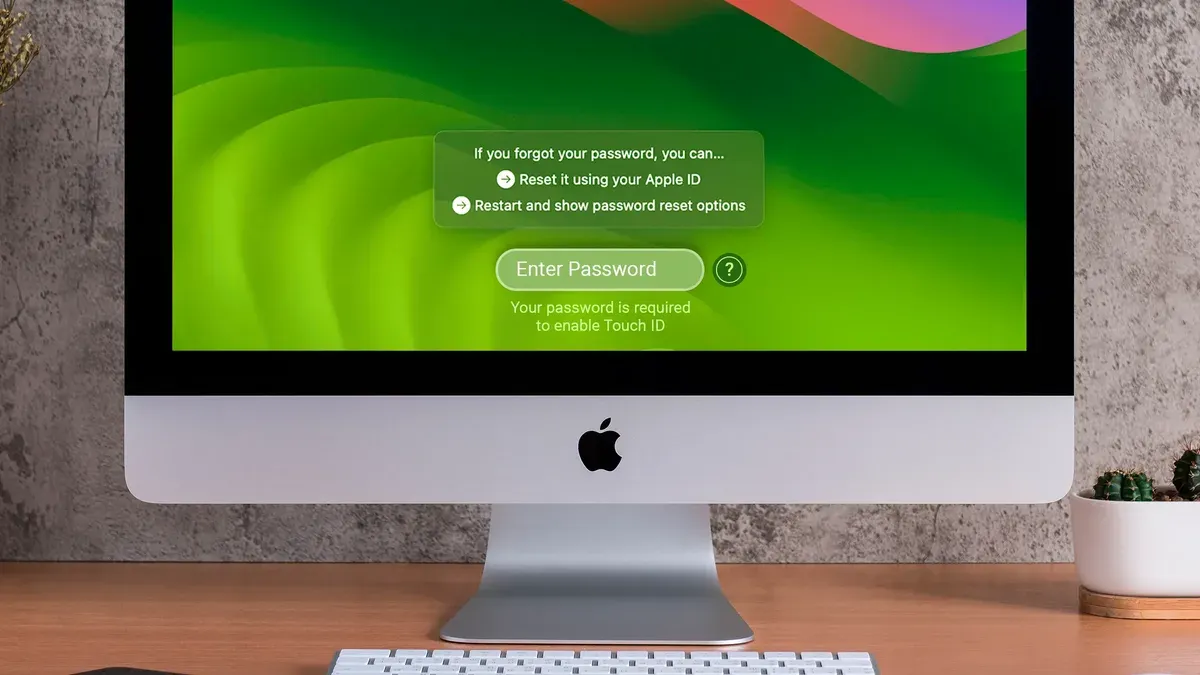
After logging in, create a new login keychain. The password reset does not update the old keychain password automatically, so the existing keychain remains locked. Without a new keychain, you will encounter repeated prompts for the old password when accessing saved passwords or certificates.
Next, check for any locked files or applications that may still require your old password credentials. Update those apps and files by entering your new password or re-authenticating to avoid access issues.
If you cannot log in with the new password or encounter unexpected errors, repeat the reset procedure or try using macOS Recovery mode again. Sometimes the process needs to be carefully followed in the correct order to succeed.
As a last resort, if no recovery options or keys are available and password reset attempts fail, you must erase your Mac and reinstall macOS. This will delete all data but restore access to the device.
- Log in using your new password and confirm successful access to your desktop.
- Create a new login keychain through Keychain Access to replace the locked old one.
- Open your apps and files to identify and update any that need your new password.
- If login fails, carefully repeat the reset steps or use Recovery mode Terminal reset again.
- If all else fails and no recovery key exists, erase your Mac and reinstall macOS to regain access.
Common mistakes that prevent successful Mac password reset
- Confusing Apple ID password with Mac login password: Using your Apple ID password instead of the Mac login password causes reset failures. Verify which password is requested before proceeding.
- Entering FileVault recovery key incorrectly: The recovery key must be typed exactly, including dashes and uppercase letters, excluding letters I, S and numbers 1, 0. Double-check before submission.
- Wrong order in Recovery mode Terminal steps: Running the
resetpasswordcommand before booting properly into Recovery mode or skipping necessary steps leads to errors. Follow the exact sequence to avoid this. - Not creating a new login keychain after password reset: The old keychain password does not update automatically. Manually create a new keychain to prevent access issues with saved passwords and certificates.
- Attempting recovery mode on incorrect Mac model: Using Intel Mac shortcuts on Apple silicon Macs, or vice versa, blocks access to recovery options. Identify your Mac model and use the correct method.
Confirming your Mac password reset and next steps
After resetting your password, log in using the new password immediately to verify success. If the login fails, confirm you used the correct reset method for your Mac model and account type. Check that the Apple ID or FileVault recovery key entered is accurate and entered in the proper context.
If you still cannot log in, try resetting the password through macOS Recovery mode Terminal using the resetpassword command. Avoid skipping steps or reversing the required order.
Once logged in, create a new login keychain to avoid issues with saved passwords. Monitor your Mac for any services requesting old credentials over the following days, updating them as needed.
Sources checked
- If you forgot your Mac login password - Apple Support — Apple Support
- Forgot Your Mac Password? Every Way to Reset It (Guide) — LuxuriousComputers
- Mac Password Reset: How to Recover Access When You Forget Your Mac Login - AppleMagazine — AppleMagazine
- How to Reset Your Mac Password in Minutes - CNET — CNET



