
How to Fix a Forgotten Firmware Password on Your Mac
Discover how to fix a forgotten firmware password on your Mac and regain control of your device with clear, actionable advice.
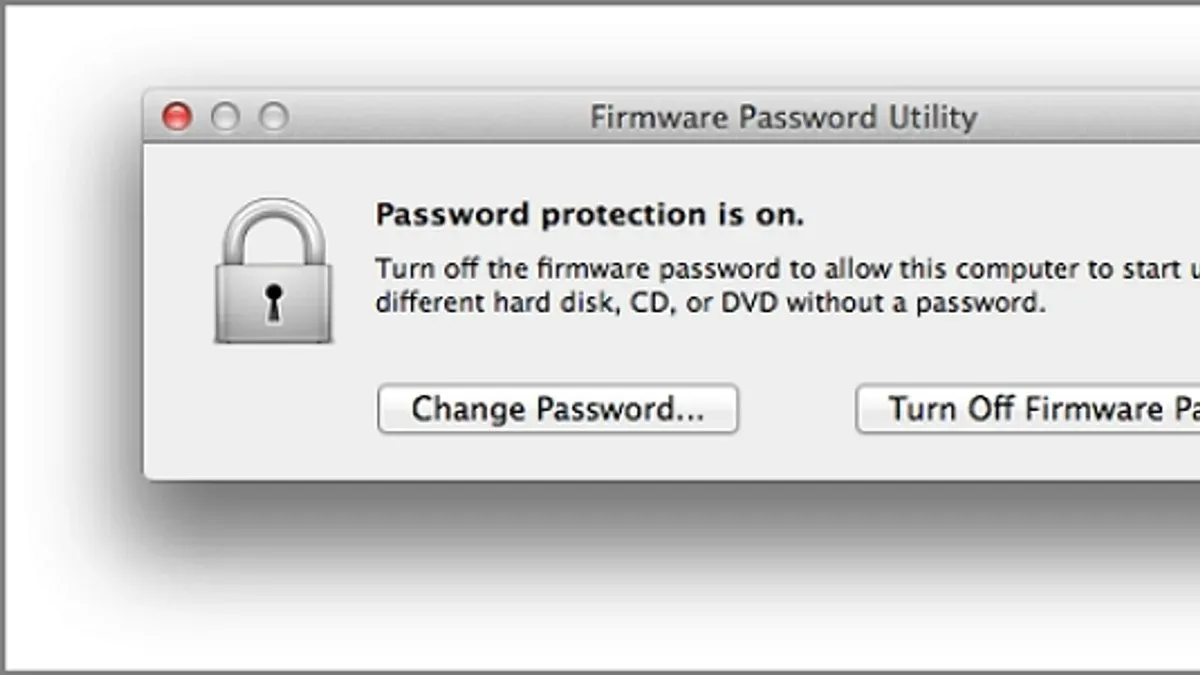
If you are facing a firmware password forgotten on Mac fix, you need to understand that this security feature only exists on Intel-based Macs. Unlike Apple silicon models, which rely on FileVault and other startup protections, Intel Macs use a firmware password to block unauthorized startup attempts from macOS Recovery, external drives, or the Erase All Content and Settings feature on T2 chip models.
The only official way to reset or remove a forgotten firmware password is by scheduling an in-person service appointment with Apple and providing proof of purchase.
Older Intel Macs might allow a technical hardware bypass by removing and reinserting RAM modules, but this is not recommended unless you are experienced.
Every limit and setting name below comes from Apple Support, OS X Daily, Soy de Mac (full list at the end), as of November 2026.
Which firmware password situation fits your Mac and goal
It prevents unauthorized changes to startup settings and blocks booting from external drives.
To determine your Mac’s processor type, open the Apple menu and select About This Mac. On newer macOS versions, you can also go to System Settings > General > About. Look for the chip or processor information: Intel indicates an Intel-based Mac, while Apple silicon shows names like M1, M2, or similar.
| Mac Model | Firmware Password Present? | Reset/Removal Options | Key Decision Factor |
|---|---|---|---|
| Intel-based Mac | Yes | If you remember the firmware password: use macOS Recovery and Startup Security Utility to change or disable it yourself. If you forgot the firmware password: you must schedule service with Apple or an authorized provider and provide proof of purchase. |
Remembering the firmware password |
| Apple silicon Mac | No (uses FileVault) | Firmware password reset or removal does not apply; use FileVault and Apple silicon security features. | Platform architecture |
- Check your Mac’s processor type via Apple menu > About This Mac or System Settings > General > About.
- If your Mac is Intel-based, confirm if a firmware password is enabled by attempting to boot from an external device or hold Option during startup; firmware password prompts indicate it is active.
- Identify your goal: reset or remove the firmware password if you remember it, or prepare for service if you forgot it.
How to recover forgotten password on Mac using official Apple service
This process requires you to bring proof of purchase and your Mac, as no remote or online reset options exist.
Also, have your Mac’s serial number or other identifying details ready to confirm the device’s eligibility for service. Without this documentation, the service provider will not reset the firmware password.
This security measure is designed to prevent unauthorized access and protect your data.
Repeatedly guessing the firmware password is strongly discouraged. Entering incorrect passwords multiple times can lock or delay access to your Mac, complicating the reset process. The official service appointment is the only guaranteed path to regain control.
To proceed with the official service reset:
- Locate your proof of purchase and note your Mac’s serial number or details.
- Schedule an in-person appointment with Apple or an authorized service provider.
- Take your Mac and documentation to the appointment for verification.
- Allow the service provider to reset or remove the firmware password.
- Once completed, verify that your Mac boots without prompting for the firmware password.
Following this process ensures your firmware password is reset securely and officially, maintaining your Mac’s security integrity.
How to reset forgotten password Mac if you remember the firmware password
This process requires starting up from macOS Recovery and accessing the appropriate utility depending on your macOS version.
- Restart your Mac and immediately hold down Command (⌘) + R keys until the Apple logo or a spinning globe appears. This boots your Mac into macOS Recovery.
- Once in Recovery, locate the Utilities menu at the top of the screen. Click it to reveal a dropdown list.
- Select either Startup Security Utility or Firmware Password Utility from the Utilities menu. The utility name depends on your macOS version: Firmware Password Utility applies to OS X Mountain Lion through macOS Sierra, while Startup Security Utility is used in macOS High Sierra and later.
- Enter your existing firmware password when prompted to authenticate.
- Inside the utility, choose the option to either Turn Off Firmware Password or Change Password, depending on your goal.
- Follow the on-screen instructions to complete the process. Turning off the password disables firmware password protection, while changing it lets you set a new password.
- After finishing, quit the utility and restart your Mac normally. Your changes will take effect immediately.
Official Apple instructions provide additional details and troubleshooting.
How to change Mac password if forgotten when it’s a user account password, not firmware
The firmware password is a distinct security feature separate from your macOS user account password. It protects the Mac at startup before the operating system loads, controlling access to boot options and recovery modes. Because of this, resetting your macOS user account password does not affect or reset the firmware password.
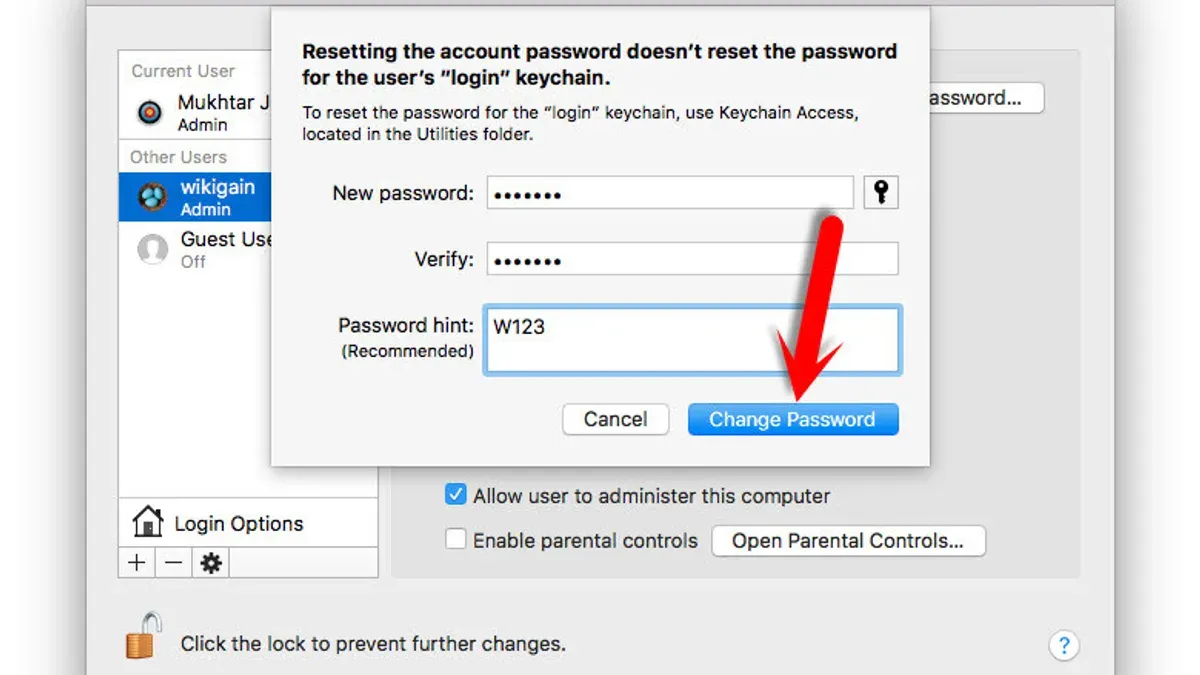
These methods will not unlock or bypass a forgotten firmware password, which is managed exclusively through the Startup Security Utility or Firmware Password Utility on Intel Macs.
If you have forgotten your macOS user account password, you can reset it by following these steps:
- Start your Mac and wait until the login screen appears.
- Click the question mark icon next to the password field, if available. This will show options to reset your password using your Apple ID or recovery key.
- Follow the on-screen instructions to authenticate and create a new user password.
- Once complete, log in with your new password and verify access to your account.
If these options do not appear or work, you may need to boot into macOS Recovery and use the Password Reset assistant there. This requires knowing the Apple ID associated with the device or access to a recovery key, depending on your security settings.
That requires different procedures and often Apple service support.
Confusing the two can lead to ineffective recovery attempts.
- Identify whether you need to reset the user account or firmware password.
- Use Apple ID or recovery key options at the login screen to reset your user password.
- Boot into macOS Recovery to access the Password Reset assistant if needed.
How to remove firmware password Mac on older Intel models using hardware bypass
This technique exploits these models’ internal security design, temporarily disabling the firmware password check after reinserting the RAM. However, this method is technical and carries risks, so it is suitable only for users with advanced hardware skills.
Newer models and Apple silicon Macs do not allow this bypass because their RAM is soldered or the firmware password system differs fundamentally.
Here are the steps to attempt this bypass:
- Power off your Mac and disconnect all cables. Open the case to access the RAM modules carefully.
- Remove the RAM modules from their slots. This may require releasing clips or screws depending on your Mac model.
- Wait for at least a minute to ensure the internal memory clears any password states.
- Reinsert the RAM modules firmly into their original slots. Ensure they click into place to avoid hardware issues.
- Close the case, reconnect cables, and power on the Mac.
- If successful, the firmware password prompt will no longer appear, allowing normal startup.
It also does not guarantee success, as firmware password protections vary by model and configuration.
They can reset the firmware password safely and verify your ownership before service.
More details on hardware RAM removal bypass
How to check if the firmware password reset or removal worked
The firmware password blocks startup from macOS Recovery, external disks, and certain system actions, so testing these can confirm its status.
- Restart your Mac and attempt to boot from an external drive or macOS Recovery. If the firmware password is still active, you will be prompted to enter it before startup proceeds. If no prompt appears and the startup continues normally, it indicates the firmware password has been removed or disabled.
- Start up your Mac in macOS Recovery mode by holding the appropriate keys during startup. Once in Recovery, open the Utilities menu at the top of the screen and select Startup Security Utility or Firmware Password Utility. If the firmware password is off, the utility will indicate it is disabled or will not request a password to access settings.
- If the utility prompts for the firmware password or denies access, the password is still active. In this case, repeat the reset or removal process or consider official recovery options.
Remember, the firmware password can be re-enabled or changed if you access the utility with the password. Removing it disables the protection that prevents unauthorized startup from external sources.
- Restart and try booting from an external disk or macOS Recovery
- Access Startup Security Utility or Firmware Password Utility from the Utilities menu
- Confirm no password prompt appears and utility indicates the firmware password is disabled
Common pitfalls when dealing with a forgotten firmware password
The firmware password activates before the operating system loads and controls startup security, so resetting your user account password will not affect it or provide access.
No supported bypass exists, and multiple incorrect attempts can lock or delay access further. The only reliable recovery method requires official Apple service.
Methods that claim to reset or bypass the firmware password without Apple service or proof of purchase are ineffective and may cause unnecessary delays.
This method is complex and can result in hardware damage if done incorrectly. It is recommended only for advanced users who understand the risks involved.
To avoid worsening your situation or prolonging downtime, follow these steps carefully:
- Stop attempting to guess or enter random firmware passwords; unsuccessful tries can complicate recovery.
- Do not rely on macOS user password reset tools to access or remove the firmware password; they are unrelated.
- Seek official Apple or authorized service help with your proof of purchase for firmware password resets.
Limitations of this guide and when to contact Apple support
This article focuses solely on firmware password issues for Intel-based Macs. It does not provide guidance on firmware password management for Apple silicon Macs, which do not use firmware passwords but instead rely on FileVault encryption and built-in startup security features. If you have an Apple silicon Mac, firmware password solutions do not apply to your device.
This guide does not cover detailed procedures for resetting macOS user account passwords beyond clarifying their distinction from firmware passwords. If you need to reset a user account password, refer to Apple's official resources specific to your macOS version.
Hardware bypass methods, such as removing and reinserting RAM to clear firmware passwords, are highly technical and carry risks of damaging your Mac. Such approaches are suitable only for advanced users with relevant expertise and should be avoided if you lack technical knowledge.
If you cannot remember your firmware password and official reset methods are not an option, do not attempt to bypass or reset the firmware password through unofficial hacks or software tools. These methods are unsupported, often ineffective, and may permanently lock your Mac or void your warranty.
The safest and most reliable way to reset a forgotten firmware password on an Intel Mac is to schedule an in-person appointment with Apple or an authorized service provider. You must provide valid proof of purchase for your device to verify your ownership before the firmware password can be reset.
- Confirm your Mac model and verify if the firmware password applies; Apple silicon Macs do not use firmware passwords.
- Do not attempt hardware bypass methods unless you have advanced technical skills and understand the risks.
- Contact Apple or an authorized service provider to arrange firmware password reset service with proof of purchase.
Checklist to resolve forgotten firmware password on Mac
Start by confirming your Mac’s processor type. Only Intel-based Macs support firmware passwords; Apple silicon models rely on FileVault for similar security. You can verify this in the Apple menu under About This Mac or in System Settings > General > About.
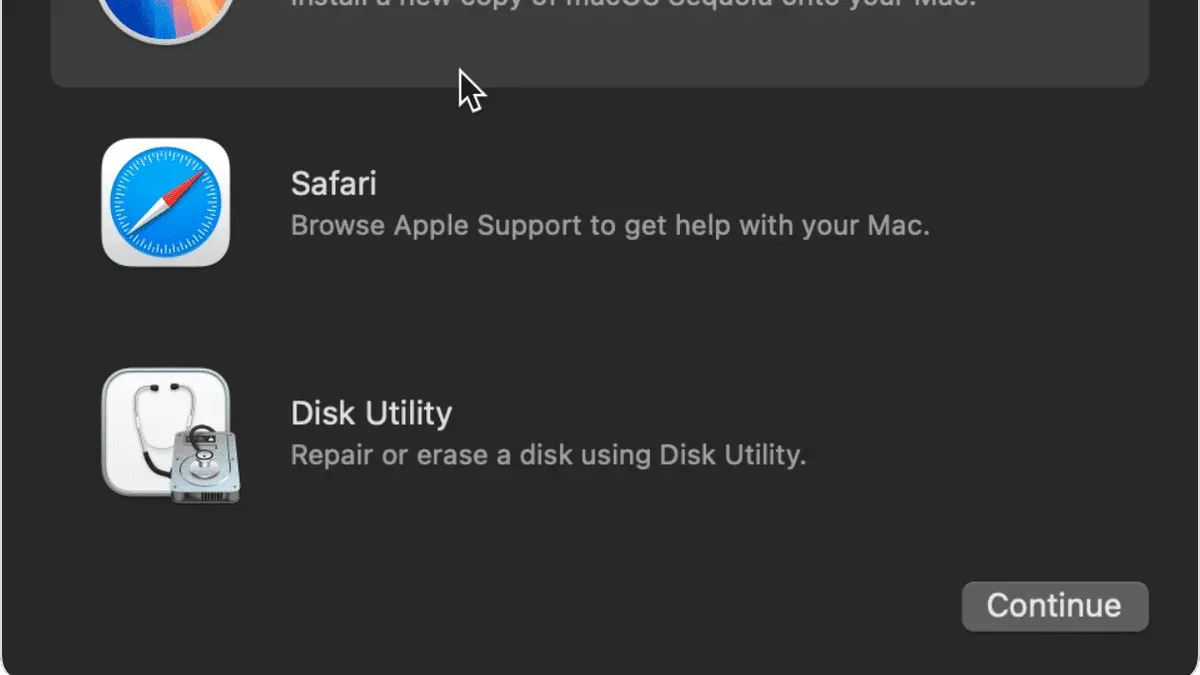
Next, determine if you remember the firmware password. If you do, you can manage it yourself. Boot into macOS Recovery and open the Startup Security Utility or Firmware Password Utility from the Utilities menu to reset or disable the firmware password.
If you have forgotten the firmware password on an Intel Mac, official reset requires an in-person appointment with Apple or an authorized service provider. Prepare your proof of purchase beforehand, as it is mandatory to proceed.
Avoid multiple guessing attempts or using unofficial hacks. These can lock your Mac permanently or cause irreparable harm. There are no supported software or hardware bypasses for recent models beyond what Apple offers.
After resetting or removing the firmware password, verify success by attempting to start from an external device or macOS Recovery. The firmware password prompt should no longer appear, and you can also check the status in the Startup Security Utility.
- Check your Mac type via Apple menu > About This Mac or System Settings > General > About to confirm it is Intel-based.
- If you remember the firmware password, restart into macOS Recovery and open Startup Security Utility to reset or disable it. Successful change is confirmed when the password prompt no longer appears.
- If you forgot the firmware password, gather your proof of purchase and schedule an in-person Apple service appointment for reset or removal.
- Do not attempt repeated password guesses or unofficial bypasses to avoid permanent lockout or damage.
- After reset or removal, test startup from external media or Recovery to confirm the firmware password is disabled.
- Verify Mac processor type to confirm firmware password availability.
- Use macOS Recovery and Startup Security Utility to reset or disable firmware password if remembered.
- Schedule Apple service with proof of purchase if the firmware password is forgotten.
- Avoid unauthorized hacks or repeated password attempts.
- Test startup from external source to confirm firmware password removal.
- Mac Won't Wake from Sleep: How to Fix It
- How to Fix Your Mac Turning On by Itself
- How to Fix the Circle with Line Through It at Mac Startup
Frequently asked questions
How to recover forgotten password on Mac?
If you forgot the firmware password on an Intel-based Mac, recovery requires official Apple service where proof of ownership is necessary. For user account passwords, macOS offers recovery options like using your Apple ID or recovery key. Firmware passwords cannot be recovered by software means on Apple silicon Macs as they do not support firmware passwords.
How to reset forgotten password Mac?
Resetting a forgotten firmware password is only possible on Intel Macs through Apple's authorized service. If you remember the firmware password, you can use Startup Security Utility in macOS Recovery to reset it. For user account passwords, resetting can be done via macOS Recovery using the Reset Password assistant.
How to change Mac password if forgotten?
Changing a forgotten user account password is different from firmware passwords. You can reset it by booting into macOS Recovery and selecting the Reset Password option. Firmware passwords require a different process and cannot be changed without the original password or Apple service support.
Steps to resolve a forgotten firmware password on your Mac
Documentation used
- Set a firmware password on your Mac - Apple Support — Apple Support
- Forgot a Mac Firmware Password? Don't Panic, Here's What To Do - OS X Daily — OS X Daily
- What to do if you have forgotten your Mac's firmware password — Soy de Mac
- Forgot Mac Firmware Password? Official Apple Fixes and Next Steps — CloudsPress



