
How to Fix Your Mac Turning On by Itself
Learn how to fix your Mac turning on by itself by checking scheduled startup settings and diagnosing hardware issues effectively.
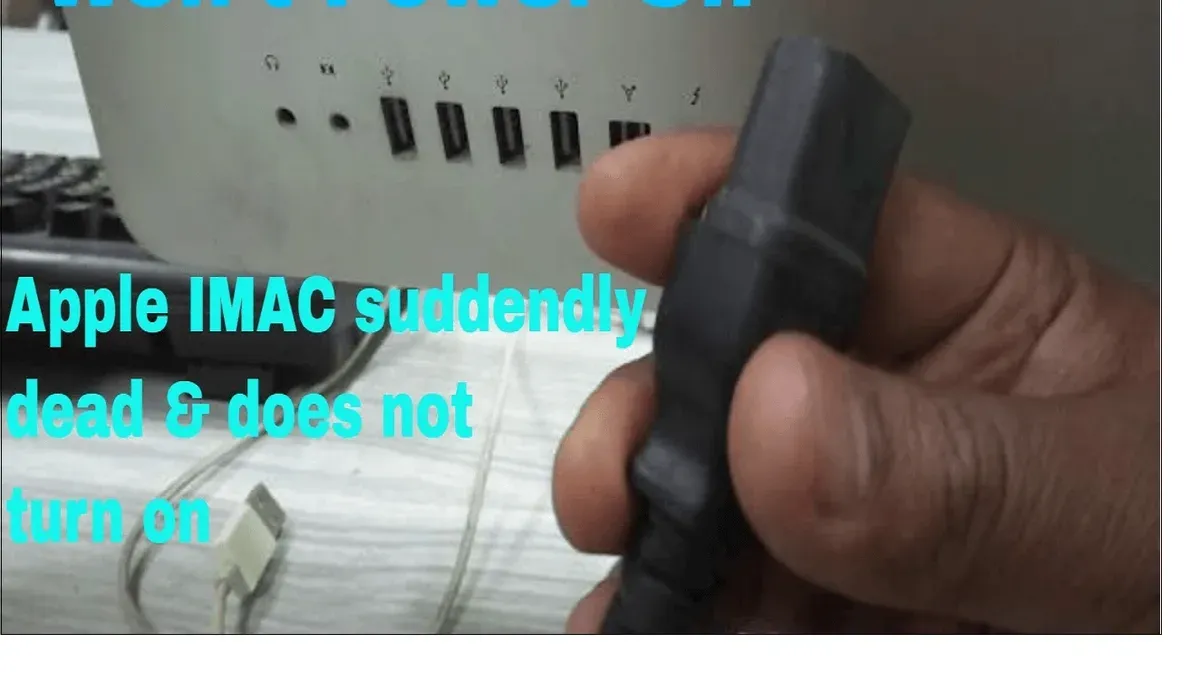
For a reliable Mac turns on by itself fix, start by checking scheduled startup and wake settings under Battery preferences, available in macOS 27.2.1, which supports both Apple silicon and Intel Macs.
Misdiagnosing hardware issues as software glitches leads to wasted time and unresolved problems. Hardware faults such as faulty power adapters or batteries are frequent causes of Macs not turning on at all.
quick overview of Mac turning on by itself
- Confirm if your Mac powers on due to scheduled startup or unexpectedly.
- Check power cables and hardware if the Mac fails to turn on.
- Run Apple Diagnostics to detect hardware issues before seeking professional help.
Settings, menu paths and limits here were checked against Wikipedia, Apple in November 2026.
Identify if your Mac is turning on by itself or failing to turn on
This distinction is crucial for applying the right fix. Automatic startups may result from scheduled settings, while failure to start often indicates hardware or connection issues.
| Symptom | Device Type | What You See or Hear | Key Diagnostic Point |
|---|---|---|---|
| Turns on unexpectedly | Desktop or Laptop | Mac powers up without user action, possibly at scheduled times | Check for scheduled startup or wake settings under Battery preferences |
| Fails to turn on | Desktop | No lights, no sounds, no screen activity after pressing power | Inspect power connections and hardware status |
| Fails to turn on | Laptop | No screen activity, no startup chime or fan noise | Check battery health and power adapter |
- Observe if your Mac powers on without input. You should see the login screen or hear startup sounds if it starts automatically.
- If your Mac stays off, press the power button and watch for any lights, sounds, or screen changes indicating startup.
- Identify your Mac model as desktop or laptop to guide troubleshooting steps.
- Review Battery preferences for any scheduled startup or wake times that may explain automatic power-ons.
- Note any absence of visual or audio signs when attempting to start, which suggests hardware or power issues.
Disable scheduled startup and wake settings to stop automatic power-ons
If your Mac powers on by itself but otherwise operates normally, scheduled startup or wake settings may be triggering these automatic power-ons. These settings reside within macOS preferences and can be adjusted or disabled to prevent your Mac from starting without your input.
- Open System Settings and select Battery from the sidebar. On desktop Macs without batteries, look under Energy Saver.
- Scroll to the bottom and click Schedule to view any configured startup or wake times.
- If you see any scheduled events such as "Start up or wake" or "Sleep", disable them by unchecking the boxes or deleting the scheduled times.
- Close System Settings and observe if your Mac still powers on automatically at the previously scheduled times.
Laptop and desktop Macs display this scheduling panel differently: laptops list these options under Battery preferences, while desktops present them in Energy Saver. Both support setting specific days and times for automatic startup or wake.
If your Mac fails to turn on or exhibits other hardware symptoms, this step will not resolve those issues.
Check power connections and hardware for Macs that won’t turn on
Start by verifying all power cables and adapters connected to your Mac. Look for visible damage such as frayed wires, bent connectors, or discoloration. Ensure every connection is secure, from the wall outlet to the power adapter and the Mac itself.
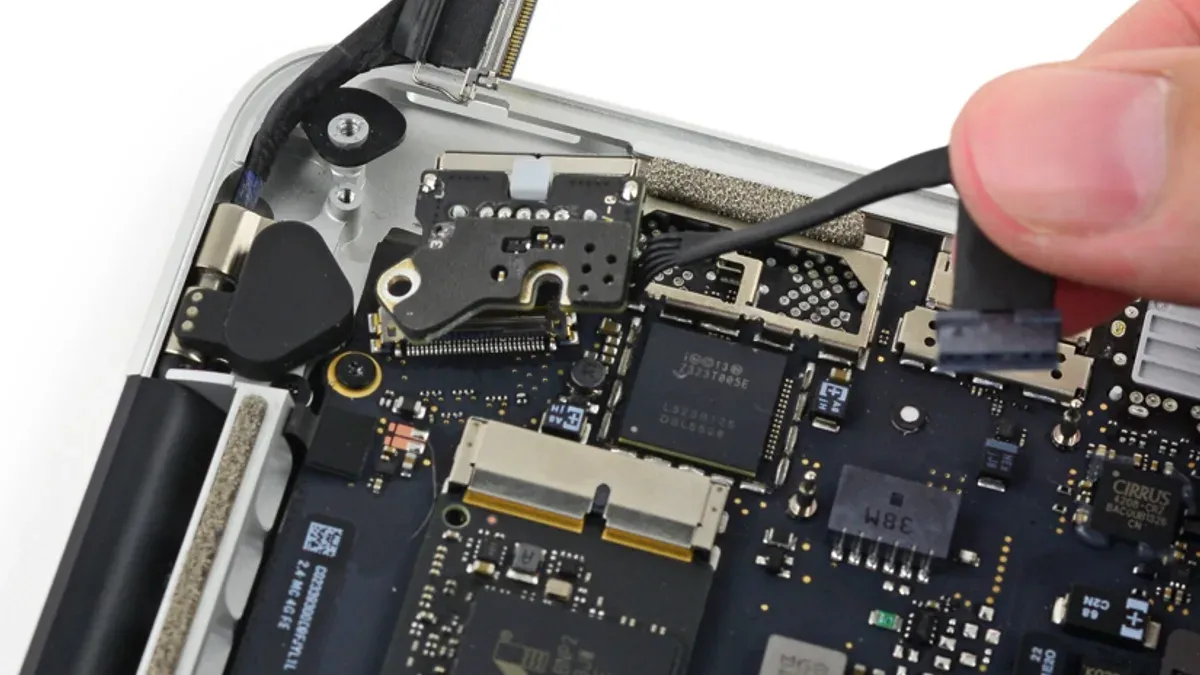
For desktop Macs like iMac, Mac Mini, or Mac Studio, confirm the power cord is firmly plugged into both the Mac and a working outlet. Try a different outlet if unsure. If the Mac still doesn’t show any signs of power, the adapter or internal power supply may be faulty.
Laptop users including MacBook Neo, MacBook Air, and MacBook Pro should check the battery status if possible. A completely drained or defective battery can prevent startup. Connect the charger and observe if the charging indicator lights activate or if the screen shows charging symbols. If not, the charger, cable, or battery may be at fault.
Afterward, reconnect power and attempt to start the Mac. This can clear minor hardware glitches preventing startup.
| Symptom | Likely Cause | Recommended Fix |
|---|---|---|
| No power lights or sounds, no screen activity | Unplugged/loose power cable or faulty power adapter | Check and secure cables; test with known good adapter or outlet |
| Charging light does not turn on on laptop | Defective charger, cable, or battery | Inspect charger and cable; try alternative charger; consider battery replacement |
| Mac shows startup attempt but powers off immediately | Battery failure or internal hardware fault | Run Apple Diagnostics; schedule repair if fault detected |
- Perform a power cycle by disconnecting power and holding the power button
Use Apple Diagnostics to identify hardware faults
Running this tool narrows down hardware faults before seeking repair options.
To launch Apple Diagnostics on Apple silicon Macs, press and hold the power button until startup options appear, then press Command (⌘) + D. For Intel-based Macs, turn on your Mac and immediately hold the D key until the diagnostics screen appears.
When complete, you’ll see a list of any detected issues with reference codes.
| Code | Meaning |
|---|---|
| PFM001 | Logic board problem |
| PPF001 | Power system failure |
| PPF003 | Battery needs service |
| PFR001 | Memory issues detected |
If diagnostics find issues, note the codes and messages. Minor problems may be resolved by resetting power settings or updating software. Hardware faults usually require professional service or Apple Support consultation.
If your Mac does not respond or the tool cannot run, you should verify power connections and consider professional repair options.
Reset power management and related settings for stubborn startup problems
These resets clear certain low-level settings that control how your Mac handles power and hardware initialization.
On Apple silicon Macs, power management is integrated and resets with a simple shutdown and startup sequence. To perform this:
- Completely turn off your Mac and wait at least 30 seconds to ensure all internal components power down.
- Press the power button to turn it back on and immediately press and hold the power button until you see the startup options window, indicating the reset has taken effect.
Intel-based Macs require a specific reset of the parameter RAM (PRAM) and non-volatile RAM (NVRAM), which store power and hardware configuration settings. To do this:
- Shut down your Mac completely.
- Press the power button, then immediately press and hold the Option, Command, P, and R keys simultaneously.
- Keep holding these keys for about 20 seconds. The Mac may restart during this time and you might hear a startup chime or see the Apple logo appear and disappear twice.
- Release the keys and allow the Mac to start normally.
These steps do not erase your data but reset hardware-level settings affecting startup behavior. They only apply if your Mac shows signs of powering on or hardware activity; if it remains completely unresponsive, hardware repair or diagnostics are needed. Note that resetting power management on Apple silicon and resetting NVRAM/PRAM on Intel Macs are distinct processes reflecting their different architectures.
- Follow the appropriate reset steps for your Mac’s processor type
- Confirm the Mac displays expected startup indicators after reset
Prevent your Mac from turning off unexpectedly
Begin by reviewing the Energy Saver or Battery preferences. Set sleep timers to reasonable intervals and disable any automatic power-off options that may trigger shutdowns when your Mac is idle.
Next, inspect running applications and background processes. Some apps can cause your Mac to shut down if they crash or trigger system faults. Use Activity Monitor to identify apps using disproportionate CPU or memory. Quitting or updating these apps can enhance stability.
Keeping your macOS updated is essential. The latest release, macOS 27.2.1, supports both Apple silicon and Intel Macs and includes important bug fixes that address shutdown and power management issues. Regularly check for updates to benefit from these improvements.
- Open Battery or Energy Saver preferences and adjust sleep and power-off settings to match your usage; confirm the Mac remains active without unexpected shutdowns.
- Launch Activity Monitor, sort processes by CPU and memory usage, and quit any unresponsive or heavy apps; verify the Mac stays powered on during typical use.
- Check for macOS updates in System Preferences and install the latest available version; after updating, monitor your Mac for stability improvements.
- Adjust sleep and power-off settings to prevent automatic shutdowns
- Identify and quit resource-heavy or unstable apps
- Keep macOS updated to the latest version for stability fixes
How to confirm your fixes worked
Testing over an extended period is key to confirming that the issue is resolved.
- Leave your Mac powered off overnight or during its usual downtime. If you disabled scheduled startup or wake times, it should remain off without powering on automatically.
- Observe your Mac during the next usual startup times. It should start normally without unexpected delays, error messages, or failure to power on.
- If you performed hardware inspections, power cycling, or diagnostics, verify that your Mac responds consistently to manual startup commands without shutting down unexpectedly or failing to start.
- Continue monitoring your Mac for at least a few days to ensure no recurrence of automatic powering on or startup failures.
- If the Mac remains stable, you may re-enable any temporarily disabled settings one at a time to confirm which fix resolved the problem.
This process confirms whether disabling scheduled power-ons or addressing hardware issues has restored normal operation. Consistent behavior over time is your best evidence.
When to seek professional repair or Apple Support
If your Mac fails to turn on after checking all power connections and performing a power cycle, it is time to consider professional help. Persistent inability to power on often signals hardware faults that cannot be resolved through basic troubleshooting.
Common hardware failure symptoms include a completely unresponsive Mac with no signs of power, repeated startup failures despite resets, or error codes revealed by Apple Diagnostics indicating component issues. These symptoms point to problems such as logic board damage, power supply faults, or battery failure that require expert diagnosis and repair.
Before visiting a technician or Apple Support, prepare by running Apple Diagnostics to identify any hardware error codes. Note these codes and any unusual behavior you observed, as this information will streamline the support process. Also, back up your data if the Mac still powers on intermittently, to prevent data loss during repair.
- Run Apple Diagnostics by starting your Mac and following prompts to identify hardware errors. Successful completion produces error codes or a confirmation of no faults.
- Document any error codes or unusual symptoms for reference during support or repair.
- Contact Apple Support or an authorized repair provider with your findings and warranty information to arrange professional service.
- Run Apple Diagnostics and record any error codes.
- Back up important data if possible.
- Contact Apple Support or authorized repair service with your documentation.
Summary checklist: key steps to fix Mac turning on by itself or not turning on
- Identify your Mac’s symptom type: determine if it powers on automatically due to a scheduled event or fails to start entirely. This distinction guides your next steps effectively.
- Disable scheduled startup and wake settings: in Battery preferences (or Energy Saver on some models), turn off or adjust any scheduled power-on or wake times. The Mac should no longer start by itself if this was the cause.
- Check power connections and hardware: ensure all cables are firmly connected and the power adapter is functioning. For laptops, verify battery health. A successful check means your Mac receives stable power and no visible hardware faults.
- Run Apple Diagnostics: use this tool to detect hardware issues that could prevent startup or cause unexpected power-ons. Note any error codes and follow recommended actions.
- Reset power management settings: reset power-related configurations (including NVRAM/PRAM) appropriate to your Mac’s processor type to resolve persistent startup problems. Your Mac should respond normally to power commands afterward.
- Monitor your Mac’s behavior after fixes: observe if it remains off when expected and starts only when you initiate it. Check over several days to confirm stability and that no unexpected startups occur.
- Decide on professional repair if problems persist: if your Mac remains unresponsive or hardware diagnostics indicate faults, seek help from authorized service providers or Apple Support.
Essential steps to resolve Mac powering issues
Starting with a clear identification of whether your Mac powers on automatically or fails to start is crucial. This step guides all others and prevents misdiagnosis. Disabling scheduled power events in Battery preferences often resolves unintended startups. If your Mac fails to turn on, checking the power connections and running diagnostics reveals hardware issues that need addressing. Resetting power management parameters can clear stubborn settings causing power anomalies. After completing these actions, observe your Mac’s behavior over several days to ensure stability. If problems continue, professional service is the appropriate next move. This sequence balances software and hardware approaches to effectively tackle the problem.
Sources checked
- macOS - Wikipedia — Wikipedia
- Mac — Apple
- Mac (computer) - Wikipedia — Wikipedia



